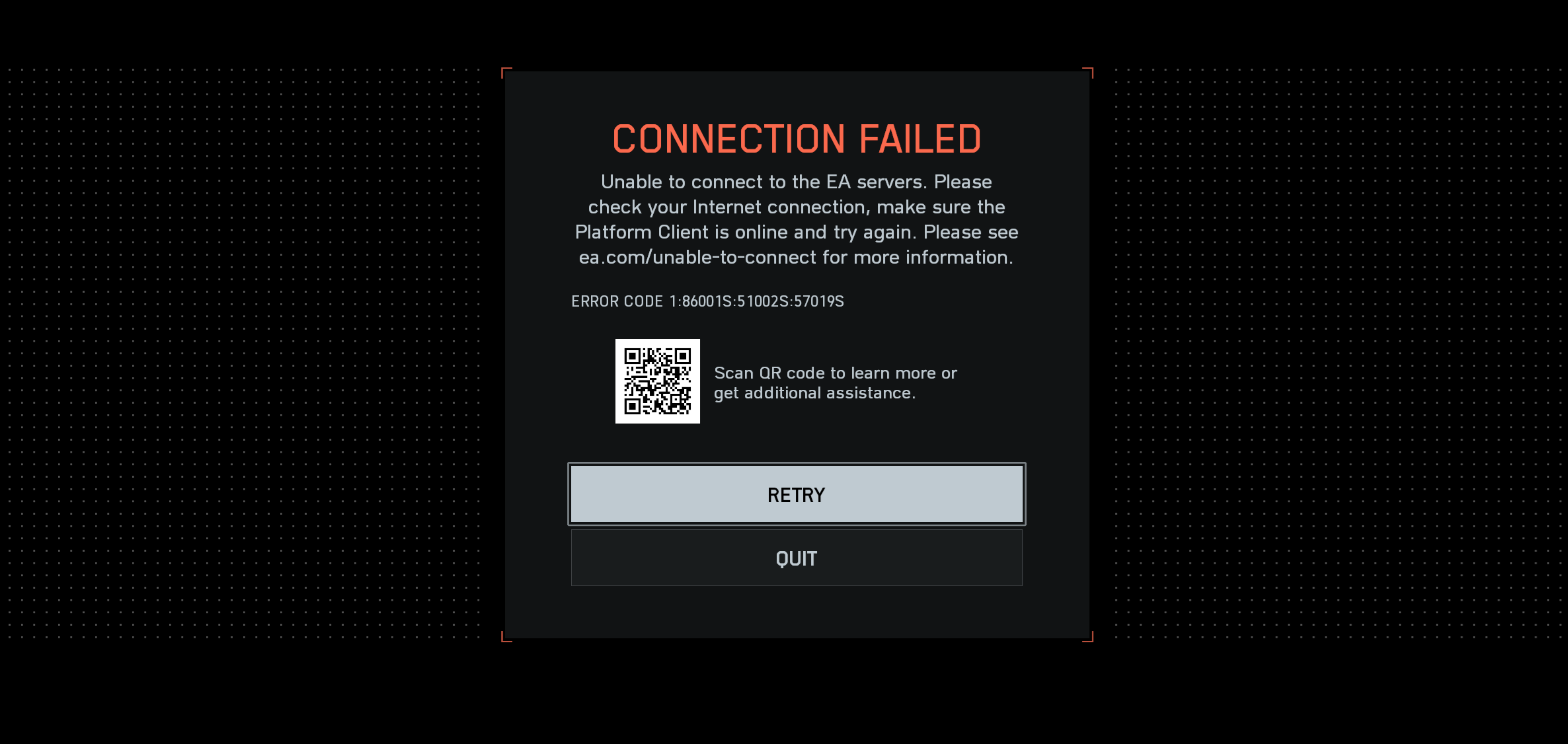
Battlefield 6 campaign mode requires a stable online connection, and connection issues often stem from server overload or network problems.
What to know
- Battlefield 6 campaign mode needs an active internet connection to play.
- Connection errors are often caused by server congestion or EA server issues.
- Restarting the game, router, or changing DNS settings can help resolve connection failures.
- Checking EA server status or official Battlefield communications is advised before troubleshooting.
Battlefield 6 has an online-only campaign mode, meaning access requires a persistent internet connection. Those encountering “unable to connect” or “Connection lost” errors in the campaign usually face server congestion or connectivity problems with EA’s servers.

Why Battlefield 6 campaign needs internet connection
Unlike some single-player games that work offline, Battlefield 6’s campaign mode is online-only. This design likely supports features such as monitoring player rewards, syncing progress, and preventing cheating. Due to this, a stable internet connection is essential; without it, attempting to play the campaign leads to “connection lost” or failed connection errors during cutscenes or mission loading.
Common reasons for Battlefield 6 campaign connection failures
Several issues can trigger connection errors for Battlefield 6 campaigns:
- Server congestion: High player volume can overload EA servers, especially after updates, causing queues or disconnections.
- EA server downtime or maintenance: Scheduled or unexpected outages happen occasionally; checking EA’s official server status can confirm this.
- Local network problems: Weak WiFi, router issues, or ISP interruptions can cause timeouts or failed connections.
- Firewall or VPN interference: Security settings and VPNs might block the game’s connection to EA servers.
How to troubleshoot and fix Battlefield 6 campaign connection issues
Try these steps to resolve connection problems:
Step 1: Check EA server status and official updates
Before troubleshooting, verify if EA servers are online via their website or Battlefield social media channels. Server problems affect many players, so waiting might be necessary.
Step 2: Restart game, PC and network devices
Close Battlefield 6 and the launcher (Steam or EA app), then restart the game. Also, restart the PC, modem, and router to refresh the network connection.
Step 3: Switch to a wired connection if possible
Using Ethernet over WiFi reduces connection interruptions and latency issues.
Step 4: Change DNS settings for better connectivity
Manually configure DNS to use alternatives like Cloudflare’s 1.1.1.1 and 1.0.0.1 can improve network routing:
- Open network connection properties.
- Edit IPv4 settings and set DNS to 1.1.1.1 (primary) and 1.0.0.1 (secondary) – Go to Network & internet settings > Your connection (WiFi or Ethernet) > Click on ‘Edit’ next to DNS server assignment. Then change the settings as shown below.

- Flush DNS cache with the command
ipconfig /flushdnsin an admin command prompt.

- Restart and retry the game.
Step 5: Review firewall and VPN settings
Ensure the game is allowed through firewalls and disable VPNs during gameplay to avoid connection blocks.
- For this, open Windows Firewall.
- Click on “Allow an app or feature through Windows Defender Firewall” on the left.

- Click Change settings.

- Then find Battlefield 6 and EA app and make sure there is a tick next to them. Click OK to confirm.
Expect server queues and patience during peak times
Battlefield 6 launch and major updates trigger huge player logins causing queue times before entering matches. Campaign access may also be affected during these peak moments, requiring patience while servers handle demand.