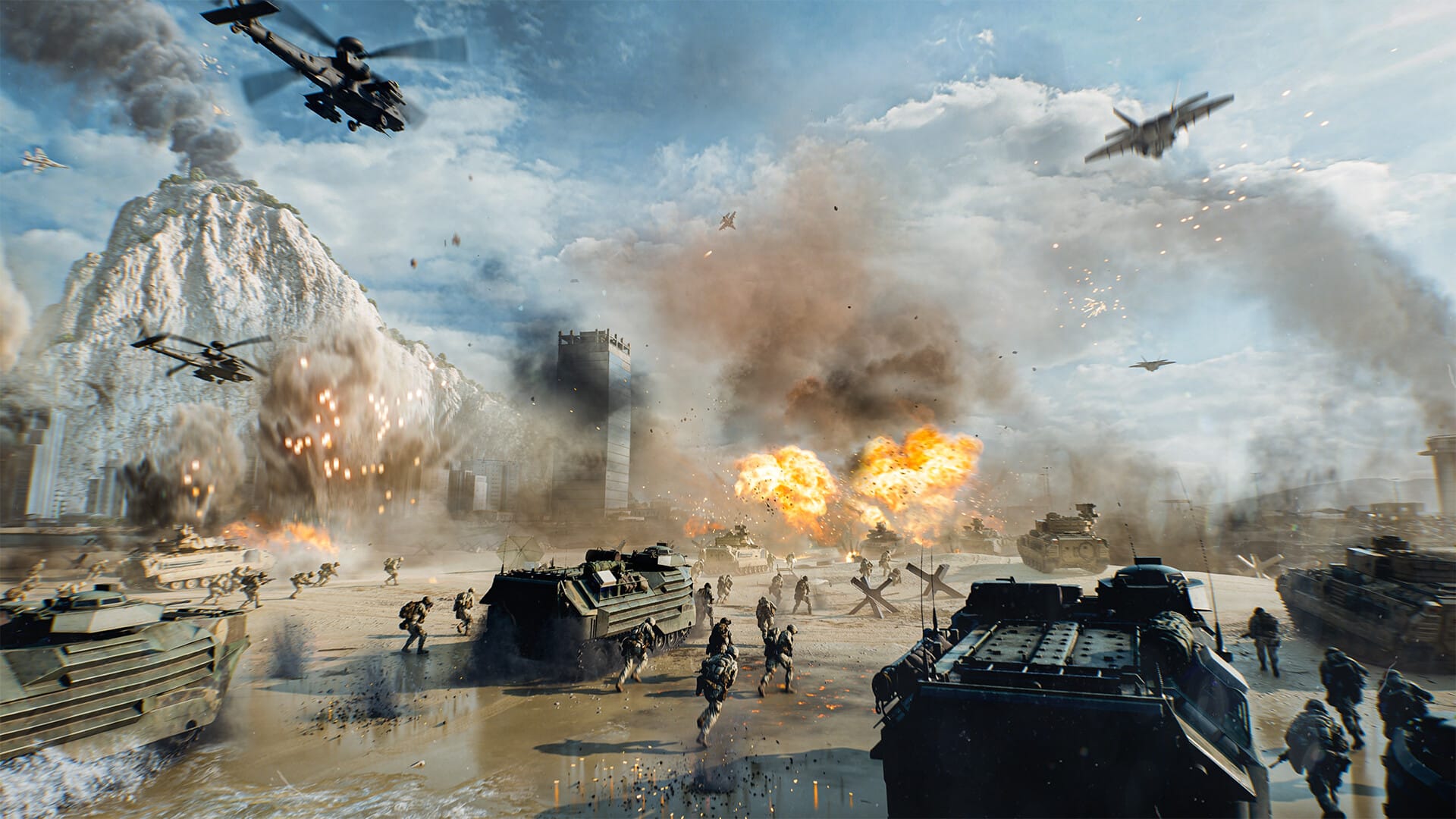
Battlefield 6’s graphics settings can make or break your gameplay. The key is finding the right balance between sharp visuals and consistently smooth performance.
Battlefield 6 runs on an upgraded Frostbite engine, designed for high scalability across hardware. The developers at DICE confirmed that the game does not feature ray tracing, ensuring better optimization for most systems. This choice allows higher frame rates and faster performance, even on mid-tier GPUs.
With multiple presets—Low, Medium, High, Ultra, and Overkill—players can easily start tuning visuals. However, using a Custom setup provides the best balance, especially for competitive gameplay where every frame matters.
Benchmarks show that most modern GPUs (RTX 3060 or above) can hit 60–120 FPS at 1080p and 1440p when settings are optimized. Using upscaling tools like DLSS, FSR, or XeSS can further boost FPS without losing visual quality.
Best graphics settings for Battlefield 6
Display and general settings
| Setting | Recommended Value | Why it Matters |
|---|---|---|
| Display Mode | Fullscreen | Best for performance and lower input lag |
| Refresh Rate | Match your monitor’s max | Ensures smooth gameplay |
| VSync | Off | Reduces input delay |
| Frame Rate Limit | Equal to or slightly below your monitor’s refresh rate | Stabilizes frame delivery |
| Resolution Scale | 100% | Keep native resolution for sharper image |
| Upscaling (DLSS/FSR) | Quality or Balanced | Increases FPS with minimal blur |
| Frame Generation (MFG) | Optional | Boosts FPS but can add latency—test before enabling |
Visual and camera settings
| Setting | Recommended Value | Benefit |
|---|---|---|
| Field of View (FOV) | 100–110 | Wider vision for spotting enemies |
| Vehicle FOV | 80–85 | Balanced peripheral view in vehicles |
| Weapon FOV | Wide | Reduces gun model size for better visibility |
| Motion Blur (World/Weapon) | Off | Improves clarity during fast movement |
| Camera Shake | 20 or less | Reduces visual distractions |
| Chromatic Aberration | Off | Removes unnecessary visual distortion |
| Vignette | Off | Keeps screen edges clear |
| Film Grain | Off | Improves image sharpness |
These tweaks provide the cleanest view possible, helping spot enemies faster in chaotic combat.
Optimized graphics quality settings
| Setting | Recommended Value | Performance Impact |
|---|---|---|
| Texture Quality | High | Minimal FPS cost, keeps world detailed |
| Texture Filtering | High | Improves clarity on angled surfaces |
| Mesh Quality | Low | Reduces detail on distant objects |
| Terrain Quality | Medium | Balanced detail for landscapes |
| Undergrowth Quality | Low | Fewer bushes and grass render faster |
| Effects Quality | Low | Lighter explosions, higher FPS |
| Volumetric Quality | Low | Greatly reduces fog/light overhead |
| Lighting Quality | Low | Cuts shadow complexity |
| Local Light Shadows | Low | Less GPU load from dynamic shadows |
| Sun Shadow Quality | Low | Boosts FPS in open maps |
| Shadow Filtering | PCF | Balanced shadow smoothness |
| Reflections | Low | Removes costly real-time effects |
| Screen Space Reflections | Off | Negligible visual difference, large FPS gain |
| Post Processing | Low | Reduces bloom and glare |
| Ambient Occlusion / GI | Off | Subtle visual effect, heavy performance hit |
| High Fidelity Objects | Medium | Keeps near objects sharp, limits distant detail |
These values provide a competitive setup—clear visuals, smoother motion, and stable frame rates.
How to fine-tune Battlefield 6 graphics step by step
Step 1
Start with the High preset and turn on the Performance Overlay to track FPS in real-time.
Step 2
Lower heavy-impact settings first: Reflections, Volumetrics, Lighting, and Post Processing. Test FPS after each change.
Step 3
Enable DLSS or FSR in “Quality” mode. If FPS remains low, switch to “Balanced” or “Performance” mode.
Step 4
Disable visual clutter like Motion Blur, Film Grain, and Chromatic Aberration for sharper visuals.
Step 5
Gradually adjust visual quality upward (e.g., Terrain or Texture Quality) until FPS stabilizes near your target.
Step 6
Once satisfied, cap FPS slightly below your monitor’s refresh rate for smooth performance without GPU overheating.
Example settings by GPU tier
| GPU Category | Resolution | Target FPS | Suggested Preset |
|---|---|---|---|
| Entry (RTX 3060, RX 6600) | 1080p | 60–90 FPS | Medium/High + DLSS Quality |
| Midrange (RTX 4070, RX 7700) | 1440p | 100–144 FPS | High + DLSS/FSR Balanced |
| High-End (RTX 4080+, RX 7900 XTX) | 4K | 120–160 FPS | Ultra/Overkill + DLSS Quality |
| Ultra Enthusiast (RTX 4090) | 4K | 160 FPS+ | Overkill + Frame Gen |
Even at Ultra, disabling reflections, AO, and motion blur gives a noticeable performance uplift without hurting visuals.
Battlefield 6 rewards players who prioritize performance over visual excess. Reducing unnecessary post-processing and turning off distracting effects makes enemies easier to spot and the experience much smoother. The game’s optimization ensures that with the right combination of settings and upscaling, even mid-tier GPUs can deliver premium visuals at high frame rates.
Take time to test settings one by one. Once your FPS is consistent and visuals look clean, you’ve hit the perfect Battlefield 6 setup.