What to know
-
“Releasing Resources” typically means the launcher is unpacking or applying downloaded data, and it can stall if it can’t write to folders correctly.
-
Admin-permission fixes are a common solution on PC, especially when the progress sits at 0% for a long time.
-
Clearing cache/temp data can remove a ‘bad’ partial state that keeps re-triggering the stuck screen.
-
If nothing changes after multiple attempts, verifying files or a clean reinstall is the reliable last resort.
The “Releasing Resources” screen while playing Arknights: Endfield can look like a hard freeze. But in many cases it’s a recoverable launcher state rather than a permanent account problem. Below is a practical, step-by-step fix flow you can run top to bottom, stopping as soon as the issue clears.
| Item | What you do | Why it helps |
|---|---|---|
| Quick restart loop | Fully close launcher/game and reopen a few times | Can kick a stalled release/unpack task into continuing. |
| Run as admin | Set both launcher and game EXE to run as administrator | Fixes blocked writes/permission issues that can stall “Releasing Resources.” |
| Verify/repair | Use the platform/launcher “verify” option | Repairs corrupted or incomplete downloads. |
| Clear cache/temp | Delete temporary/cache folders or use an in-launcher clear option (if present) | Removes stuck state data and forces clean rebuild. |
| Reinstall (last) | Uninstall, remove leftover folders, reinstall | Resets everything if the install is irreparably inconsistent. |
Why the “Releasing Resources” screen gets stuck
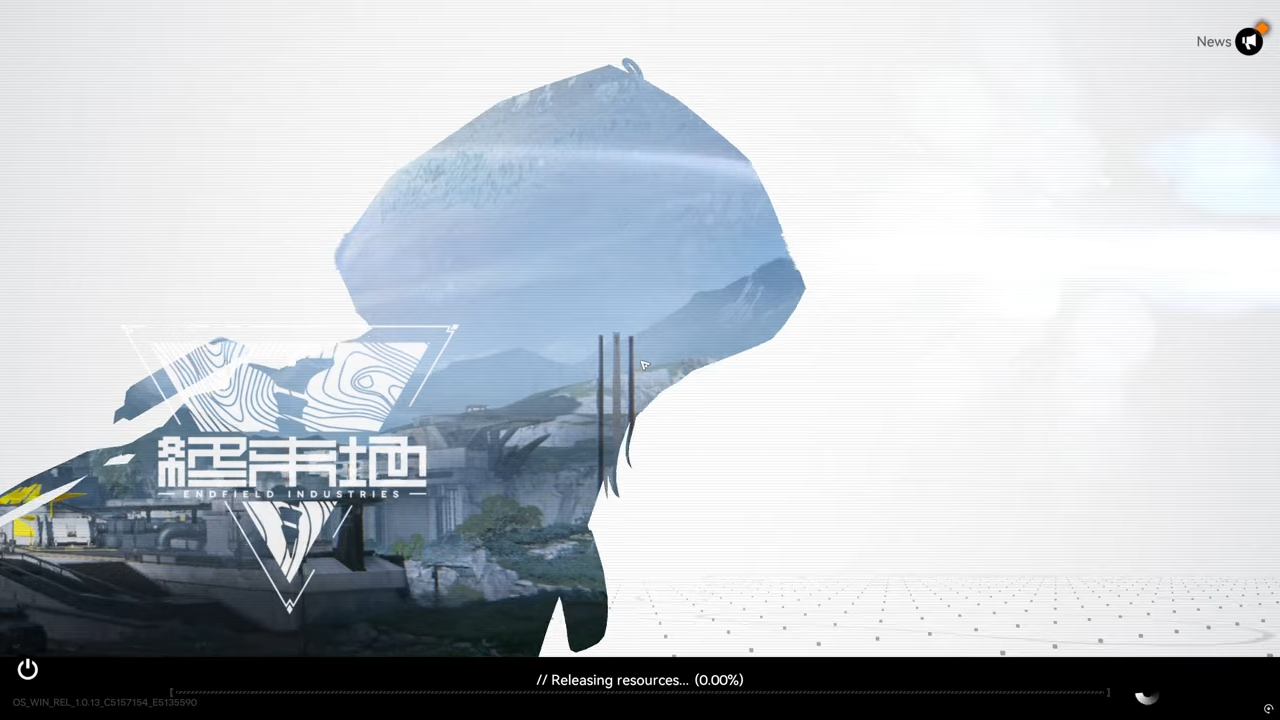
This step commonly fails when the game can’t finalize downloaded files (permissions), when temporary data becomes inconsistent (cache), or when the downloaded package is incomplete/corrupt (needs verification/repair).
How to fix “Releasing Resources” stuck on PC
Step 1: Wait for a short time, then hard-exit properly
If the screen hasn’t moved at all, give it a strict window (for example 10–15 minutes) and then fully close the game and launcher (use Task Manager if needed) before relaunching.
Step 2: Restart the launcher a few times
Close the launcher completely and relaunch it, repeating a few times if needed; this can re-trigger the resource finalize step cleanly.
Step 3: Run the launcher and game as administrator
Set both the launcher executable and the game executable to “Run as administrator,” then try launching again, since permission issues are a known cause of this specific hang.
Step 4: Verify/repair game files
Use the launcher verify/repair feature and let it finish, because a corrupted or partial download can keep “Releasing Resources” stuck at 0%.
Step 5: Clear cache and temporary files
Clear the game’s cache/temp data (either via launcher options if available, or by deleting cache folders in the game directory) to remove any stuck “release” state.
Step 6: Restart your PC (if you’ve tried multiple launches)
A full reboot clears locked file handles and background processes that can prevent the resource step from writing or replacing files.
Step 7: Ensure you have enough free storage space
Make sure there’s comfortable free space available (not just the bare minimum), because the release/unpack step needs room for temporary extraction and file swaps.
Step 8: Reinstall as the last resort (clean)
Uninstall, then remove leftover folders (so you don’t keep the same broken cache state), and reinstall fresh if verification and cache clearing don’t resolve it.
How to fix it on mobile (if your build shows the same symptom)
Step 1: Force close, then relaunch
Force stop the app, then reopen it to retry the finalize step from a clean app state.
Step 2: Clear cache
Clear the app cache to remove temporary data that can trap the game in a loop on startup.
Step 3: Update the game and OS
Install pending updates, since stability fixes and patch-level mismatches can cause startup workflows to fail.
Step 4: Reinstall if the problem persists
If the issue keeps returning after cache clears, reinstalling is the most reliable reset for broken local data.
If this happened once, keeping admin permissions consistent, avoiding abrupt shutdowns during downloads, and using verify/repair after interrupted patches helps prevent repeat stalls during resource finalization.