What to Know
-
The launcher includes a built-in toggle to manage its startup behavior, meaning you do not need to navigate through Windows system menus.
-
Disabling this feature helps reduce the number of active processes during boot-up, which can lead to a faster login experience.
-
Even when auto-launch is disabled, the launcher will still function normally whenever you open it manually to play.
By default, the Arknights Endfield launcher opens automatically at startup. To keep this from happening every time you boot up your computer, you can adjust the settings directly within the GRYPHLINK interface.
How to disable Auto-Launch in Settings
You can manage this preference by accessing the internal launcher configuration:
Step 1
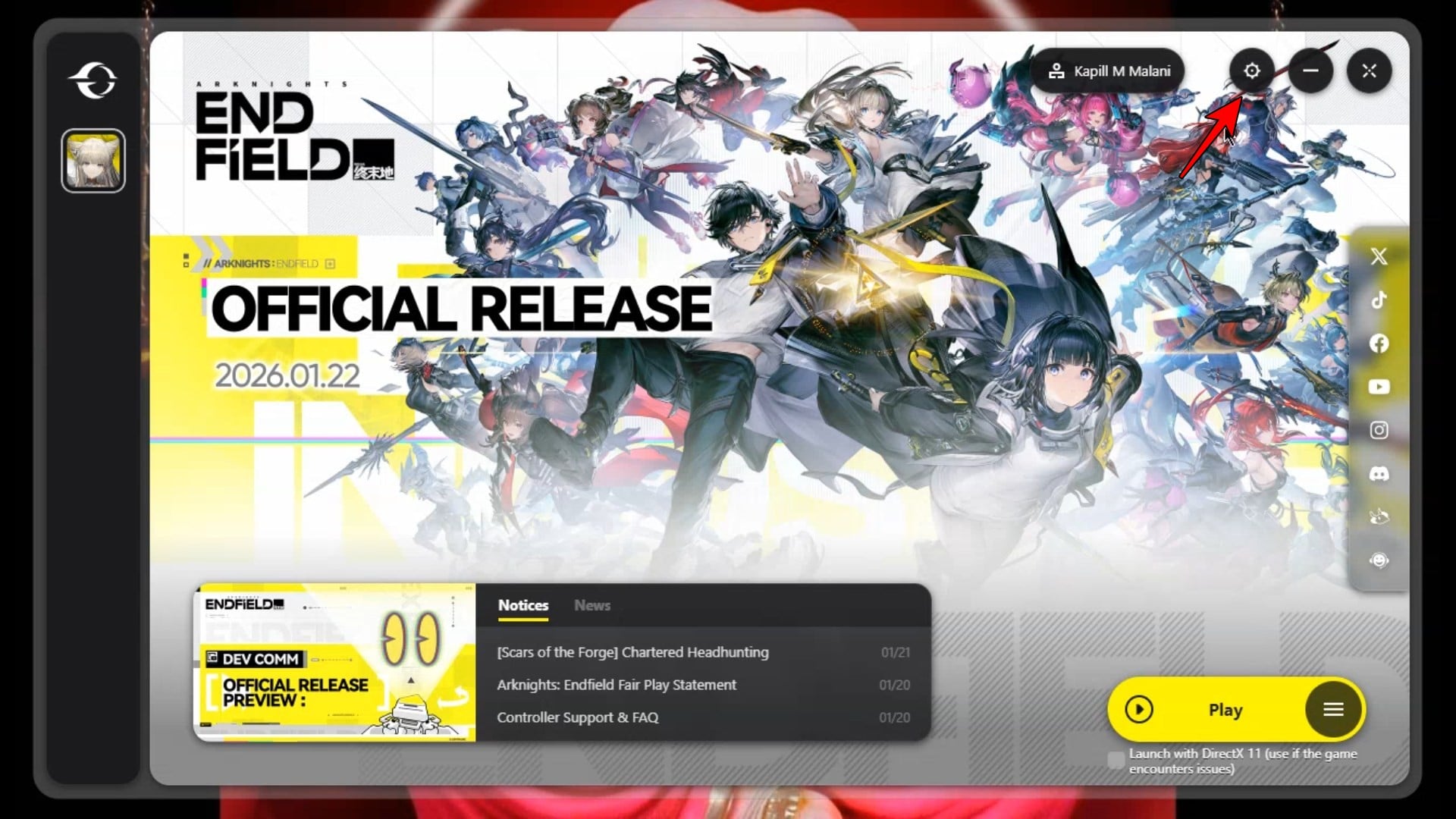
Open the GRYPHLINK launcher and click on the gear icon in the top right corner to access Settings.
Step 2
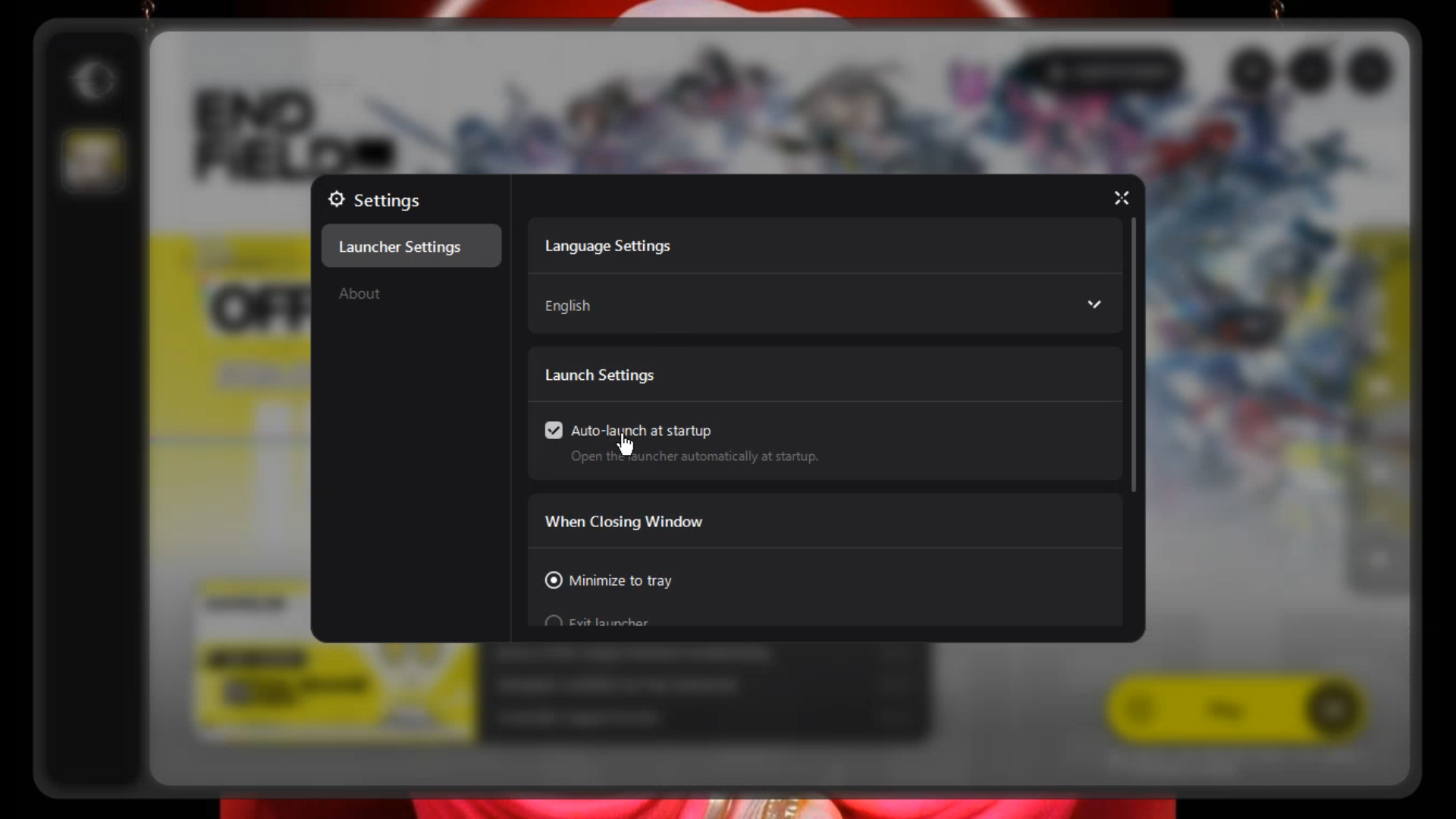
Select the Launcher Settings tab from the menu on the left side of the window.
Step 3
Under “Launch Settings section”, uncheck the box that says Auto-launch at startup.
Disabling the auto-launch feature in the GRYPHLINK settings is an efficient way to keep your PC startup clean and ensure Arknights Endfield only runs when you want it to.