What to know
-
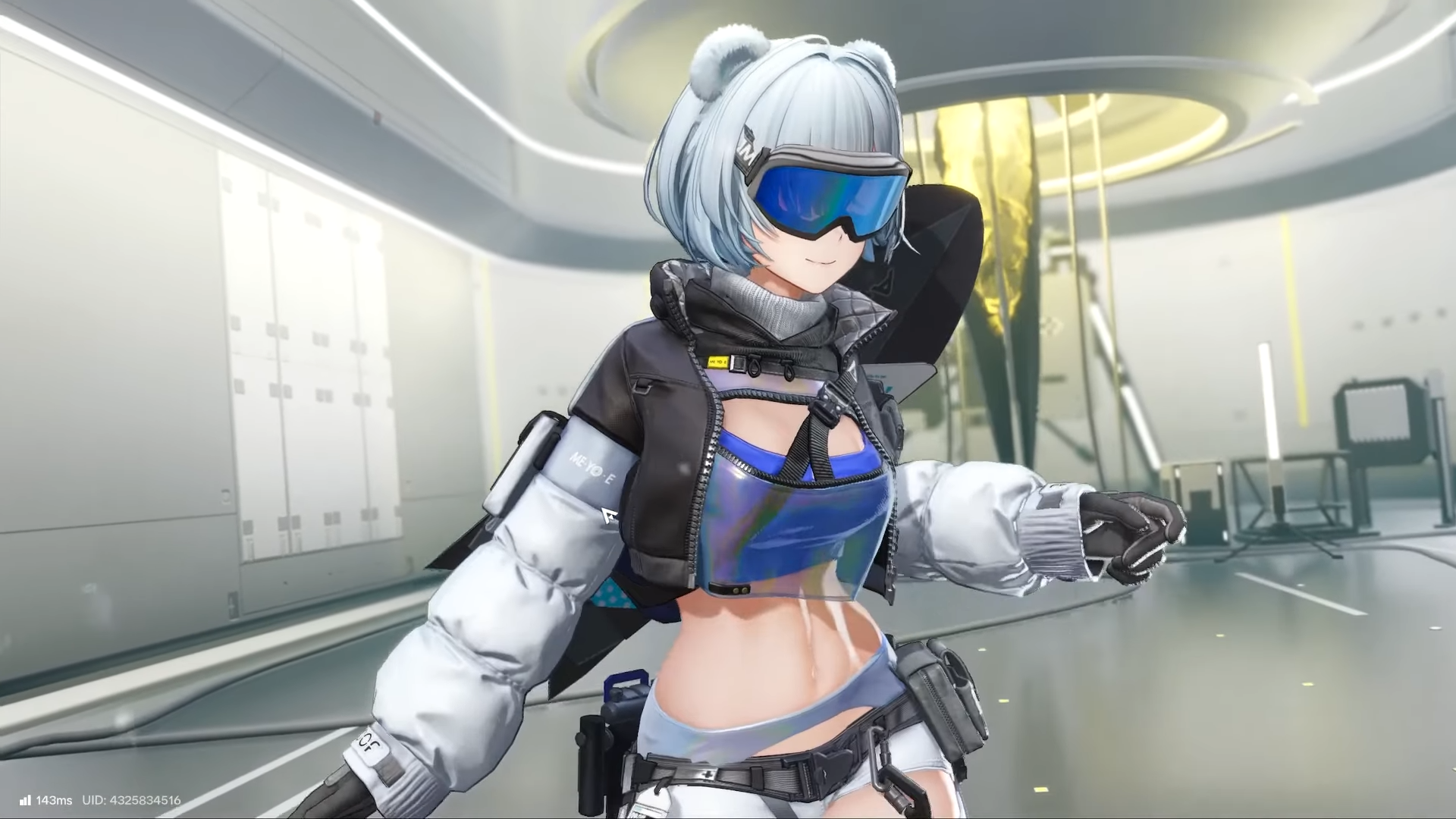
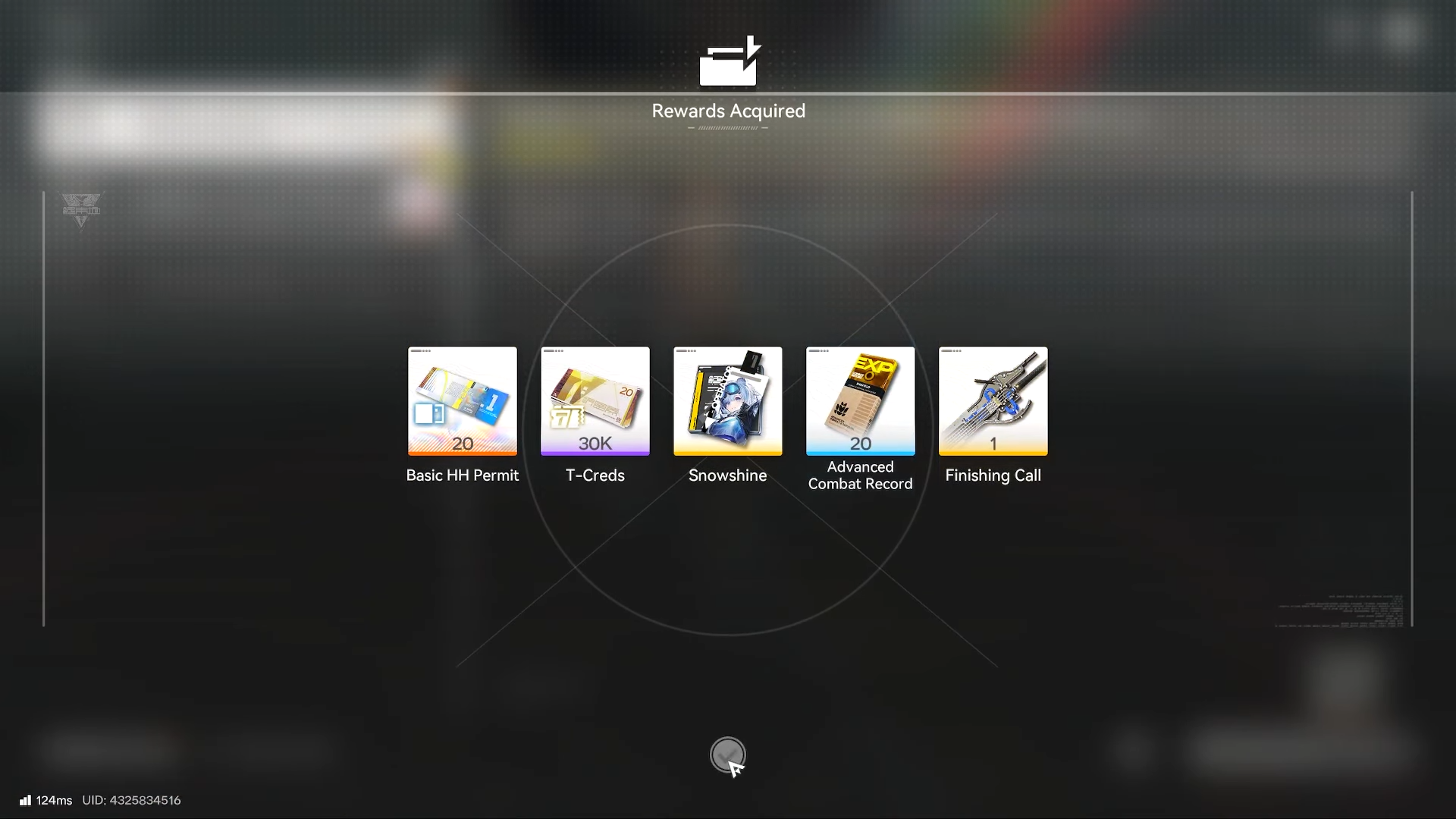
Snowshine is a free 5-star Operator delivered through in-game Mail after you unlock the Mail feature.
-
Her free 5-star Greatsword, Finishing Call, is claimed from the same Mail reward.
-
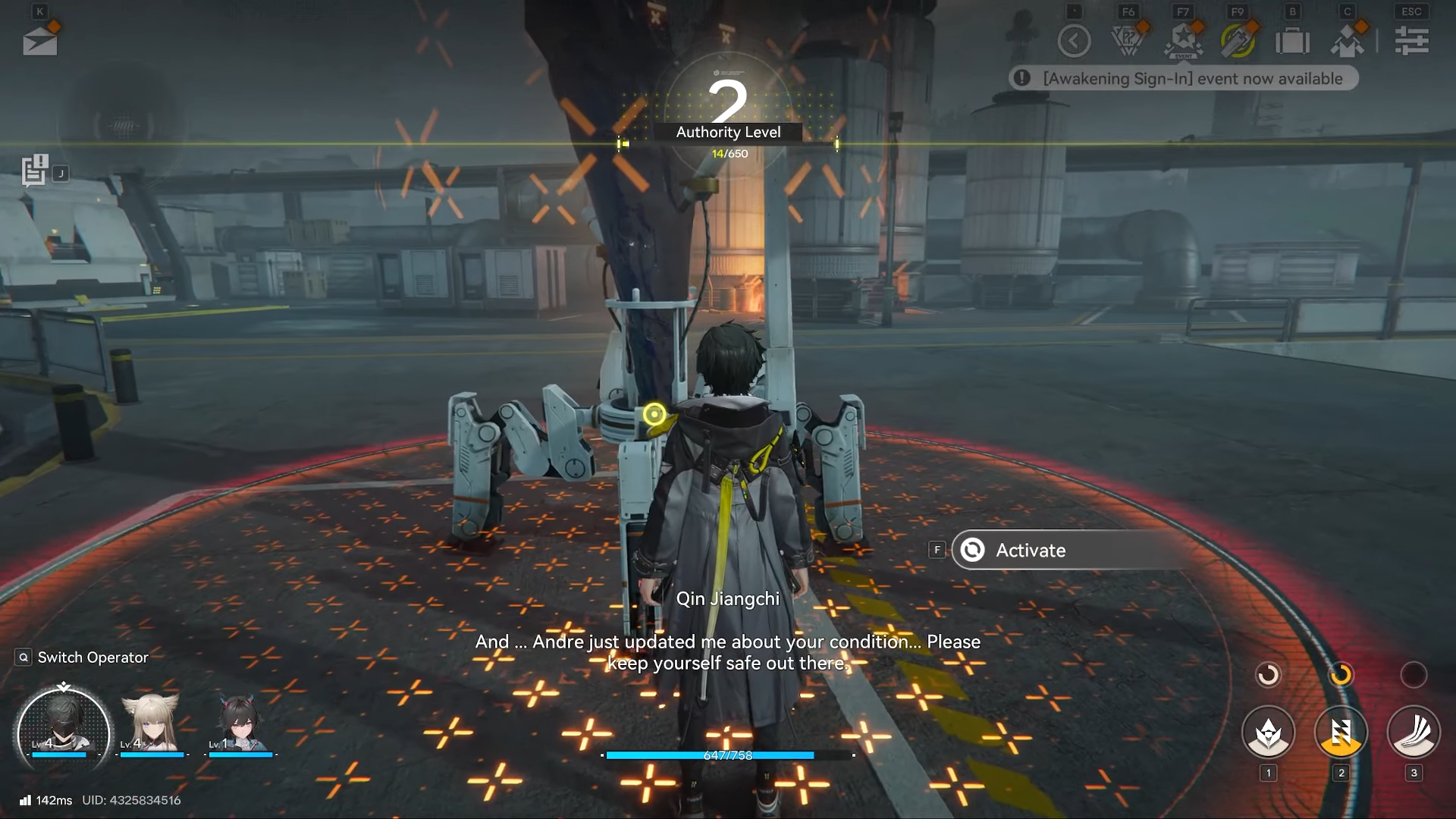
In the early tutorial flow shown, you reach a beacon, hit level 2, then open Mail to claim everything.
-
After claiming, you can add Snowshine to your squad from the team/character menu and equip Finishing Call from her weapon slot.
In Arknights: Endfield, once you hit the point where the game lets you access Mail, you can essentially pick up and play Snowshine by claiming, slotting her into your team, and immediately equipping her 5-star Greatsword so she’s ready for combat. Here’s how to do so.
| Topic | Quick details |
|---|---|
| What you’re getting | 5-star Operator Snowshine + 5-star Greatsword Finishing Call. |
| Where it comes from | Delivered via in-game Mail after Mail is unlocked. |
| When you can claim it | After progressing to the point shown where you reach the beacon and level up to level 2 (early tutorial progression). |
| Core actions | Open Mail → claim reward → add Snowshine to squad → equip Finishing Call. |
How to get Snowshine from Mail
Step 1
Progress until you reach the point in early gameplay where you arrive at the beacon and level up to level 2, since this is when Mail access becomes relevant in the flow shown.
Step 2
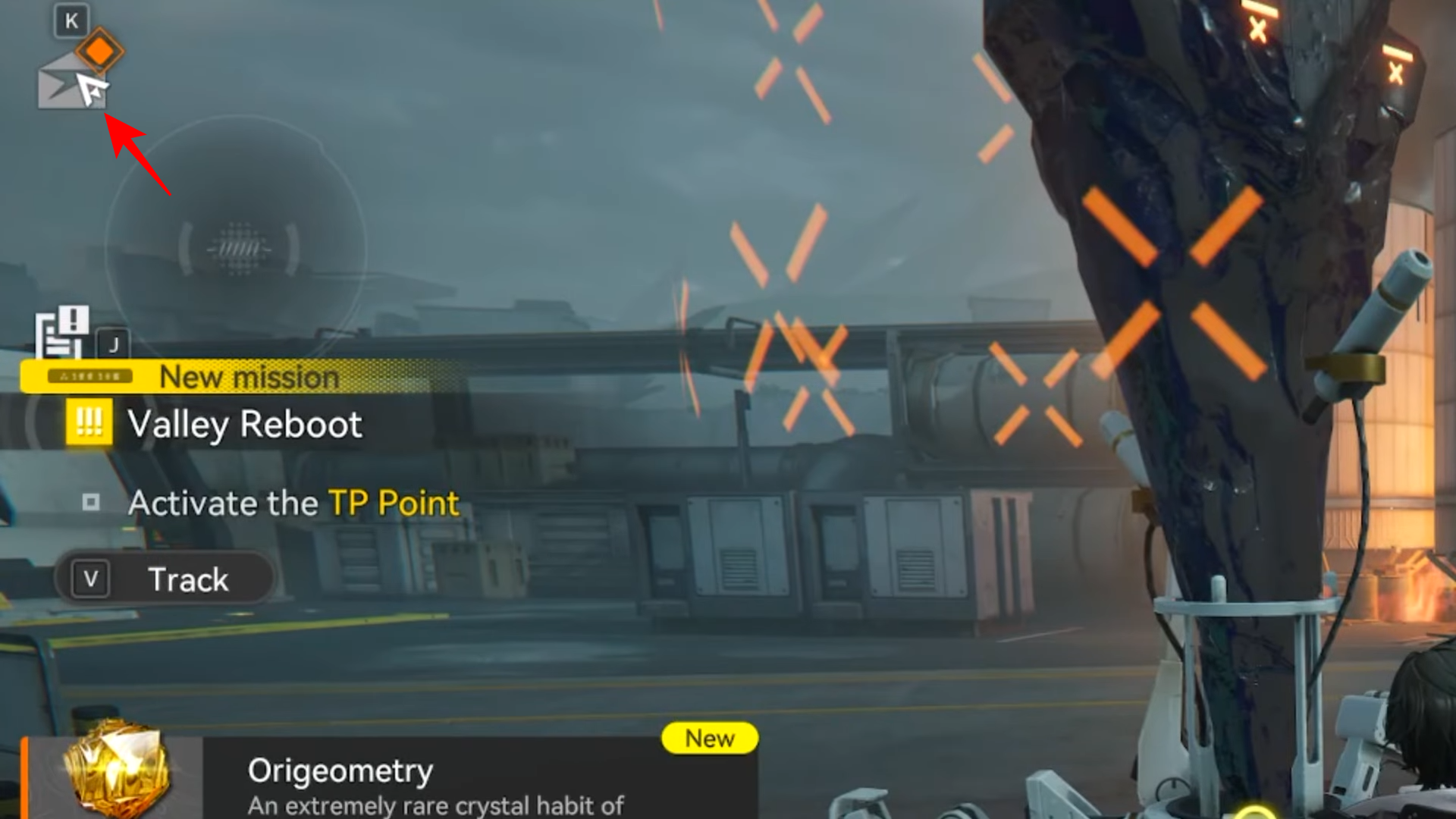
Hold Alt to bring up the mouse cursor/menu interaction.
Step 3
Move to the top-left area and select the Mail (email) icon.
Step 4
Claim the first reward in your Mail.
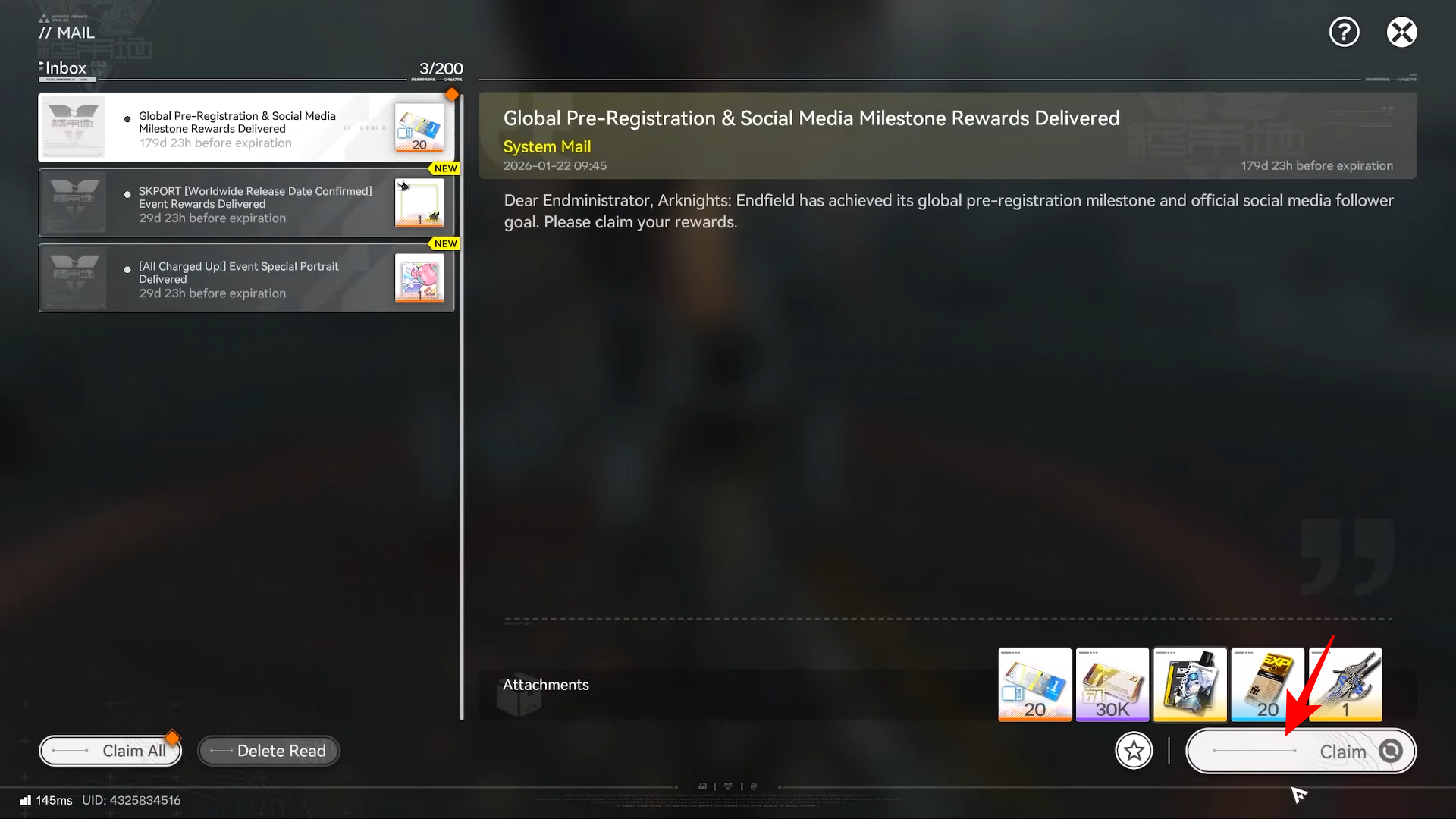
You’ll receive Snowshine and the 5-star Greatsword Finishing Call.
How to add Snowshine to your squad
Step 1
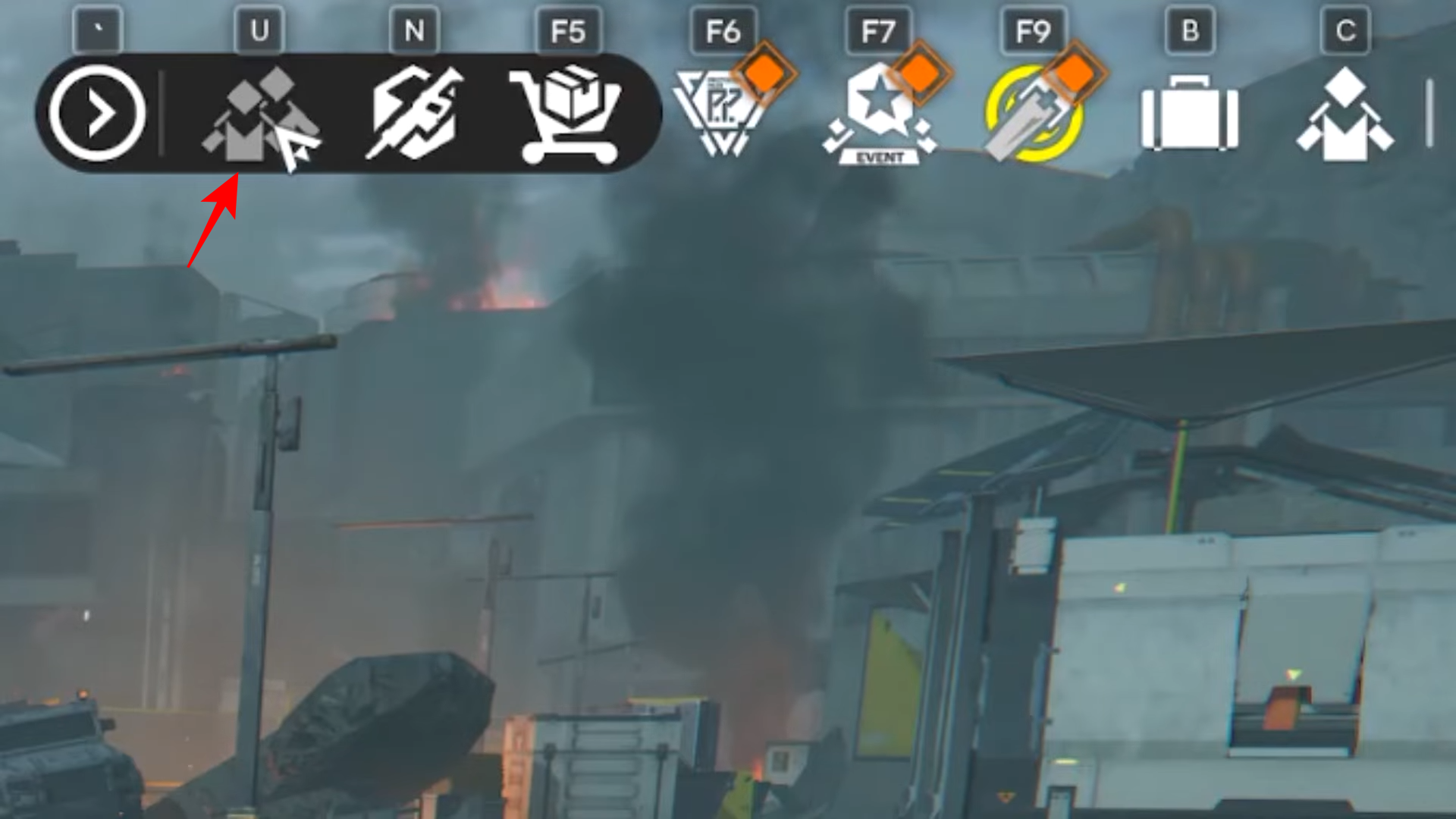
Hold Alt again to access the interface controls the same way as before.
Step 2
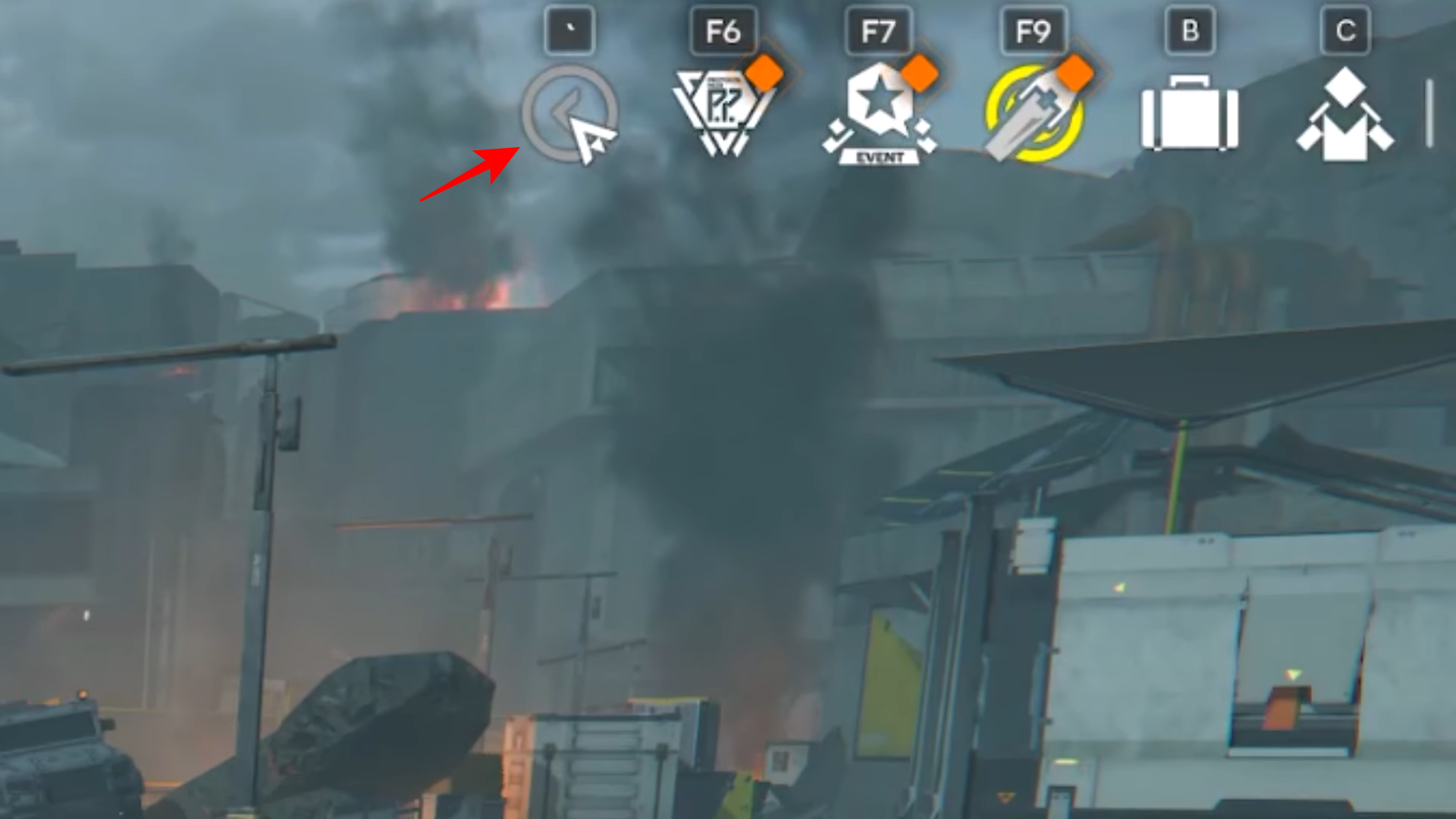
Open the squad/character management area (shown via the top-right arrow/menu into the character icons).
Step 3
Click the Characters icon.
Step 4
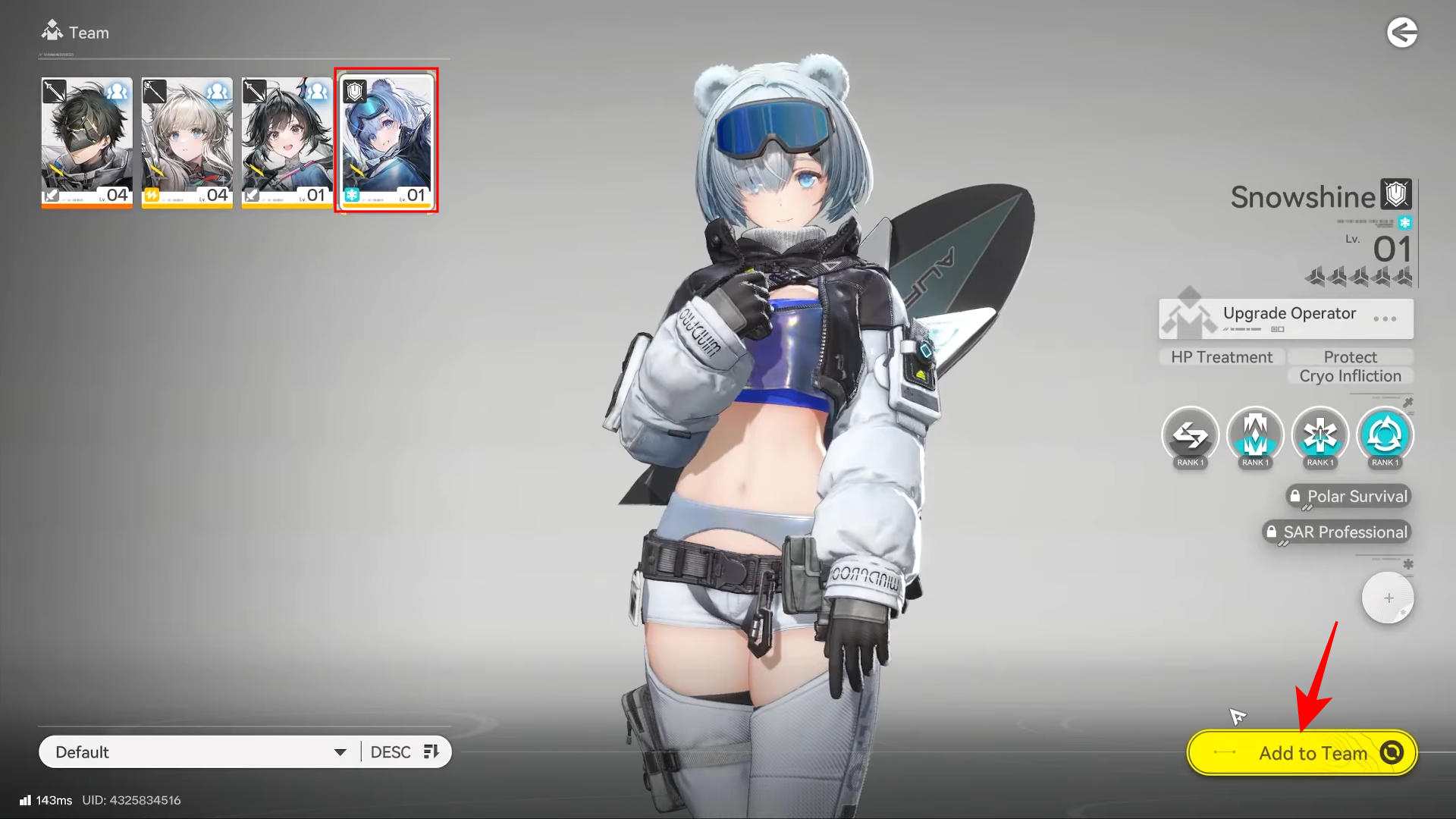
Find an open slot in your squad lineup, select Snowshine, and confirm “Add to team.”
How to equip Snowshine’s 5-star Greatsword
Step 1
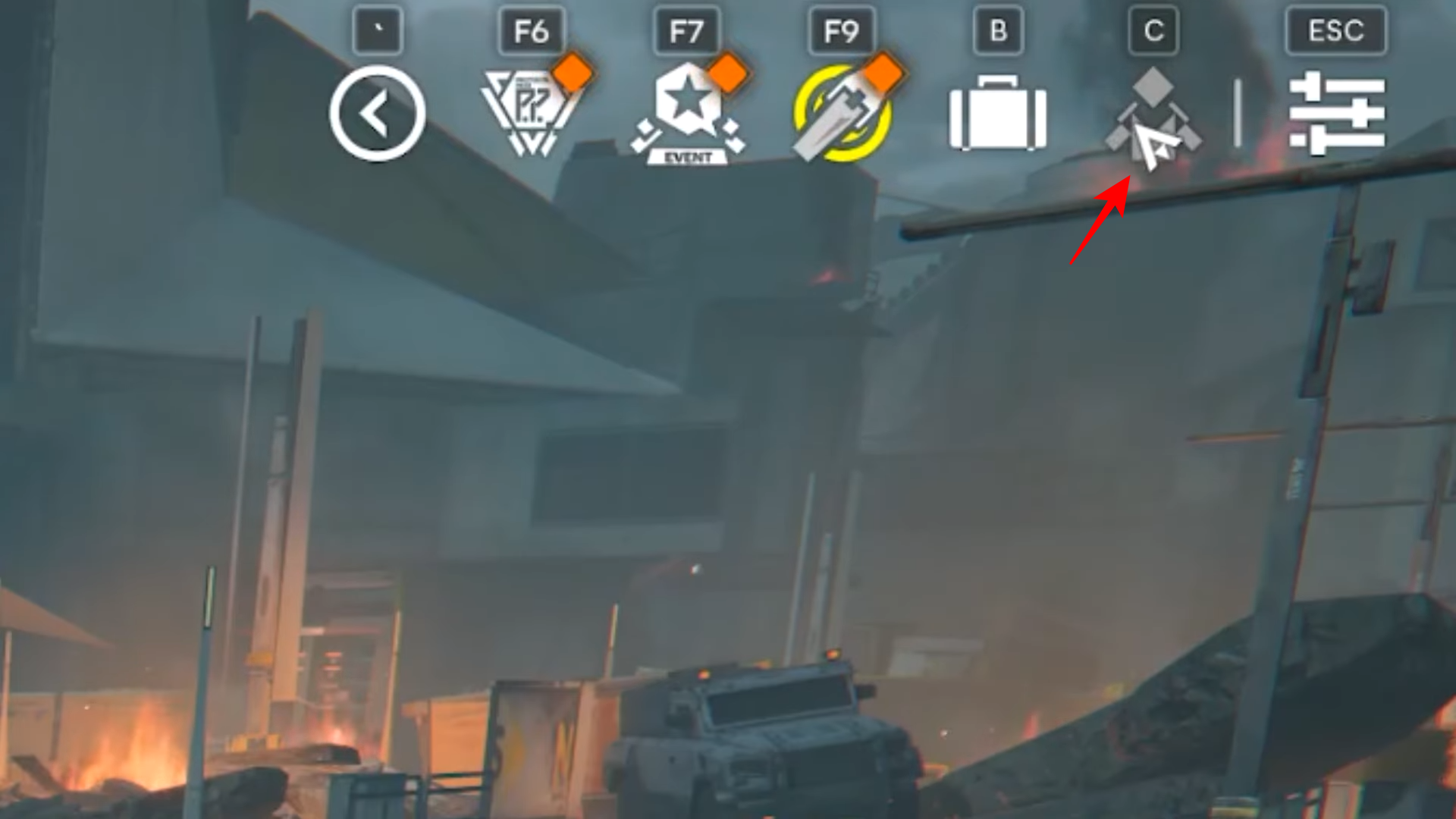
Open Snowshine’s character screen (by holding Alt and using the character icon/menu at the top-right).
Step 2
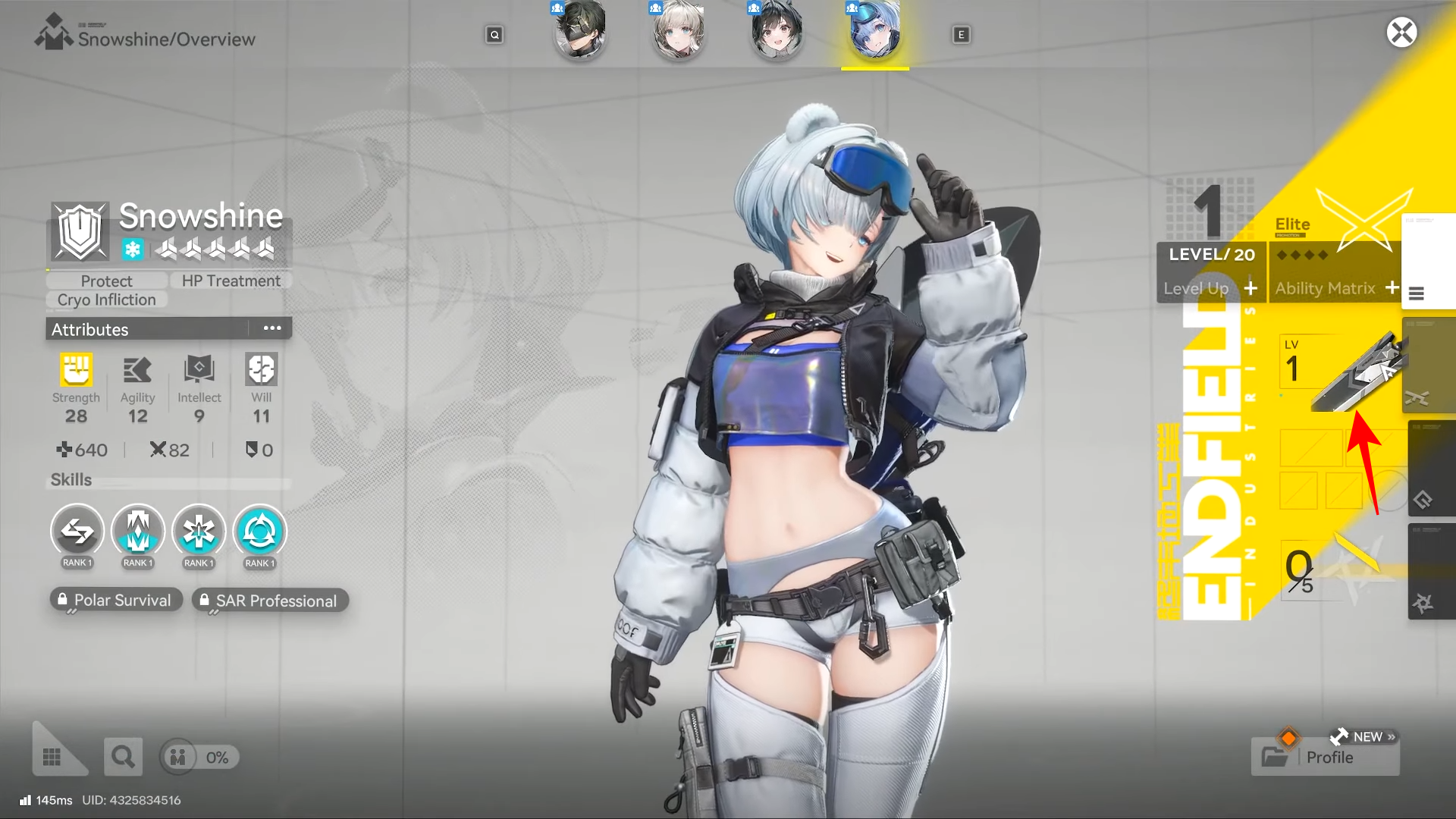
Hover to the weapon section (the currently equipped weapon slot shown on the right side of her character screen).
Step 3
Select the weapon slot, then choose “Switch” (bottom-right) to swap to the 5-star Greatsword.
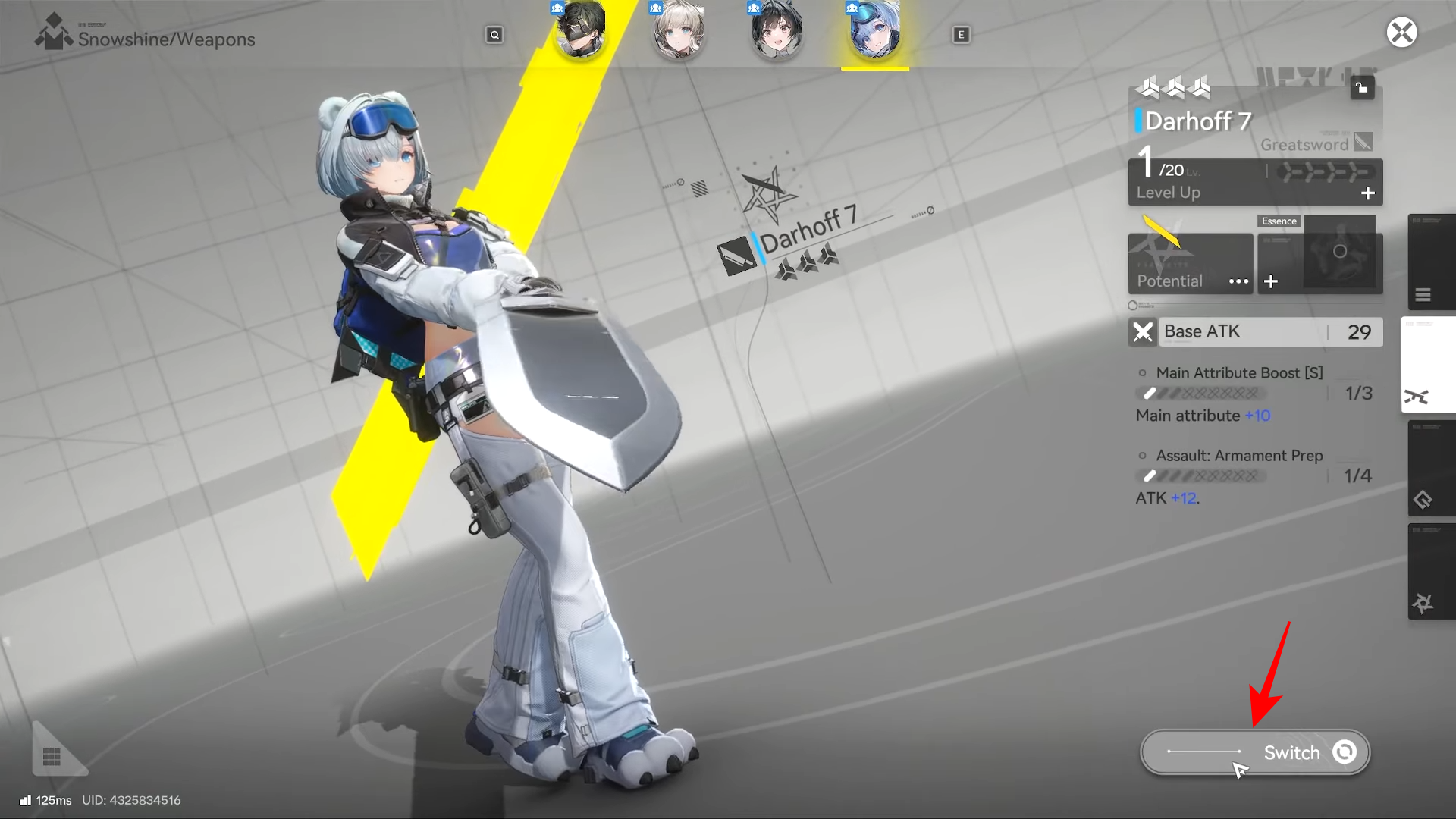
Step 4
Confirm the switch again to equip it (the interface may show the weapon as “locked,” but the equip still completes in the flow shown).
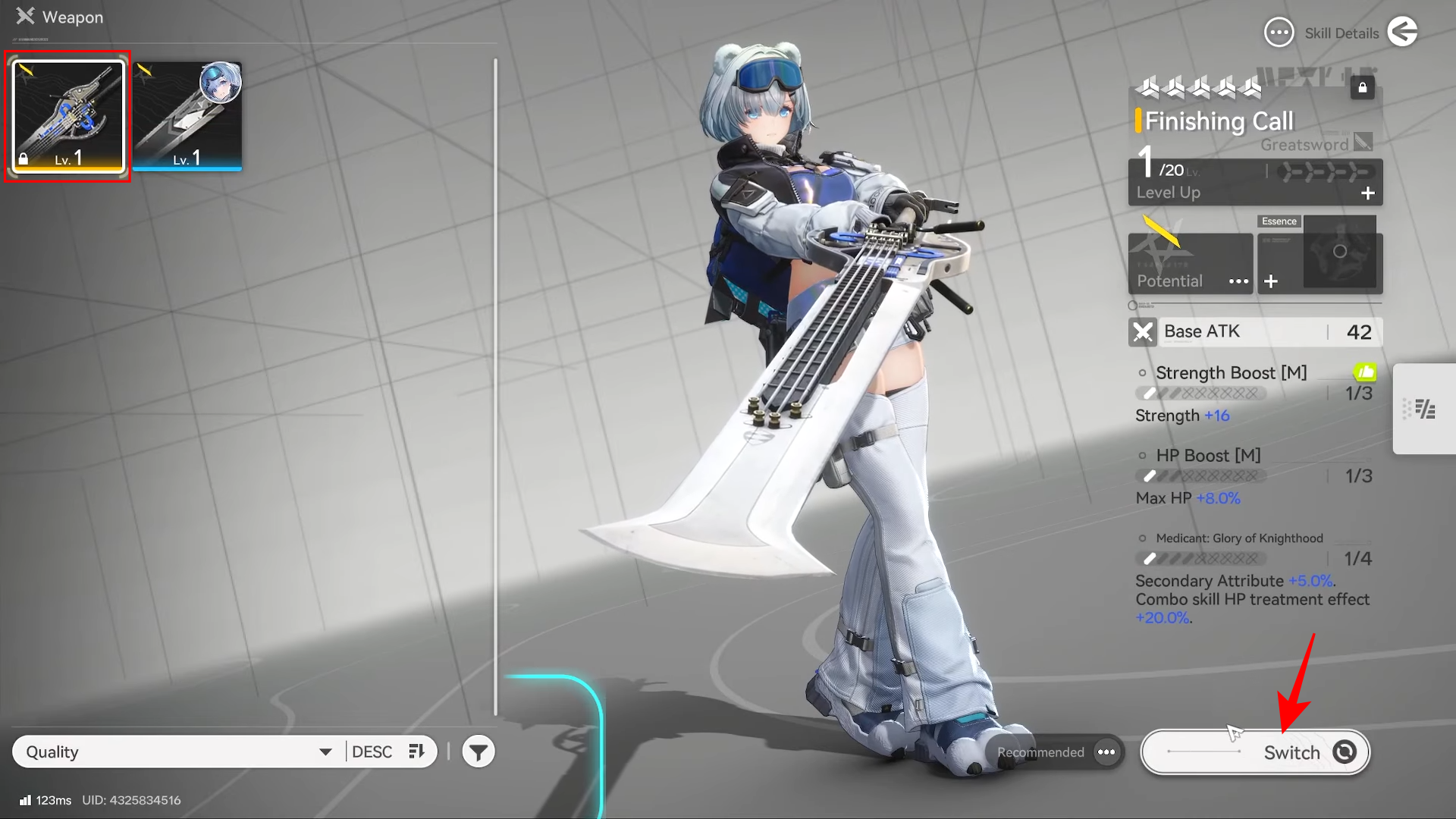
Once Mail is available, you can claim Snowshine and Finishing Call, add her to an open squad slot, and equip her Greatsword within a minute or two.
If something doesn’t appear right away, keep progressing until the interface elements (Mail icon and character management) are available.