What to know
-
Use 145 for both horizontal and vertical sensitivity
-
Set zoom and scoped sensitivity to 25 to keep ADS manageable
-
Pick linear response curve for consistent stick feel
-
Keep inner dead zones low (5) and set everything else to 0
The right settings on controller for Arc Raiders are mostly about making your right stick responsive without making your aim sloppy. Below is a clean, quick-to-copy setup that focuses on speed, consistency, and minimal input delay.
| Category | Setting | Value |
|---|---|---|
| Look | Horizontal sensitivity | 145 |
| Look | Vertical sensitivity | 145 |
| Aim | Zoom sensitivity | 25 |
| Aim | Scoped sensitivity | 25 |
| Response | Look response curve | Linear |
| Dead zones | Look inner dead zone | 5 |
| Dead zones | Movement inner dead zone | 5 |
| Advanced | Everything else | 0 |
Sensitivity that matches fast tracking
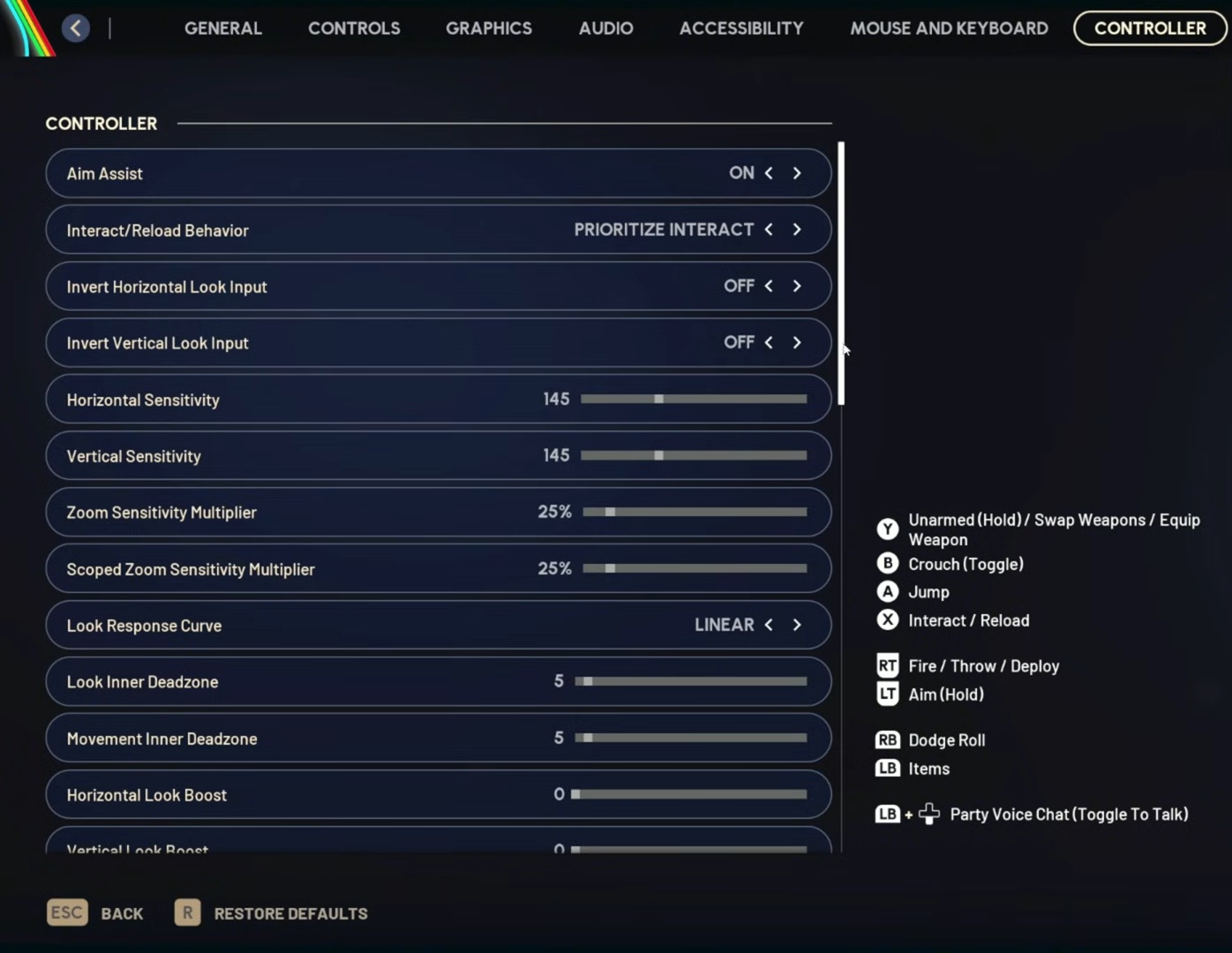
High look sensitivity is the core of this setup: 145 horizontal and 145 vertical. Keeping both equal helps your camera feel consistent when you snap between targets, track strafes, or adjust vertically during mid-range fights.
ADS tuning for control while shooting
Zoom and scoped sensitivity are both set to 25. This gives you a noticeable slowdown when aiming so you can stay on target and correct recoil without feeling like your crosshair is skating past enemies.
Response curve that stays predictable
Linear look response curve keeps your stick input direct and repeatable. If you like building muscle memory for flicks and quick corrections, linear helps because the camera movement scales more evenly with how far you push the stick.
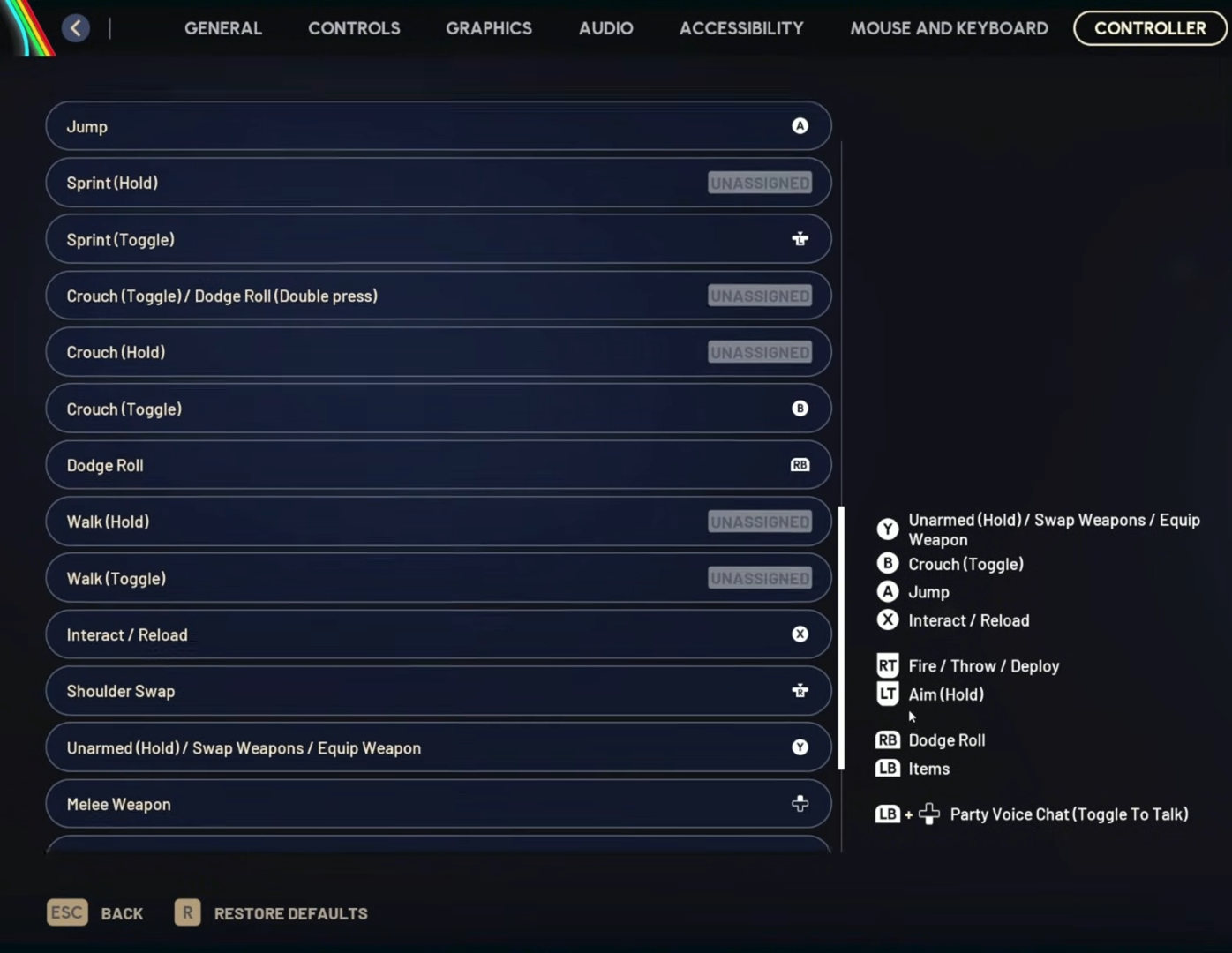
Dead zones and advanced values kept minimal
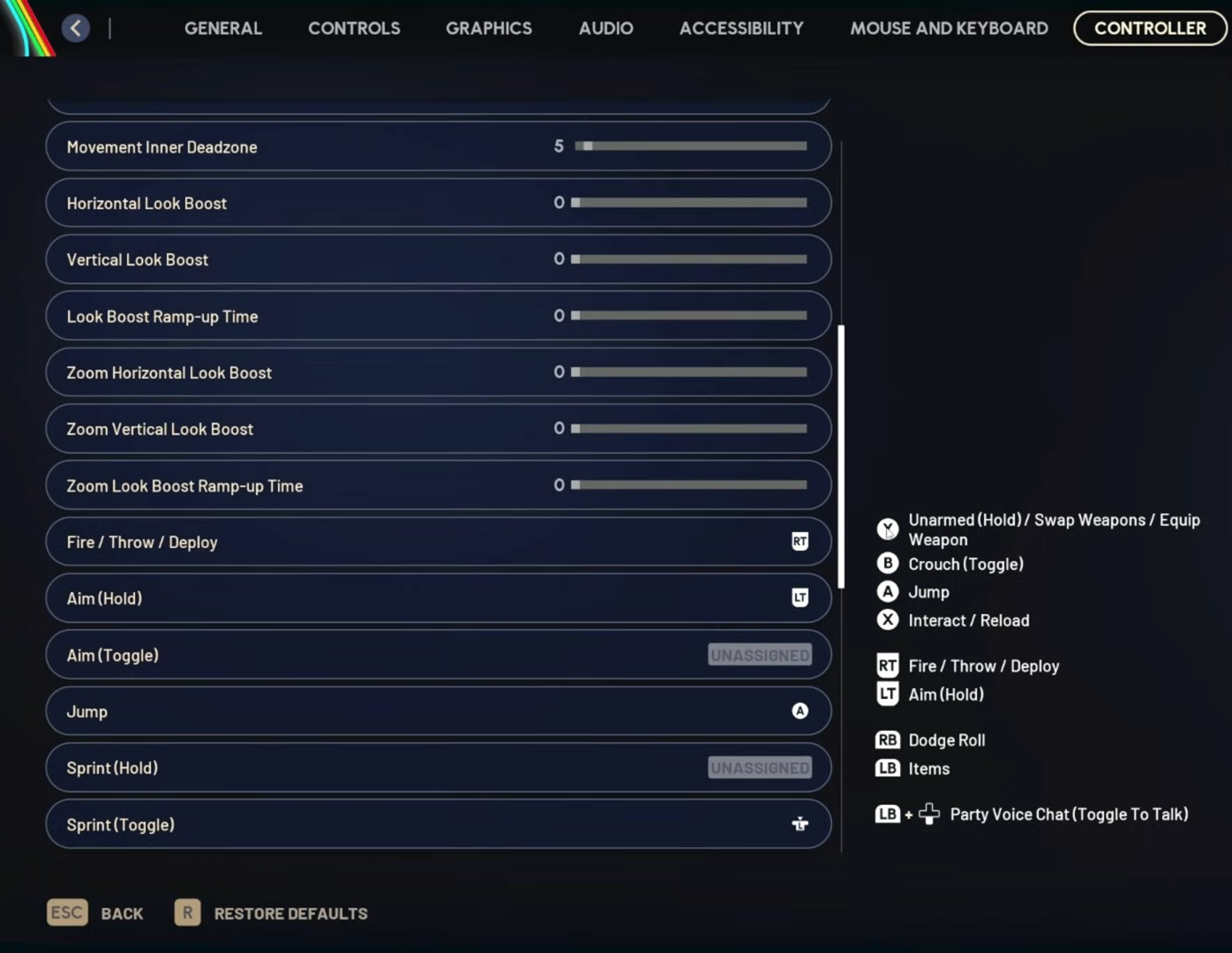
Look inner dead zone is 5 and movement inner dead zone is 5. Everything else is set to 0, which is meant to keep the input clean and avoid extra layers of acceleration or boosting that can make your aim feel inconsistent.
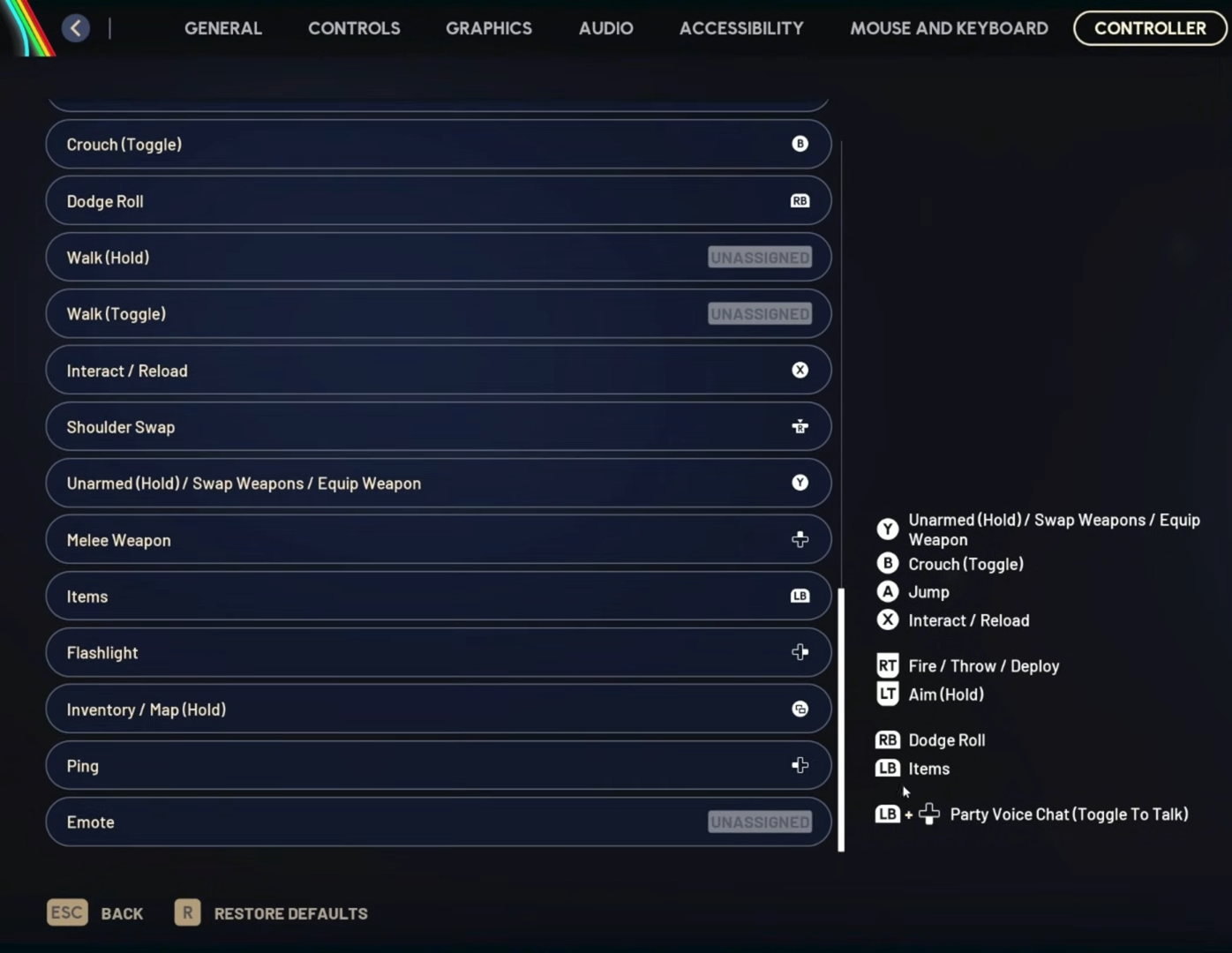
How to copy these settings in-game
Step 1
Open the settings menu, then go to the controller settings section.
Step 2
Set horizontal sensitivity to 145 and vertical sensitivity to 145.
Step 3
Set zoom sensitivity to 25 and scoped sensitivity to 25.
Step 4
Change the look response curve to linear.
Step 5
Set look inner dead zone to 5 and movement inner dead zone to 5.
Step 6
Set every other controller value in that same section to 0.
How to adjust if it feels too fast or too stiff
If your camera feels too twitchy, lower both horizontal and vertical together so you keep the same overall feel. If ADS feels too slow to track close-range movement, raise zoom and scoped in small increments while keeping them matched.
This setup is built for quick camera movement, consistent stick response, and controlled aiming speed when you zoom in. Copy it exactly first, then only tweak in small steps so your muscle memory stays stable.