Palworld relies entirely on an automatic autosave system with no manual save button, but you can adjust the interval, force saves on dedicated servers, or manually back up your files.
Palworld handles your progress entirely through an automatic autosave system, meaning you will not find a traditional “Save Game” button anywhere in the menus. Instead, the game periodically writes your current world and character state to disk without requiring any input. While this system mostly runs in the background, understanding exactly when and how the game records your progress is the best way to avoid losing your hard-earned base and Pals.
Autosave mechanics and safe exits
In standard single-player or peer-to-peer co-op, Palworld constantly autosaves your current world. Early players reported that the game triggered saves roughly every 30 to 60 seconds, though this behavior appears to vary with patches and world size, and is not documented precisely by the developer. Because the game writes to disk on a timer, your progress is usually only a minute behind your actual gameplay.
How to change the autosave interval in Palworld
STEP 1/4
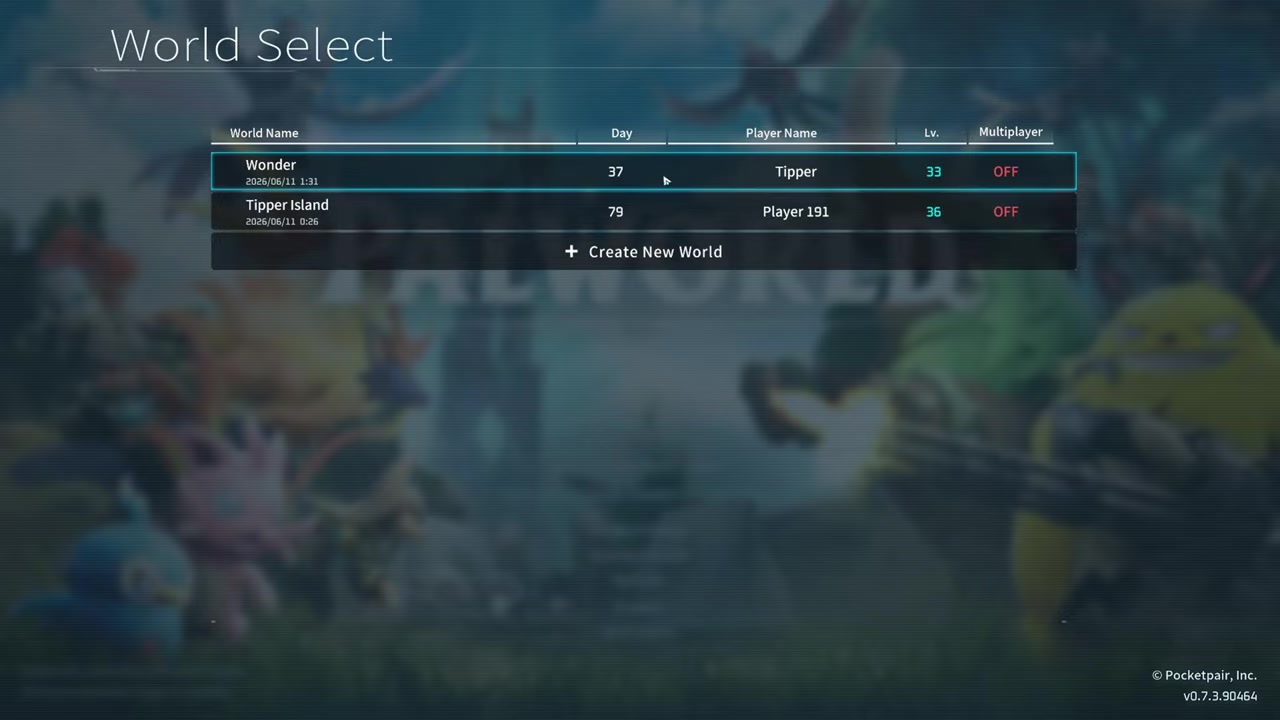
Select your world

On the Start Game screen, click on your world, then select change world settings.
STEP 2/4
Open custom settings
Go into the custom settings menu to view your world’s advanced configuration options.
STEP 3/4
Adjust the autosave interval
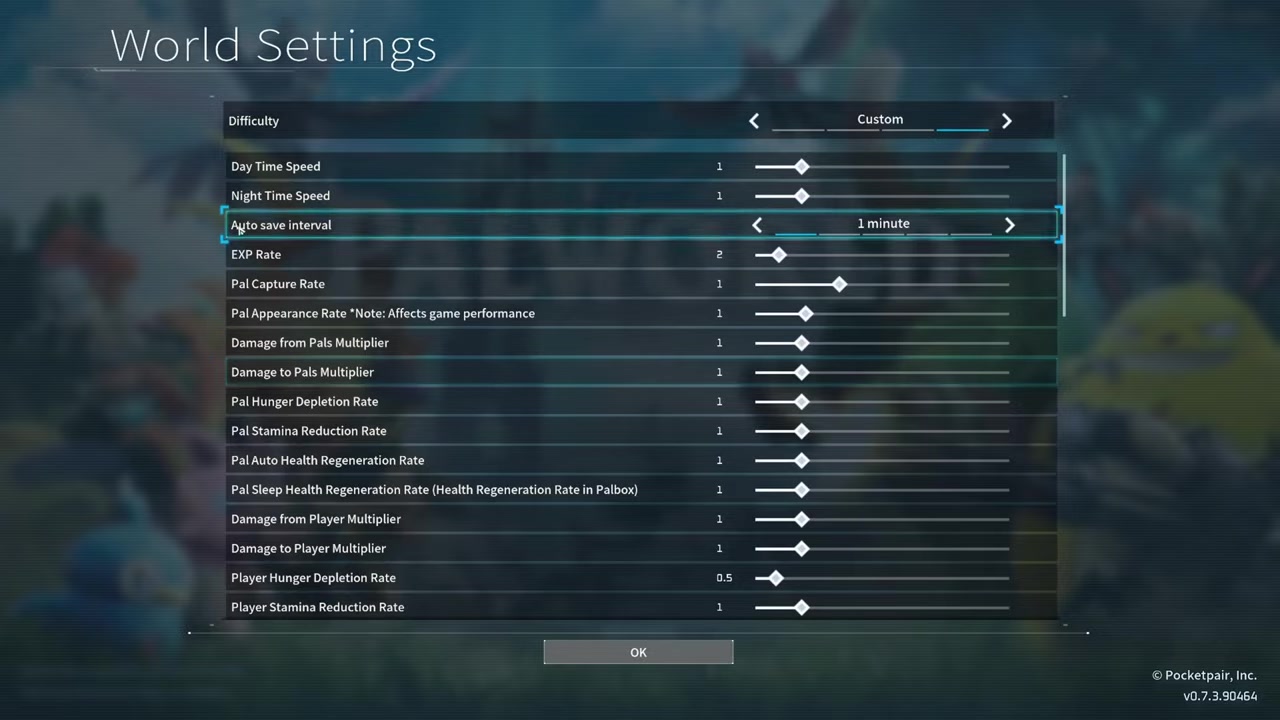
The autosave interval is set to 1 minute by default, but you can lengthen or shorten it up to 30 minutes.
STEP 4/4
Start the game
Once your interval is set, start the game and the world will automatically save on your new schedule.
Video help
Multiplayer and dedicated server saving
| Mode | Save Location | Manual Save Option | Safe Exit Method |
|---|---|---|---|
| Single-player / Co-op | Host’s local machine | No | Return to the title screen |
| Dedicated Server | Server machine | Yes, via the /save command | Run /save, wait 30-60 seconds, then stop the server |
Save behavior changes significantly depending on whether you are playing solo, in a peer-to-peer co-op session, or on a dedicated server. In multiplayer co-op, all progress is written directly into the host’s world save. Guests do not keep independent world states and must rejoin that specific host to resume their shared progress. Dedicated servers operate differently, housing the save data directly on the server machine under the Palworld save directory.
Dedicated servers introduce a manual save command. Server admins can issue /save in-game or from the server panel to force a world save. However, host providers note that after running the command, admins should wait about 30 to 60 seconds before pressing Stop on the server. Stopping the server immediately after saving can interrupt the disk write and cause rollbacks, leading to lost progress despite the command reporting success.
Server admins can also tune autosave frequency by editing PalWorldSettings.ini and changing the AutoSaveSpan value, which controls how often the server writes world data. Exact units and safe ranges can differ between hosting setups, so admins should confirm documentation for their specific provider.
Always wait 30 to 60 seconds after running the /save command on a dedicated server before pressing Stop, or recent progress can be lost despite the command reporting success.
Manual backups, restores, and wipes on PC
For players looking to manually back up or manipulate their saves on Windows, the exact directory path is %LOCALAPPDATA%\Pal\Saved\SaveGames\<SteamID>\<SaveID>. Within the <SaveID> folder, the directory contains various files including Level.sav, LevelMeta.sav, LocalData.sav, and WorldOption.sav. Community tools, such as palworld-save-tools on GitHub, allow users to convert these .sav files into JSON format for editing or viewing.
Players looking to completely restart must delete or rename the <SaveID> folder. This wipes the world, bases, and Pals, allowing for a completely fresh playthrough. Another major misconception involves transferring saves to dedicated servers. Players often incorrectly assume they can just drag and drop their .sav files into a new dedicated server folder. In reality, player .sav files are encrypted and handled differently on dedicated servers. While world data like Level.sav and WorldOption.sav transfers easily, bringing player character data from a peer-to-peer host game to a dedicated server is notoriously difficult and may require third-party tools like palworld-host-save-fix to migrate save data between player IDs. On Windows-to-Linux server transfers, you must edit the DedicatedServerName line in GameUserSettings.ini to match the original server name, or players will be forced to create new characters.
Frequently Asked Questions
Does Palworld have a manual save button?
No, Palworld does not have a manual save button. The game relies entirely on an automatic autosave system that periodically writes your progress to disk, alongside a final save that triggers when you return to the title screen.
Will I lose progress if I alt-f4 or force close the game?
Yes, you might lose a few minutes of progress. Because the game only saves on its set timer or during a clean exit to the title screen, force-closing the application interrupts the normal write process. Returning to the title screen is the only guaranteed method to safely record your final state.
How do I transfer my local co-op save to a dedicated server?
Transferring a local co-op save to a dedicated server is notoriously difficult. While world data files like Level.sav transfer easily, player character data is encrypted and handled differently on dedicated servers. You may need to use third-party tools like palworld-host-save-fix to migrate save data between player IDs, and you must edit the DedicatedServerName line in GameUserSettings.ini to match the original server name.
Where are Palworld save files located on PC?
On Windows, Palworld save files are located at %LOCALAPPDATA%\Pal\Saved\SaveGames\<SteamID>\<SaveID>. The <SaveID> folder contains your core world files, including Level.sav, LevelMeta.sav, LocalData.sav, and WorldOption.sav.