
Learn how to change controls in UFC 6 by disabling the streamlined setting, allowing you to regain full limb selection and unlock the game’s deep, traditional striking mechanics.
To change controls in UFC 6, open the Settings menu, navigate to Gameplay, and switch the Controller Assist setting from Streamlined to Default or Custom to regain full left/right hand and foot selection.
If you hop into a fight in EA SPORTS UFC 6 and suddenly can’t choose which hand or foot you strike with, you’re likely stuck on the Streamlined control scheme. UFC 6 defaults to this assisted input layout for new users, which forces simplified commands like clinching with Y and attempting takedowns with B. For returning veterans, this drastically limits your striking arsenal and completely overrides years of muscle memory.
Streamlined vs Default and Custom control schemes
| Control Scheme | How It Works | Who It’s For |
|---|---|---|
| Streamlined | Assisted inputs; clinch with Y, takedown with B, no manual hand or foot selection. | New users learning the basic flow of UFC 6. |
| Default / Custom | Full limb control; allows specific left hand, right hand, left foot, and right foot selection. | Returning veterans and players who want full striking depth. |
The Streamlined preset is designed to lower the barrier to entry, compressing complex striking mechanics into single-button contextual actions. The trade-off is that you lose the ability to target specific limbs. Switching to Default restores the traditional UFC fighting style, giving you full manual control over your left and right hands and feet. If you have a specific layout you prefer, the Custom option lets you jump right back into your preferred setup.
How to switch Controller Assist off Streamlined in UFC 6
STEP 1/4
Open Settings
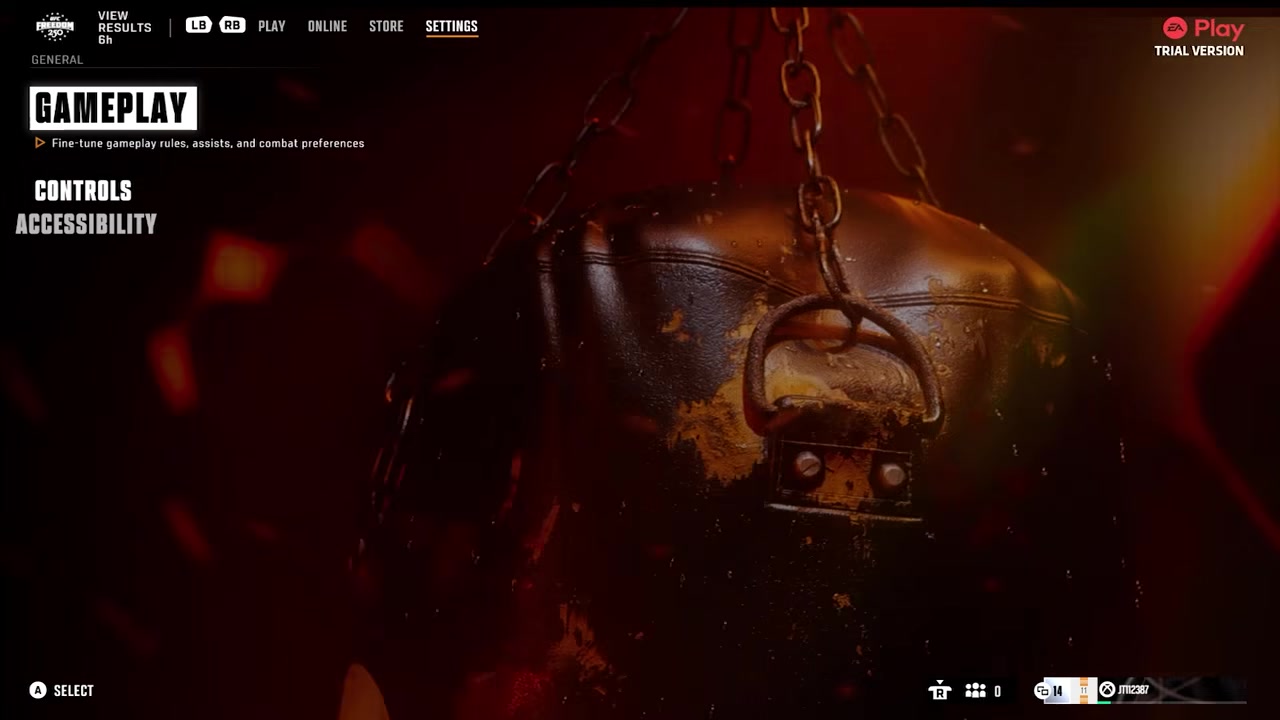
Head over to the Settings menu from the main hub.
STEP 2/4
Go to Gameplay
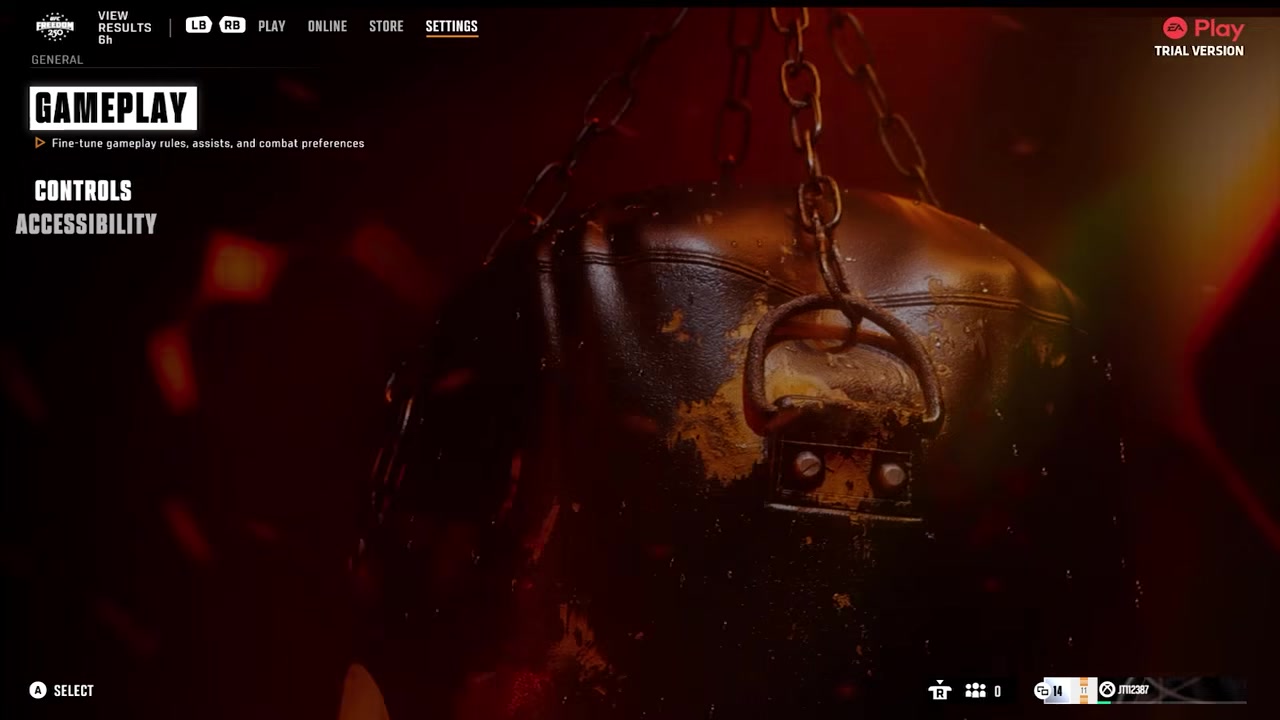
Enter the Gameplay tab to view your match and controller preferences.
STEP 3/4
Locate Controller Assist
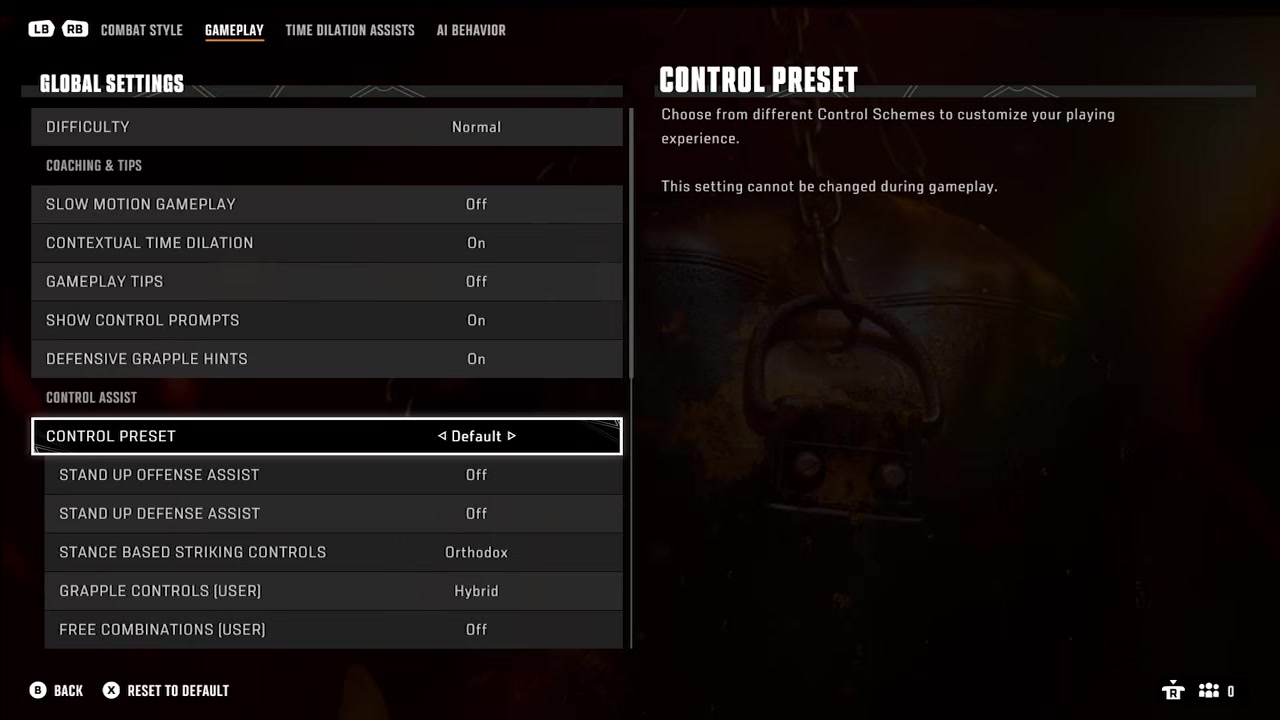
Scroll down through the gameplay options to find the Controller Assist setting.
STEP 4/4
Change to Default or Custom
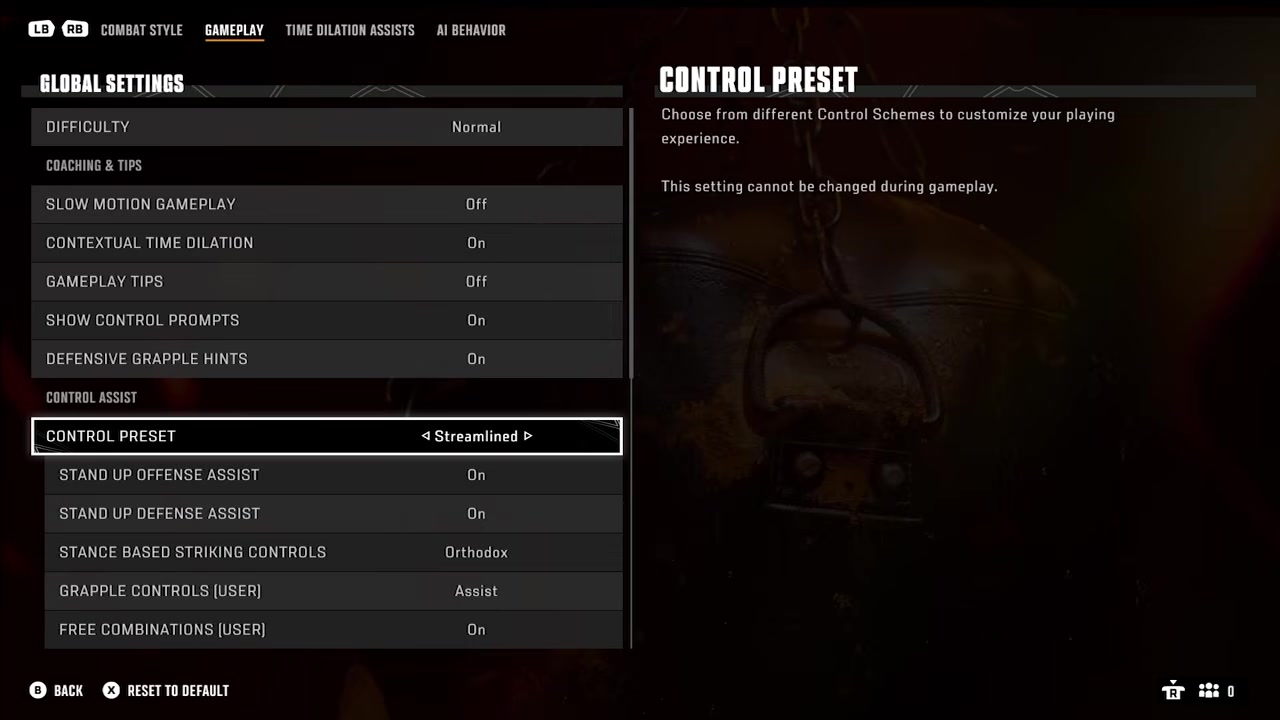
Switch the setting off Streamlined to Default or Custom to regain full left and right hand and foot selection.
Video help
Additionally controller customization and online settings

If your strikes feel restricted and you can’t pick a specific hand or foot, immediately check Controller Assist in the Gameplay settings and switch it off Streamlined.
Frequently Asked Questions
Can I change controls mid-fight in UFC 6?
This is not yet confirmed for UFC 6. In the previous entry, players could pause the fight and access a settings menu to swap control modes, or even use a button-combination shortcut like holding the right bumper and pressing a face button. While this is expected to carry over, treat it as a starting point for testing rather than a guaranteed feature.
How do I fix input delay after changing my controls?
If your new bindings feel sluggish, the issue is likely network-related rather than a controller problem. Head into your online performance and matchmaking settings to optimize your connection. Many players stick with default network settings and mistakenly blame the input lag on their newly remapped buttons.
Where can I practice my new control scheme?
Look for the “Getting Started” and basics learning modules in the game’s main menu. Even if you are a returning veteran, spending a few minutes in the tutorial or practice mode with your new mappings is highly recommended to drill combos and ensure your muscle memory adjusts before you jump into online matches.
Are there specific grappling or strike assist settings I should also change?
Yes, alongside the main Controller Assist toggle, you should check your grappling assistance and strike control settings. UFC 6 may feature updated assisted vs manual grappling options that affect submissions and ground control. Reviewing these ensures your ground game matches the complexity level you want now that your striking controls are set to manual.