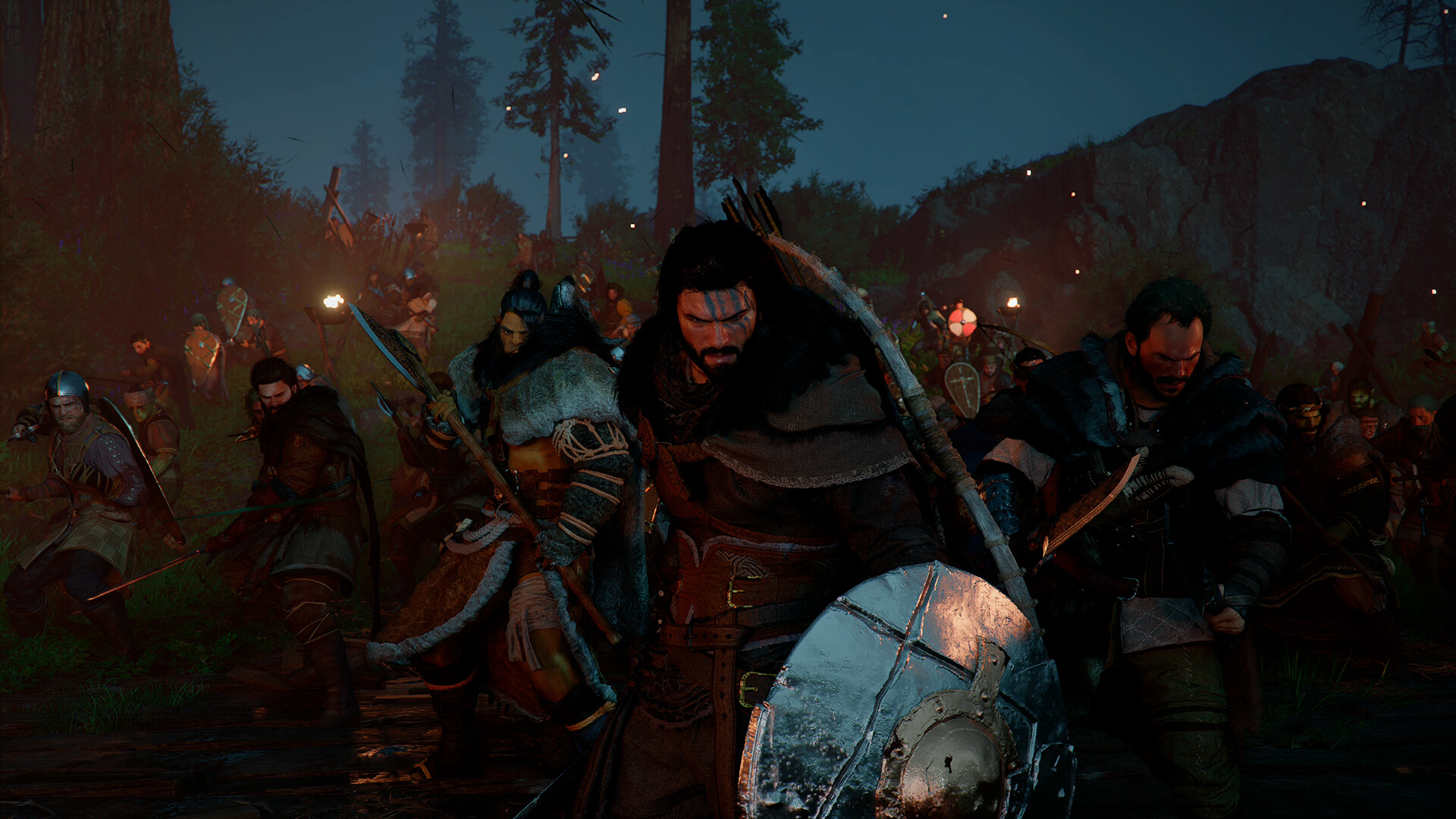
The best way to fix ghosting and shimmering in Crimson Desert is to reduce reliance on aggressive temporal upscaling, use DLAA or DLSS Quality instead of Performance modes, disable motion blur, update to the latest game patch, and avoid problematic lighting/upscaling combinations that amplify image artifacts. Recent patches have improved FSR/DLSS shimmering issues, but some settings still produce visible ghosting, especially on foliage and grass.
| Setting | Recommended | Avoid |
|---|---|---|
| Upscaling | DLAA, DLSS Quality, FSR Native AA | DLSS Performance, Ultra Performance |
| Motion Blur | Off (0%) | High |
| Blur Intensity | 0% | Any higher value |
| Lighting Quality | Cinematic or Ultra | Max (can increase noise/shimmering) |
| Frame Generation | Test On/Off | If it increases ghost trails |
| Ray Reconstruction | RTX users: test individually | Can introduce artifacts on some systems |
| HDR | Disable for troubleshooting | HDR if flickering occurs |
| Game Version | Latest patch | Older versions |
What causes ghosting and shimmering in Crimson Desert?
Most ghosting comes from the game’s temporal rendering techniques, including DLSS, FSR, Frame Generation, and Ray Reconstruction. These technologies reuse information from previous frames, which can create blurry trails behind moving objects, grass, foliage, and characters.
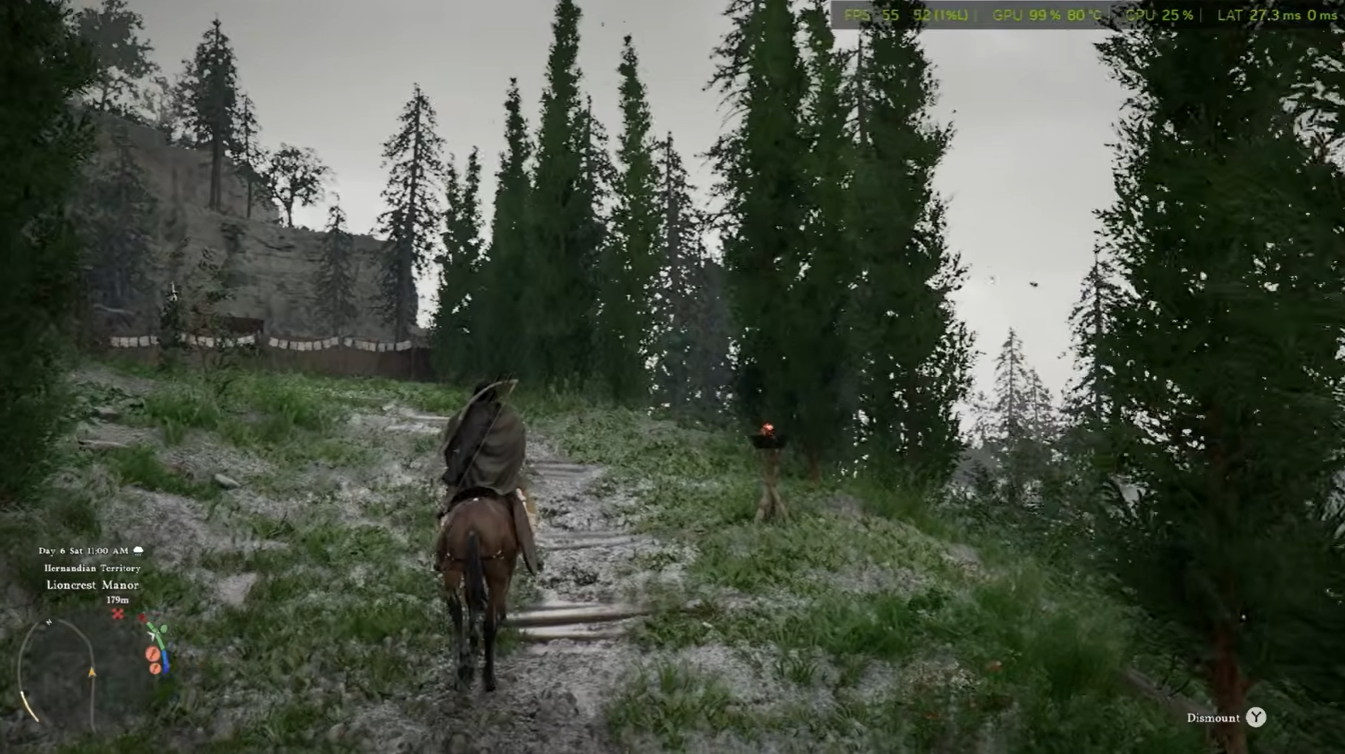
Here are the most effective fixes for Crimson Desert ghosting and shimmering
| Setting | Recommended |
|---|---|
| Motion Blur | Off |
| Frame Generation | Off for testing |
| DLSS | DLSS 4 (not 4.5) |
| FSR | Use latest version available |
| Ray Reconstruction | On if ghosting is severe |
| Sharpening | 30-50% |
| DLAA | Try instead of DLSS |
| Driver Update | Latest GPU driver |
Fix #1: Disable Frame Generation first
Frame Generation is currently one of the biggest causes of ghosting and temporal artifacts in Crimson Desert. Turn it off completely and check if the trails disappear. Many players reported that ghosting becomes significantly less noticeable after disabling Frame Generation.
Fix #2: Switch from DLSS Performance to Quality or DLAA
If you’re using DLSS Performance or Balanced, try:
- DLSS Quality
- DLAA (best image quality)
- Native Resolution
Ghosting and shimmering become much more visible at lower internal resolutions because the upscaler has less image data to work with.
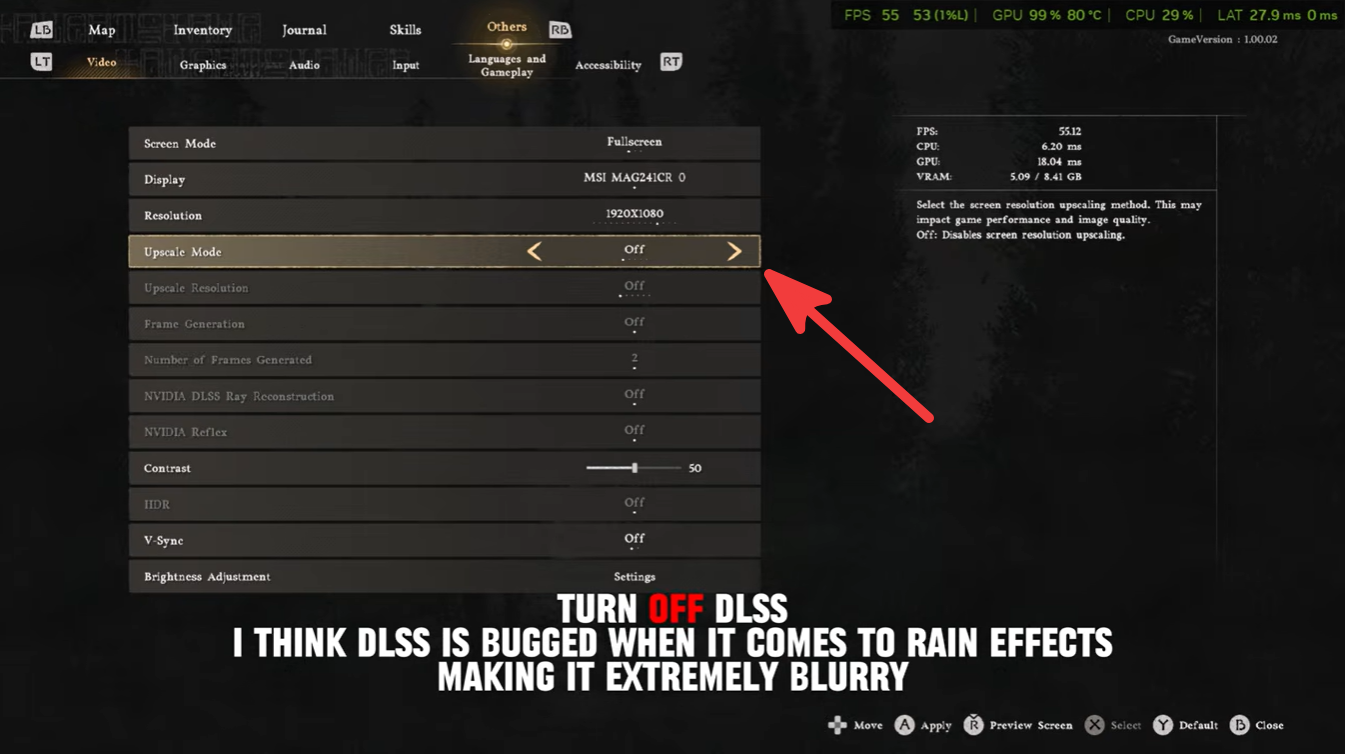
Fix #3: Enable Ray Reconstruction
This is currently the most effective solution for grass ghosting and foliage shimmer.
Many players found that enabling NVIDIA Ray Reconstruction (or AMD Ray Regeneration on supported hardware) dramatically reduces:
- Grass trails
- Foliage shimmer
- Lighting noise
- Ghosting during camera movement
The downside is a substantial FPS hit.
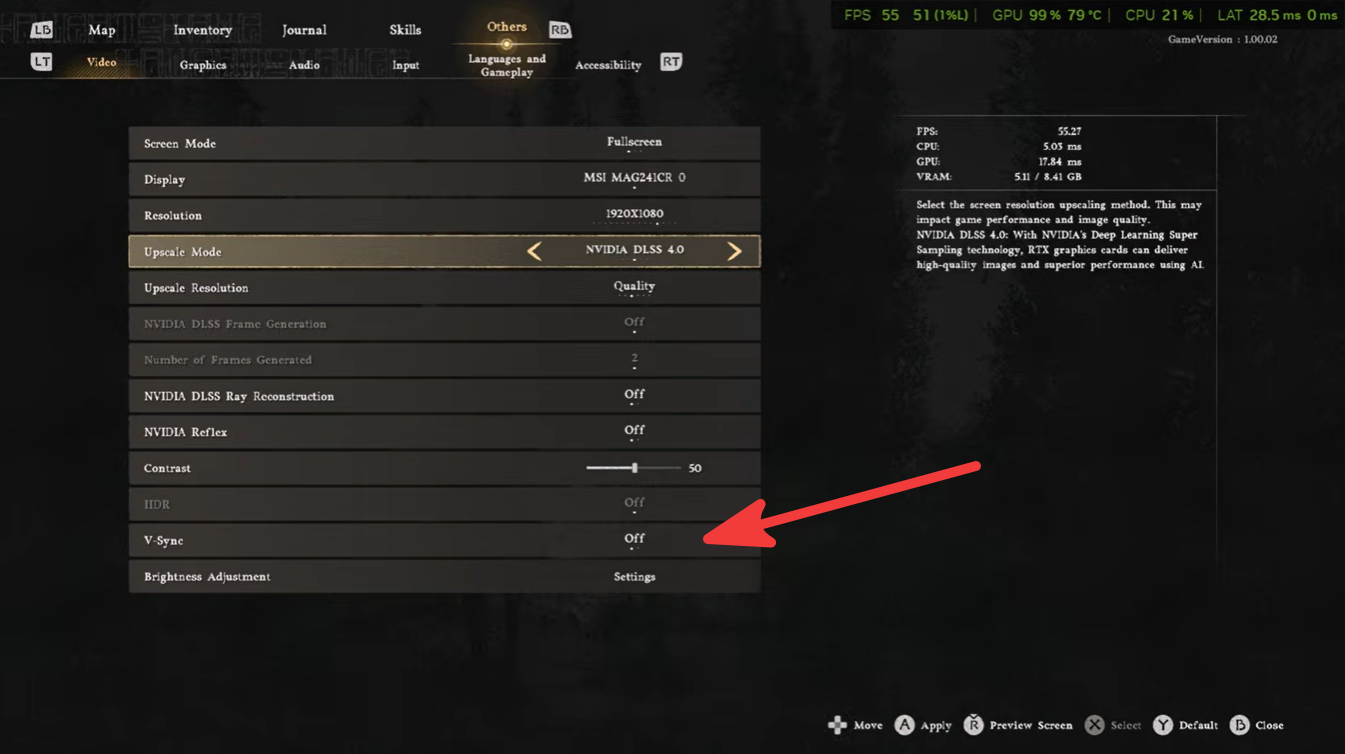
Fix #4: Turn off Motion Blur
Even low Motion Blur settings can exaggerate ghosting.
Set:
- Motion Blur = Off
- Camera Blur = Off (if available)
- V-Sync = Off
This won’t completely remove temporal ghosting but often improves clarity during combat and fast movement.
Fix #5: Update the game
Pearl Abyss has already released updates targeting:
- Shimmering effects
- FSR/DLSS rendering bugs
- Foliage rendering issues
- Excessive GPU load when upscaling is enabled
If you haven’t updated recently, install the latest patch before changing lots of settings.
Fix #6: AMD users
If you’re using an AMD card:
- Try FSR Quality instead of Balanced/Performance.
- Disable AMD Fluid Motion Frames (FMF) if enabled.
- Avoid stacking FMF with in-game Frame Generation.
Several users reported that FMF combined with the game’s frame generation creates severe ghosting and “double image” effects.
Best settings for minimum ghosting
For NVIDIA GPUs
| Setting | Recommendation |
|---|---|
| DLSS | Quality |
| Frame Generation | Off |
| Ray Reconstruction | On |
| Motion Blur | Off |
| Sharpening | 30-50% |
| Texture Quality | High |
| Shadow Quality | High |
Extra fixes for NVIDIA users
- Update to the newest GeForce driver.
- Enable NVIDIA Reflex.
- Avoid forcing sharpening through GeForce Experience.
- If using DLSS 4.5, test DLSS 4.0. Several players reported reduced flickering and shimmering with the older model.
For AMD GPUs:
| Setting | Recommendation |
|---|---|
| FSR | Quality |
| Frame Generation | Off |
| Motion Blur | Off |
| AMD Fluid Motion Frames | Off |
| Sharpening | 20-40% |
| Texture Quality | High |
Extra fixes for AMD users
Update to the latest AMD Adrenalin driver and the newest game version. Pearl Abyss added newer FSR SDK support specifically to improve image quality, frame generation consistency, and shimmering issues.
Common mistakes that make ghosting worse
- Using DLSS Performance at 1080p
- Combining Frame Generation with aggressive upscaling
- Running Lighting Quality on Max
- Leaving Blur Intensity enabled
- Playing on outdated GPU drivers
- Using old game versions before the shimmer fixes in patch 1.02.00
Ghosting and shimmering in Crimson Desert are usually caused by a combination of temporal upscaling, Frame Generation, and aggressive image reconstruction techniques. For most players, the biggest improvements come from disabling Frame Generation, switching to Quality upscaling modes, turning off Motion Blur, and enabling Ray Reconstruction if hardware permits.