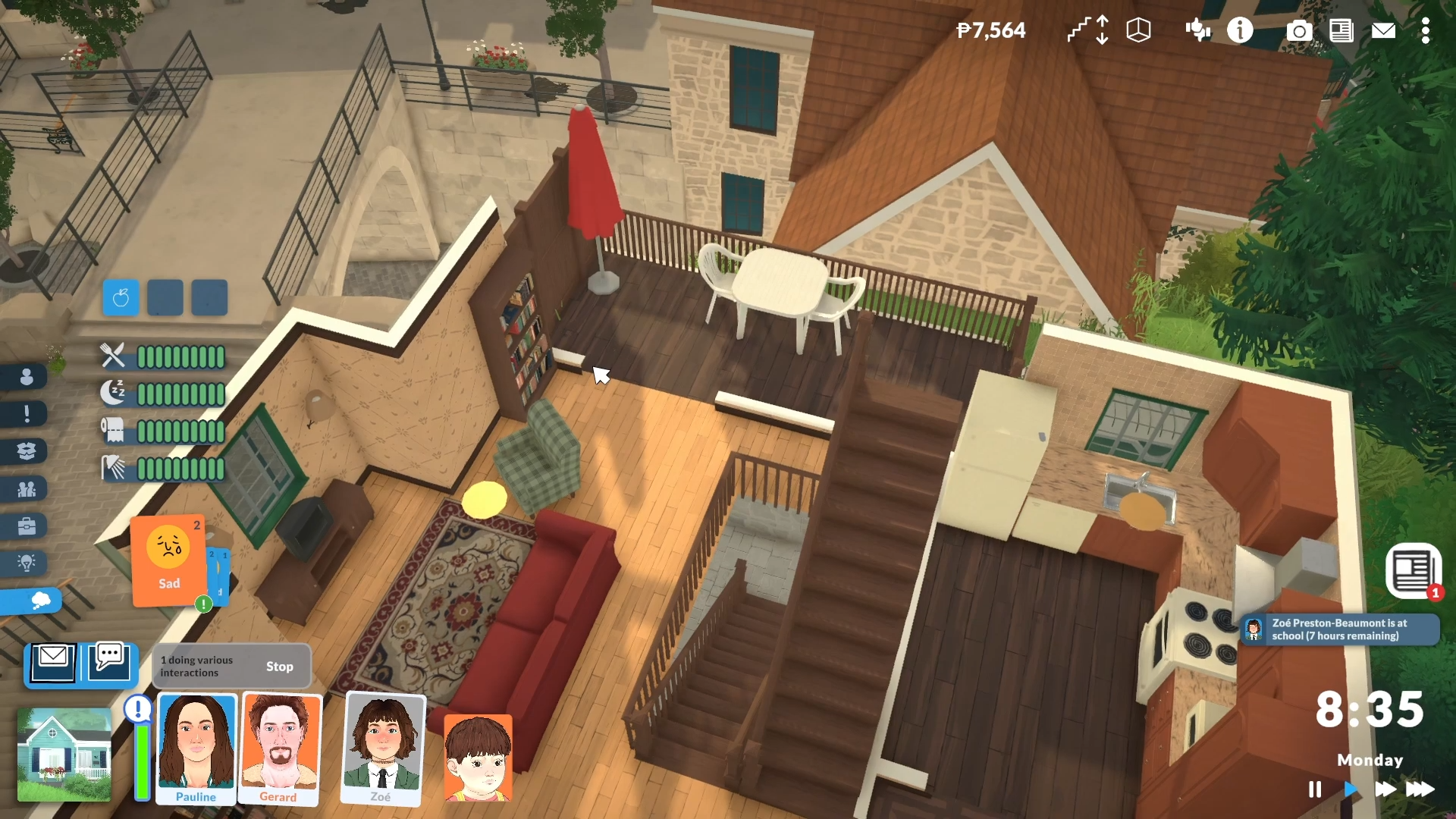
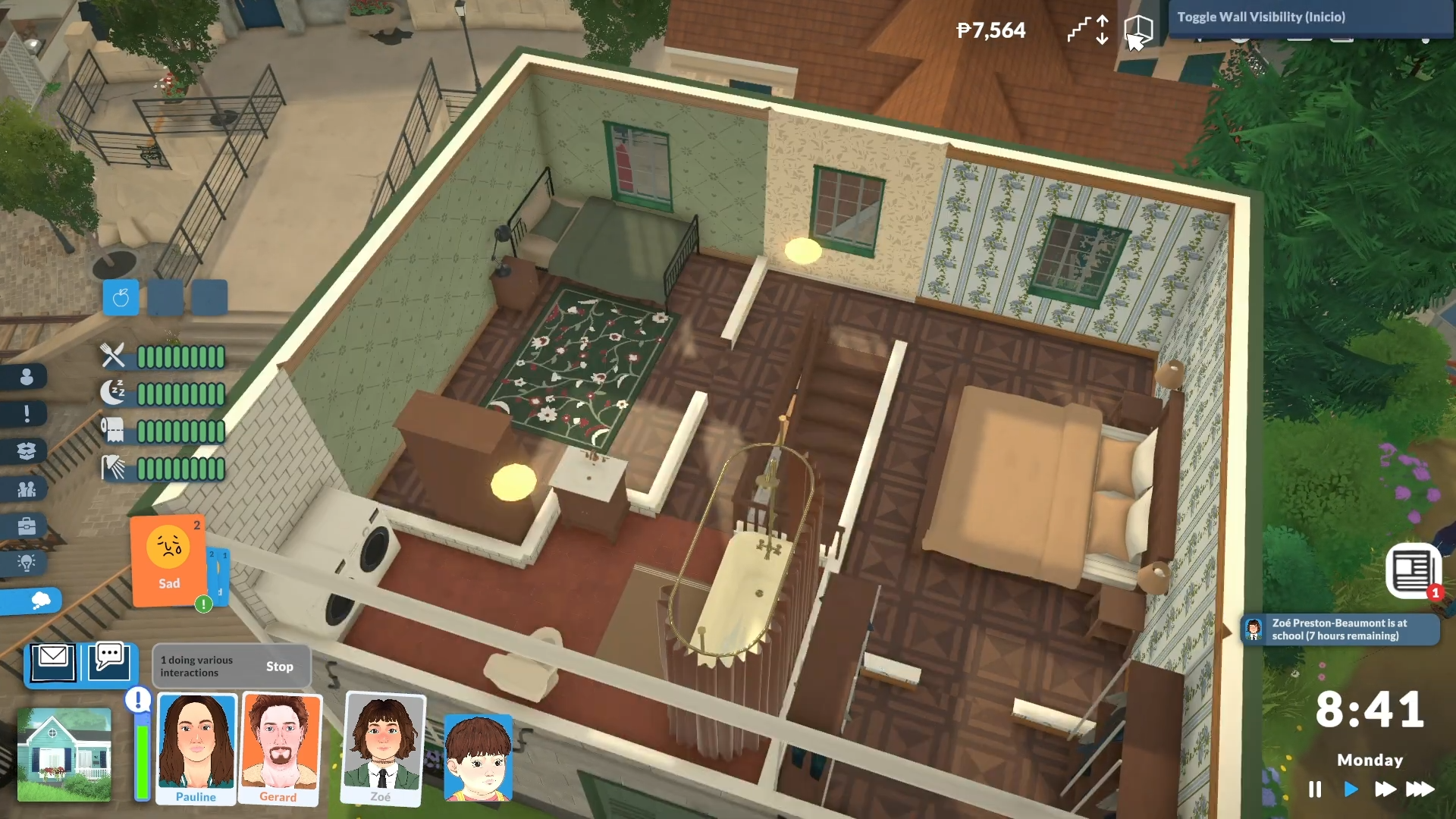
To turn on or off wall visibility in Paralives, press the Home key to advance (turn walls more visible/up) and the End key to revert (turn walls less visible/down).
Wall Visibility Controls in Paralives
How to Use Wall Visibility (Step-by-Step)
Step 1: Enter Build Mode
Press Tab to switch from Live Mode to Build Mode, or click the Build Mode button in the pause menu. Wall visibility controls work in both modes, but Build Mode gives you full access.
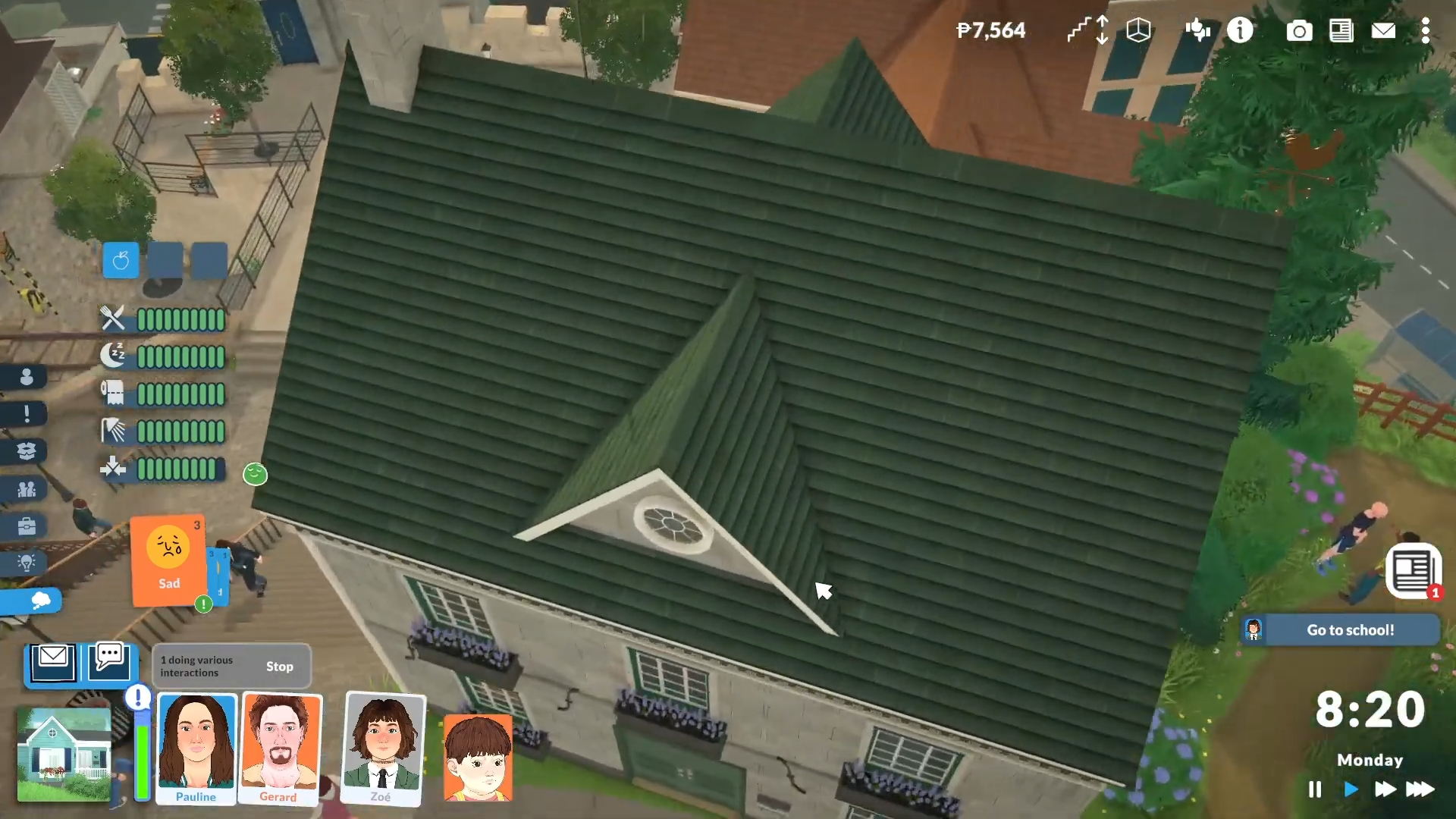
Step 2: Toggle Wall Visibility
-
Press
Hometo show walls (full visibility). -
Press
Endto hide walls (walls drop down or become transparent).
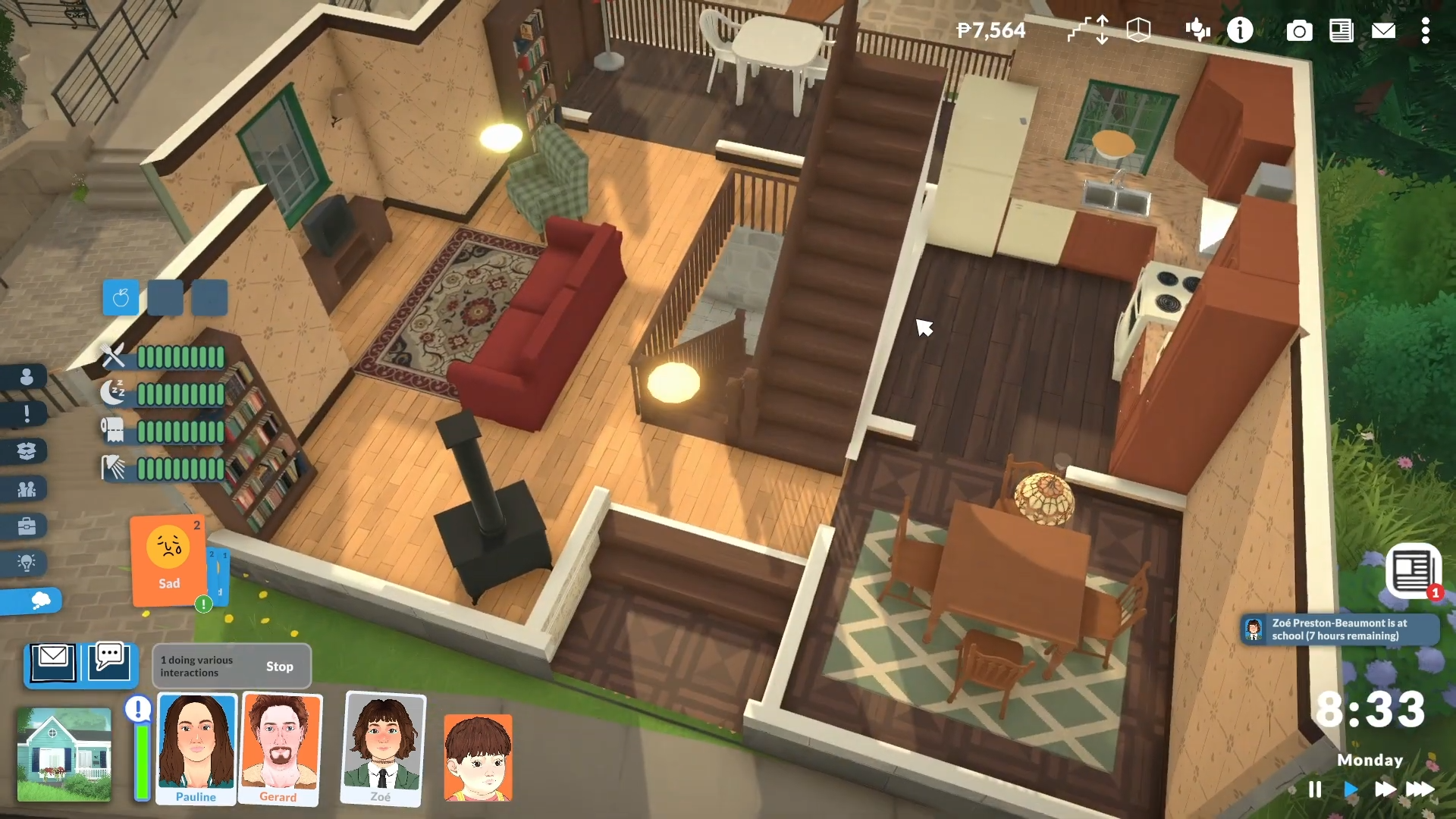
You can press these keys multiple times to cycle through different visibility states (full height, half-height, completely hidden).
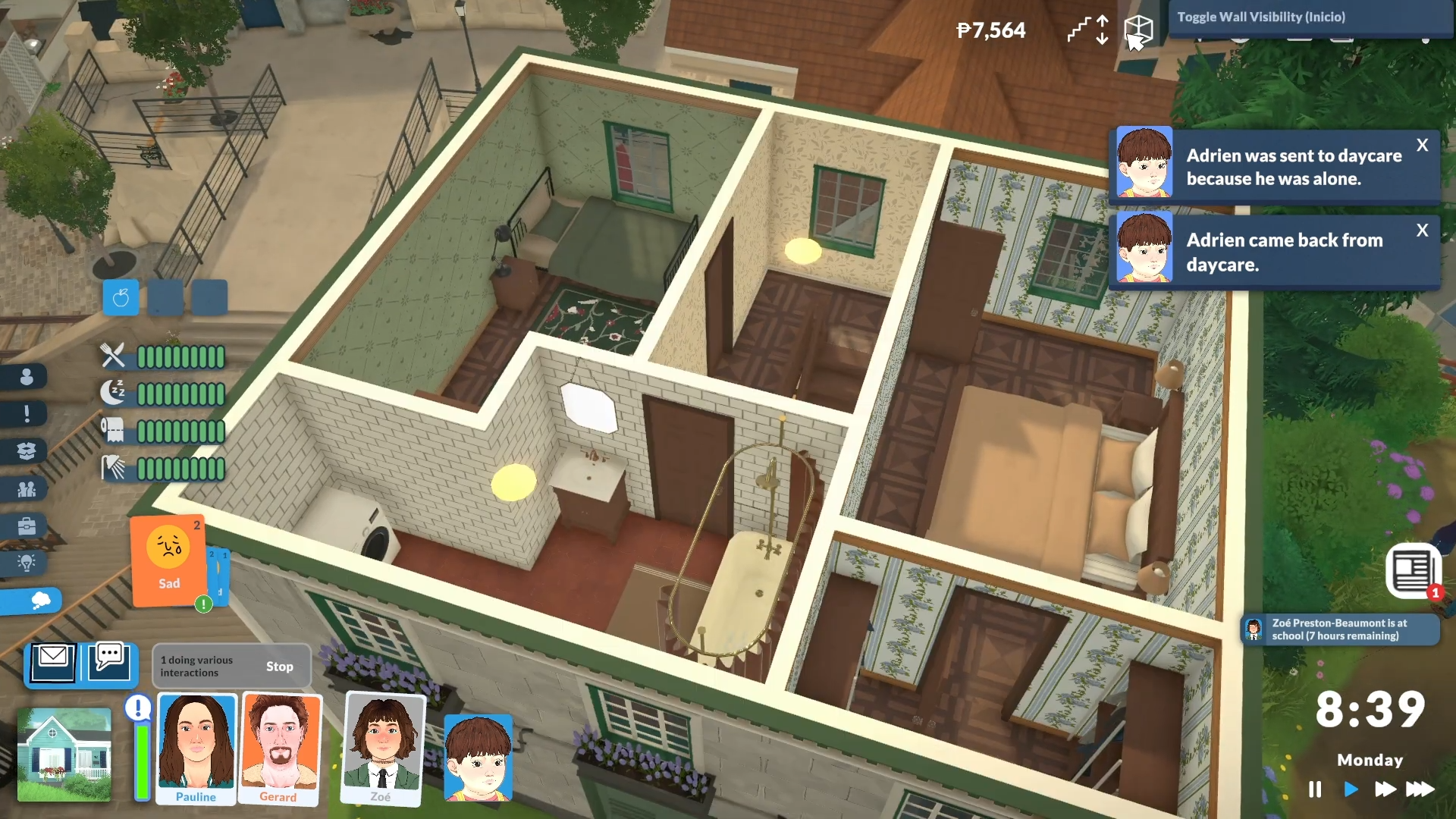
Step 3: Verify the Change
Your walls should immediately update. If you’re having trouble seeing changes, press G to toggle the grid and ensure you’re looking at the right floor (use Page Up/Page Down to switch floors).
Critical Tips & Common Mistakes to Avoid
-
HomeandEndare the exact keys — not Function keys or arrow keys. -
On laptops, you may need to hold
Fn+Home/Endif your keys share functions. -
Wall visibility is per-floor, so check you’re on the correct floor using
Page Up/Page Down. -
If keys don’t work, check Settings → Key Bindings — all bindings are customizable and may have been changed.
-
Hiding walls helps you place furniture accurately without visual obstruction, but remember to turn walls back on before playing in Live Mode.
That’s it — you now know exactly how to toggle wall visibility in Paralives using Home and End.