Building and customizing homes is one of the biggest parts of Paralives, and the game makes it easy to reuse your favorite designs. Whether you want to download a stylish community house or save your own creation for future families, the process only takes a few clicks once you know where the tools are located.
How the house import system works in Paralives
| Feature | What It Does | Where to Access |
|---|---|---|
| Import House | Places a pre-made home onto a lot | Residence window |
| Save House | Stores your current build in your library | Residence window |
| Community Houses | Download and use player-made builds | House browser |
| Developer Houses | Use official starter or showcase homes | House browser |
| Lot Library | Keeps your saved builds available later | Save menu |
| Cost Requirement | Imported homes still require in-game money | Before placement |
The house import feature allows you to completely replace an empty lot with a pre-built home. These homes can come from either the community library or official developer creations. This is especially useful if you want to start a new family quickly without spending hours building from scratch.
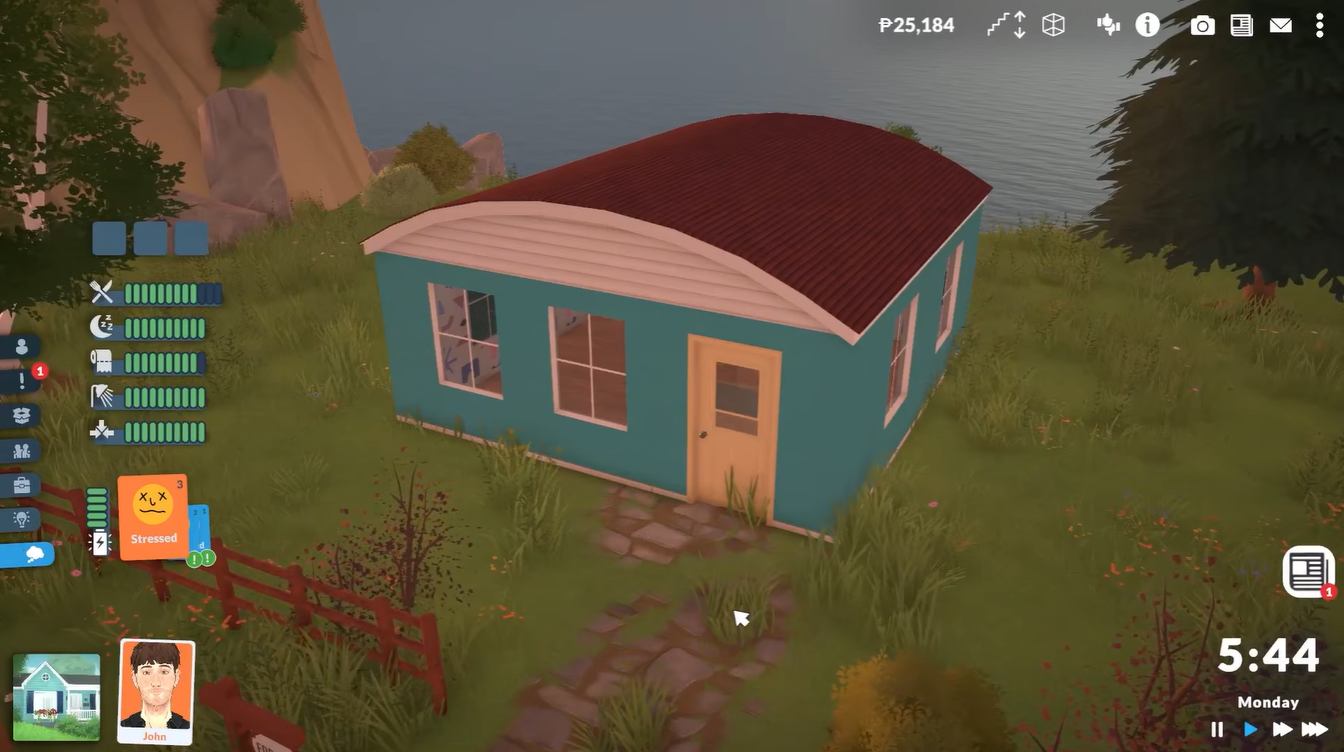
Imported houses keep their full layouts, decorations, furniture placement, and exterior designs. However, you still need enough in-game funds before the lot can be placed successfully. Larger or luxury homes usually cost significantly more than starter builds.
The import option is best used when starting on a vacant property because placing a new house can overwrite an existing structure.
How to import houses in Paralives
Step 1
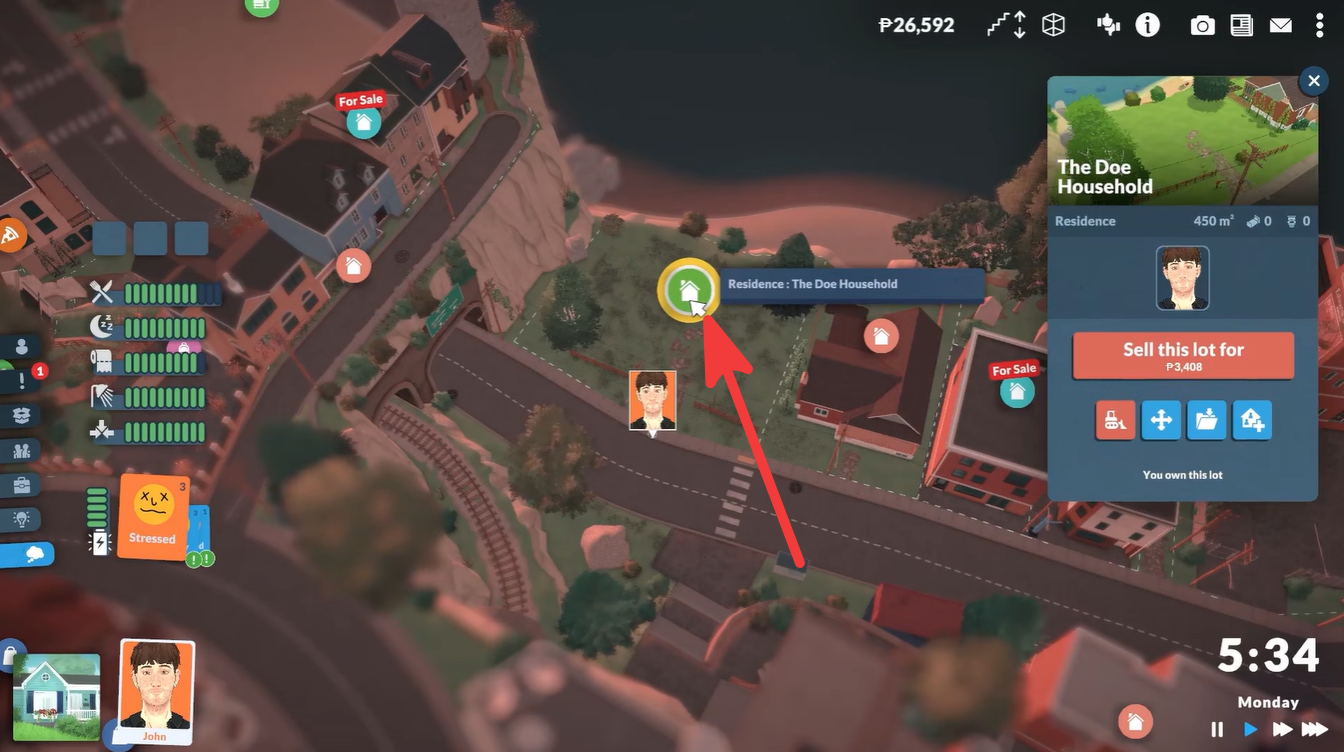
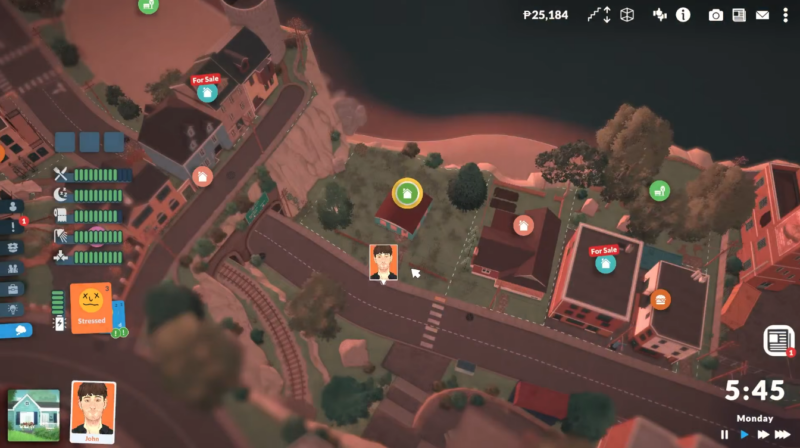
Open your current world and locate the lot where you want to place a house. If possible, choose an empty lot to avoid replacing an existing build. Zoom out slightly until you can clearly see your residence icon on the map or neighborhood view.
Step 2
Click the residence icon to open the household residence window. This menu contains several management options related to your current property.
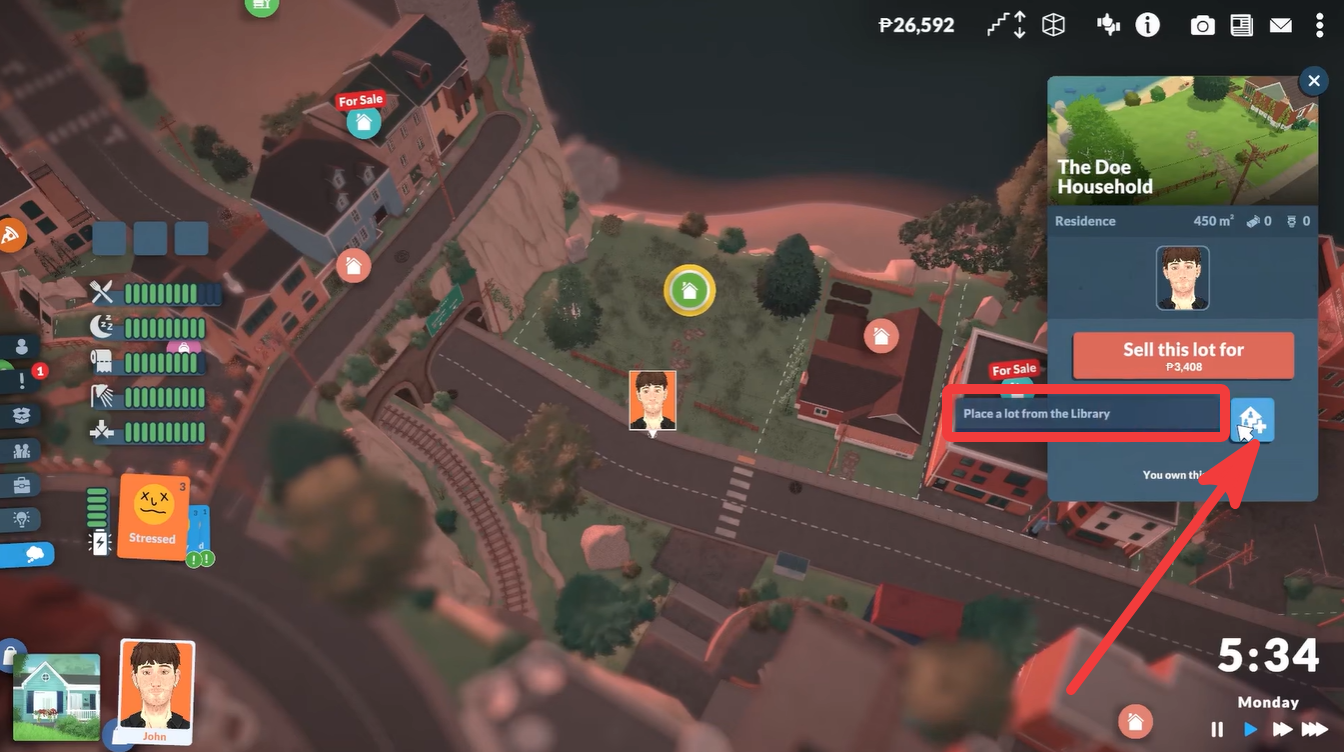
At the bottom of the window, look for the house icon with the plus symbol. This is the import house button.
Step 3
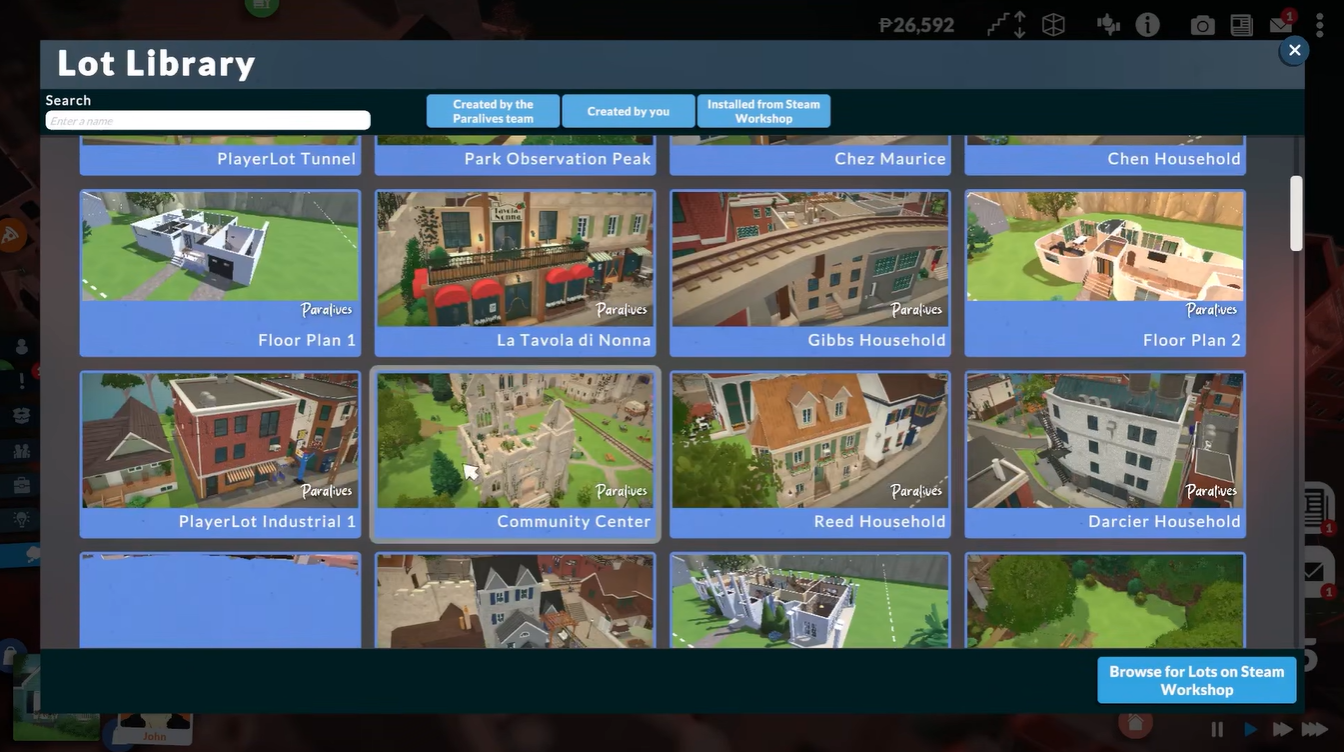
Open the house browser and scroll through the available builds. You can choose between:
| House Type | Description |
|---|---|
| Community Builds | Homes made by other players |
| Developer Builds | Official houses created by the Paralives team |
| Starter Homes | Budget-friendly beginner houses |
| Large Family Homes | Bigger layouts with multiple rooms |
Select the house you want to place and confirm the purchase or placement option. If your household has enough funds, the home will instantly appear on the selected lot.
What happens after importing a house
After placement, the imported home becomes fully functional immediately. Furniture, decorations, and room layouts remain intact exactly as designed by you.
Some builds may include advanced landscaping, custom room layouts, or creative furniture arrangements that can inspire your own future builds. If you later edit the home, those changes remain tied to your current save unless you save the updated version separately.
How to save a house in Paralives
Step 1
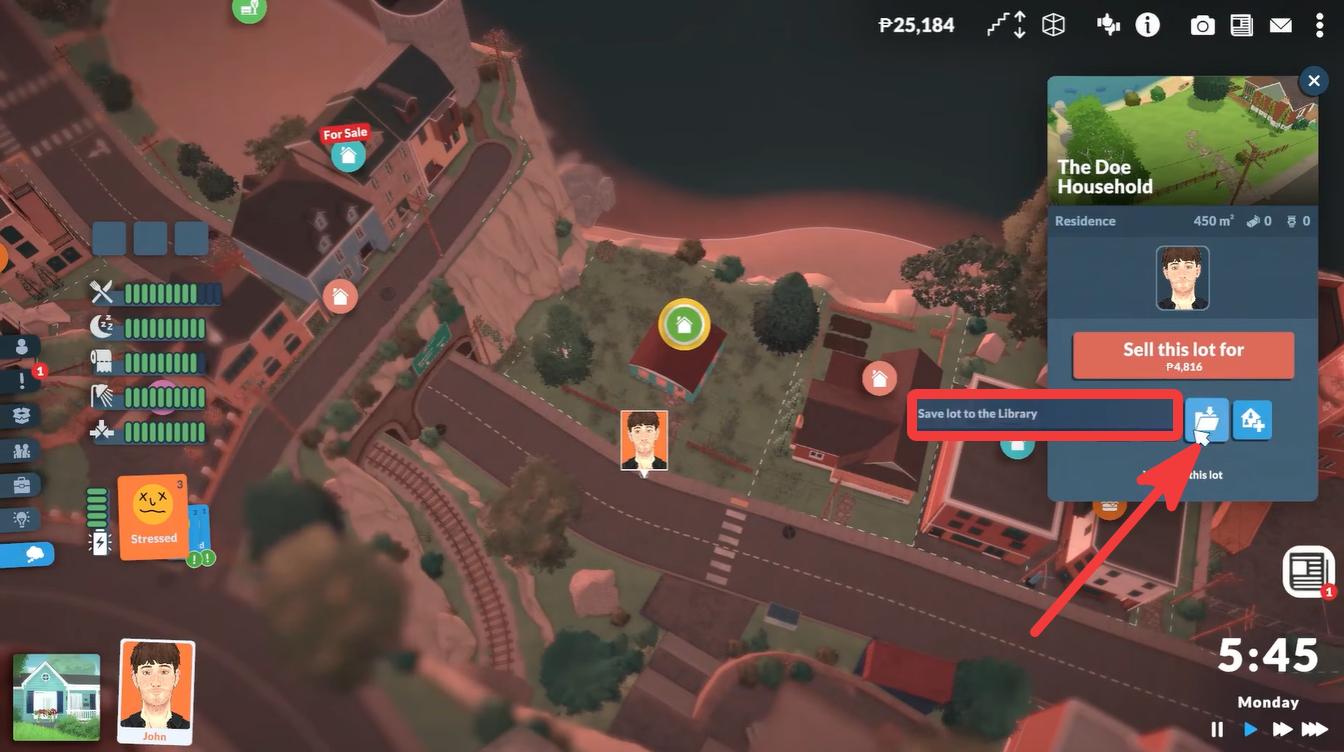
Open the same household residence window used for importing lots. Locate the folder icon with the arrow near the bottom menu. This is the save lot option.
Step 2
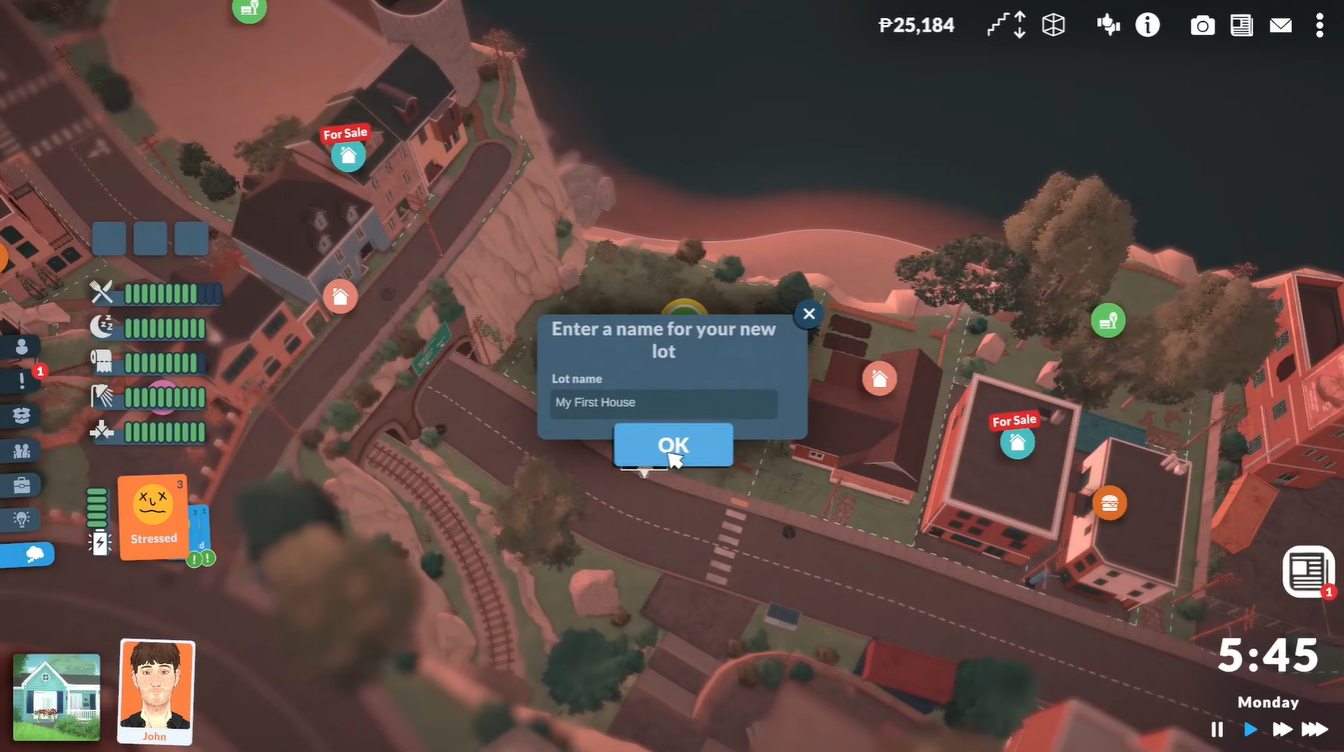
Click the button to open the save prompt. Enter a custom name for your house design. Choosing a descriptive name makes it easier to locate later if your library grows larger.
Step 3
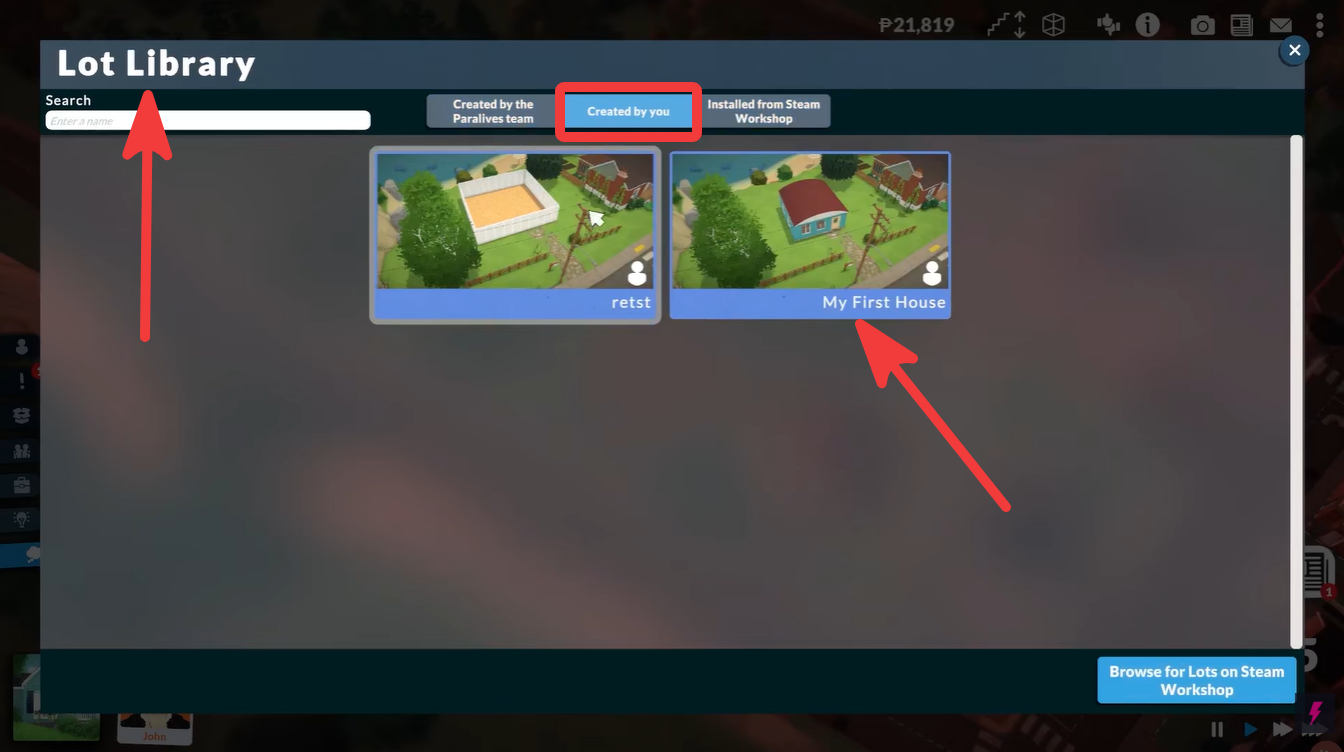
Confirm the save action. Your house will now be added to your personal lot library.
Where saved houses appear
Saved homes become accessible through the same import menu used for downloading community builds. This means you can quickly place your own creations onto new lots whenever you start another household or want to redesign a neighborhood.
Useful tips before saving or importing houses
Before importing expensive houses, make sure your household budget can cover the full placement cost. Starter families may struggle to afford larger builds immediately.
When saving your own builds, it helps to finalize landscaping and interior decorations first so the library version feels complete later. If you plan to share creations with other players once community sharing expands further, clean layouts and organized rooms make builds easier to use.
It is also smart to create multiple save versions when experimenting with renovations. That way you can preserve older designs without permanently overwriting them.
The lot library is one of the most convenient creative tools in the game because it encourages experimentation. Instead of worrying about losing your best builds, you can archive them and reuse them whenever needed.
For players who enjoy architecture and interior decorating, the save and import system dramatically reduces repetitive building work. It also helps populate neighborhoods faster with detailed homes created by the wider community.