If you are redesigning your house, making space for new furniture, or preparing items for donation, the inventory system in Paralives makes the process simple. Instead of permanently deleting objects, you can safely move them into storage and reuse them later whenever needed. The process only takes a few clicks once you know where the options are located.
| Quick Overview | Details |
|---|---|
| Game | Paralives |
| Feature | Item Storage / Inventory |
| Main Requirement | Access to Build Mode |
| Keyboard Shortcut | Tab |
| Inventory Access | Open box icon on left side of screen |
| Best Use Cases | Redecorating, organizing, donating items |
How the inventory system works in Paralives
The inventory system in Paralives allows you to temporarily remove objects from your lot without selling or destroying them. Any stored object remains available for later placement, making it ideal for home renovations or seasonal decorating.
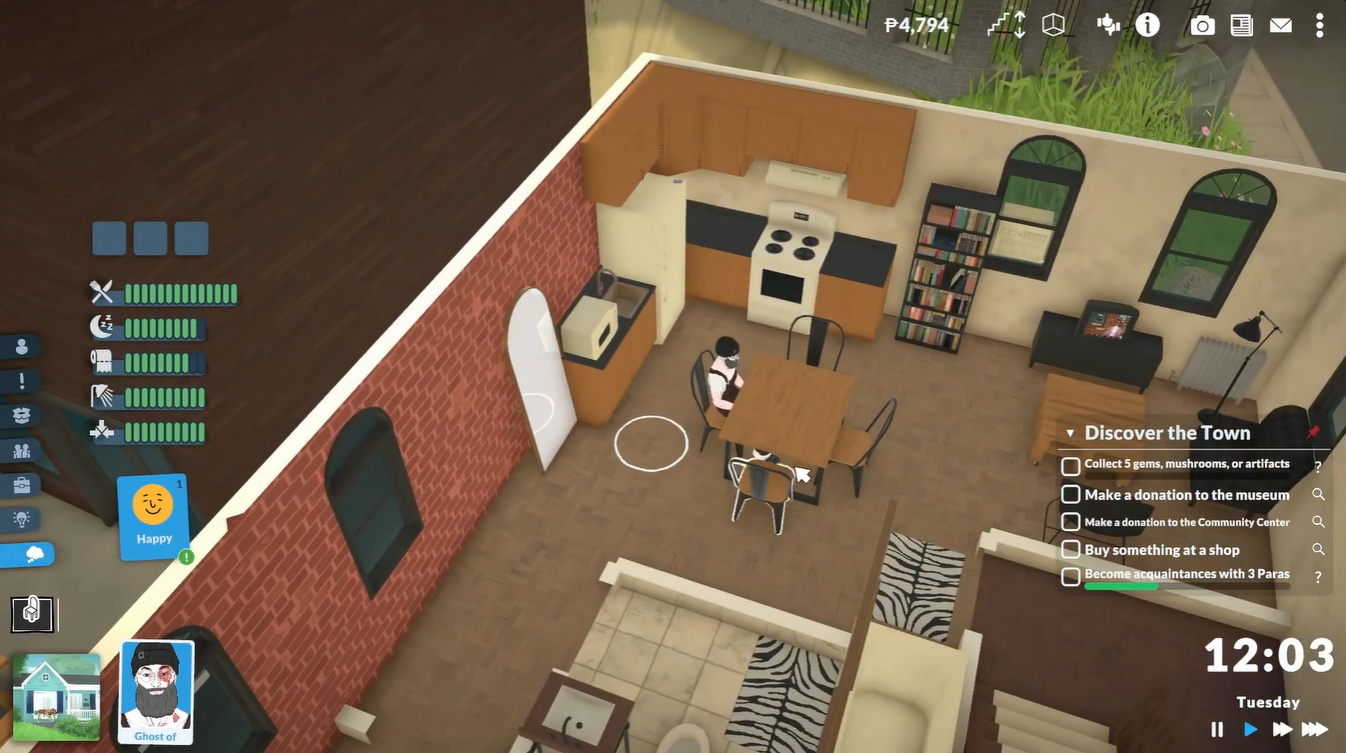
Unlike deleting furniture, storing items keeps them attached to your household inventory. This means you can place the same object again later without spending additional in-game money to repurchase it.
The feature is especially helpful when you want to reorganize rooms quickly or clear clutter before rebuilding an area of your house.
How to store items in your inventory in Paralives
Step 1
Open Build Mode by clicking the build icon located in the bottom-left corner of the screen. You can also press the Tab key on your keyboard for a faster shortcut.
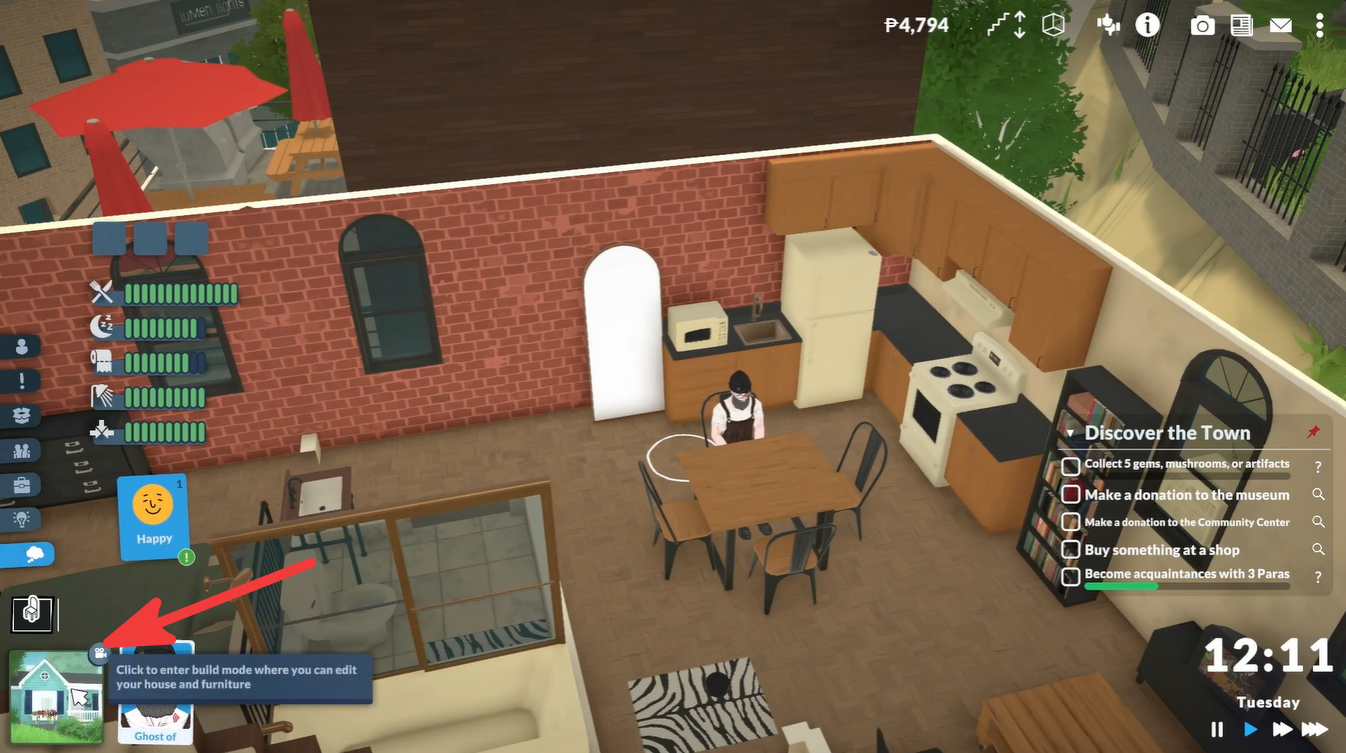
Once Build Mode opens, you will be able to select furniture, decorations, and other household objects.
Step 2
Click on the object you want to store. This can include chairs, tables, decorations, appliances, or many other movable items inside your home.
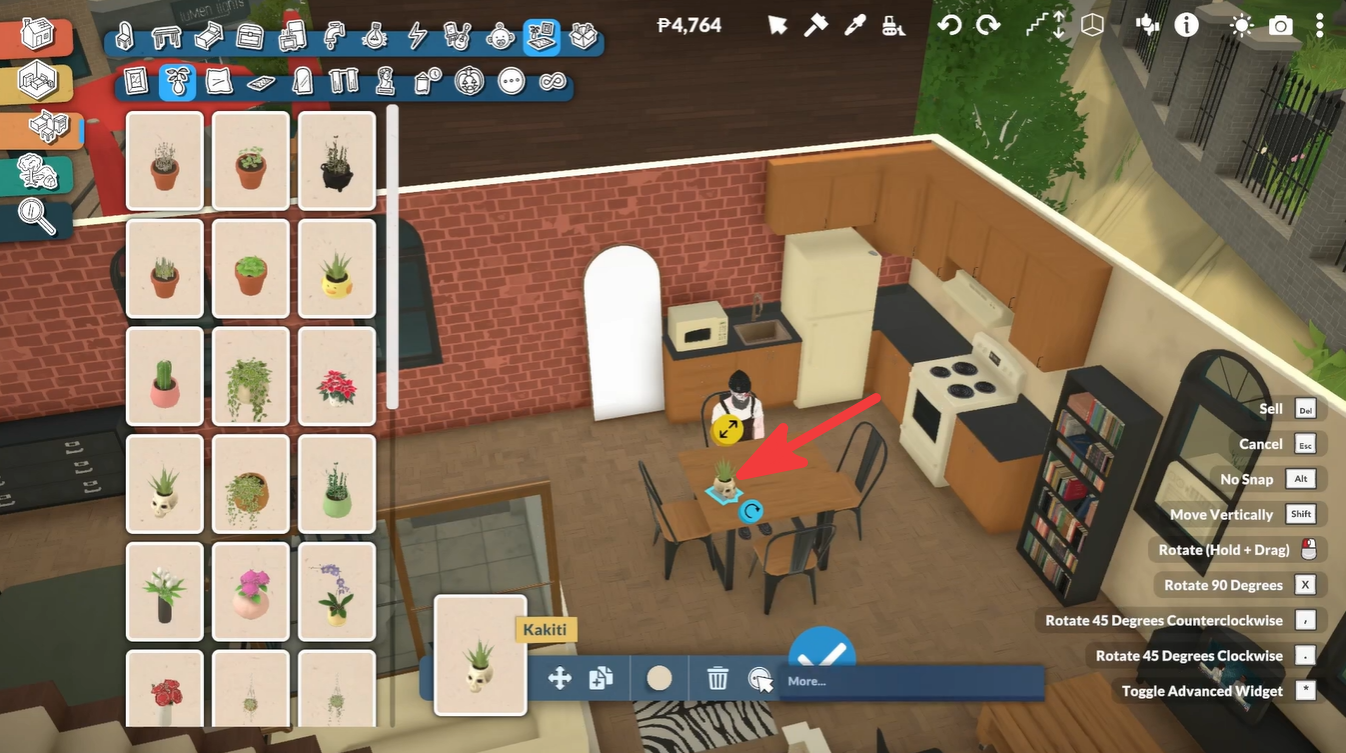
After selecting the item, a customization and interaction menu will appear on the screen.
Step 3
Look for the three-dot menu within the object options. Clicking this button opens additional actions related to the selected item.
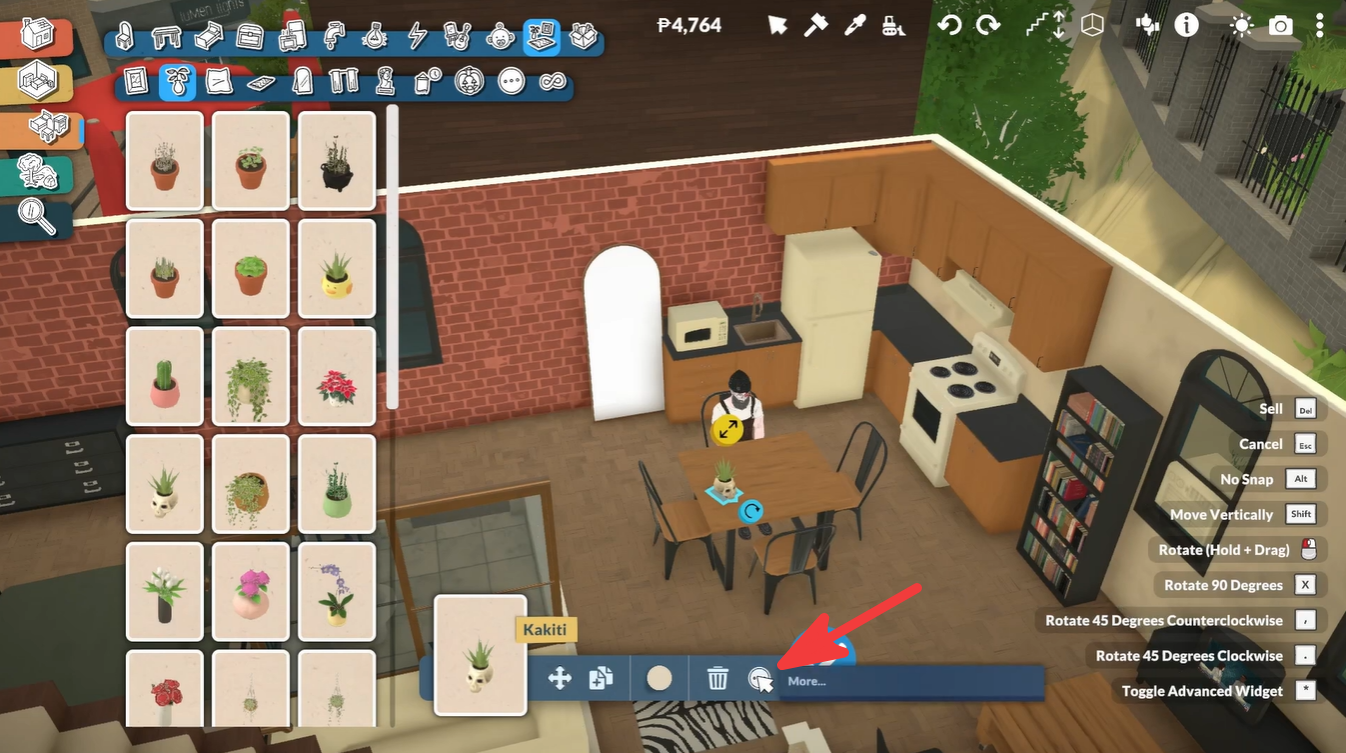
This hidden menu contains several management options, including the storage feature.
Step 4
Select the Add to inventory option from the menu.
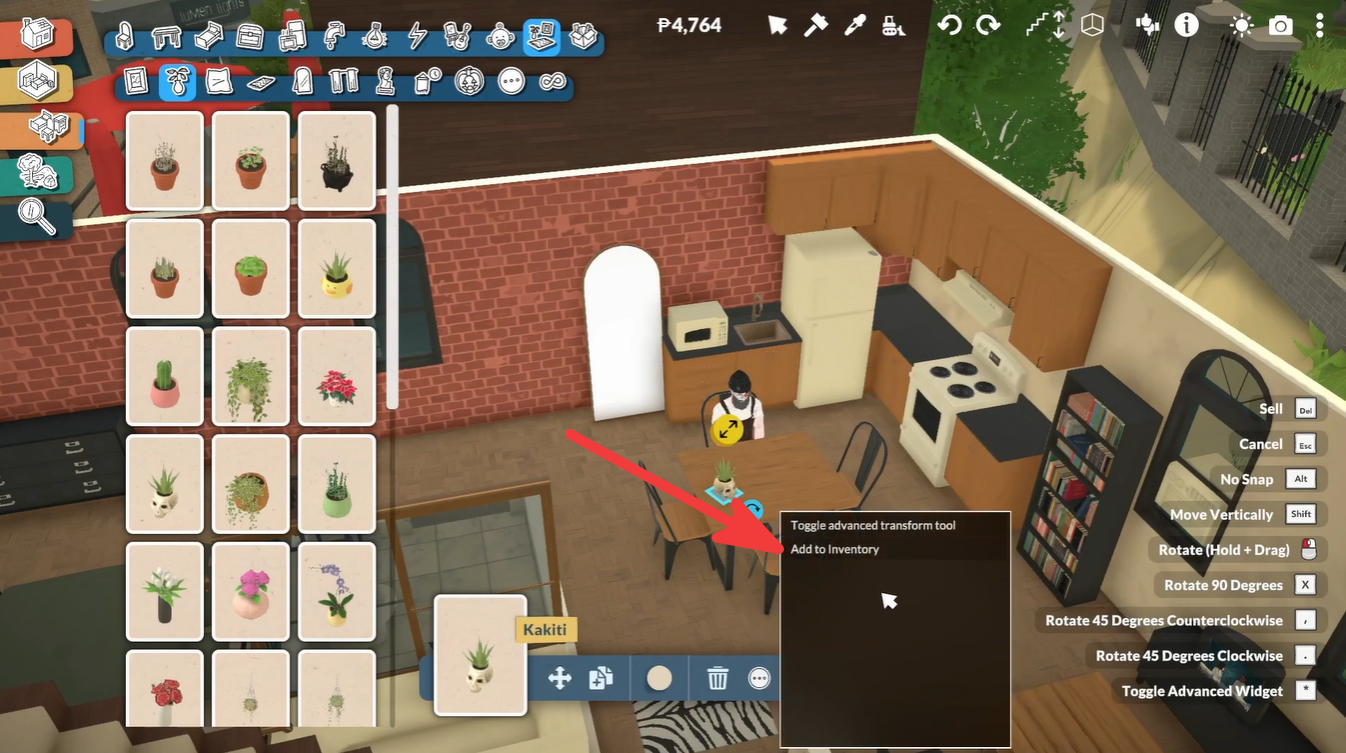
Once clicked, the object will immediately disappear from the lot and move into your household inventory instead of being sold or deleted.
Step 5
Exit Build Mode and locate the open box inventory icon on the left side of the screen.
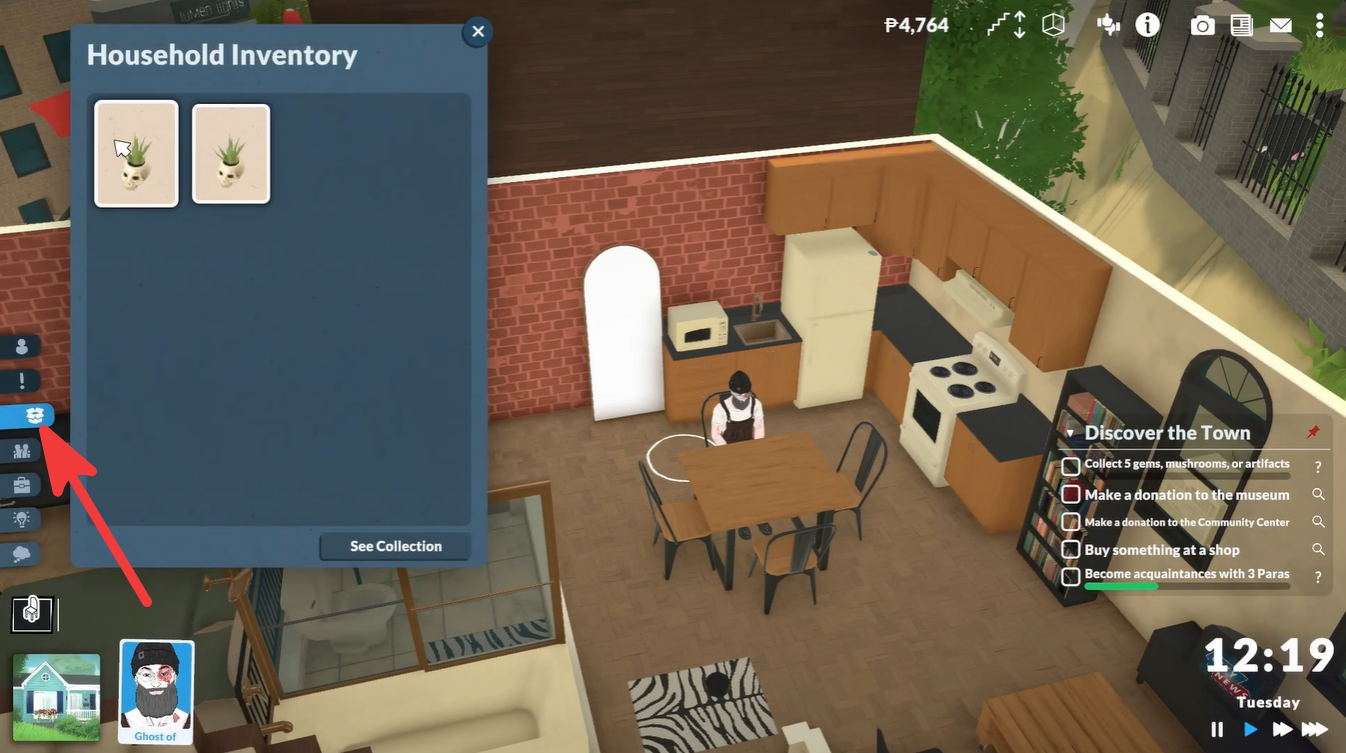
Clicking this icon opens your inventory menu, where you can view all stored objects and place them back into the world whenever needed.
Situations where storing items is useful
There are several situations where using the inventory system becomes extremely useful in Paralives.
| Situation | Why Inventory Helps |
|---|---|
| House Renovations | Clears rooms without deleting furniture |
| Room Redesigns | Lets you test layouts safely |
| Seasonal Decorations | Store unused items for later |
| Moving Homes | Keep valuable furniture organized |
| Museum Donations | Prepare items before donating |
Players who enjoy detailed interior decorating will likely use the feature frequently since it makes experimenting with layouts much easier and less expensive.
Common mistakes when storing items
Some players accidentally sell objects instead of storing them. To avoid this, make sure you specifically choose Add to inventory rather than any delete or sell option.
Another common issue is forgetting where stored items are located afterward. Remember that all stored objects appear under the inventory icon outside Build Mode.
If an object cannot be selected, it may be fixed to the structure or currently unusable in its present state.
Why the inventory feature is important
The inventory feature adds much more flexibility to building and decorating in Paralives. Instead of permanently committing to a layout, you can safely experiment with room designs and save furniture for future use.
It also helps reduce unnecessary spending since you can reuse previously purchased items whenever you redesign your home.
Learning how to store items properly makes home management in Paralives far easier. Whether you are remodeling a room, organizing clutter, or preparing items for donation, the inventory system gives you a fast and convenient way to keep everything accessible without losing valuable objects.