What to know
- Night Tone Mode was officially added in Patch 1.06.00.
- Enabling it makes colors softer and brightens darker shaded areas slightly.
- Disabling it keeps visuals sharper with deeper shadows and stronger contrast.
- You can toggle it anytime from Settings > Video > Night Tone Mode.
Following Patch 1.06.00, Crimson Desert introduced Night Tone Mode as a new visual option designed to adjust how the game handles color tone and dark environments. Rather than acting like a simple brightness slider, the feature changes the overall presentation of nighttime and shaded scenes.
| Feature | Enabled | Disabled |
|---|---|---|
| Color Style | Softer | Sharper |
| Dark Areas | Slightly brighter | Slightly darker |
| Overall Contrast | Reduced | Higher |
| Best For | Visibility and comfort | Cinematic visuals |
| Recommended Use | Bright rooms, hard-to-see areas | Dark rooms, immersive gameplay |
According to the Patch 1.06.00 notes:
“Added Night Tone Mode option.
When enabled, overall colors become softer, and darker, shaded areas appear slightly brighter.
When disabled, overall colors become sharper, and darker, shaded areas appear slightly darker.”
This confirms that the feature is not just tied to nighttime brightness alone. It also changes the game’s overall color sharpness and contrast balance.
How Night Tone Mode actually affects visuals
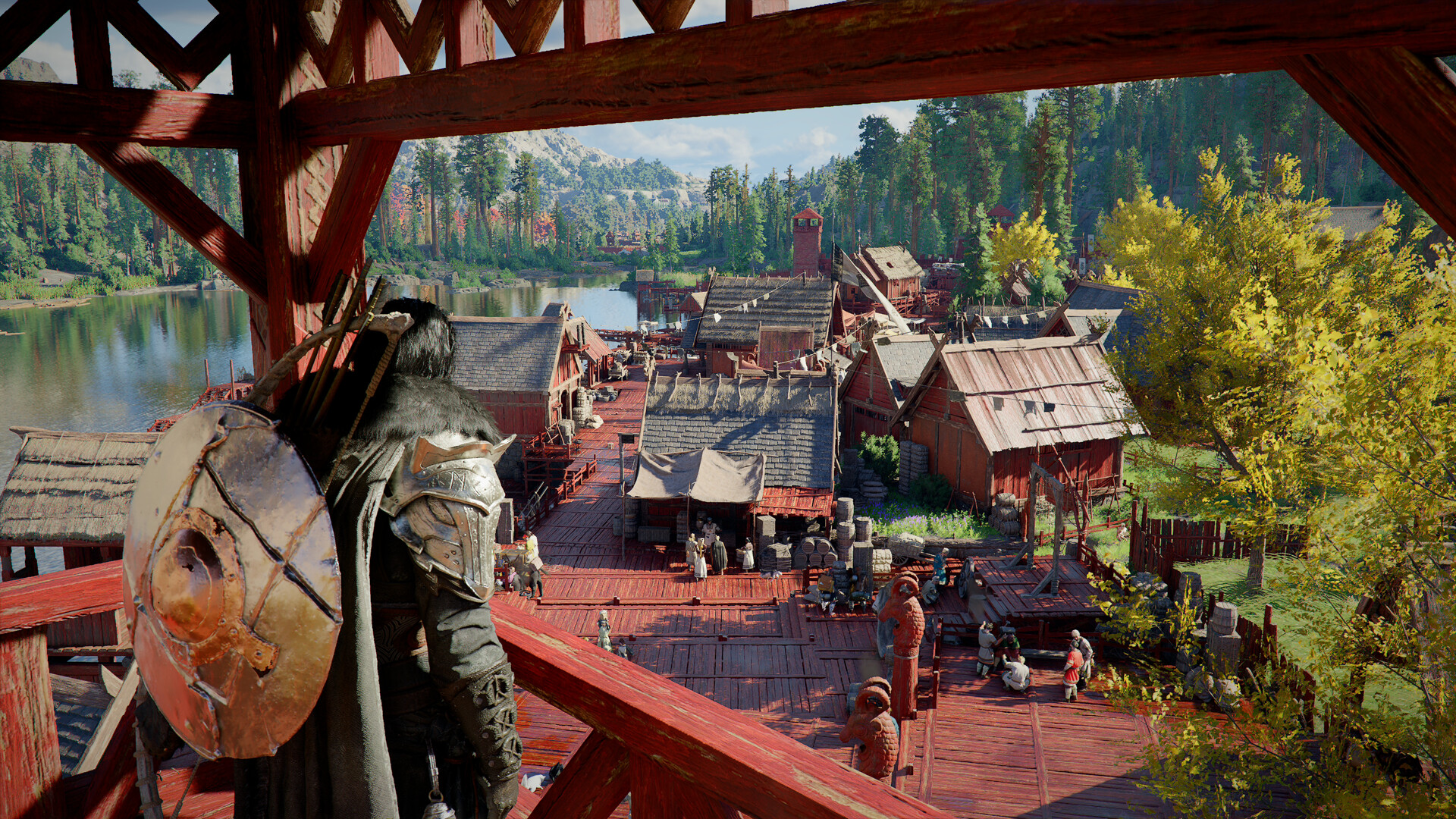
When the setting is enabled, Crimson Desert reduces harsh contrast and slightly lifts shadow detail. This makes dark forests, caves, nighttime roads, and shaded interiors easier to read visually.
You may notice:
- Less aggressive dark shadows
- Softer lighting transitions
- Reduced black crush
- Easier enemy and object visibility at night
- A more relaxed overall image tone
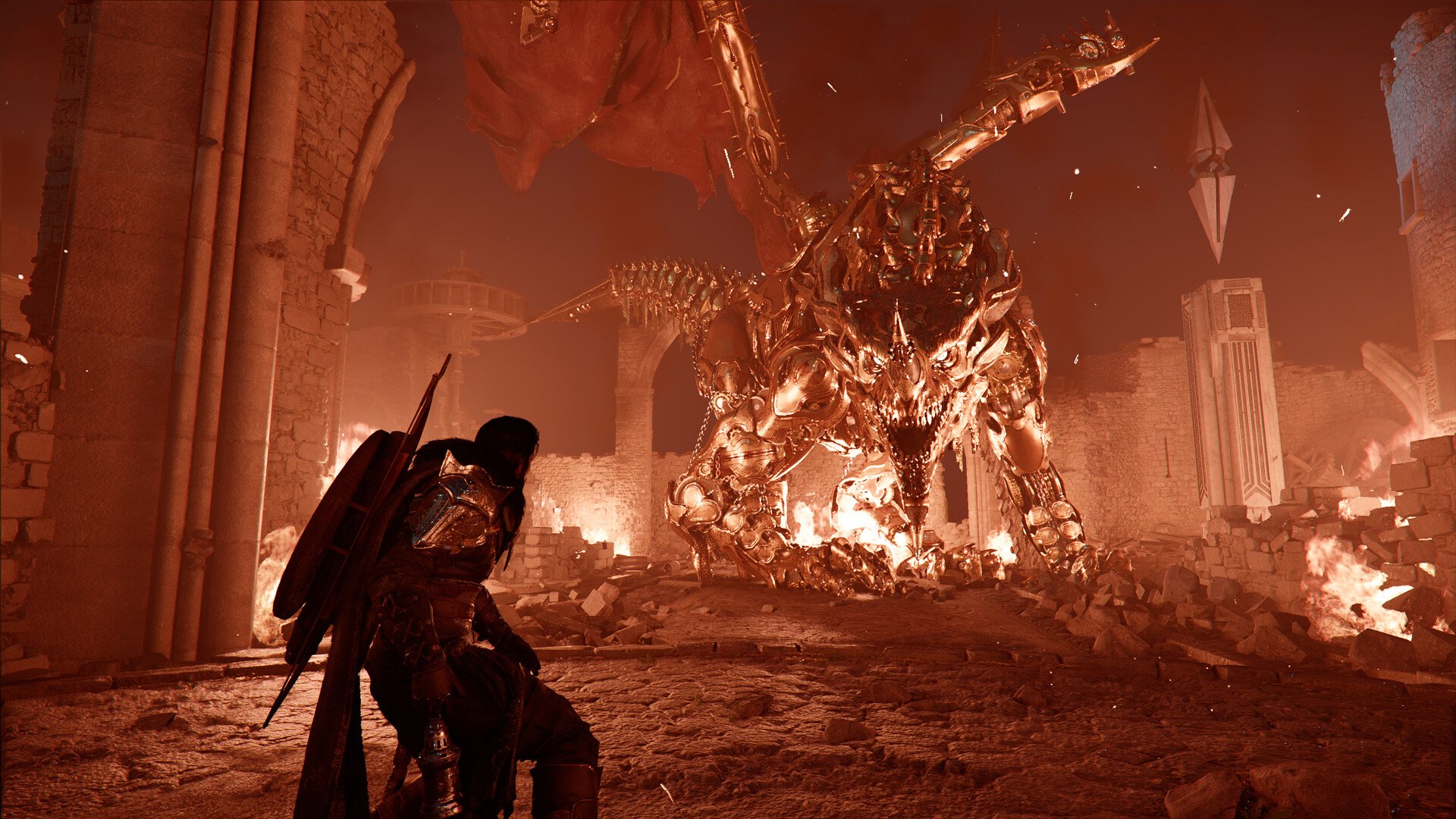
When disabled, the game leans harder into its cinematic lighting style. Colors and edges appear more defined, while dark areas become deeper and more dramatic.
This mode is ideal if you prefer:
- Stronger visual contrast
- Sharper image presentation
- More atmospheric nighttime scenes
- Deeper shadow detail
Where to enable or disable Night Tone Mode
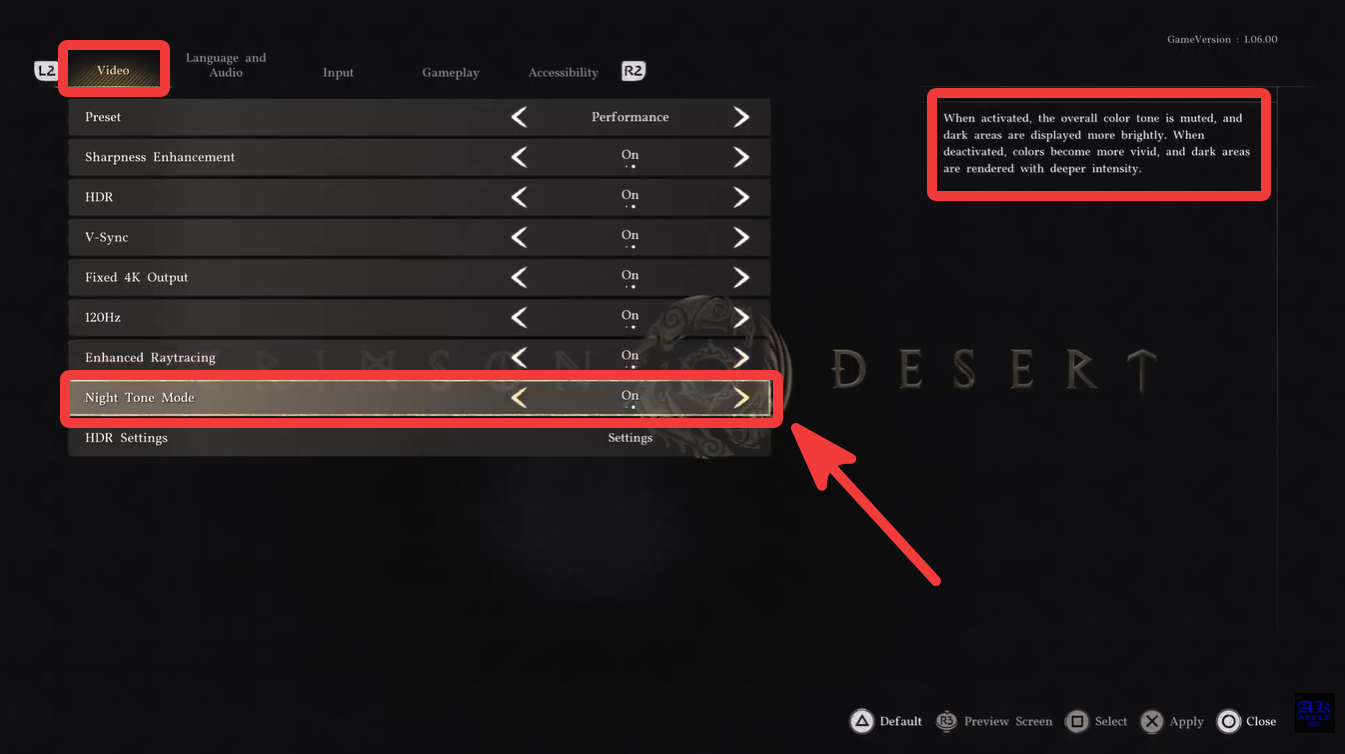
You can change the setting anytime through the in-game options menu.
- Open the main menu.
- Go to Settings.
- Select the Video tab.
- Find Night Tone Mode. Toggle the setting On or Off.
Which setting should you use?
The better option depends entirely on your display setup and personal preference.
| Player Preference | Recommended Setting |
|---|---|
| Better nighttime visibility | Enabled |
| Softer colors and reduced eye strain | Enabled |
| Stronger cinematic atmosphere | Disabled |
| Sharper image quality | Disabled |
| Playing in a bright room | Enabled |
| Playing in a dark room | Disabled |
Players using OLED displays or HDR setups may especially notice the difference because deeper blacks can sometimes make nighttime scenes too dark. In those cases, enabling Night Tone Mode can help maintain detail visibility.
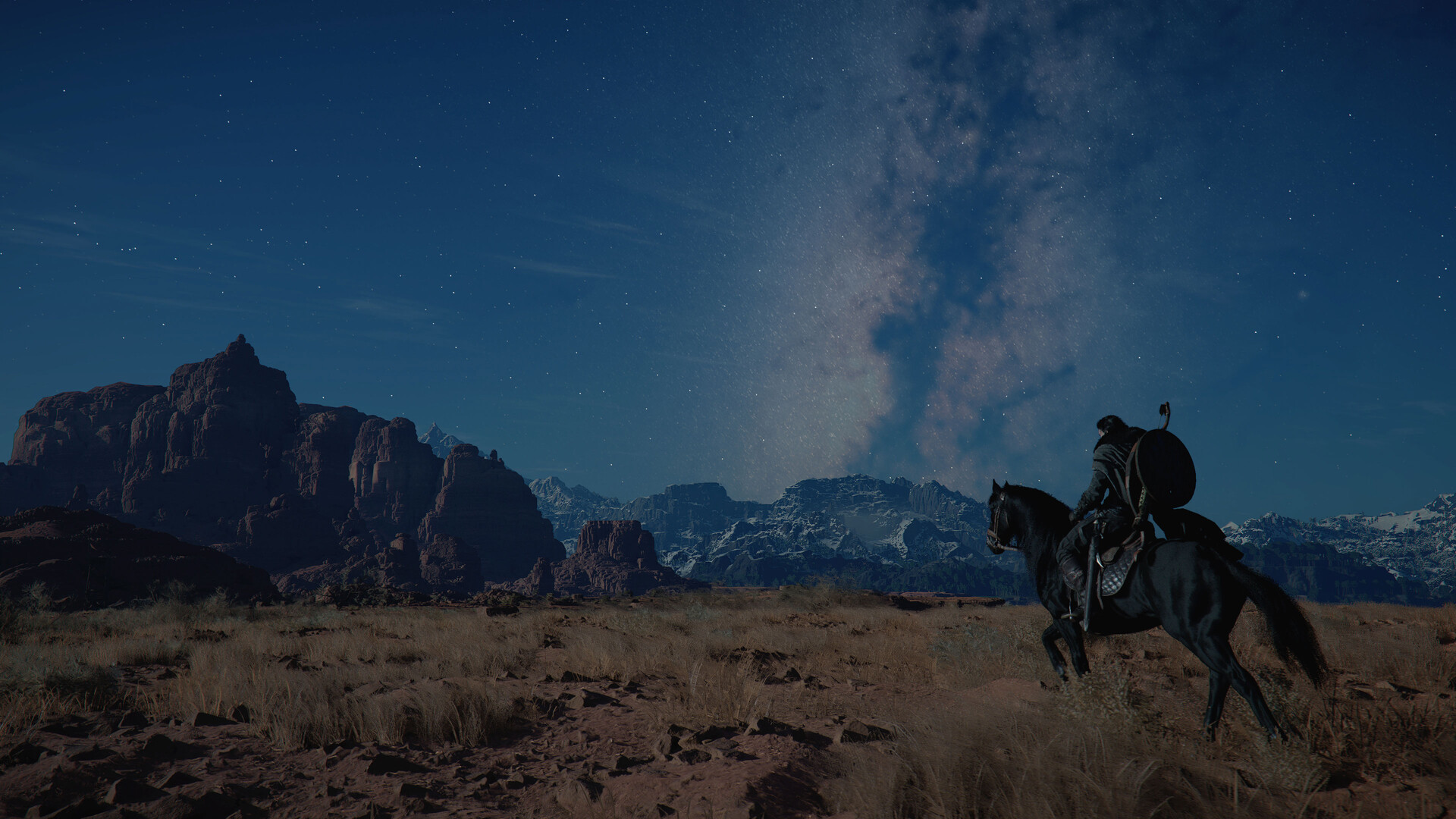
Night Tone Mode is more of a visual style option
While the name suggests it only affects nighttime gameplay, the setting actually changes the overall visual tone of the game. It functions as both a visibility feature and a presentation preference.
You are essentially choosing between:
- A softer, visibility-focused image
- A sharper, higher-contrast cinematic image
Since the option can be toggled freely, many players may switch depending on the environment they are exploring or the display they are using.
The addition of Night Tone Mode in Patch 1.06.00 gives players more control over Crimson Desert’s visual presentation without needing to constantly adjust brightness or HDR calibration.
For players who found nighttime scenes too dark, the feature offers a cleaner solution. Meanwhile, players who enjoy dramatic contrast and deep shadows can simply leave the option disabled for the original visual style.