What to know
- The Quick Access Car Menu is customizable through the in-game phone interface.
- Important items (marked with a gem icon) can be assigned to quick slots.
- You can add items by selecting them and pressing the plus (+) icon.
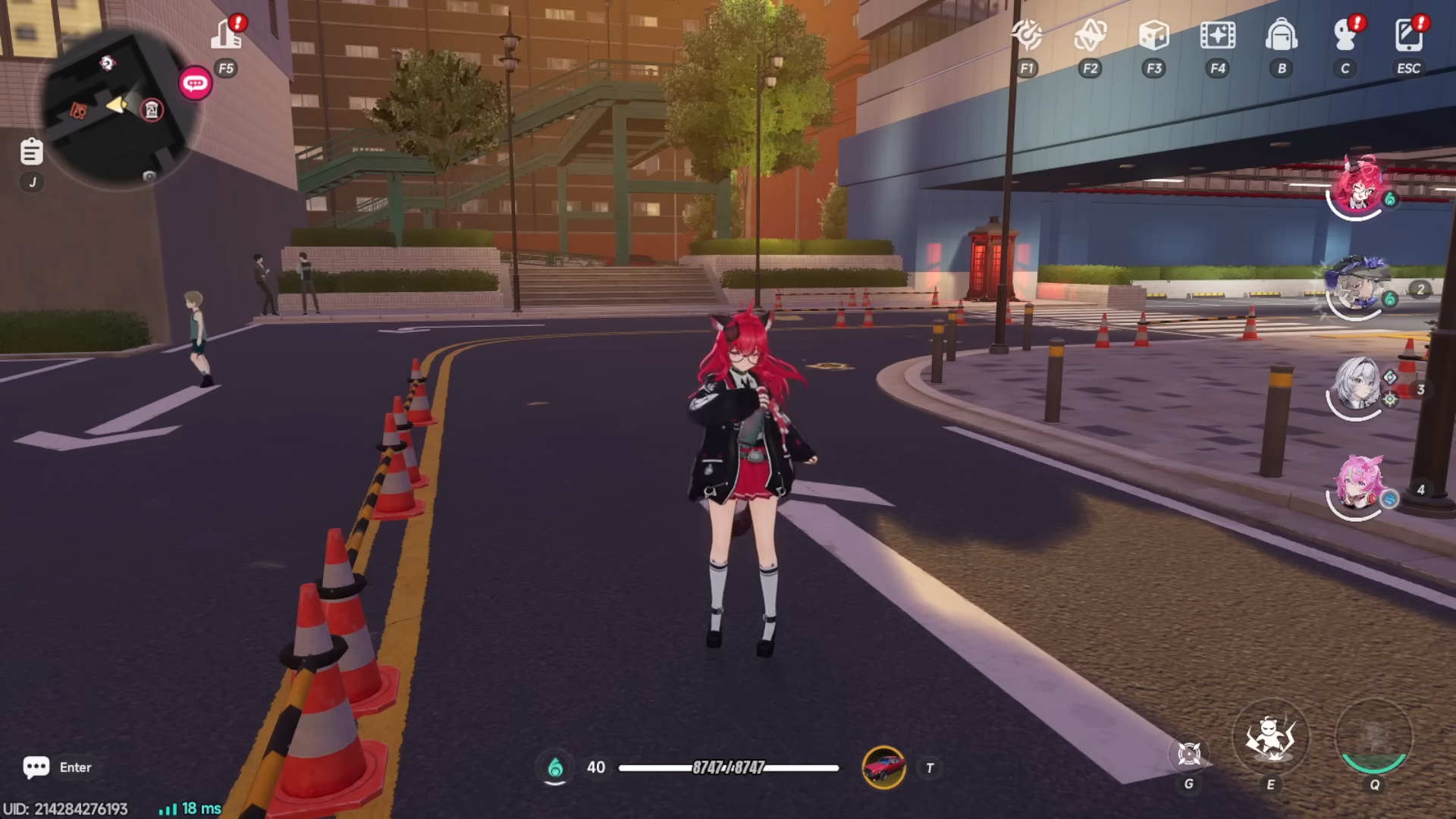
- Press “T” in-game to open and verify your updated quick access menu.
Customizing your Quick Access Car Menu in Neverness to Everness is one of those small adjustments that can significantly improve your overall gameplay flow. Whether you’re switching vehicles quickly or managing essential tools on the go, having the right items in your quick slot saves time and keeps you focused during missions or exploration. The system is simple once you know where to look, but it’s easy to overlook if you’re new to the interface.
NTE quick slot system details
| Feature | Details |
|---|---|
| Access Menu Key | ESC (Phone Menu) |
| Section to Navigate | Inventory |
| Key Indicator | Gem Icon (Important Items) |
| Add to Quick Slot | Press “+” icon |
| Open Quick Menu In-Game | Press “T” |
| Purpose | Fast access to vehicles/items |
How the quick access system actually works in NTE
The Quick Access Menu is tied directly to your “important items” inventory category. This means not every item you collect will appear as an option. Only selected utility or key items—marked with a distinct gem icon—can be assigned. This design ensures that your quick menu stays clean and relevant rather than cluttered with unnecessary objects.
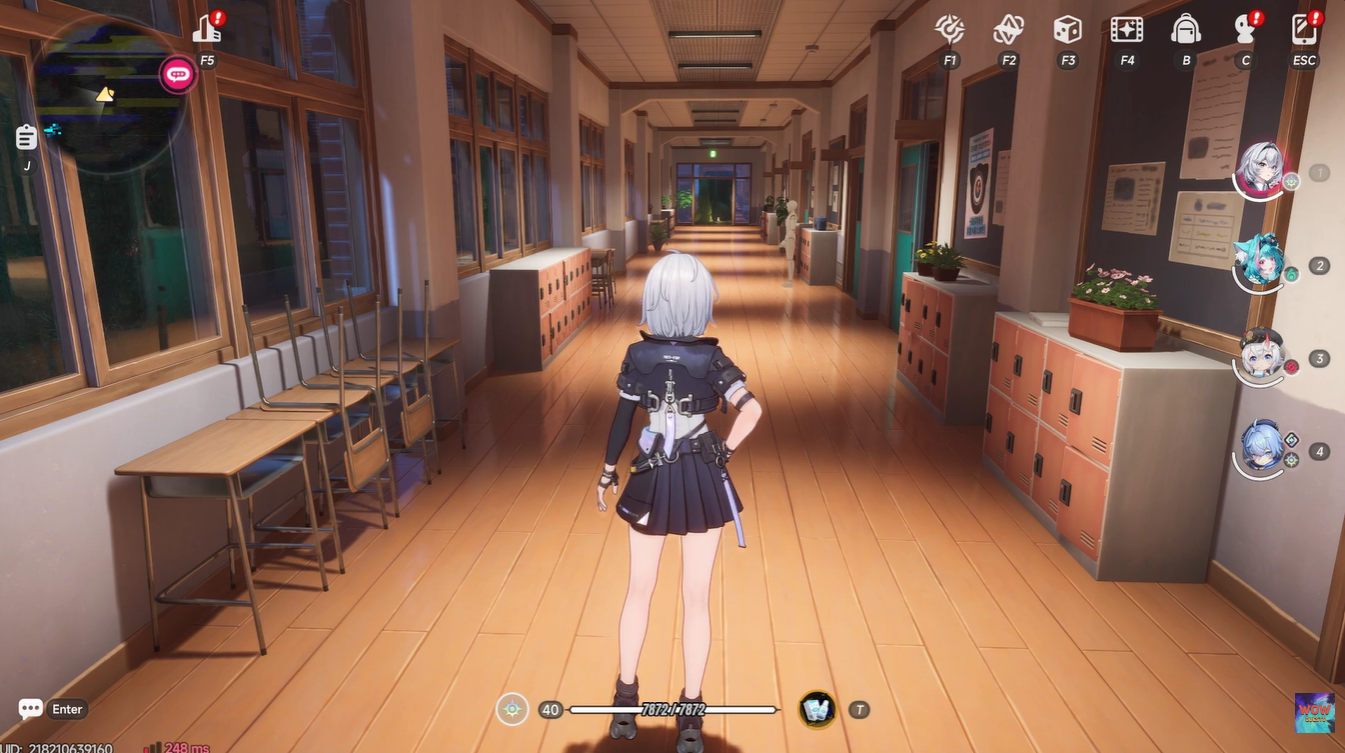
When you open the phone menu, you’re essentially entering a centralized control hub where inventory management and customization happen. The quick slot system is embedded here rather than being a separate feature, which can confuse players initially.
Step 1
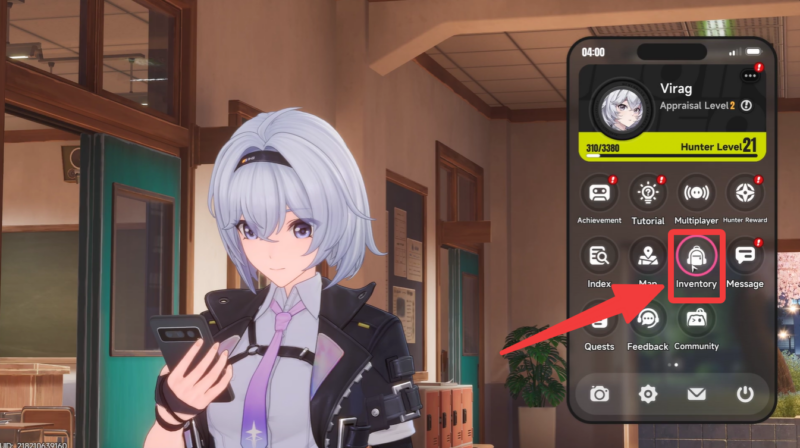
Press the ESC key to open your in-game phone menu. Navigate to the Inventory section within the phone menu. Once there, look carefully at the top bar where different categories are displayed.
Step 2
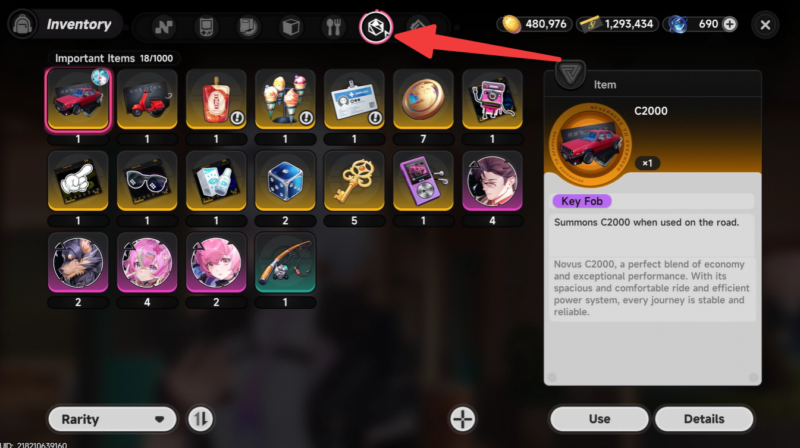
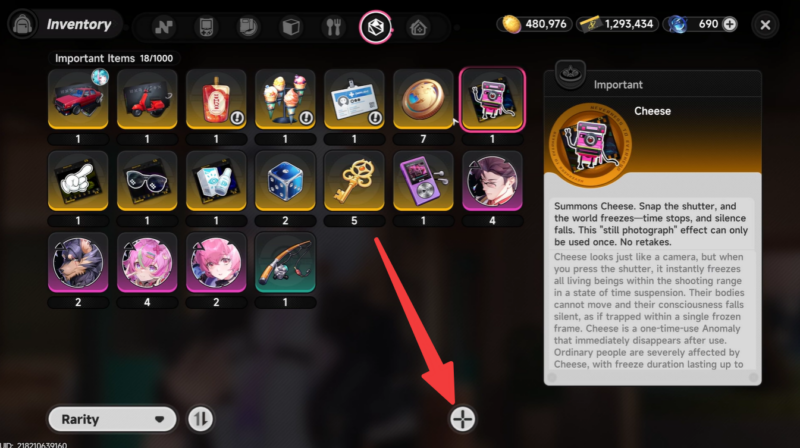
Locate the gem icon category, which represents your important items. These are the only items eligible for quick access assignment.
Step 4
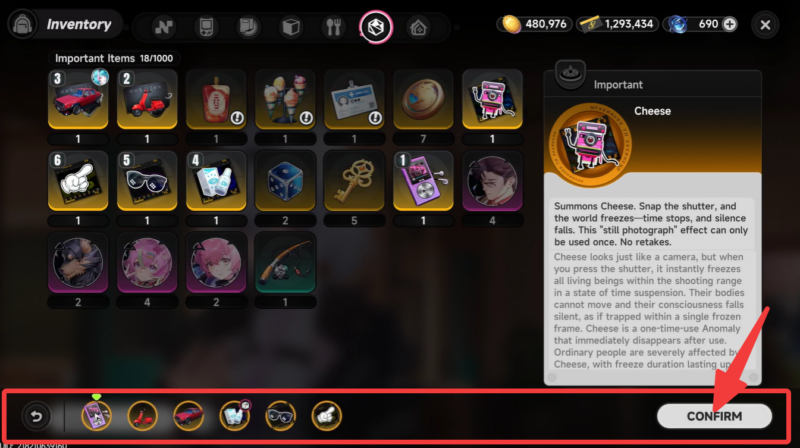
Select the item you want to add to your Quick Access Car Menu. Make sure it’s something you frequently use during gameplay. Click or press the “+” (plus) icon associated with that item. This action assigns it directly to your quick slot bar.
Step 6
Confirm your selection if prompted. The system will update your quick access configuration immediately.
Step 7
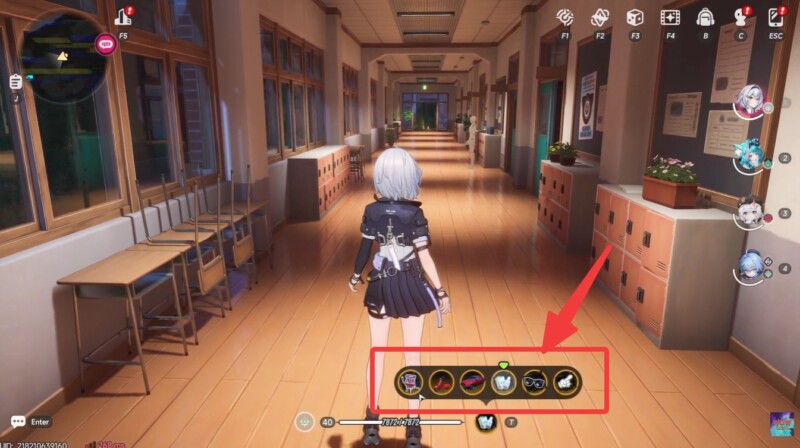
Press “T” during gameplay to open the Quick Access Menu and verify your changes. Your newly added item should now be visible and usable instantly.
At first glance, this might seem like a minor quality-of-life feature, but it plays a surprisingly important role in efficiency. When you’re navigating fast-paced scenarios or switching between vehicles and tools, every second saved reduces friction and keeps your gameplay smooth.
Players who actively manage their quick slots tend to perform better in timed challenges and exploration-heavy segments. Instead of digging through menus mid-action, you’re essentially pre-loading your most-used tools for instant deployment.
Common mistakes players make when setting up quick slots
One common issue is trying to assign items that don’t appear under the gem category. If you don’t see an item there, it simply isn’t eligible for quick access. Another frequent oversight is forgetting to confirm the assignment or not checking the menu afterward.
Also, many players never revisit their quick slots after the initial setup. As you progress and unlock better tools or vehicles, you should regularly update your quick access menu to match your current playstyle.
Taking a minute to properly configure your Quick Access Car Menu in Neverness to Everness can noticeably improve your gameplay experience. It removes unnecessary friction and lets you stay immersed in the game instead of navigating menus.
Once you get used to updating your quick slots regularly, it becomes second nature—and one of the most useful small optimizations you can make.