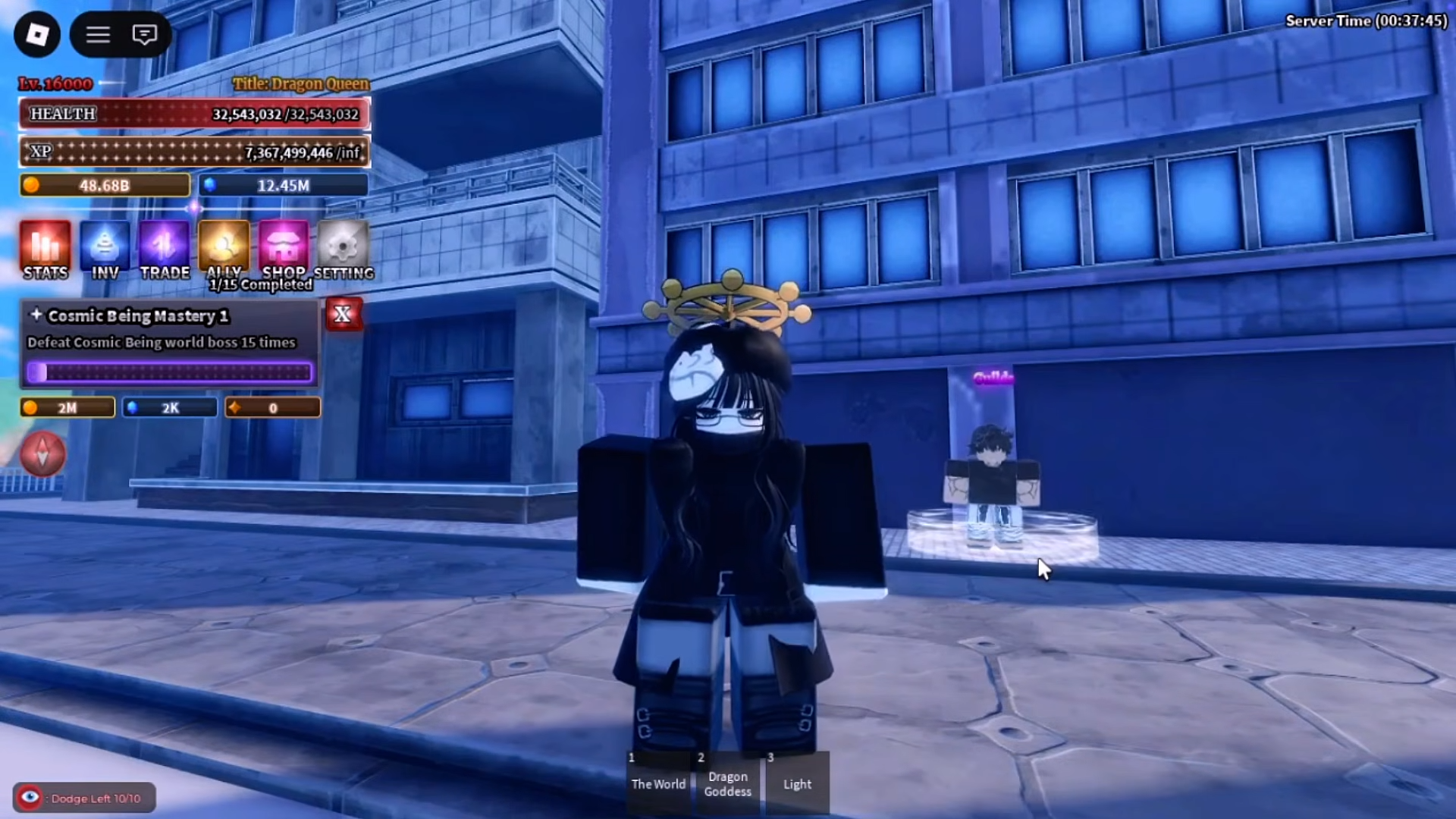
- Upload your desired image as a decal on Roblox’s Create section first.
- Extract the decal ID from the uploaded image’s URL.
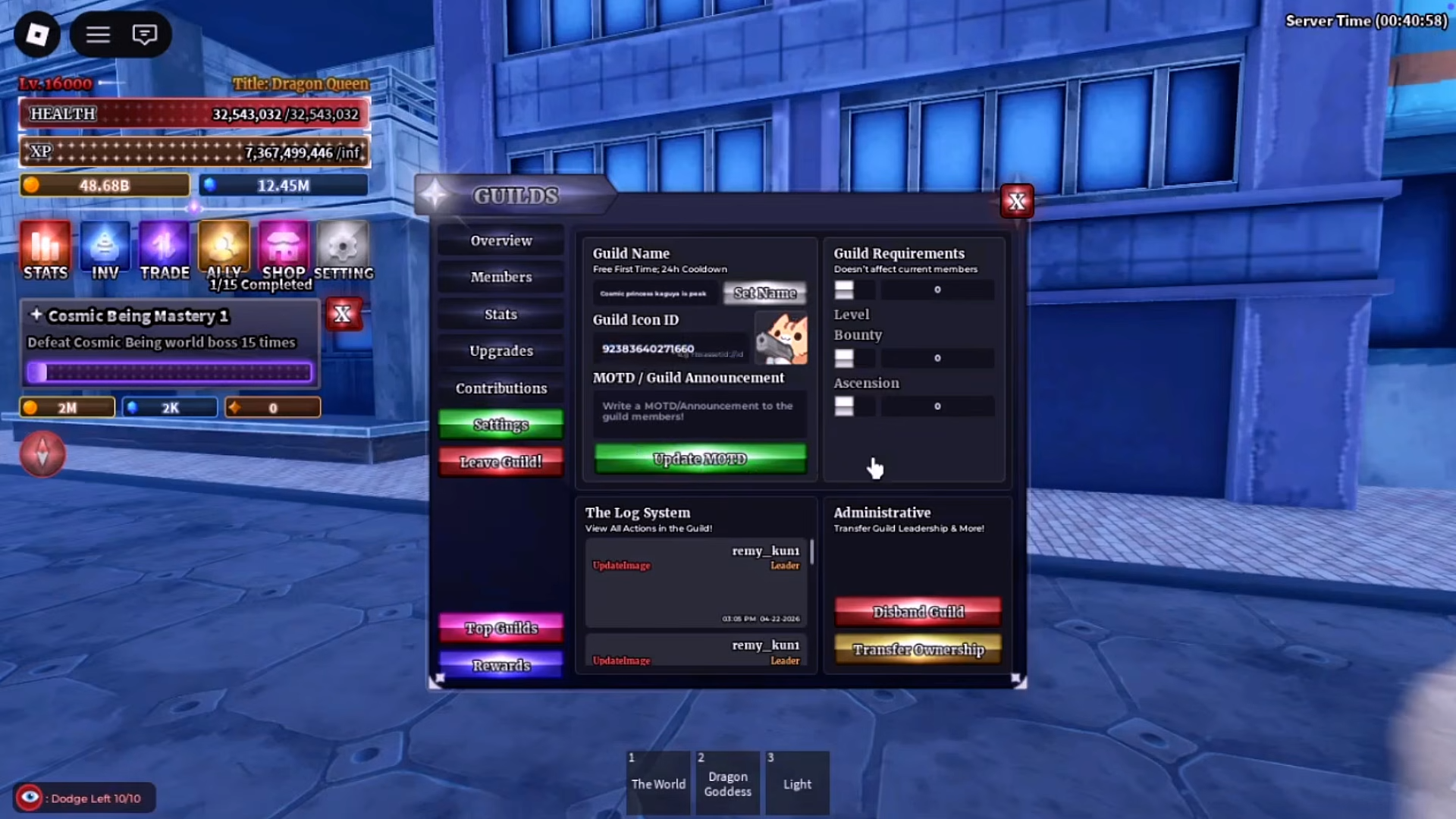
- Format it as “rbxassetid://[ID number]” in the game’s guild settings.
- Only guild leaders can make changes, and loading may take time for approval.
Customizing your guild logo in Sailor Piece lets you stand out with anime symbols, guild names, or clean designs. This process starts outside the game on Roblox and requires precise formatting to work correctly.
| Aspect | Details |
|---|---|
| Requirements | Guild leader role; Roblox account |
| Image Types | PNG/JPG logos, symbols, text designs |
| Time Needed | 5-10 minutes plus approval wait |
| Common Issue | Incorrect format or pending moderation |
| Access Point | Guild settings menu in-game |
Preparing your image outside the game
Players often miss that Sailor Piece does not support direct uploads, so handle this on Roblox’s site. Choose an image like an anime character emblem or a stylized guild initial that fits the game’s theme.
Step-by-step decal upload process
Follow these detailed steps to get your decal ready.
Step 1
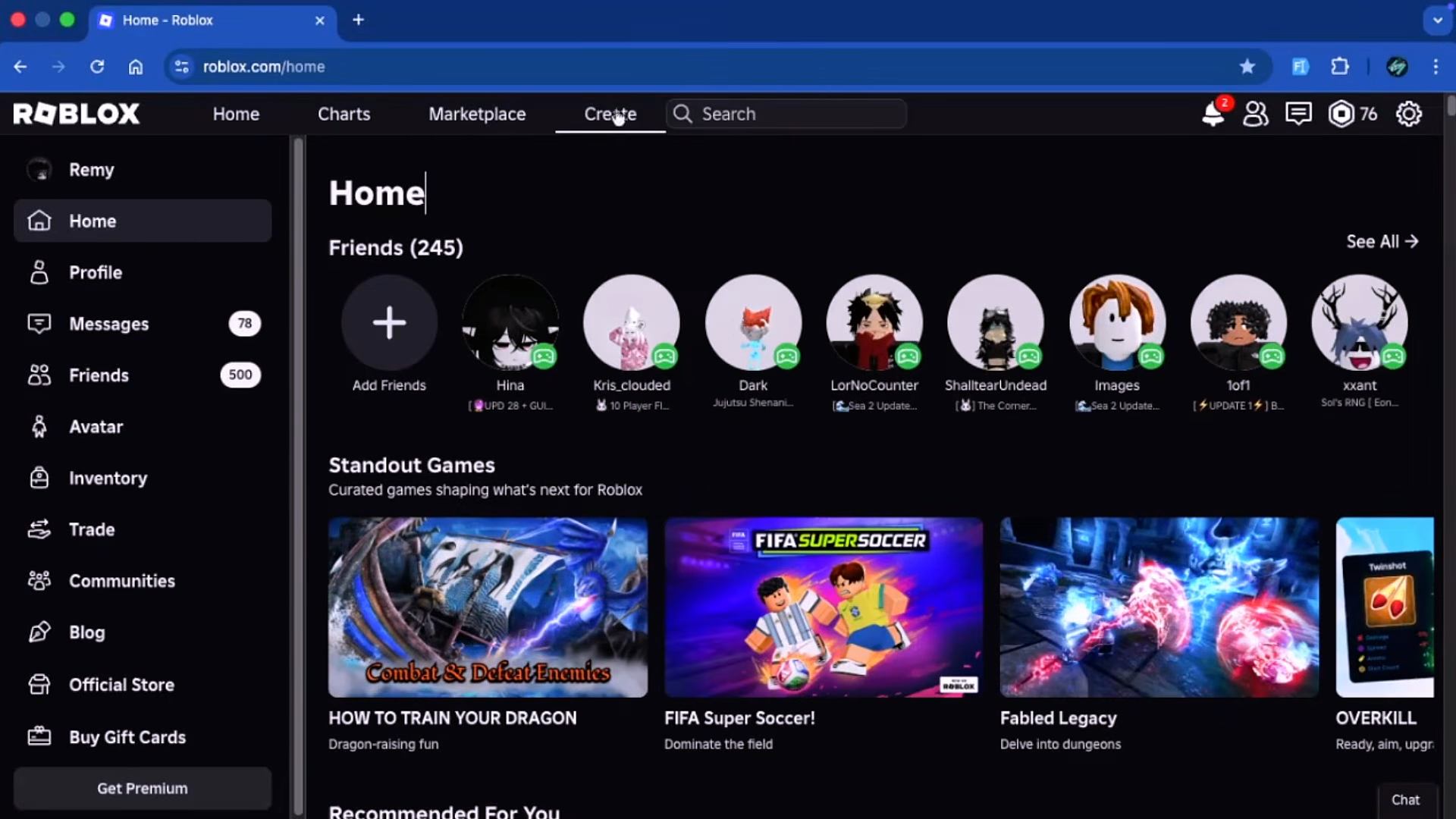
Open your web browser and go to Roblox.com. Log in to your account if not already.
Step 2
Navigate to the “Create” tab at the top of the page. This leads to Roblox Studio and asset creation tools.
Step 3
Select “Creations” or directly “Development Items,” then click on “Decals.” This is where you upload images as usable assets.
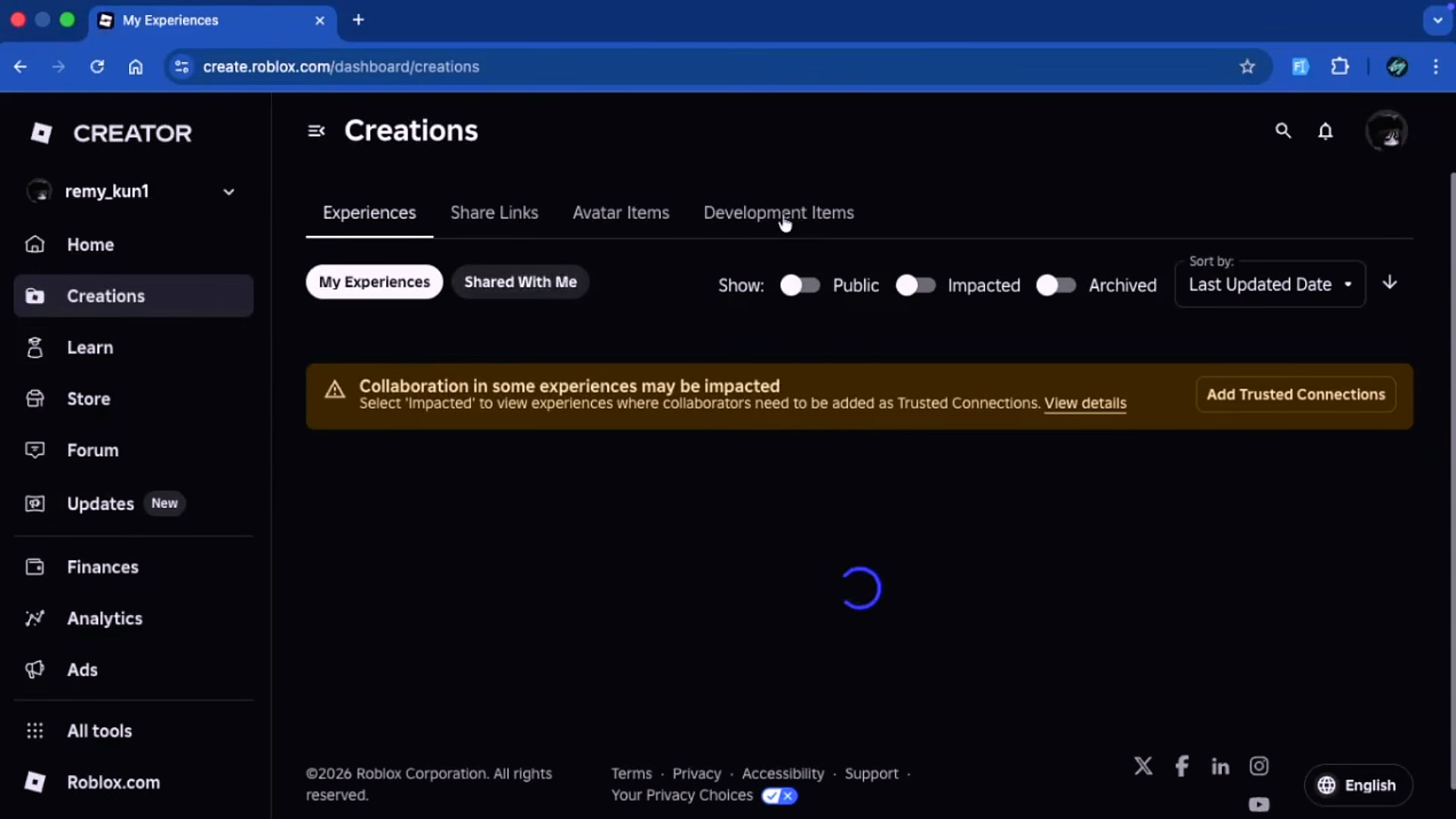
Step 4
Click the upload button and select your prepared image file from your device.
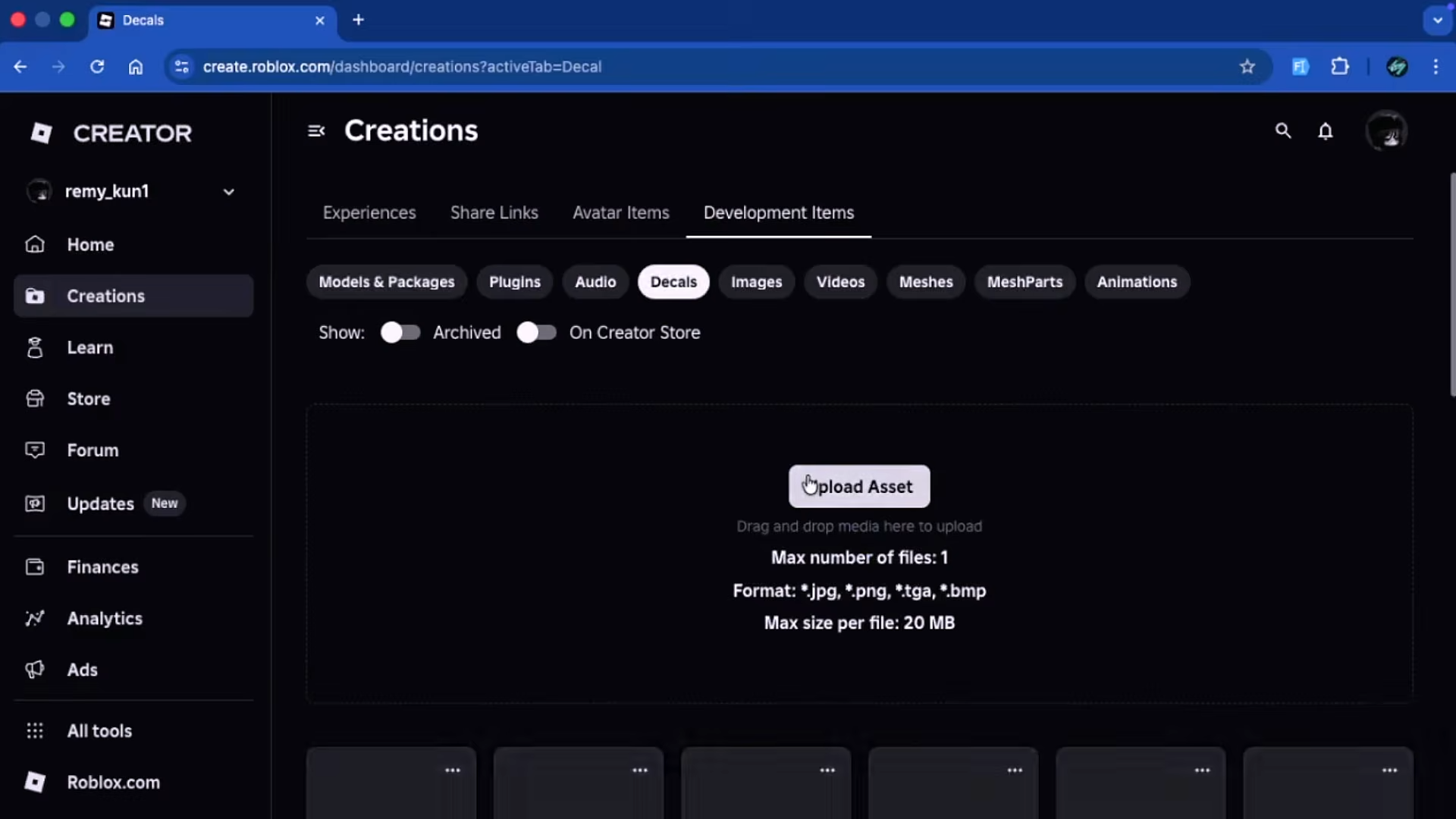
Supported formats work best as square images around 512×512 pixels for clarity.
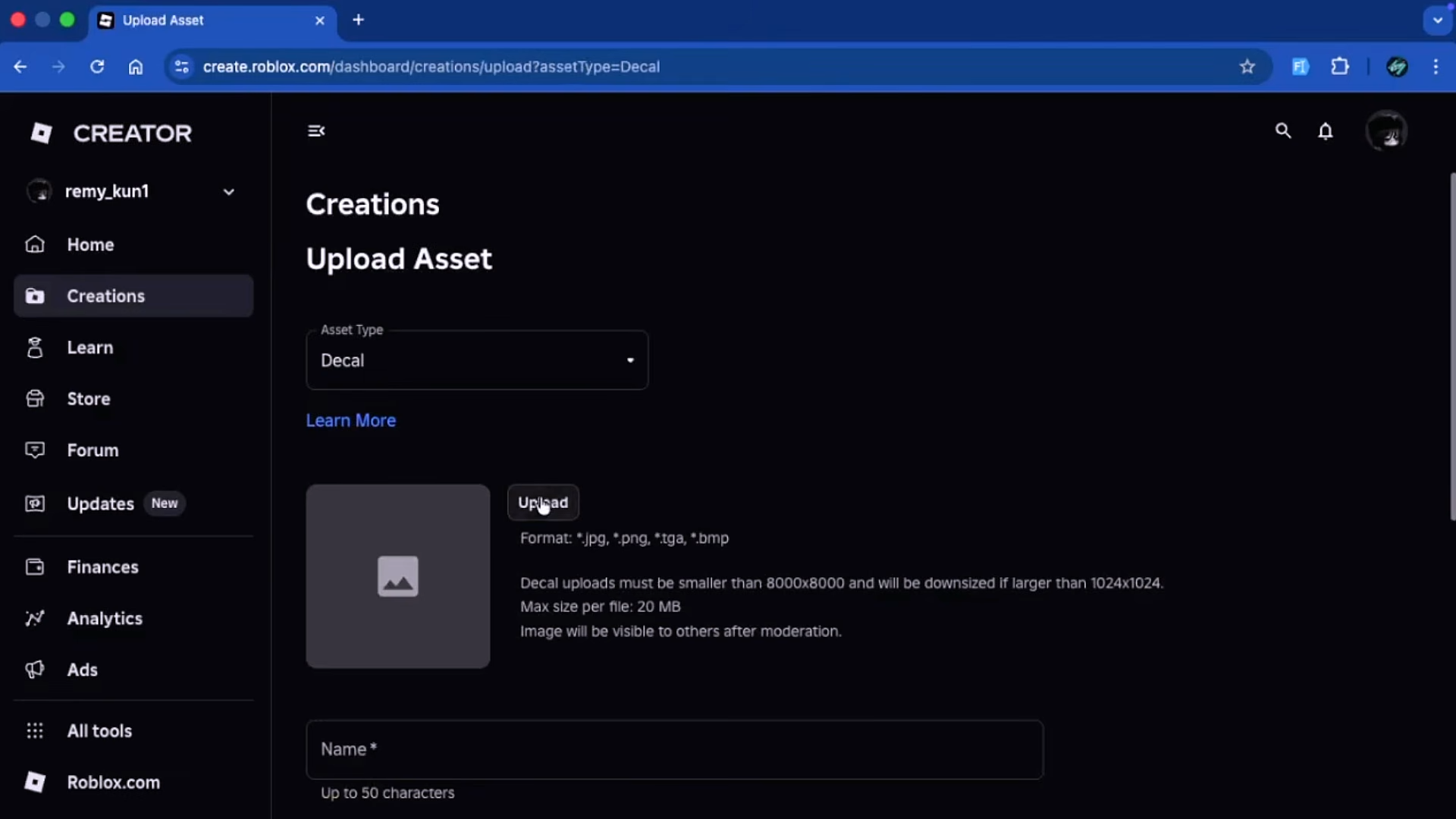
Step 5
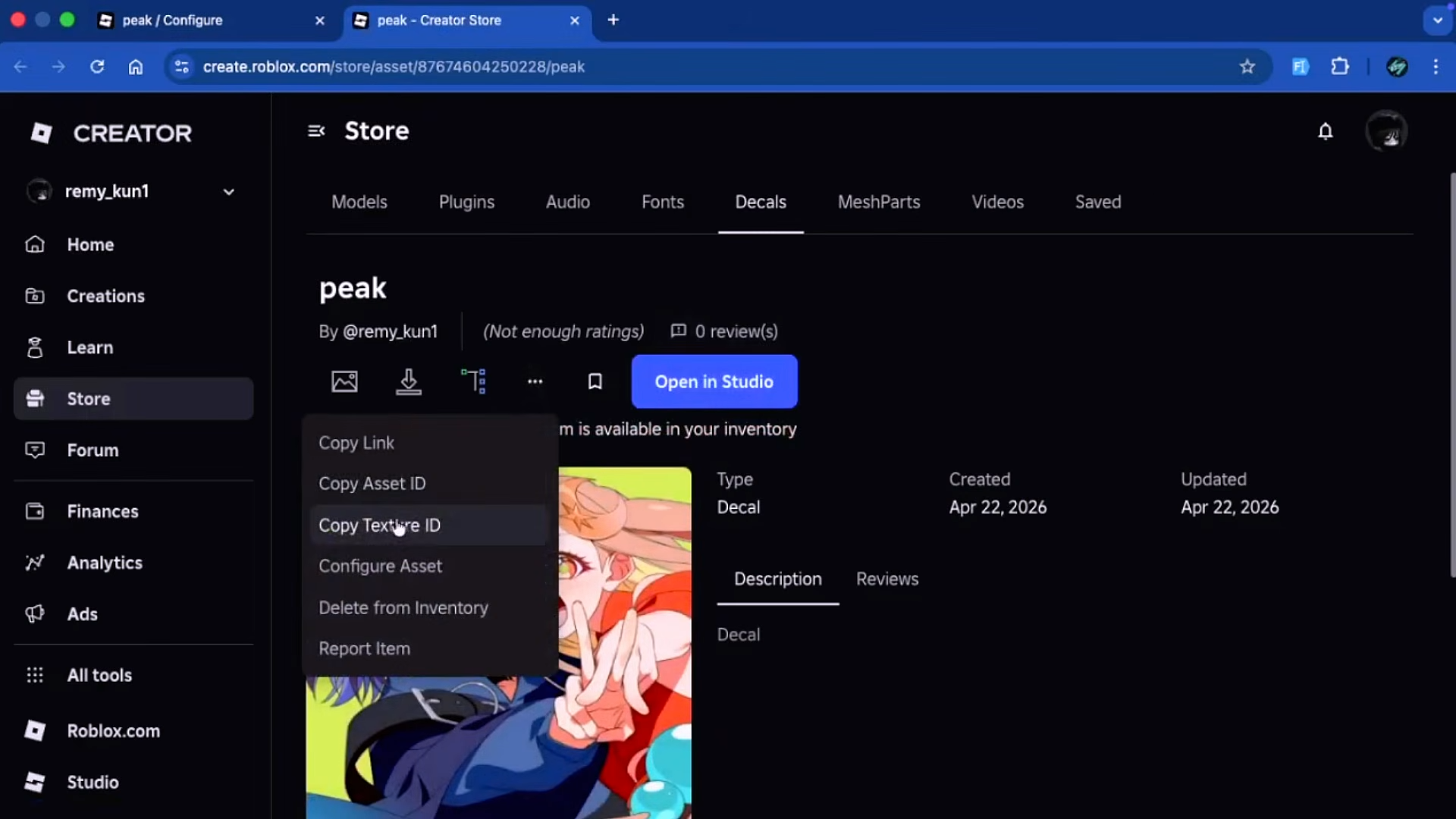
Once uploaded, click on your new decal to open its detail page. Examine the URL in your browser’s address bar.
Step 6
Locate the long numeric ID in the URL, typically after “asset/” or similar. Copy this exact number carefully without extra characters.
Entering the decal in Sailor Piece
Return to the game once you have the ID. Access guild management as the leader.
Step 7
Launch Sailor Piece on Roblox and join your server. Open the guild menu.
Step 8
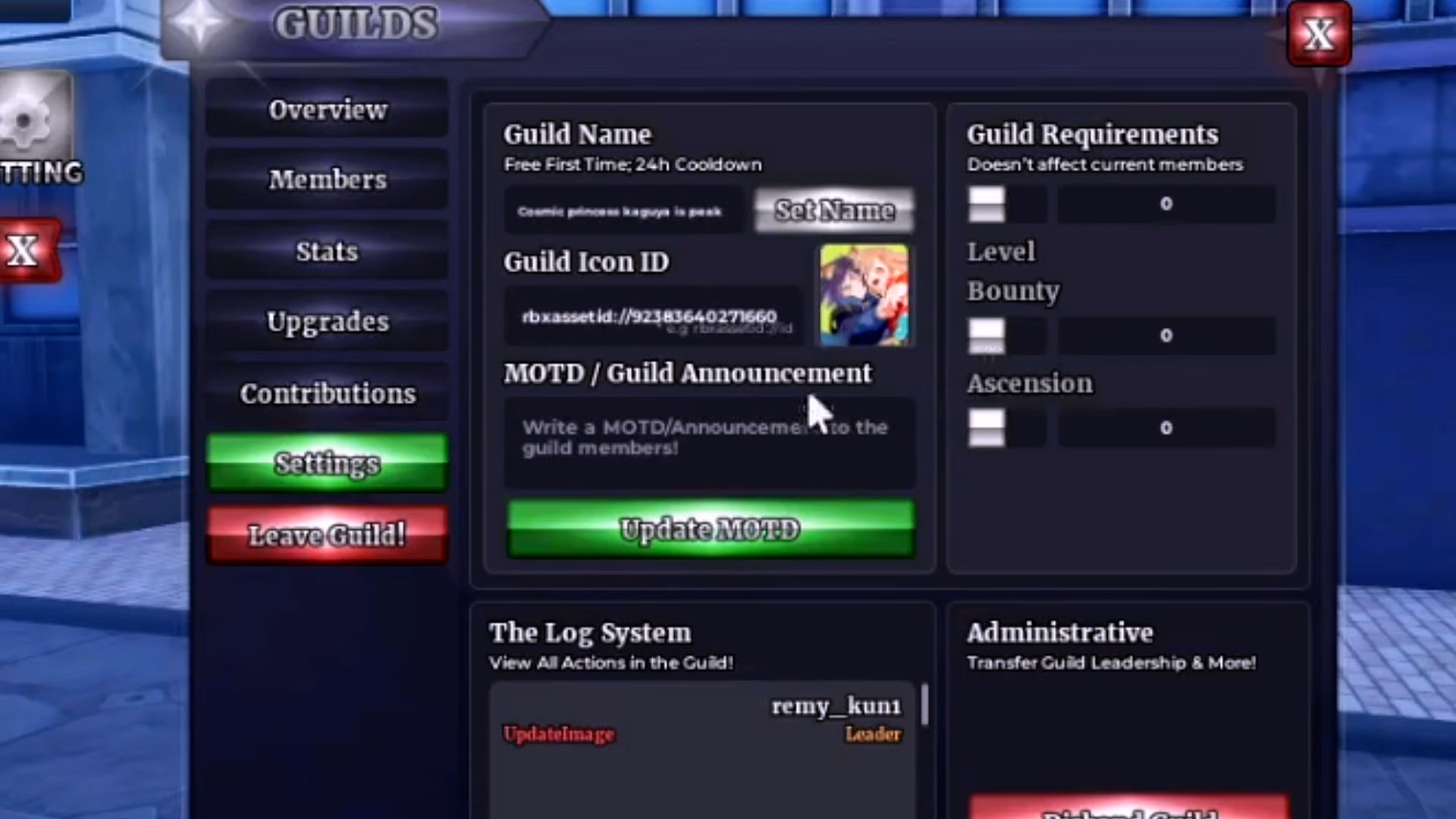
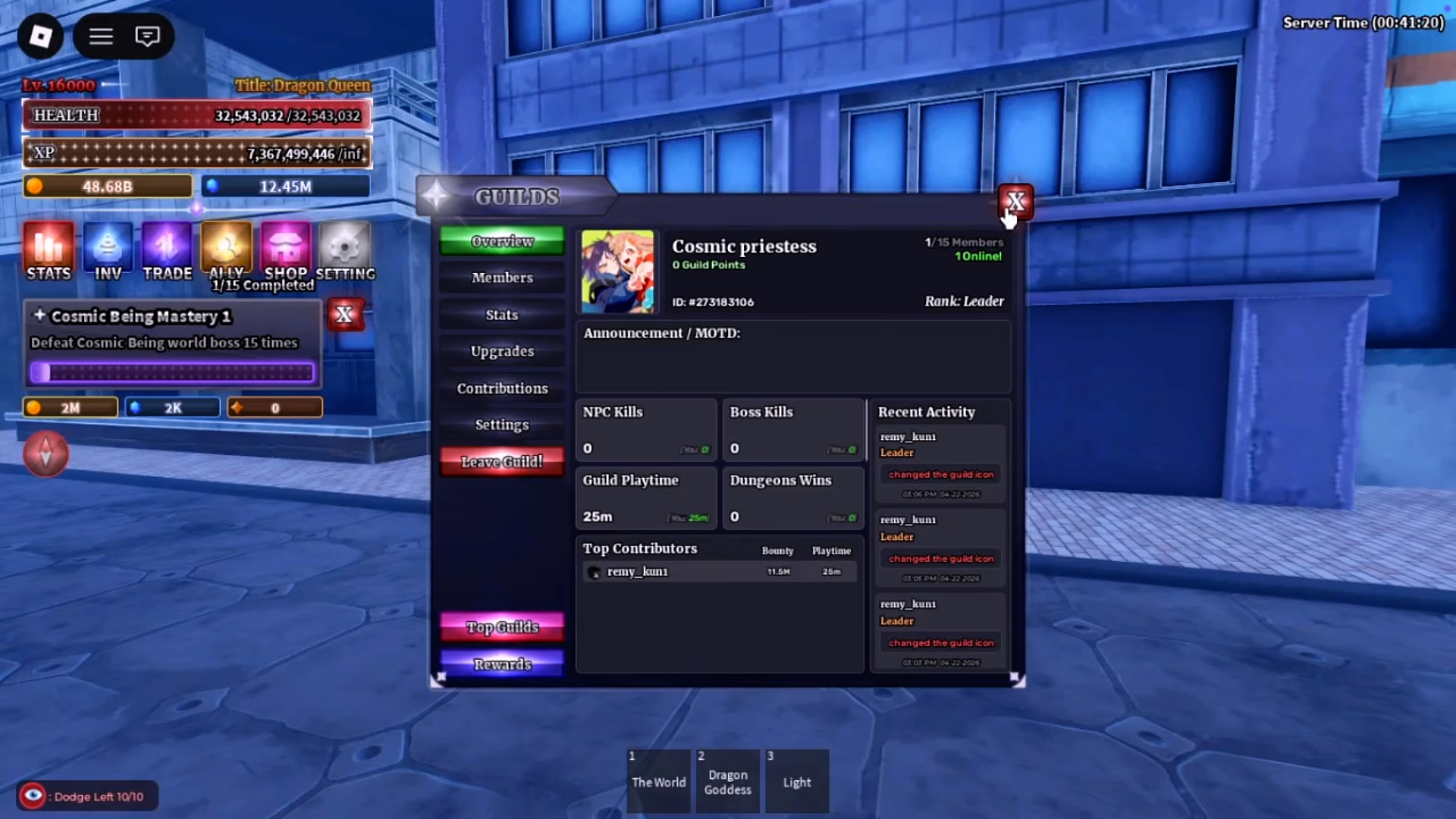
Go to your guild’s settings or overview section. Find the field labeled for Guild Icon ID input.
Step 9
Enter the format precisely: type “rbxassetid://” followed immediately by your copied number, like rbxassetid://1234567890. No spaces or variations.
Step 10
Click “Confirm,” “Update,” or “Save” to apply the change. Exit and re-enter the menu to check.
Troubleshooting loading delays
If the icon does not appear instantly, Roblox moderation can delay visibility by minutes to hours. Rejoin the server or wait; the image propagates once approved. Test with a simple public decal first if issues persist.
Permissions and limitations
Only the guild leader holds edit rights for icons, preventing unauthorized changes. Non-leaders must coordinate with leadership. Frequent updates might hit cooldowns, though none specified for icons.
Keep designs simple and thematic to avoid rejection, and experiment with multiple uploads for perfection. Your guild now displays a custom identity across Sailor Piece servers.