What to know
-
You disable Creations by toggling them off in the load order, not by deleting them instantly from the game.
-
Your save file may still expect disabled mods, so you must choose the current load order when prompted.
-
Turning creations off does not permanently erase them; you can re‑enable them later if needed.
-
Always back up your save data or use different save slots whenever you change the creations list.
Starfield on PS5 uses the Creations menu as its built‑in mod hub, letting you add and remove content without extra tools. Disabling creations is mainly useful if you want to clean up your load order, free up space, or fix quest or visual glitches caused by a specific mod. Here’s how to go about it.
How to Disable Creations for Starfield on PS5
Step 1
Start Starfield and either launch a new game or load an existing save.
Step 2
Pause the game or return to the main menu so the menu options appear.
Step 3
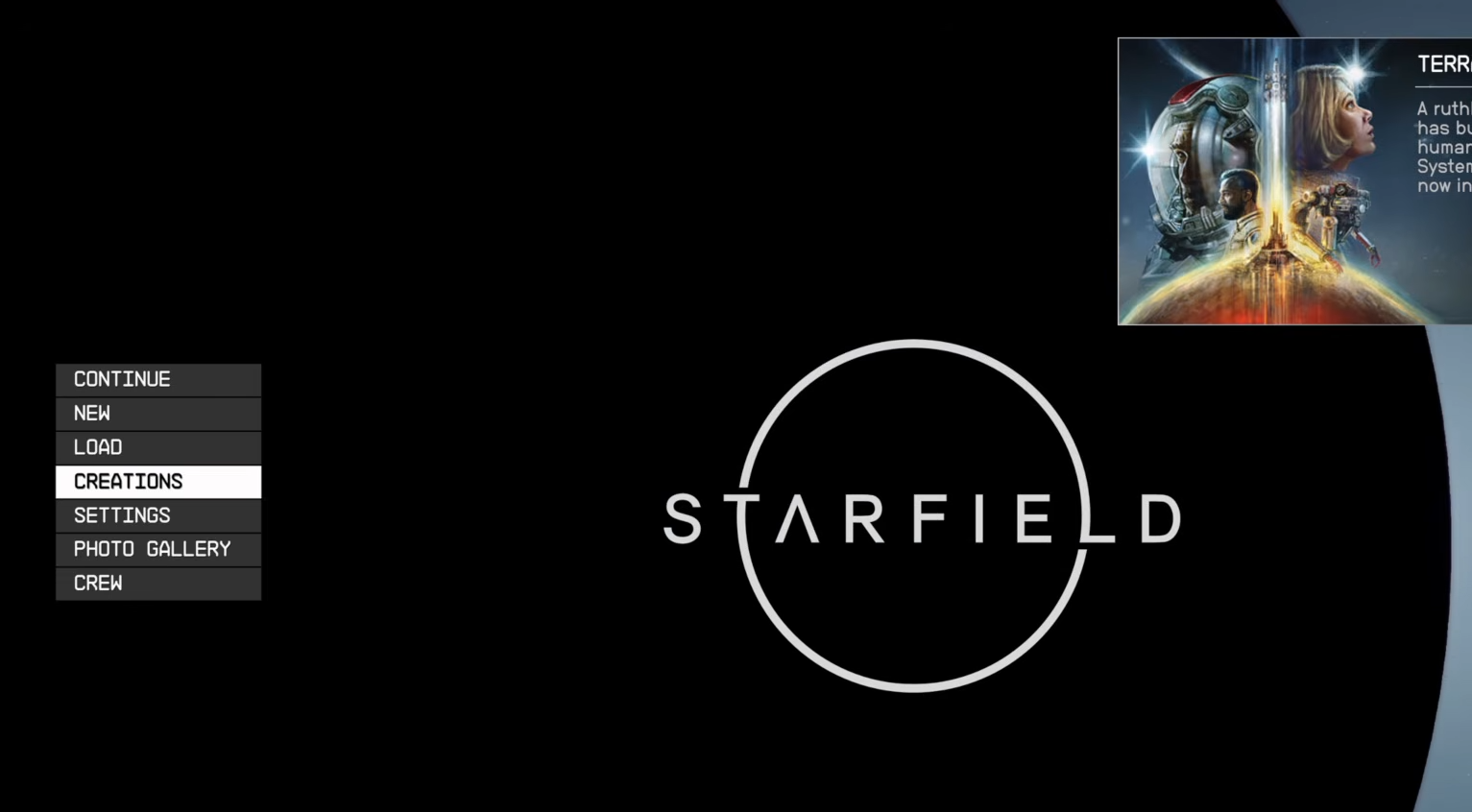
Highlight and select the Creations option using the controller.
Step 4
Wait while the Creations interface loads; this shows all creations currently available or installed on your account.
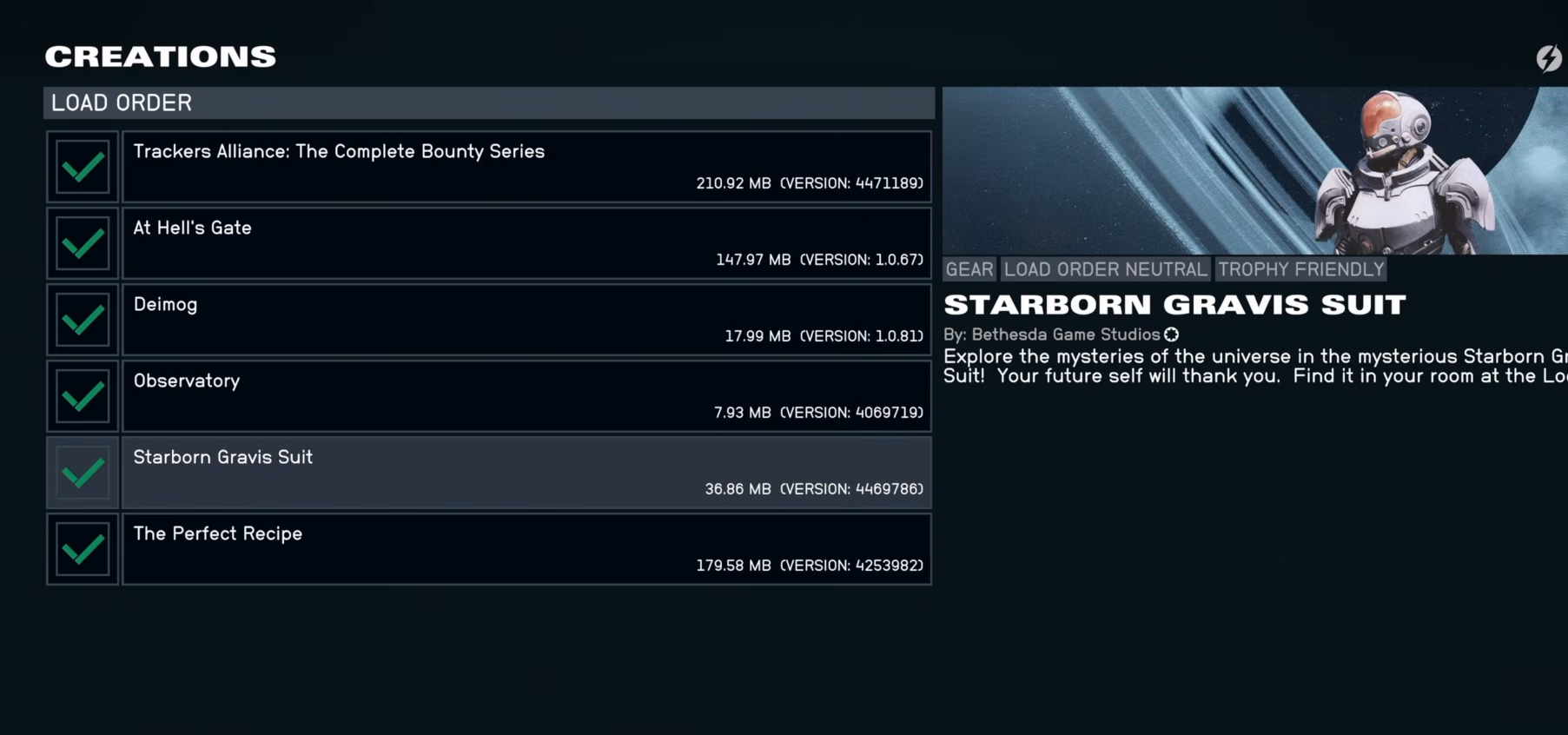
The Creations menu on PS5 behaves like an in‑game store plus a mod manager, so everything you adjust here is tied directly to your console profile and save files.
Disable a Creation in the load order
Step 1
In the Creations menu, scroll to the section that shows your installed creations.
Step 2
Select the Load order option, which lists all creations currently active for your game.
Step 3
Move your cursor to the creation you want to turn off, such as a specific armor or weapon pack.
Step 4
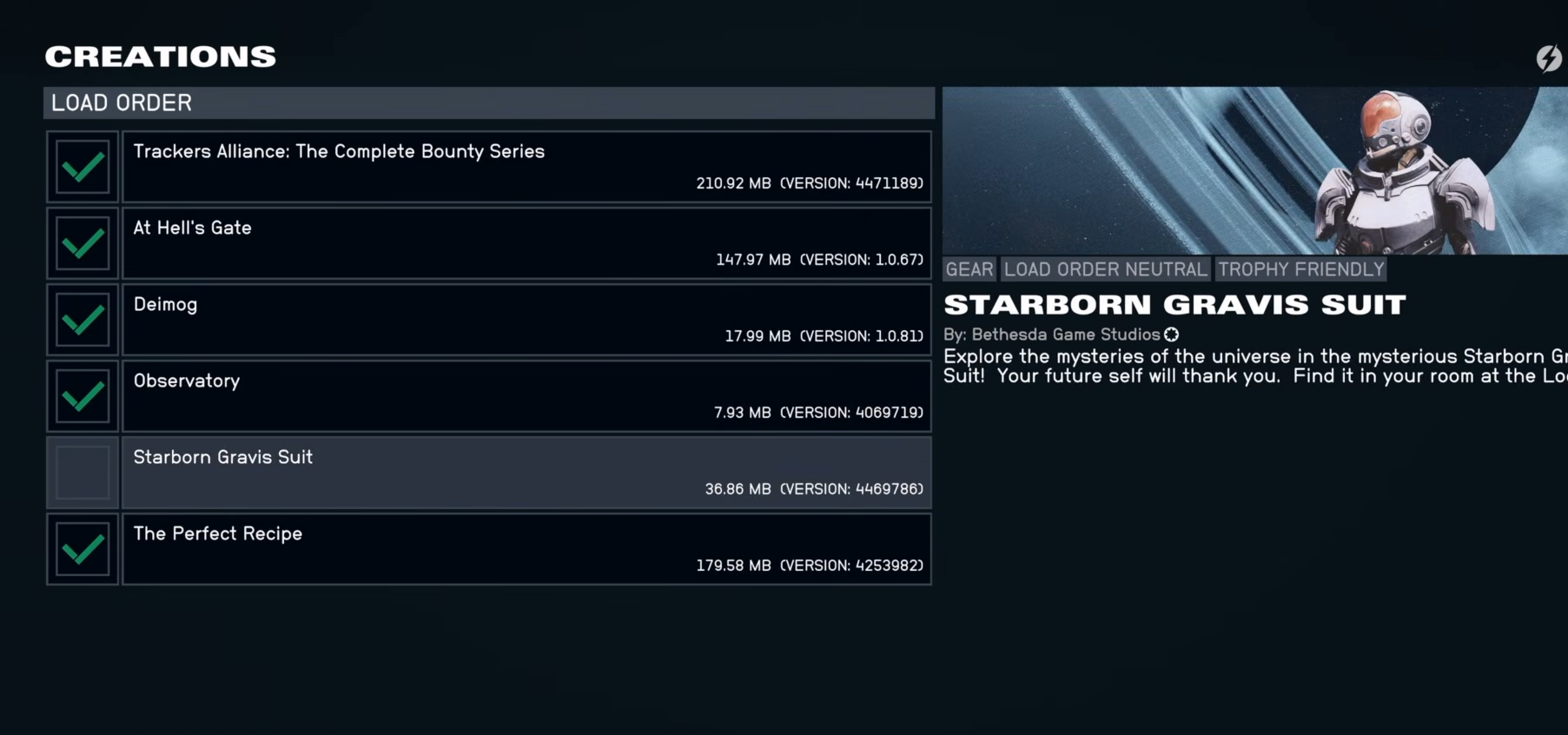
Toggle the switch for that creation from enabled to disabled. You will see its status change.
Step 5
Confirm that the creation is now marked as inactive and then exit the Load order screen.
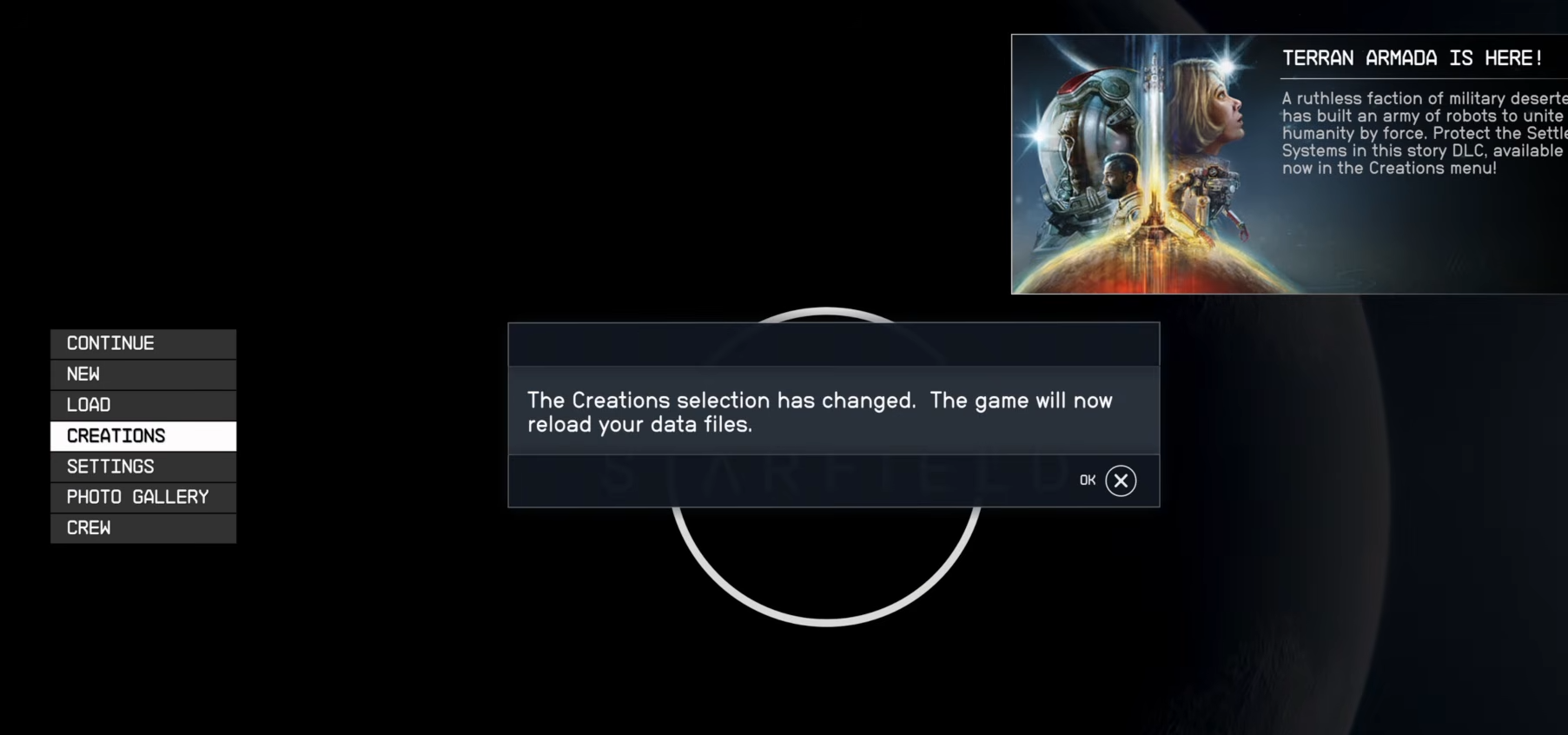
Once you disable a creation, the game starts preparing the data files for the new configuration, which is why some options briefly gray out as the system reloads everything in the background.
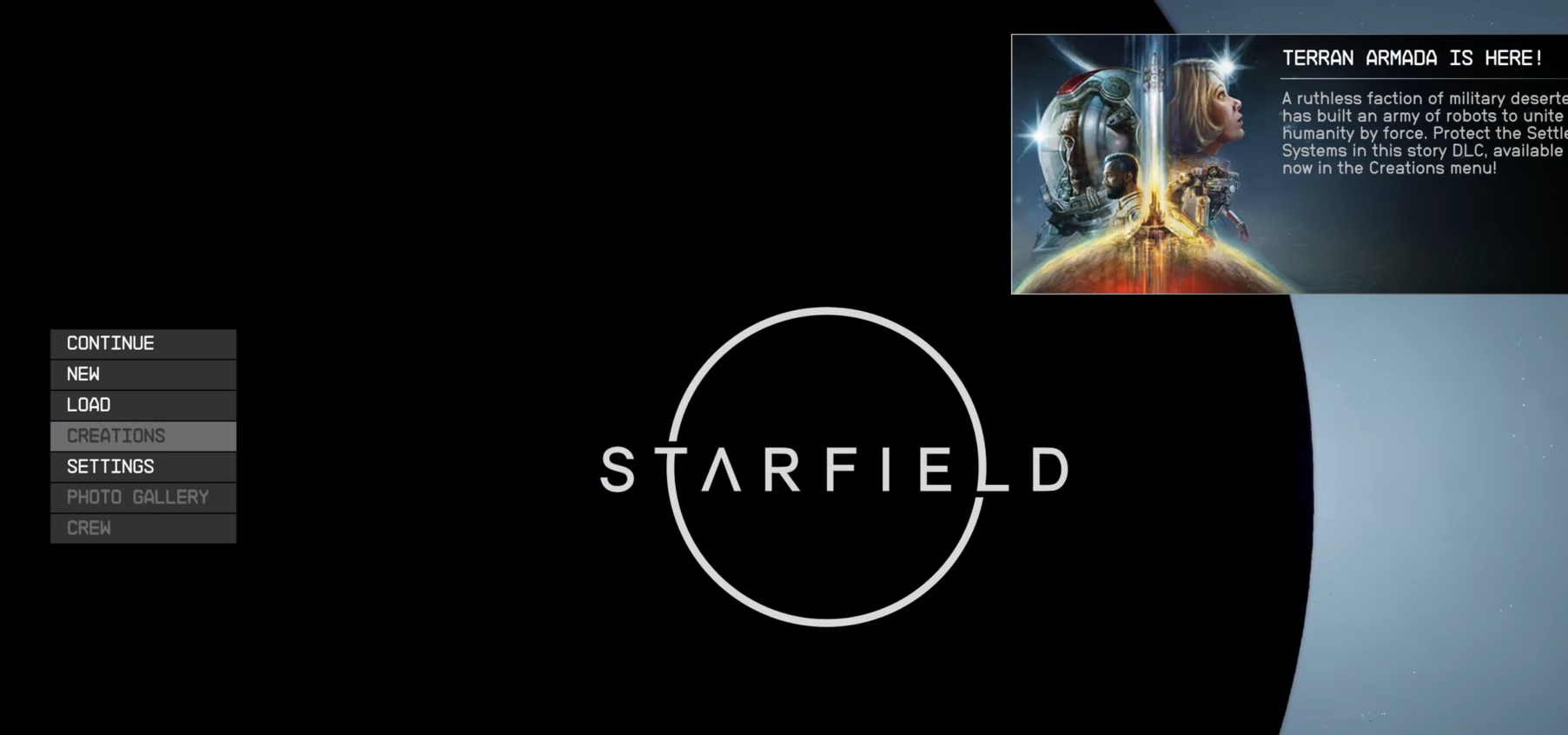
Confirm the new load order when loading a save
Step 1
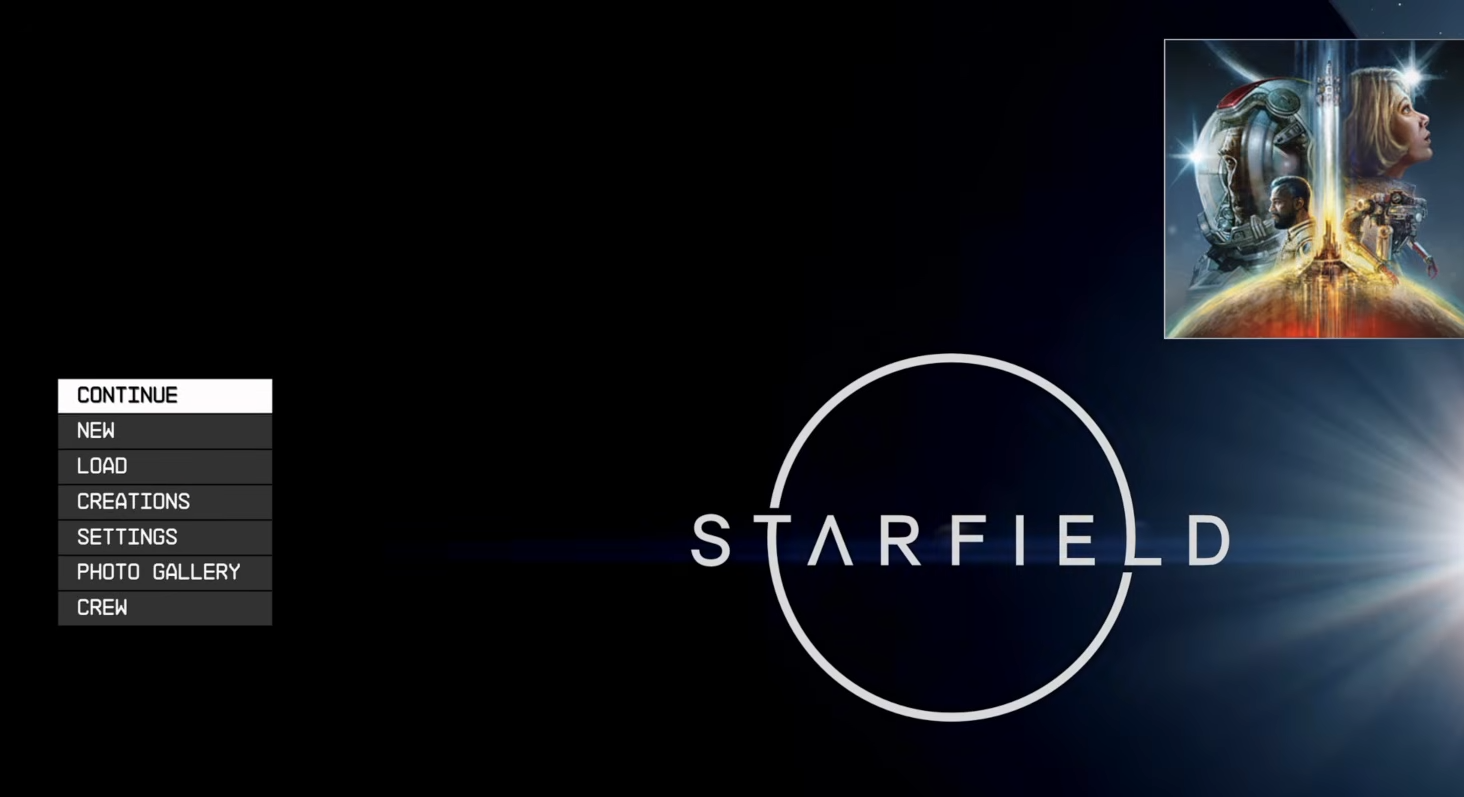
After changing the load order, start or resume your game from the main menu as usual.
Step 2
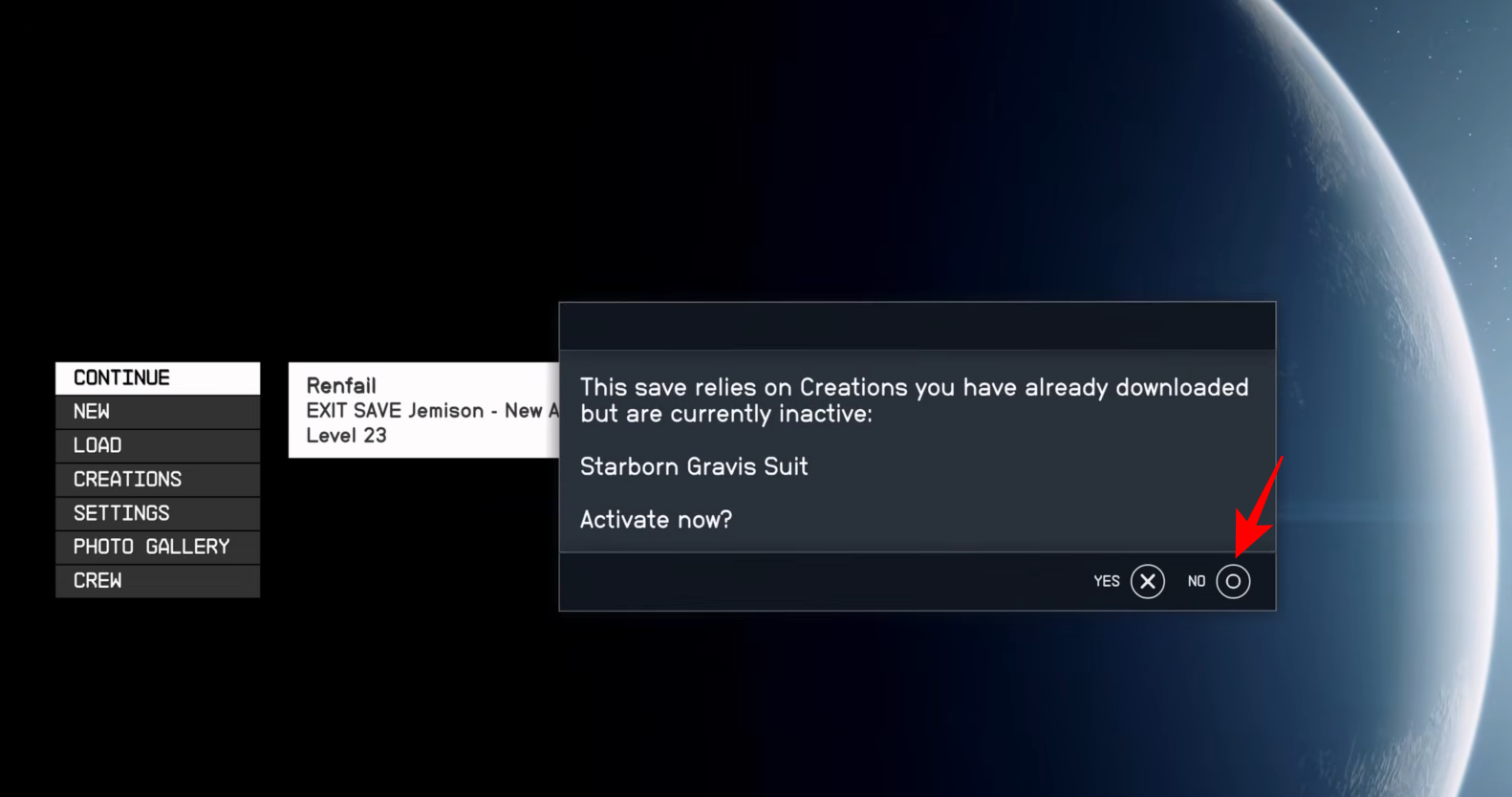
When the game begins loading your save, watch for a pop‑up that warns your save file contains creations that differ from the current load order.
Step 3
The message will ask if you want to activate the downloaded Creations. Select No.
Step 4
If another prompt appears asking whether to use the Load Order from this save, or your current Load Order, select Current.
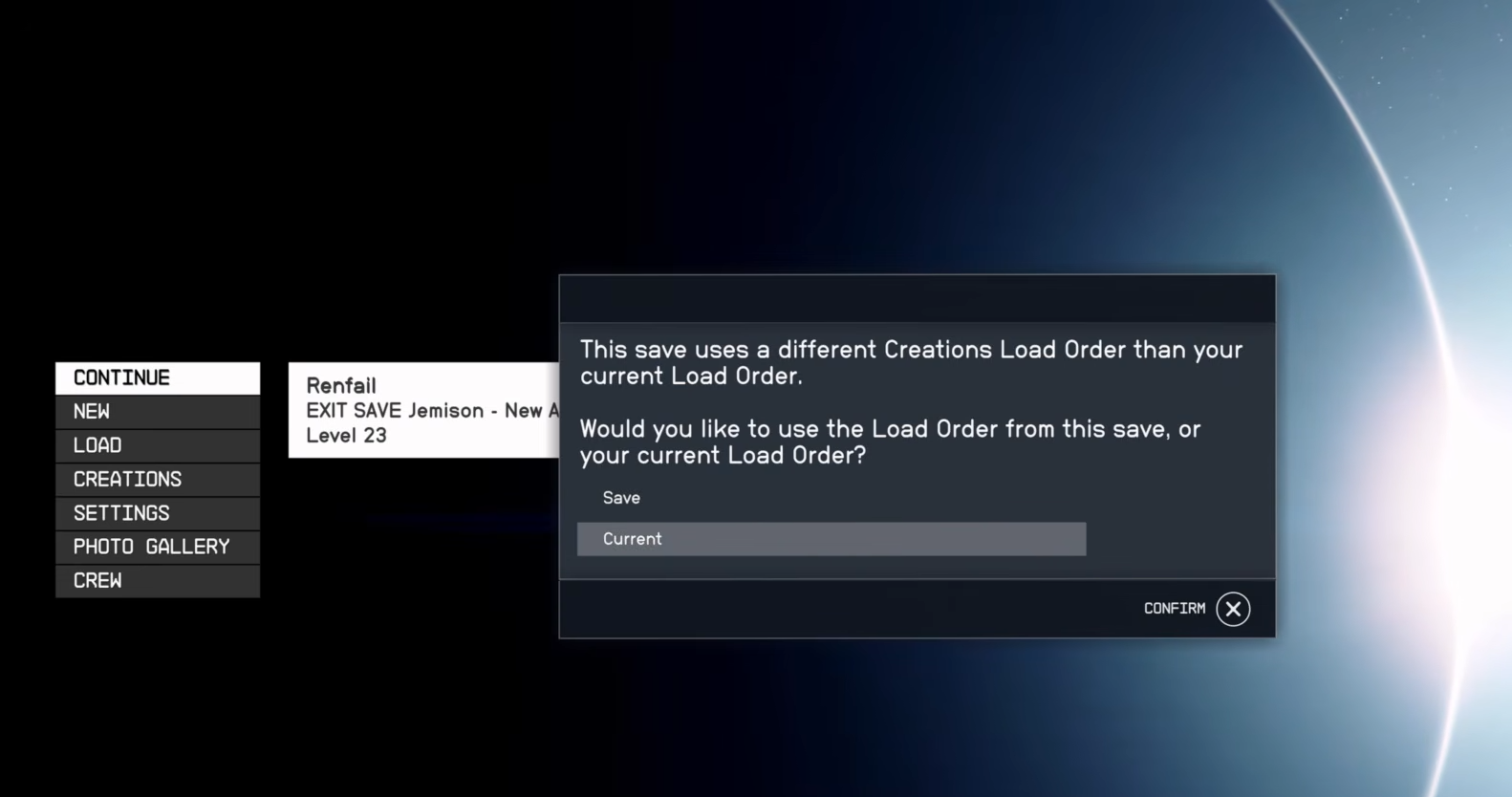
Step 5
Finally, when asked to continue, select Yes.
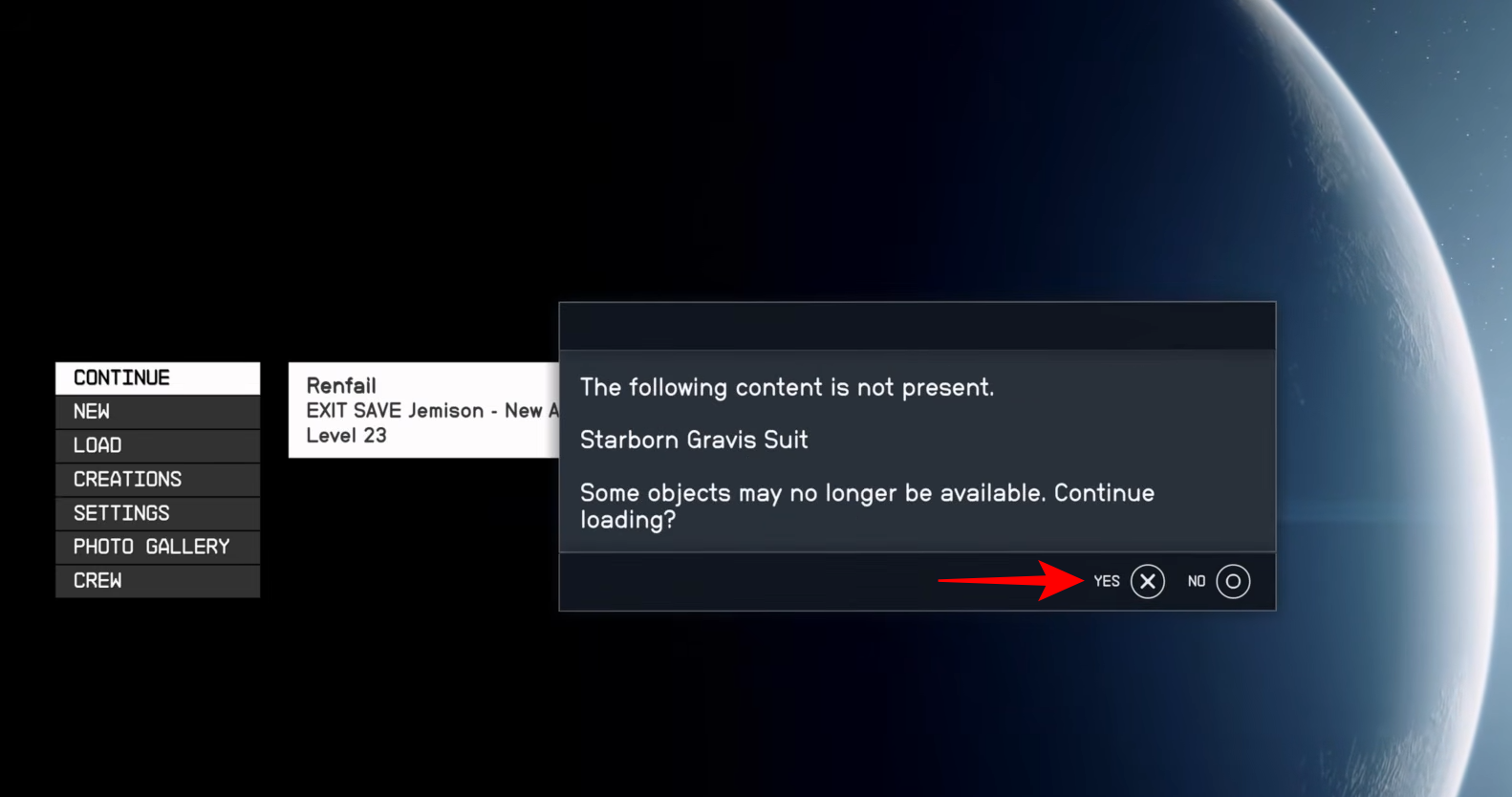
This step is important because your save can still be tied to the disabled creation, and allowing the old load order would re‑enable it without your input.
How to keep your game stable after disabling creations
-
Keep a small number of creations active at a time, especially if you notice performance drops or glitches.
-
Test each change on a separate save slot before updating your main save.
-
Periodically review the Load order screen to uncheck creations that you no longer use or that cause visual or audio issues.
-
If a mod breaks a quest or item, disabling it through the Load order and then confirming the current load order when you load your save usually resolves the problem without deleting your progress.
The Load Order inside the Creations menu provides a quick and safe way to turn off Creations in Starfield on PS5. Simply confirm the new settings when you reload your save. This keeps your game stable and avoids conflicts with mods already attached to your file.