What to know
-
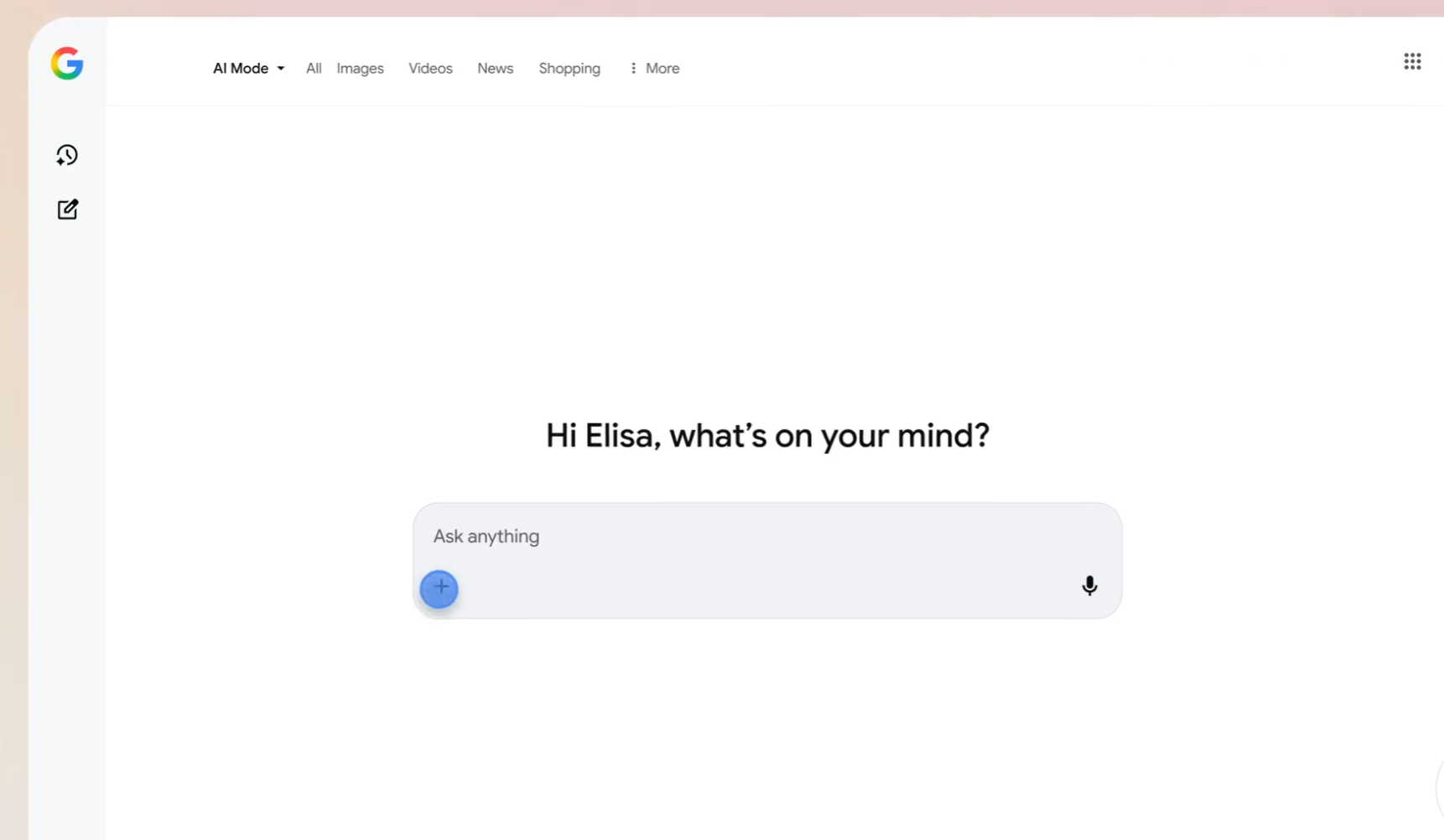
Google’s AI summaries appear at the top of many search results and can be skipped using a simple search operator.
-
Adding
-aito your search tells Google to exclude AI‑generated overviews from the page. -
This trick speeds up browsing by removing the summary block without changing your core results.
-
Learning a few extra search operators (like
site:or quotes) gives you more control over what you see.
When Google started serving AI‑generated summaries above regular search results, some users welcomed the quick overview, while others found it intrusive and slow. If you fall into the latter camp, there is a fast, no‑settings workaround you can use right away.
The simple trick that hides AI summaries
The method is built on a familiar Google feature: search operators. To skip the AI summary box, type your normal query, then add a space and -ai at the end. For example:
-
what is port forwarding -ai
The minus sign tells Google to exclude anything matching the term that follows—in this case ai—and in practice it often removes the AI‑summary block from the top of the results while keeping the organic links intact.
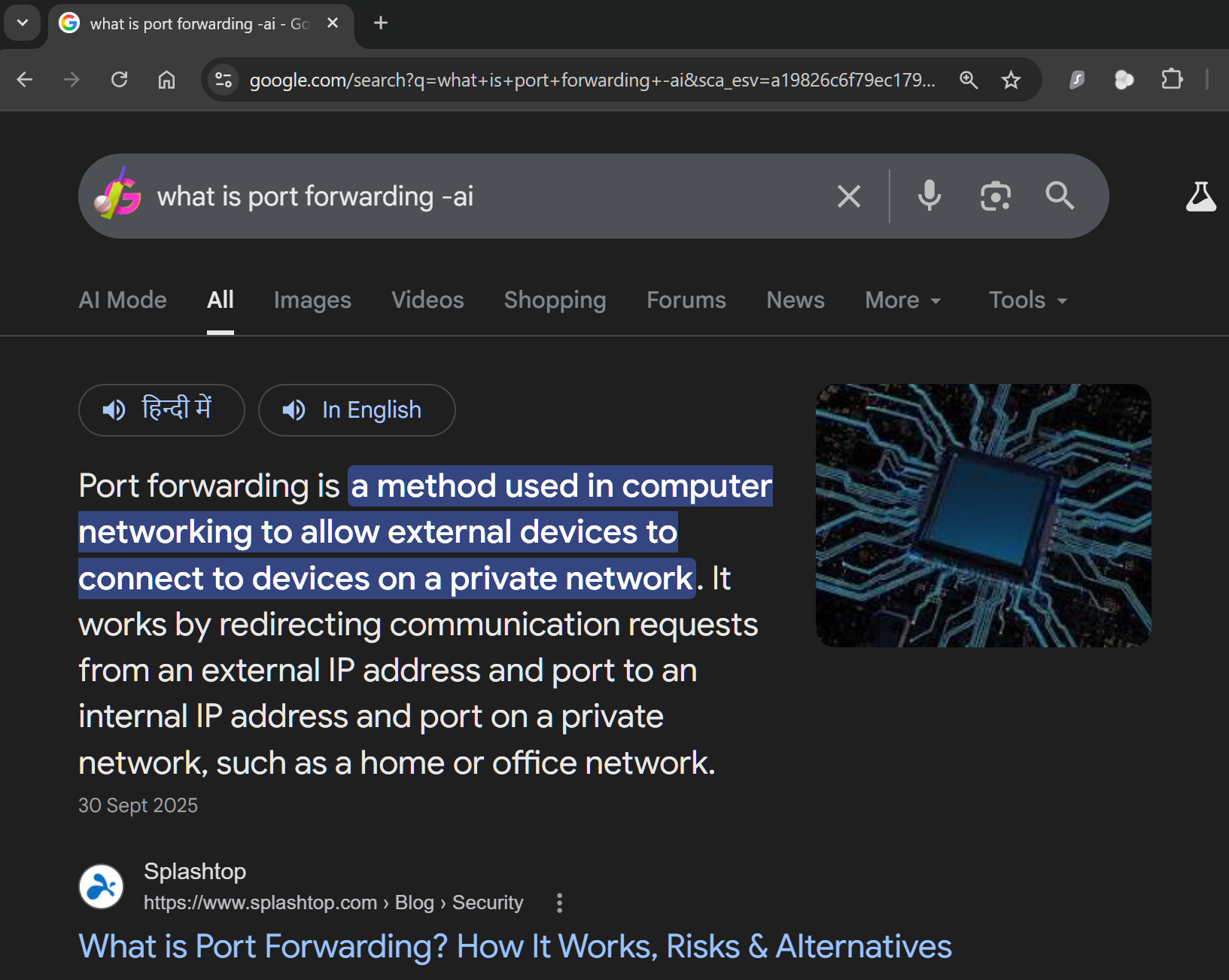
This shortcut does not remove ads or change the underlying search algorithm; it just removes a specific type of content block that uses the ai label in its internal structure.
When the trick might not work
Because Google’s layout and AI‑summary handling can vary by region, device, and account, the -ai operator may occasionally be ignored. In those cases, the AI box still appears at the top, even if the word ai is explicitly excluded in the query.
If that happens, you can still rely on “old‑school” power‑searching tools to regain control. For example, wrapping phrases in double quotes ("exact phrase") forces Google to match them verbatim, while using site: lets you search inside a particular domain, such as site:nerdschalk.com arc raiders.

Learning a few more search operators
Once you get comfortable with -ai, you can experiment with a handful of other operators that make searches faster and cleaner.
-
site:– restrict results to a specific site (for example,site:github.com linux kernelfinds only GitHub pages). -
" "– search for an exact phrase instead of loose keyword matches. -
..– search ranges, often used for dates or prices (for example,laptop 500..1000).
Google maintains an official list of supported search operators, which is useful if you want to reduce scrolling through settings menus and instead type precise commands directly into the search bar.
When this trick still helps the most
This method is especially handy when you already know what you want and don’t need a condensed, AI‑generated explanation. If you’re researching older articles, comparing multiple sources, or simply prefer reading raw results instead of a boxed summary, appending -ai can clear visual clutter and make it easier to jump straight to the links that matter.
Even if Google tweaks how it handles the -ai flag in future updates, the broader idea remains the same: a small, typed adjustment can give you more control over how your search results are presented.
Take back control of your search results
Blocking Google’s AI summaries doesn’t require extensions or complex settings; it can be done with a tiny tweak to how you phrase your queries. By adding -ai to searches where you don’t want an AI‑generated overview, you regain a cleaner, faster‑loading results page.
If you enjoy fine‑tuning your web experience, learning a few additional search operators on top of this trick can make your everyday browsing noticeably more efficient and less frustrating.