
What to know
- Builder Tools now support more material storage types, including holders, fillers, and fluids
- You can explicitly choose what gets placed instead of relying on guesswork or cycling
- The update is focused on faster, cleaner building workflows rather than adding a whole new building mode
- Expect fewer interruptions while detailing, especially when mixing different material behaviors in one build
Hytale‘s latest pre-release improves the Builder Tools in a way that’s easy to miss at a glance, but hard to stop using once you try it. If you build anything more complex than basic walls and floors, the changes are aimed directly at the moments where your flow used to break: picking the right stored material, placing it intentionally, and handling special material behaviors without fighting your UI.
| Topic | What changed | How it matters |
|---|---|---|
| Material support | Builder Tools can now work with more storable material categories like holders, fillers, and fluids | Lets you build with a wider range of material behaviors using the same tool workflow |
| Placement control | You can specify exactly what you want to place | Reduces misplacements and time spent correcting small mistakes |
| Build pacing | Fewer tool-friction moments while swapping between different build intents | You stay in a build rhythm longer, especially on detailed projects |
| Detail work | Better handling of non-standard materials | Makes decorative and functional details less tedious to prototype |
Builder Tools now handle more stored material types
The biggest practical upgrade is broader material support inside Builder Tools, expanding beyond the more basic stored items to include categories like holders, fillers, and fluids. In day-to-day building, that means you’re less likely to hit a point where a material exists in the game but can’t be sensibly used through the Builder Tools pipeline, forcing you into awkward workarounds.
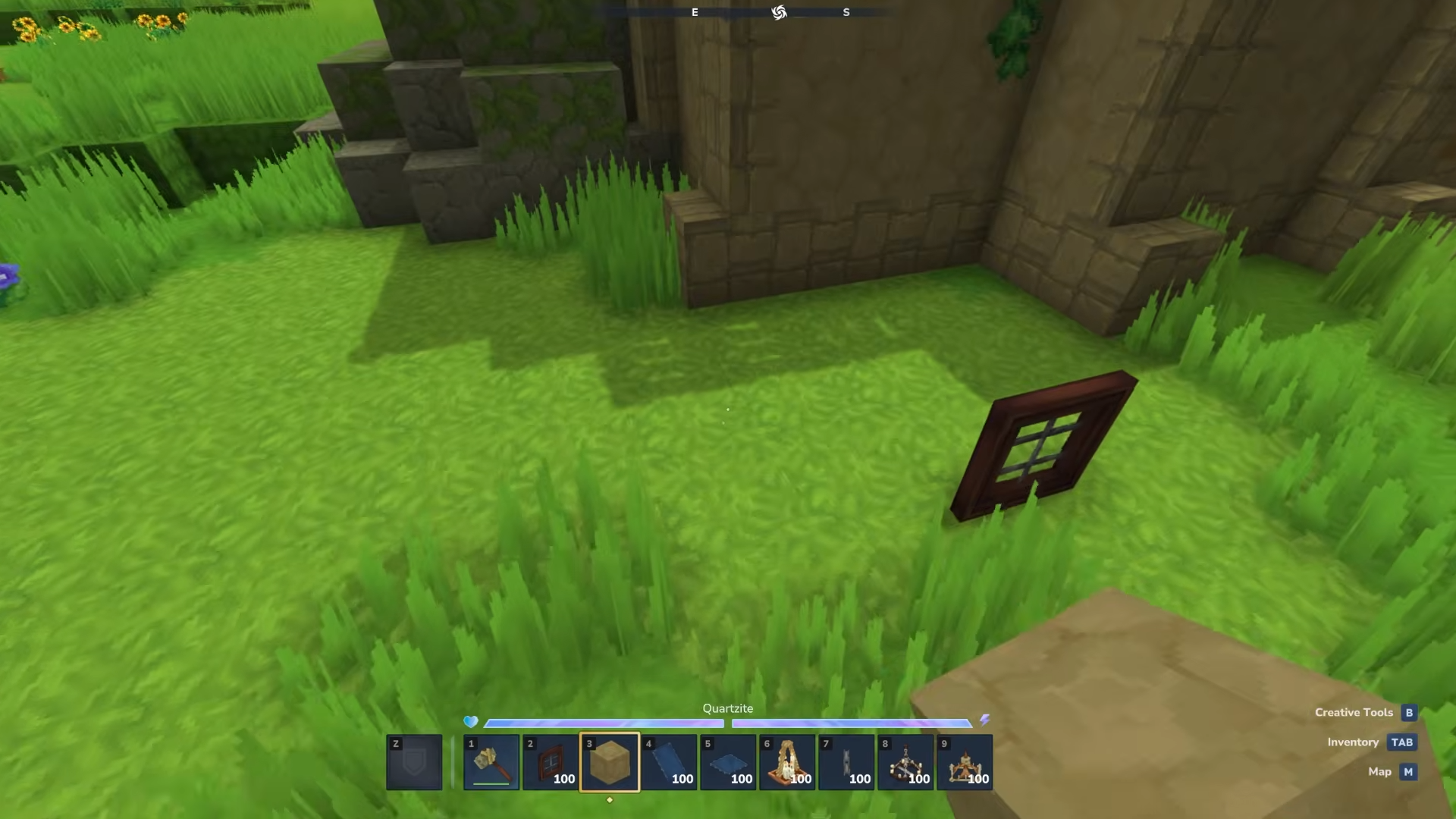
If you like building spaces that mix structure and set dressing, this matters because those extra categories tend to be the ones you use for finishing touches and functional ambiance. Instead of treating these as separate workflows, you can keep them in your normal building pass.
More direct control over what you place
A common Builder Tools pain point is intent versus outcome: you know what you want to place, but the tool’s current state doesn’t always make that choice feel direct. This pre-release introduces a clearer way to specify what gets placed, so you spend less time cycling, testing, undoing, and re-placing.
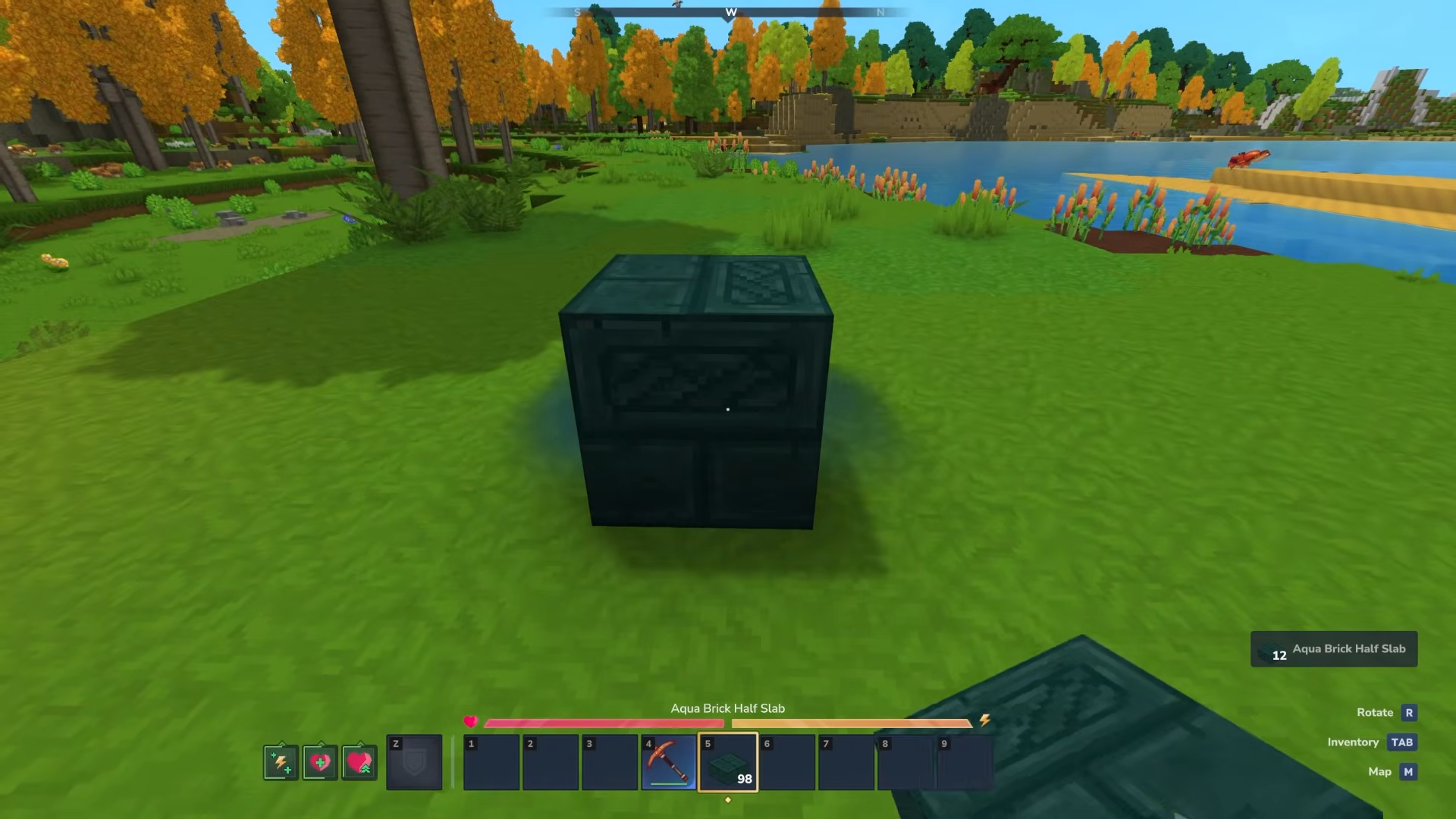
In practice, this is one of those improvements that shows up most when you’re doing repetitive detail work. The faster you can confirm the tool is set to the exact thing you want, the more confident your placement becomes, and the less your build turns into a correction loop.
How to use the improved Builder Tools efficiently
Step 1
Start by deciding whether your current build segment is structural, decorative, or functional, because the improved material handling is most noticeable when you’re switching among these quickly.
Step 2
When you need to place a stored material with special behavior, use the updated placement selection to explicitly set what you intend to place before you begin stamping it across an area.
Step 3
Work in small passes: place a short run, check the result, then continue, especially when you’re mixing standard blocks with holders, fillers, or fluids in the same section.
Step 4
If you’re iterating on a design, change only one element at a time (material choice, placement selection, or pattern), so you can quickly see what the new tool behavior is doing for that specific change.
Step 5
Finish with a cleanup sweep where you only correct outliers, because the point of the new control is to reduce widespread mistakes, not to eliminate every micro-adjustment.
If you build a lot, this pre-release is less about flashy features and more about removing the small annoyances that add up across a long project. You’ll feel it most when you’re detailing and when you’re combining materials that behave differently, because the improved support and more explicit placement control keep you moving instead of micromanaging the tool.