What to know
-
Icons appear in yellow, orange, or red to show severity levels, with red demanding immediate attention.
-
They cover network problems like packet loss and high ping, plus local issues such as client performance and shader stutter.
-
Use them to decide whether to fight, retreat, or tweak settings for smoother gameplay.
-
Quick fixes often involve wiring your connection, closing apps, or re-queuing matches.
You may notice those flashing icons on the right side of the screen in Arc Raiders when raids hit snags.
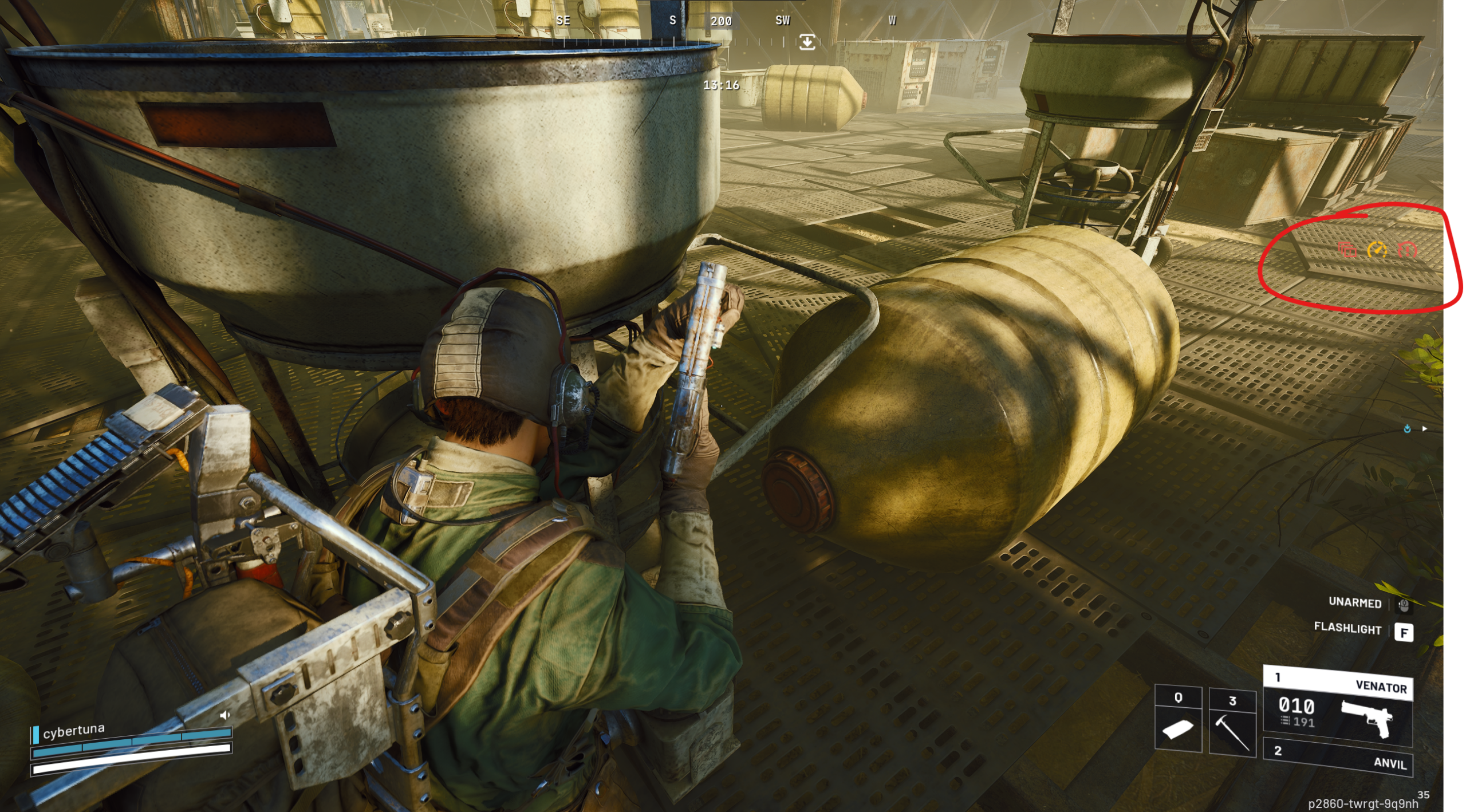
They help you pinpoint if lag comes from your setup, the network, or servers, so you can act fast and stay in the fight.
| Aspect | Details |
|---|---|
| Location | Right edge of HUD, appears dynamically during matches |
| Colors | Yellow (mild), orange (moderate), red (severe) |
| Types | Network (packet loss, ping, jitter), server, client performance, shader issues |
| Purpose | Warn of issues causing rubber-banding, delays, or stutters |
Warning icons quick overview
| Icon Description | Meaning | Symptoms | Quick Action |
|---|---|---|---|
| Down-moving box or arrow | Packet loss | Shots miss, rubber-banding, players teleport | Switch to wired Ethernet, restart router, pause downloads |
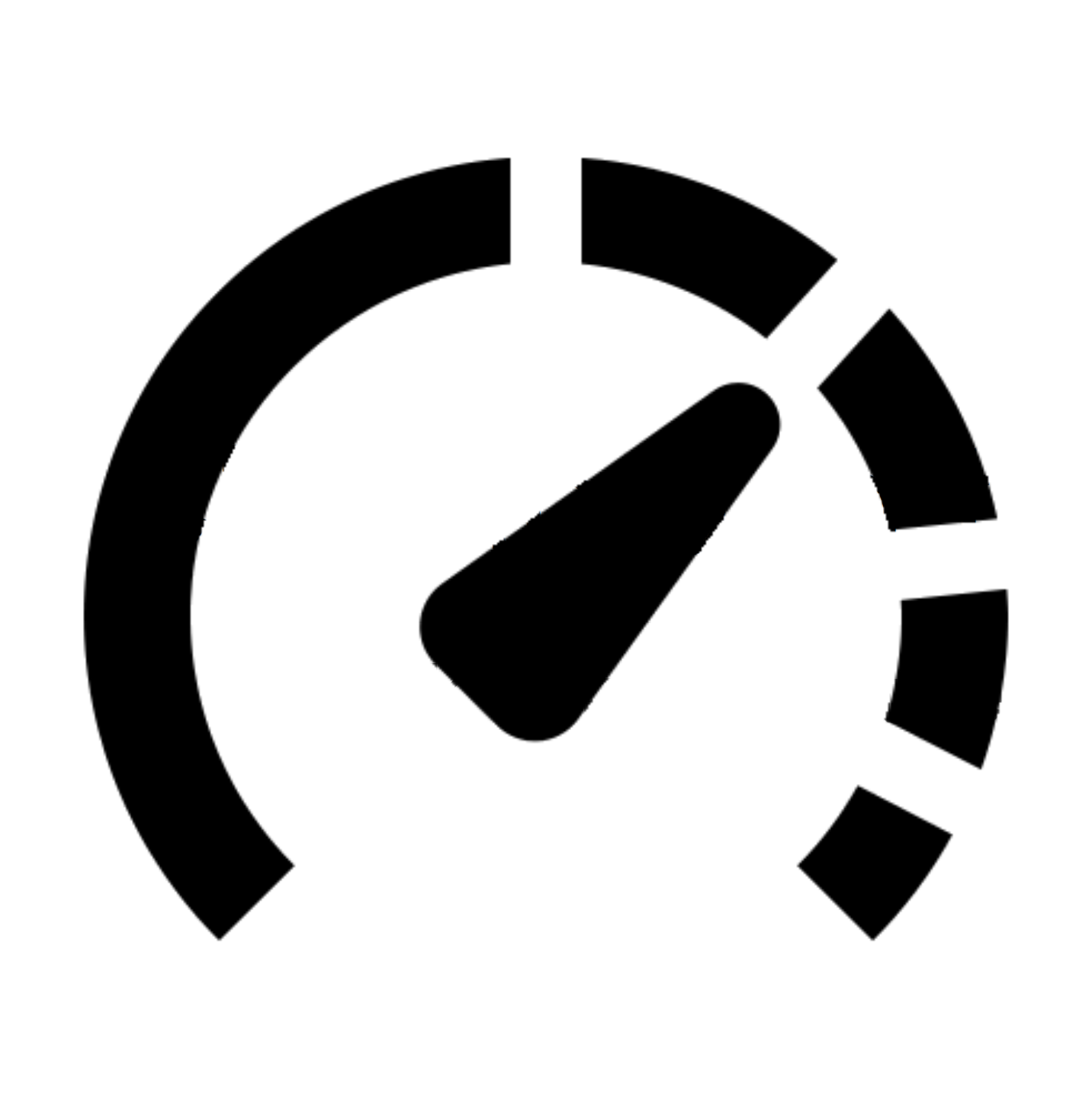
| Speedometer | High latency (ping) | Input delays, sluggish movement | Pick closest matchmaking region, close background apps, avoid VPNs |
| Jitter indicator (wavy line) | High jitter | Unstable ping spikes, uneven hits | Power-cycle router, use 5GHz Wi-Fi or wired, reduce network interference |
| Server rack | Server performance | Lobby-wide hitches, desync for all | Re-queue to new match, wait if persistent |
| PC or monitor | Client performance | Low FPS, input lag | Update drivers, lower graphics settings, close overlays |
| Monitor with exclamation mark | Shader stutter | Freezes on new effects/textures | Clear shader cache, play matches to compile, lower effects quality |
How to address packet loss
Packet loss disrupts data flow, making raids feel unfair with ghost bullets and position snaps.

Step 1
Connect via Ethernet cable instead of Wi-Fi for stable transmission.
Step 2
Unplug your router and modem for 60 seconds, then power modem first followed by router.
Step 3
Stop any heavy network use like streaming or backups on other devices.
Step 4
Test in another game; if it persists, contact your ISP about line issues.
How to fix high ping issues
High ping delays your actions, turning precise shots into misses.
Step 1
In settings, select the matchmaking region nearest your physical location over auto.
Step 2
Shut down browsers, downloaders, and launchers eating bandwidth.
Step 3
Disable VPNs or proxies that add routing delays.
Step 4
Monitor with in-game overlay; if ping stays high, try off-peak hours.
How to handle high jitter
Jitter creates unpredictable spikes, messing with aim and timing.

Step 1
Restart router and modem as in packet loss steps.
Step 2
Switch to wired or optimize Wi-Fi by staying close on 5GHz band.
Step 3
Clear other devices from video calls or uploads saturating your connection.
Step 4
If daily pattern emerges, check ISP for congestion or line noise.
Managing server performance warnings
These point to backend problems you cannot fix locally.
Re-queue immediately to join a healthier lobby. Avoid pushing fights while red, and return later if it repeats across sessions.

Boosting client performance
Your hardware struggles here, often from software overload rather than raw power.
Step 1
Close all background apps, overlays, and sync tools.
Step 2
Update GPU drivers via official software.
Step 3
Drop shadows, effects, and post-processing to low; enable upscaling like DLSS.
Step 4
Enable performance overlay in video settings to spot bottlenecks.
Eliminating shader stutter
Stutters hit when new visuals load, but pre-compiling helps.
Step 1
Play 2-3 full matches to build common shaders.
Step 2
Clear shader cache in game files or launcher, then relaunch.
Step 3
Reduce effects and install on SSD if not already.
Step 4
Lower global illumination and texture streaming if freezes linger.
When icons signal retreat
Yellow lets you play cautiously, orange means cover and tweak, red demands exit after combat—protect your run by addressing root causes.
Keep raids fluid by treating right-side icons as your personal raid advisor. Quick responses turn potential wipes into wins, letting skill shine over tech glitches.