What to know
-
Mewgenics is designed around keyboard and mouse first, even though controllers are supported.
-
If Steam does not show a controller icon for the game, your PC is likely not detecting the controller correctly at that moment.
-
Steam Input can fix detection, but some setups also require toggling Steam controller options on or off to stop conflicts.
-
Windows-side fixes (driver refresh, USB power settings, calibration) often resolve intermittent or no-input problems.
Mewgenics can feel inconsistent with controllers because the game’s input expectations may differ from how your controller is being presented (native XInput, Steam Input wrapper, or a PlayStation-style device). Use the steps below in order so you fix the simplest cause first before changing deeper settings.
| Area | What to check | What to do if it fails |
|---|---|---|
| Physical connection | Cable, Bluetooth pairing, different USB port | Reconnect, swap port, reboot PC |
| Windows detection | Controller appears in Windows controller settings | Reset to default and calibrate |
| Device Manager | Correct device enabled and driver OK | Disable/enable device, update driver |
| USB power saving | USB hubs not powering down | Change USB hub power management settings |
| Steam Input | Steam controller options + per-game Steam Input | Enable needed controller types, toggle Steam Input per game |
How to confirm Windows sees your controller
Step 1
Disconnect the controller, reconnect it, then restart your PC.
Step 2
Open Windows USB game controller settings, select your controller, then open Properties.
Step 3
Use Reset to default, then run the calibration flow and Apply.
Step 4
If inputs still do not respond in that panel, stop here and fix the controller connection or driver first, because the game will not reliably detect a controller Windows cannot read.
How to refresh the controller driver in Device Manager
Step 1
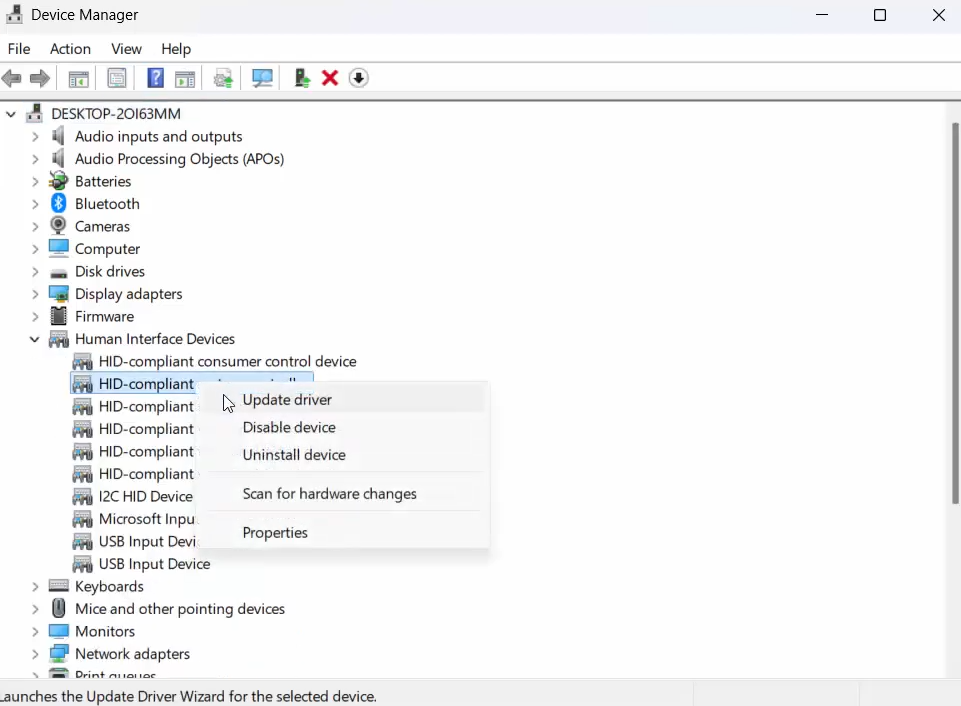
Open Device Manager, find your controller device entry, then disable the device.
Step 2
Restart your PC, go back to Device Manager, and enable the device again.
Step 3
If it still fails, use Update driver, then choose Browse my computer for drivers and Let me pick from a list to select the appropriate model, then reboot.
How to stop USB power saving from dropping your gamepad
Step 1
Open Device Manager and expand Universal Serial Bus controllers.
Step 2
For Generic USB Hub entries, open Properties and go to the Power Management tab.
Step 3
Change the setting that allows Windows to turn off the device to save power, then reboot and test again.
How to fix Steam Input conflicts for Mewgenics
Step 1
In Steam settings, open the controller section and ensure the relevant controller types are enabled.
Step 2
Open the game in your Steam Library and look for the controller icon on the game page; if the icon disappears when you unplug the controller, Steam is tracking the device correctly.
Step 3
Open the game’s controller options and toggle Steam Input for the title (enable it if the game is not detecting your pad, or disable it if Steam Input is making the controller invisible to games on your setup).
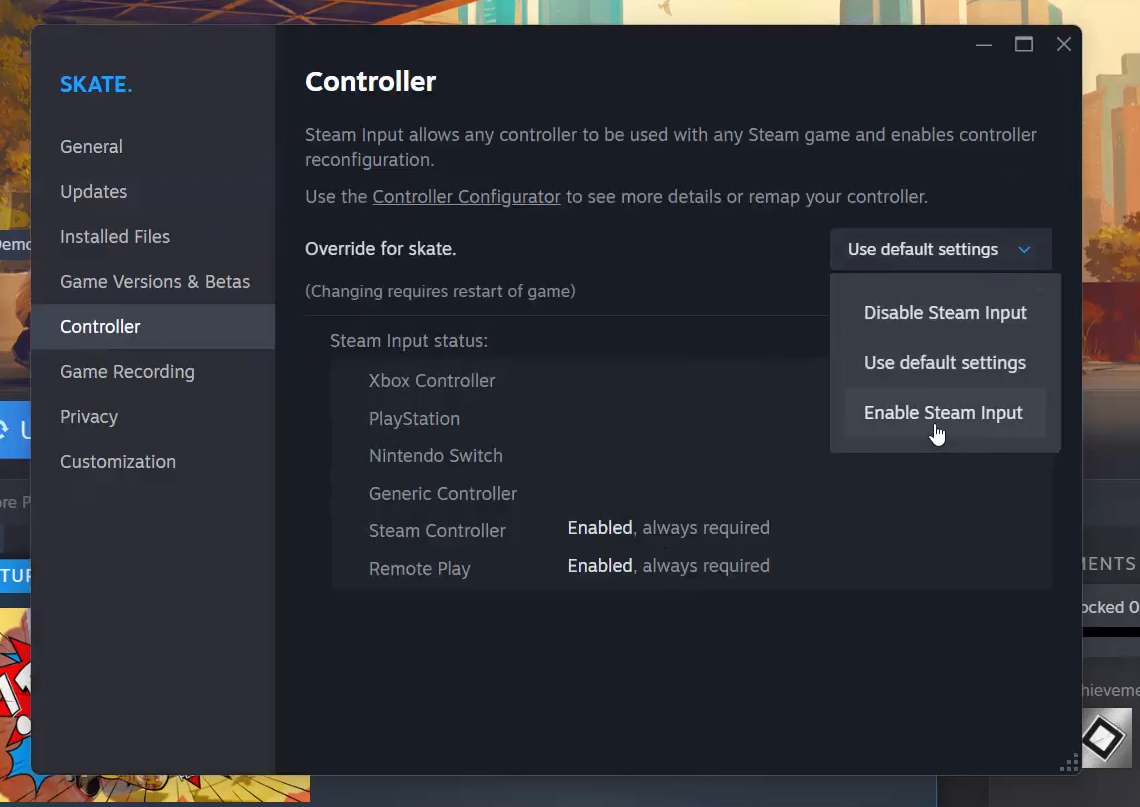
Step 4
If the game is not a Steam title, add it to Steam as a non-Steam game so you can apply Steam Input and a controller layout.
Settings and locations involved
You will mainly work in three places: Windows Device Manager for driver and USB hub settings, the Windows controller settings panel for reset and calibration, and Steam’s controller settings plus the game’s controller page for Steam Input and layouts.
If you follow the order above, you’ll usually fix it without reinstalling anything: confirm Windows detection, refresh the driver, stop USB power saving, then finalize Steam Input behavior for your specific controller and setup.