What to know
-
Most Mewgenics sound issues on PC come from the wrong default output device, Windows sound enhancements, or exclusive-mode conflicts.
-
Crackling, popping, and stutter can be triggered by mismatched sample rate/bit depth or Bluetooth hands-free mode kicking in.
-
Verifying game files is a fast way to rule out corrupted installs that can cause weird behavior.
-
Some players have reported crackling that was fixed by a game update, so patch status matters.
Mewgenics is a lightweight game, so when audio breaks or turns crackly, it’s usually your Windows audio path (device selection, enhancements, exclusive control, or format) rather than raw hardware limits. The steps below move from quickest checks to the fixes that most often stop muffled, popping, and stuttering sound.
| Symptom | Most likely cause | Fastest fix to try |
|---|---|---|
| No sound at all | Wrong default output, muted app/device | Set correct default output, check volume mixer |
| Crackling or popping | Enhancements, exclusive mode, unstable format | Disable enhancements, disable exclusive mode, change format |
| Muffled audio (especially on Bluetooth) | Bluetooth hands-free profile active | Switch to stereo profile, disable hands-free mic in Windows settings |
| Music stutters but other sounds seem fine | Device buffer/format conflict, exclusive mode | Disable exclusive mode, try 48 kHz or 44.1 kHz format |
| Audio fine but game behaves oddly after install | Corrupted files | Verify integrity of game files (Steam) |
How to fix audio not working in Mewgenics on PC
Fix 1
Restart the game and your PC once, then unplug and replug your headset or speakers to clear a stuck audio session.
Fix 2
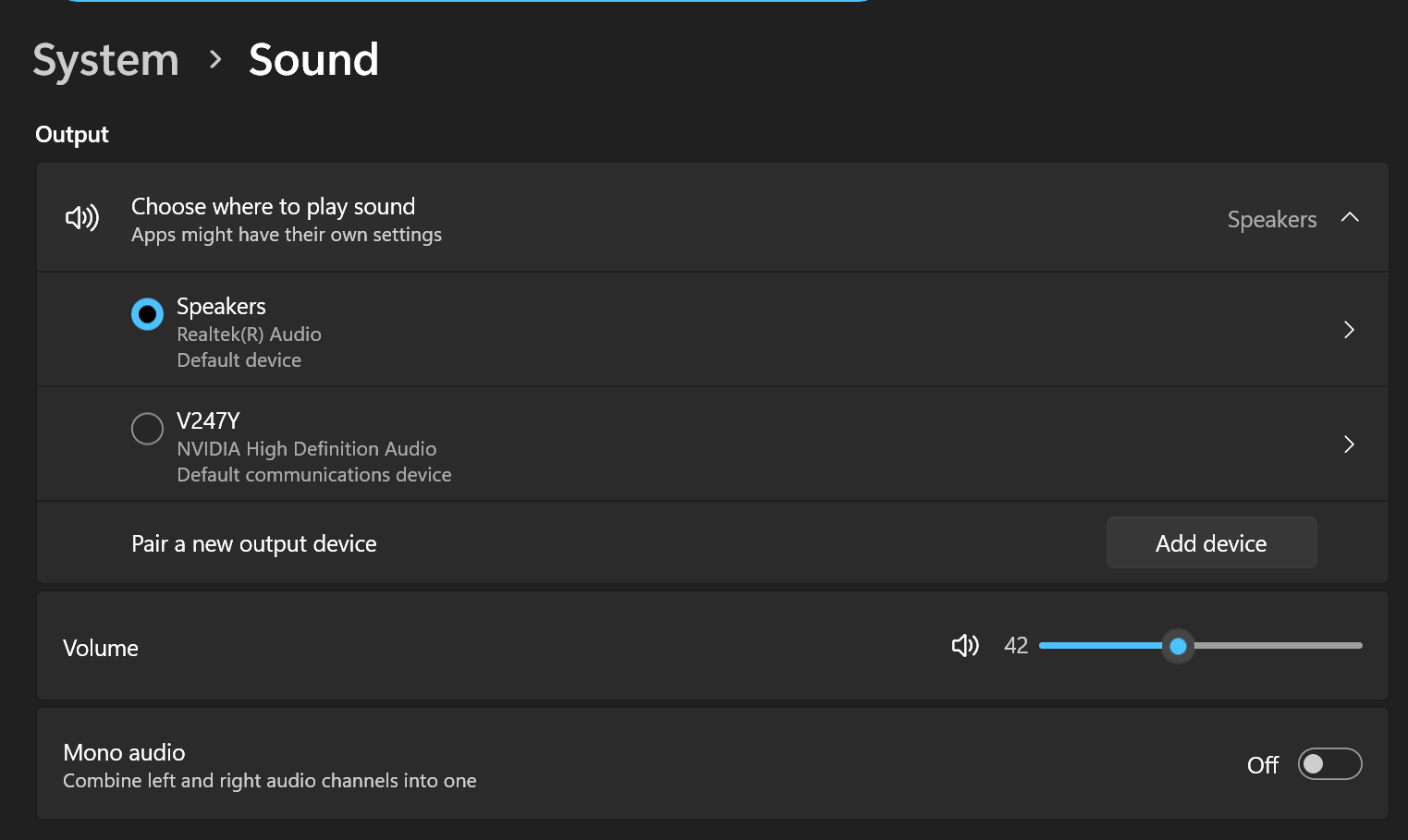
Set the right output device as default in Windows: right-click the speaker icon, open Sound settings, then pick your intended output device and ensure it is the active default.
Fix 3
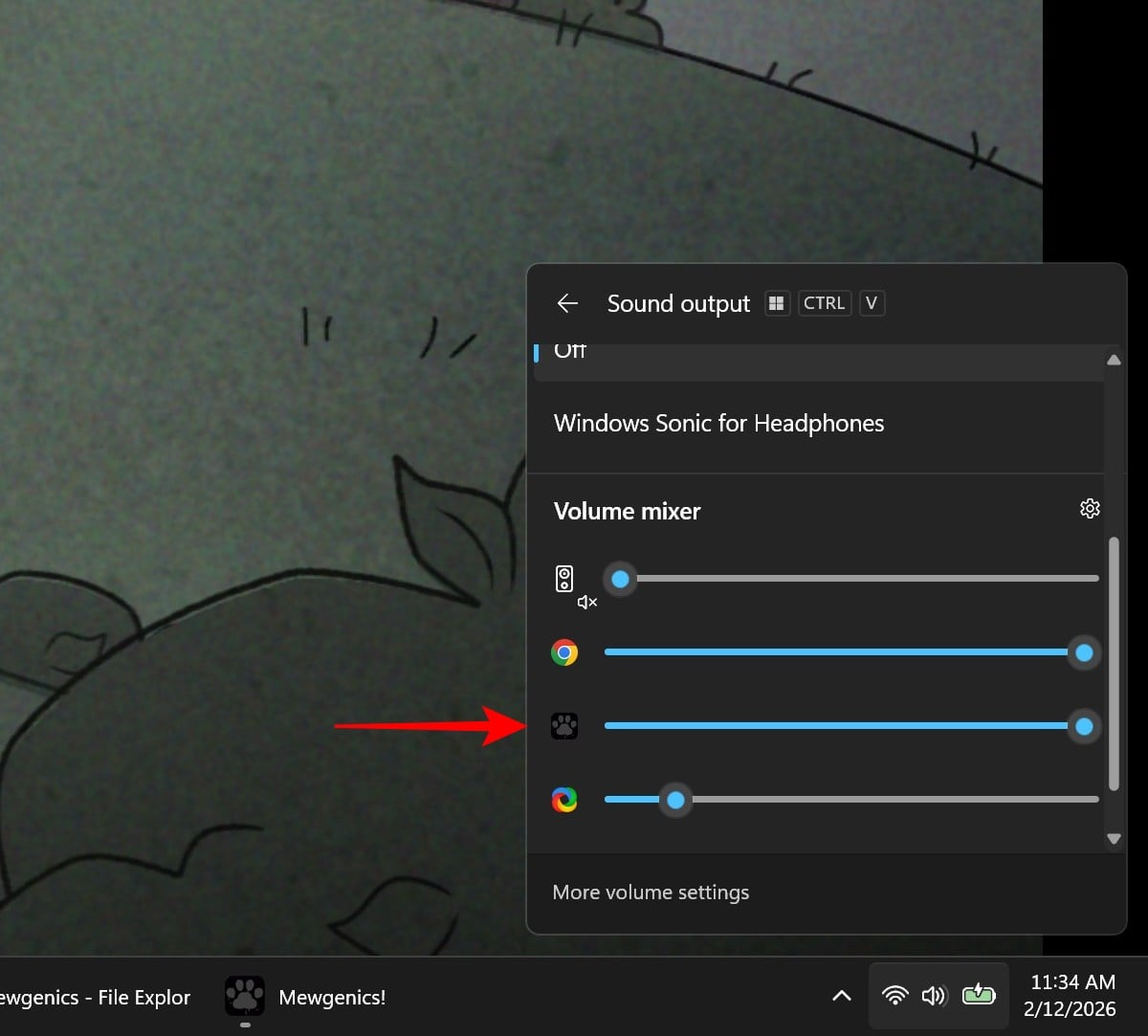
Check Windows Volume Mixer and make sure Mewgenics is not muted or turned down relative to other apps.
Fix 4
Disable other playback devices temporarily (HDMI audio, controller headsets, virtual devices) so Windows cannot flip outputs mid-launch.
How to fix crackling, popping, muffled, or stuttering audio
Fix 1
Turn off exclusive mode for your playback device (and recording device if you use a headset), because exclusive control can block or destabilize shared audio output.
Fix 2
In the same device properties area, disable audio enhancements (if your device exposes that option), since enhancements can cause distortion or unstable playback on some systems.
Fix 3
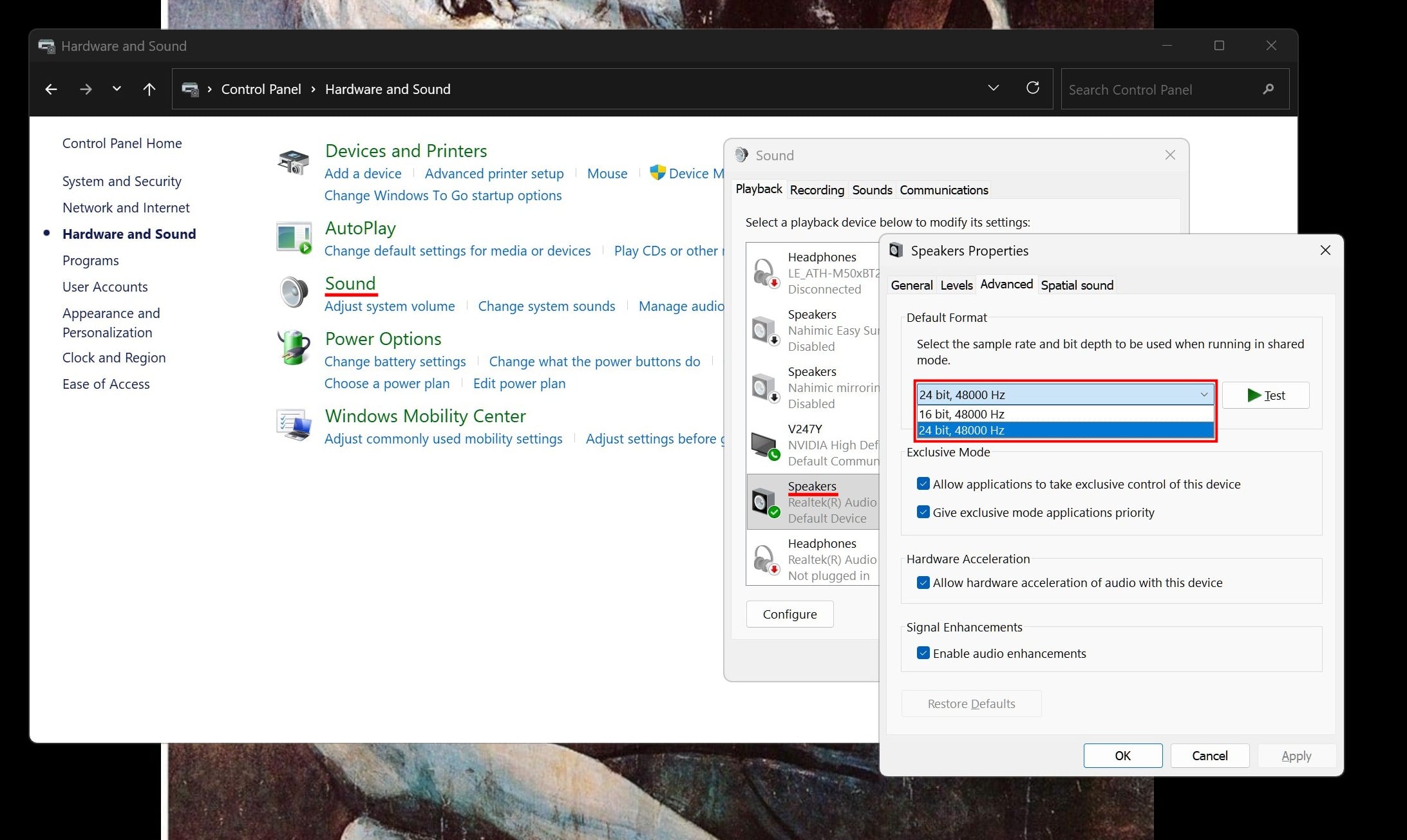
Change the default format (sample rate/bit depth) for your output device and retest. If you’re not sure what to choose, try 24-bit 48000 Hz first, then 16-bit 44100 Hz, because format mismatches are a common source of crackle and stutter when apps switch modes.
Fix 4
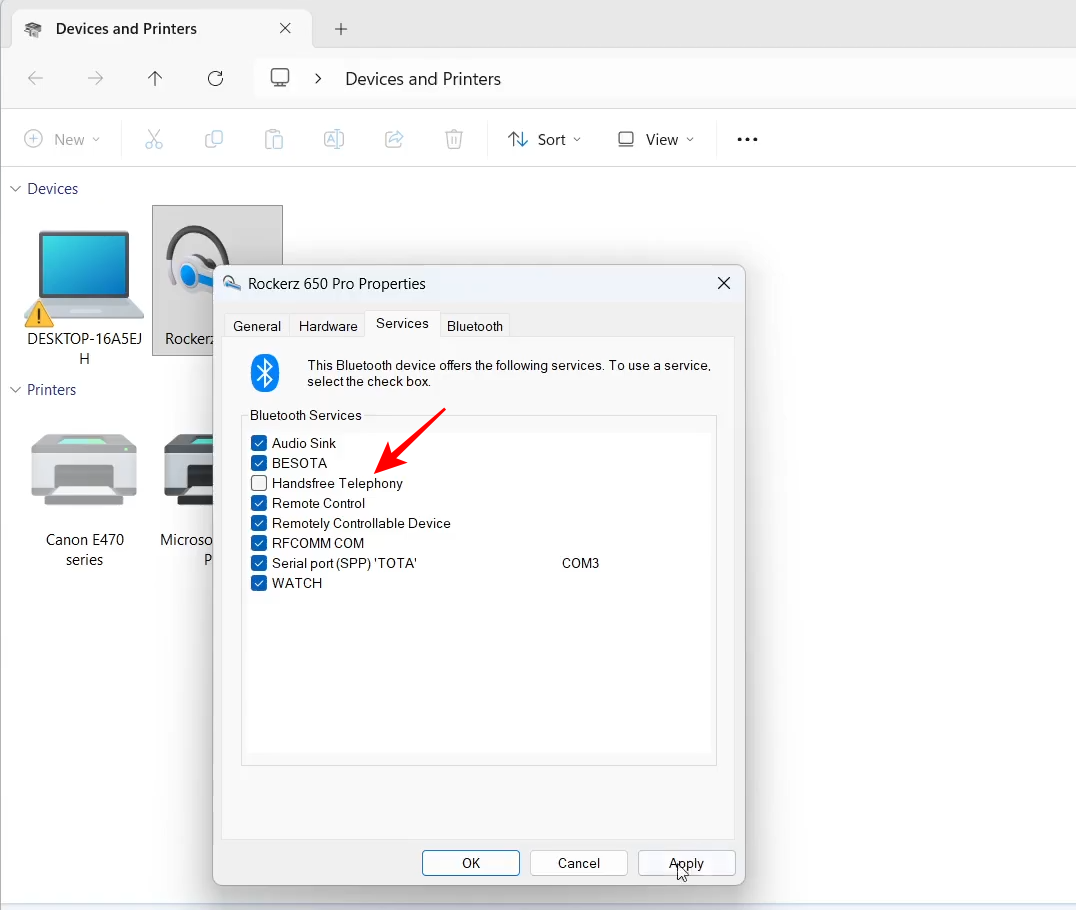
If you are on Bluetooth headphones, force the stereo output mode: when the hands-free telephony profile activates, audio often becomes lower quality and can sound muffled or glitchy, so disable the hands-free device or set the headset mic to a different input.
Fix 5
Update your audio driver (and optionally GPU driver if you route audio over HDMI/DisplayPort), then reboot. Driver issues can show up as crackling that only appears in specific games.
Fix 6
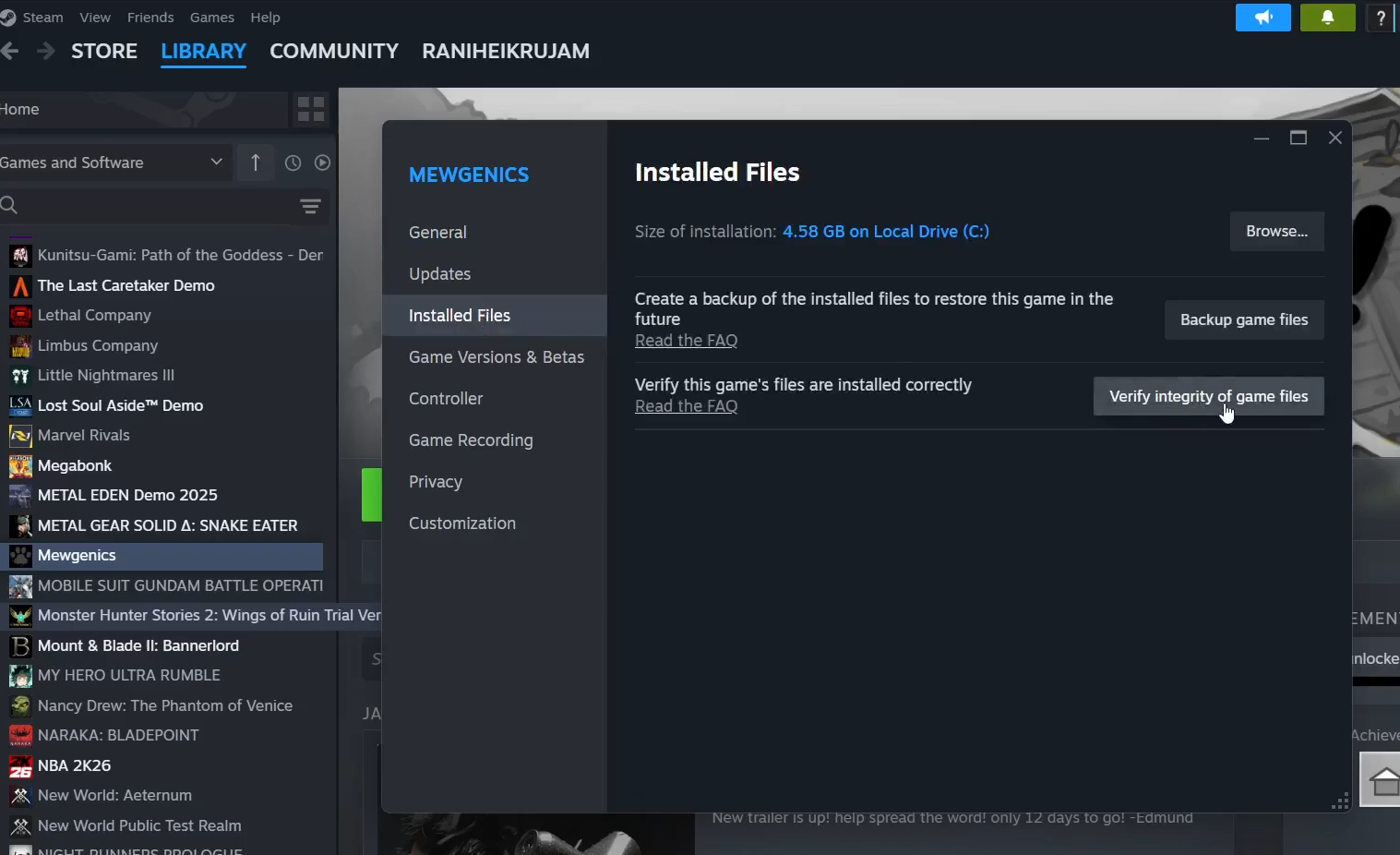
Verify the game install files in Steam to rule out corrupted assets or bad local data causing abnormal behavior.
A few players have reported Mewgenics crackling that was resolved by a newly released update, so if the issue started suddenly, check whether your build is fully updated before you spend too long on deeper system changes.
Getting your Mewgenics sound stable again
If you do just two things, disable exclusive mode and turn off enhancements, then retest with a different default format. If the crackling only appeared recently, making sure you are on the latest game update can save you a lot of unnecessary troubleshooting.