

- What to know
- Why you should start in flat-screen mode
- How to set up HOTAS for main flight controls
- Core flight controls and recommended bindings
- HOTAS setup notes that save frustration
- VR hand controllers: what they’re good for
- Gunnery and weapons bindings
- Device-based recommended layouts
- Current state of the control UI
What to know
- Control setup is currently easier in flat-screen mode than in VR
- HOTAS works well, but axis inversion and UI mismatches are common
- VR hands are best kept for menus, not primary flight control
- The PC and console UI has limitations that affect trim and advanced bindings
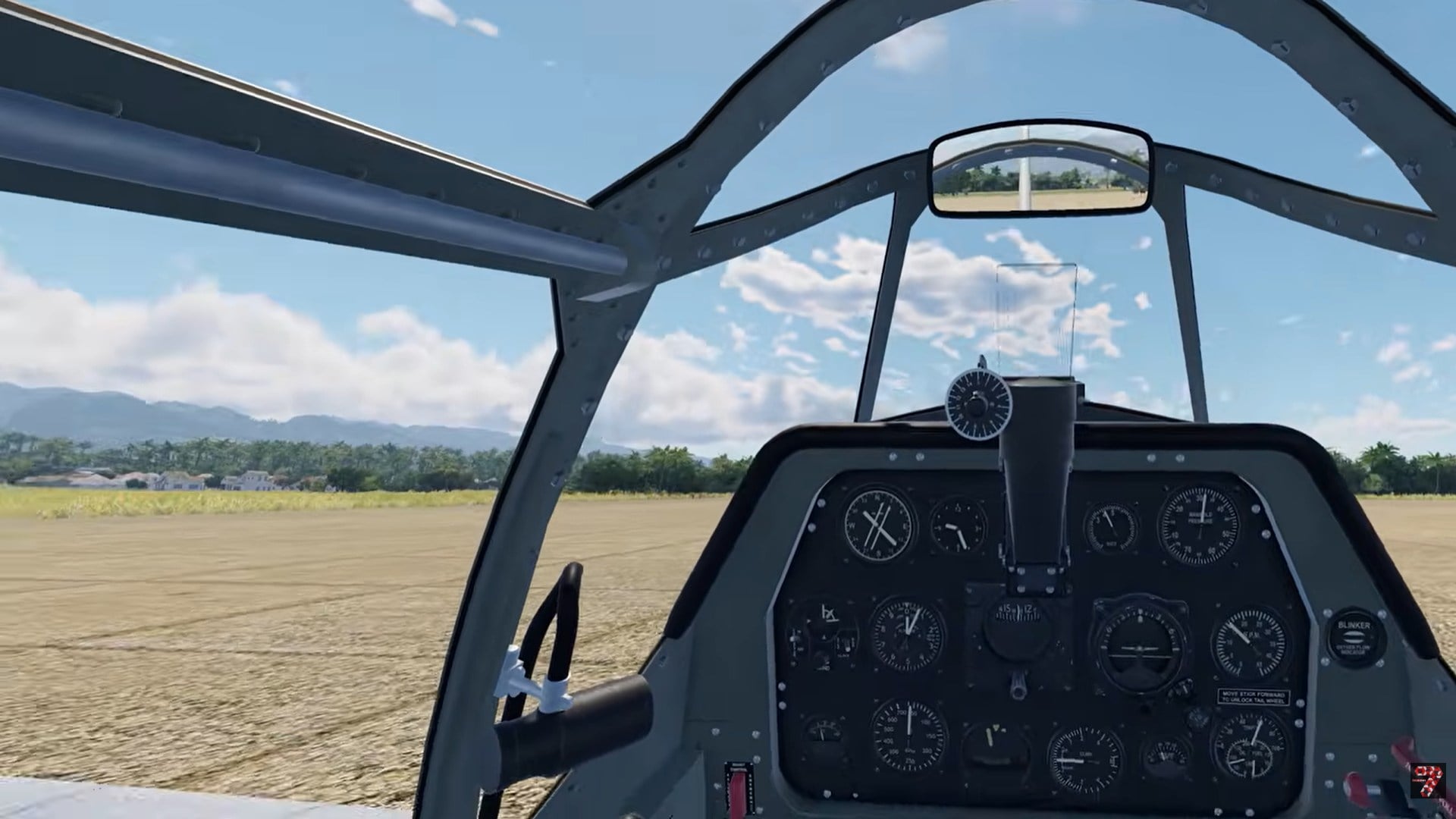
Aces of Thunder is a high-fidelity WWII air combat simulator developed by Gaijin Entertainment, with a strong focus on realism and VR immersion. That depth comes at a cost: the default control setup is unintuitive, especially on PC, and the current UI can mislead new players.
This guide breaks down how to configure controls cleanly across HOTAS, VR, mouse and keyboard, and controllers, based on real-world workarounds that avoid the most common pitfalls.
| Area | What to expect |
|---|---|
| Initial setup | Best done in flat-screen mode |
| HOTAS | Fully supported but requires manual axis checks |
| VR hands | Reliable for menus, not ideal for flying |
| PC peripherals | Supported, but UI lacks clarity for trim and percentages |
| Controllers | Functional on PC and console, limited peripheral support on console |
| UI state | Functional but unfinished and inconsistent |
Why you should start in flat-screen mode
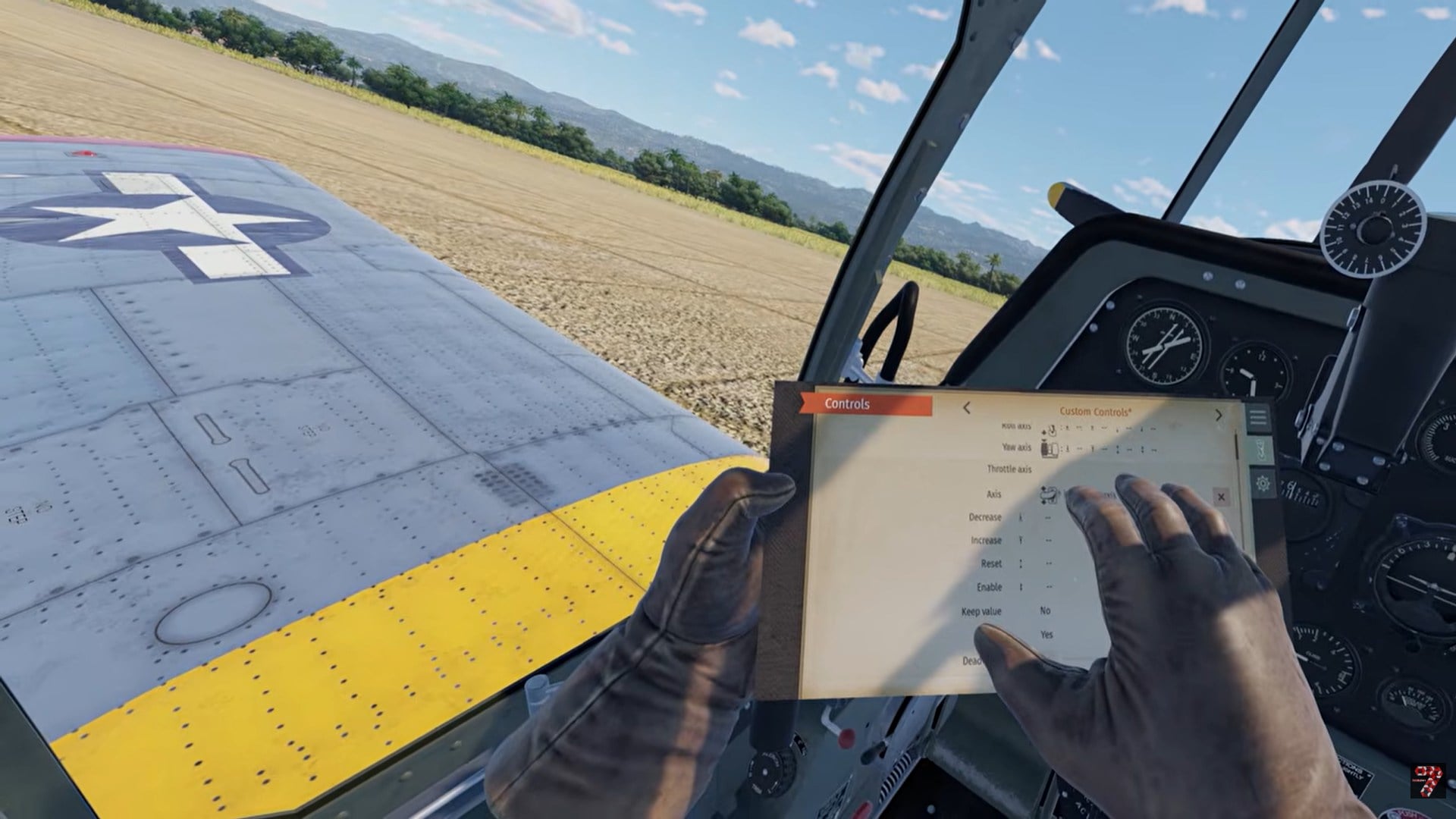
The first recommendation is simple but important: do not configure controls in VR. The VR UI is currently cumbersome, slow to navigate, and makes it difficult to see exactly which axes and buttons you are binding. Flat-screen mode provides clearer menus and faster iteration, letting you verify axis direction, deadzones, and conflicts before committing.
Once your bindings are stable, you can switch back to VR without needing to revisit the menu often.
How to set up HOTAS for main flight controls
HOTAS is the ideal way to play, but the in-game diagrams can be misleading. Focus on what the axis actually does, not what the UI image shows.
Step 1: Bind core flight axes
Map roll, pitch, and throttle directly to physical axes on your stick and throttle. After binding each one, immediately test for inversion. Many setups will default to reversed pitch or throttle.
Step 2: Verify rudder input
If you have pedals, bind yaw to them. If not, a twist axis works fine. Poor rudder setup is the most common cause of unstable turns and constant fighting against the aircraft.
Step 3: Ignore incorrect UI visuals
Some control icons do not match the actual aircraft behavior. Trust the live input response, not the on-screen illustration.
Core flight controls and recommended bindings
These are non-negotiable. If these feel wrong, the entire game feels wrong.
| Control | Aircraft function | HOTAS recommendation | Controller recommendation |
|---|---|---|---|
| Pitch (elevator) | Nose up/down | Stick Y-axis | Left stick Y |
| Roll (ailerons) | Bank left/right | Stick X-axis | Left stick X |
| Yaw (rudder) | Slip & torque control | Pedals or twist | Triggers / bumpers |
| Throttle | Engine power | Physical throttle | Right stick Y |
| Wheel brakes | Ground handling | Stick button | Face button |
Important: If the plane constantly fights you in turns, your rudder is misconfigured. This is the most common issue new players run into.
HOTAS setup notes that save frustration
| Issue | What to do |
|---|---|
| Inverted pitch or throttle | Check inversion immediately after binding |
| Wrong control icons | Ignore UI images, trust behavior |
| Over-sensitive input | Lower sensitivity before adding deadzone |
| Unstable turns | Verify rudder axis and trim access |
Do not trust the diagrams blindly. Some visuals do not match actual aircraft behavior.
VR hand controllers: what they’re good for
| Use case | Recommendation |
|---|---|
| Menu navigation | Yes, works well |
| Cockpit interaction | Yes |
| Primary flight control | Not recommended |
| Precision dogfighting | Avoid |
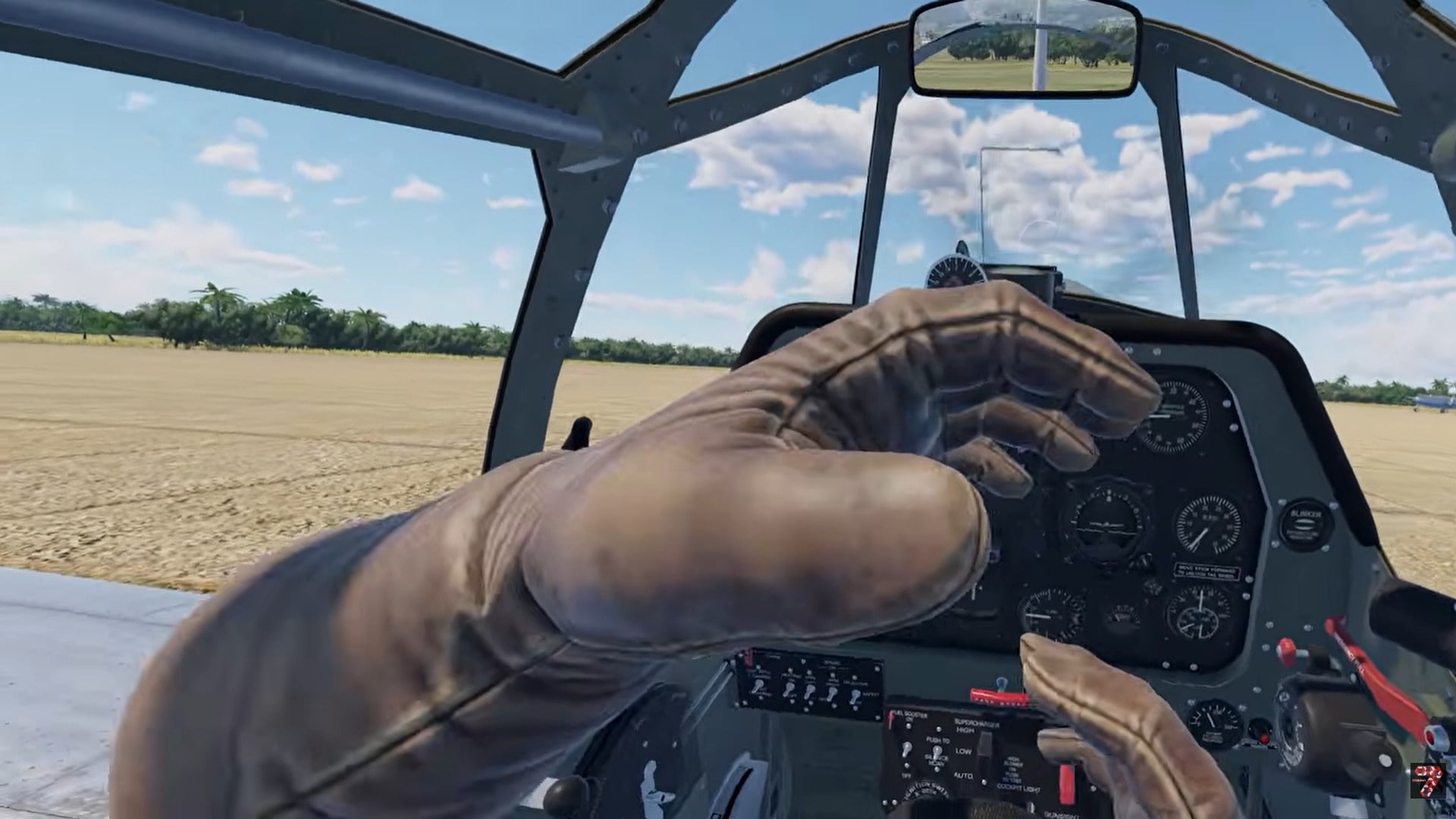
The most stable setup is HOTAS or controller for flight, VR hands for immersion and interaction only.
Gunnery and weapons bindings
Precision matters more than volume of fire.
| Binding | Why it matters | Best placement |
|---|---|---|
| Primary guns | Main dogfight weapon | Trigger |
| Secondary weapons | Bombs / rockets | Separate thumb button |
| Weapon modes | Prevent misfires | Dedicated toggle |
| View recenter | Situational awareness | Easy-reach button |
Critical tip: Never bind weapons to the same input you use for fine pitch control. You’ll shake your aim every time you fire.
Trim controls (advanced but critical)
Trim lets you fly without constantly fighting the aircraft.
| Trim type | Fixes | Recommended bind |
|---|---|---|
| Elevator trim | Constant climb or dive | Hat up/down |
| Aileron trim | Rolling drift | Hat left/right |
| Rudder trim | Engine torque pull | Secondary hat |
If your plane pulls left at full throttle, that’s torque—not a bug. Rudder trim fixes it.
Sensitivity and deadzone guidelines
This menu makes or breaks the experience.
| Setting | Recommended range |
|---|---|
| Pitch sensitivity | 70–80% |
| Roll sensitivity | ~80% |
| Rudder sensitivity | ~60% |
| Deadzone | 2–5% max |
| Curve | Slight curve on pitch |
Too much deadzone causes delay.
Too much sensitivity causes stalls and overcorrection.
Device-based recommended layouts
HOTAS (best overall)
| Component | Assignment |
|---|---|
| Stick | Pitch & roll |
| Pedals | Rudder |
| Throttle | Engine power |
| Hat switch | Trim |
| Trigger | Guns |
Controller
| Component | Assignment |
|---|---|
| Left stick | Flight |
| Right stick | Throttle / view |
| Triggers | Rudder |
| Face buttons | Flaps, gear, weapons |
VR users
| Function | Input |
|---|---|
| Flight | HOTAS or controller |
| Interaction | VR hands |
| View reset | Wrist or easy-reach button |
Current state of the control UI
Aces of Thunder rewards proper setup more than almost any other flight game. Spend time in flat-screen mode, verify every axis, map trim early, and keep VR hands out of flight control. Once tuned, the simulator becomes smoother, more predictable, and far more immersive.
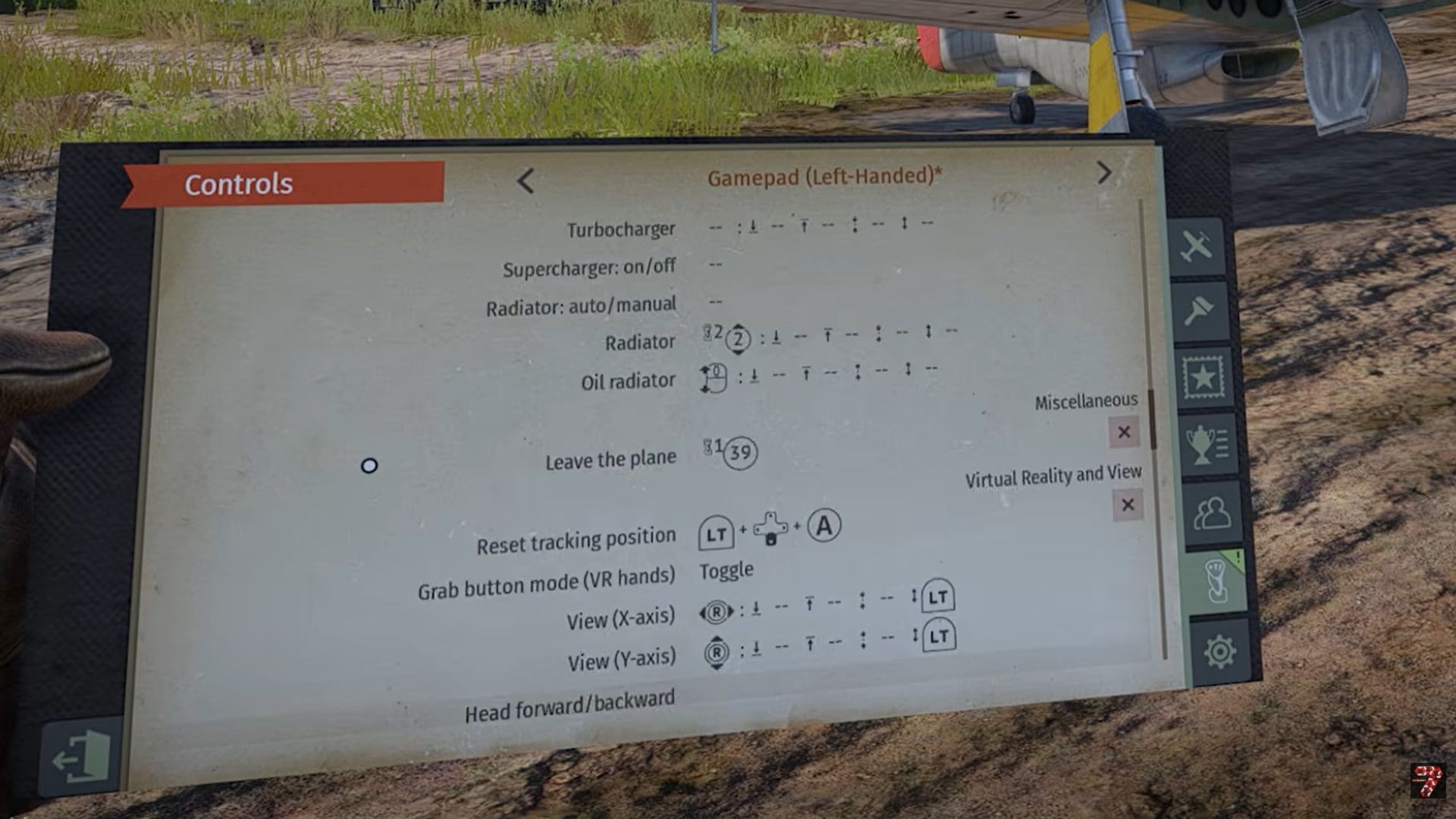
The control UI works, but it is unfinished. Some labels lack context, percentages are unclear, and visual feedback can be misleading. These issues affect both PC and console, though PC players notice them more due to advanced peripherals.
Updates may improve this, but for now, manual testing is essential.

The sensitivity is tied to the relative setting. And relative seems to keep the input you give the stick (does not return to center). Without relative setting on how do you adjust sensitivity? Is there something that details each setting and what it does?