- What to know
- Why the vanilla mini-map struggles with long-term exploration
- Quick overview of the upgraded mini-map system
- The mod used to upgrade the Hytale mini-map
- How the upgraded map changes exploration flow
- How to create custom waypoints
- Managing, viewing, and teleporting to waypoints
- Using the upgraded map in Survival mode
- Creative mode advantages for rapid world mapping
- Relationship to the vanilla warp system
- Why Hytale modding is good for maps
What to know
- The vanilla mini-map in Hytale forgets explored terrain after teleporting or moving far away
- An upgraded map system permanently records explored areas and adds advanced waypoint tools
- You can create, name, color, and manage waypoints, then teleport to them instantly
- The setup works the same way in Survival and Creative, including multiplayer servers
Navigation in Hytale is designed to be immersive, but the default mini-map quickly becomes a limitation once you start teleporting, exploring far-off biomes, or managing multiple bases. If you have ever returned to an area only to find the map blank again, you have already run into the vanilla system’s biggest flaw. This guide explains what the mod actually changes, and shows how it fundamentally improves exploration, memory, and waypoint control across all game modes.
Why the vanilla mini-map struggles with long-term exploration
Hytale’s default mini-map only displays the terrain immediately surrounding your character. Once you teleport, reload a world, or travel far enough away, previously explored areas often disappear from the map. This creates a form of “map memory loss” where the game no longer visually remembers places you have already visited.
The limitation becomes more noticeable as your world grows. You might find a rare biome, mark it mentally, teleport back to your base, and later have no visual reference to guide you back. Waypoints in the vanilla system are also minimal, offering little control over naming, colors, or visibility. For players who enjoy systematic exploration, base-building, or server play, the default navigation tools simply do not scale.
Quick overview of the upgraded mini-map system
| Feature | Vanilla mini-map | Upgraded mini-map |
|---|---|---|
| Explored terrain memory | Temporary | Permanently saved |
| Custom waypoint names | Limited | Fully customizable |
| Waypoint colors | No | Yes |
| Teleportation | Separate systems | Built into waypoint menu |
| Zoom control | Fixed | Mouse scroll zoom |
| Survival & Creative | Basic | Full feature parity |
The mod used to upgrade the Hytale mini-map
The navigation system shown in the tutorial is powered by a mod called BetterMap, developed by Paralaxe. BetterMap functions as a server-side plugin, meaning it works in single-player worlds as well as multiplayer servers without requiring every player to install client-side changes.
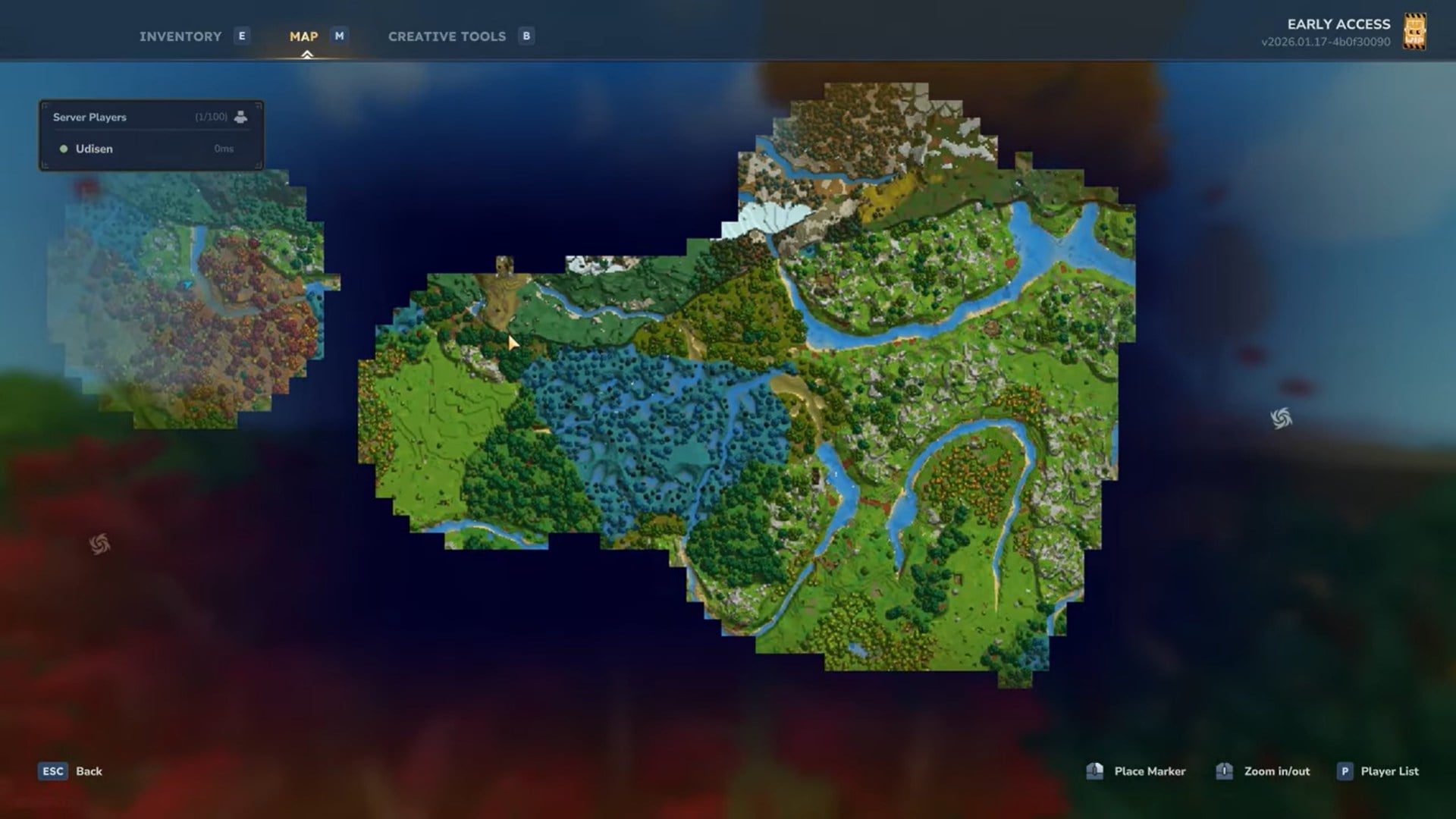
At its core, BetterMap solves the fog-of-war problem by permanently recording exploration data. Once you uncover terrain, that information is saved and retained, even if you teleport across the map or log out of the world. Over time, your mini-map becomes a true visual record of your journey rather than a temporary snapshot.
How the upgraded map changes exploration flow
With BetterMap installed, the moment you explore a new region it becomes part of your saved world map. Teleporting away no longer erases progress, which completely changes how you plan routes and discoveries. You can explore aggressively, jump between locations, and still maintain a coherent overview of your world.
This is especially impactful in Creative mode, where you can teleport to random coordinates to rapidly uncover large sections of terrain. Instead of losing orientation, the upgraded mini-map gradually fills in, allowing you to identify biome borders, terrain patterns, and points of interest at a glance.
How to create custom waypoints
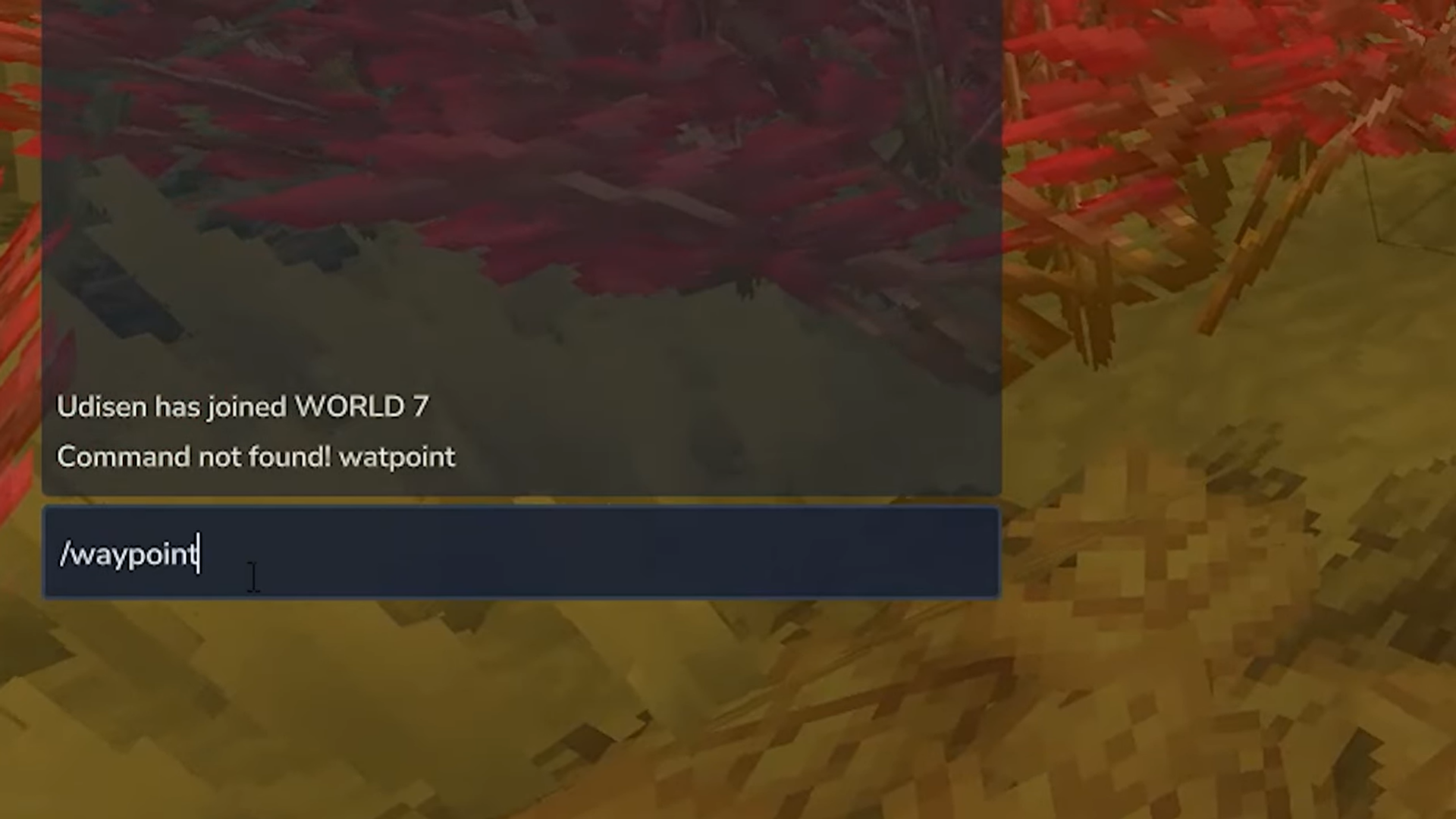
Open the in-game chat and enter the BetterMap waypoint command, commonly /bm waypoint or /wp, depending on your configuration. This brings up the waypoint interface.
Step 2: Add a new waypoint
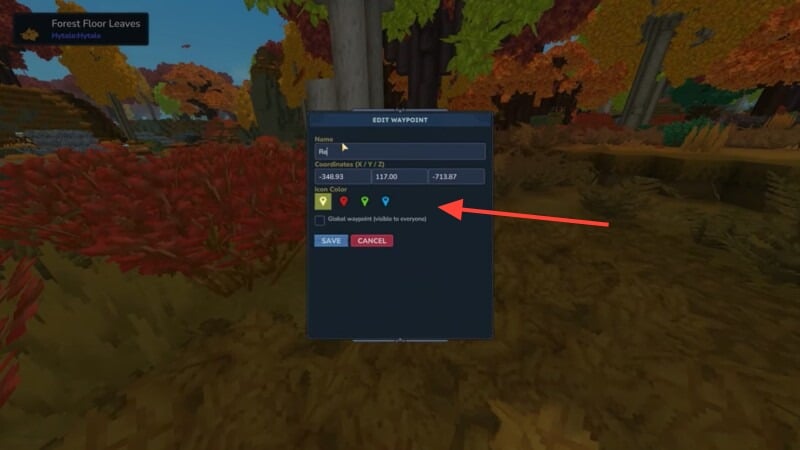
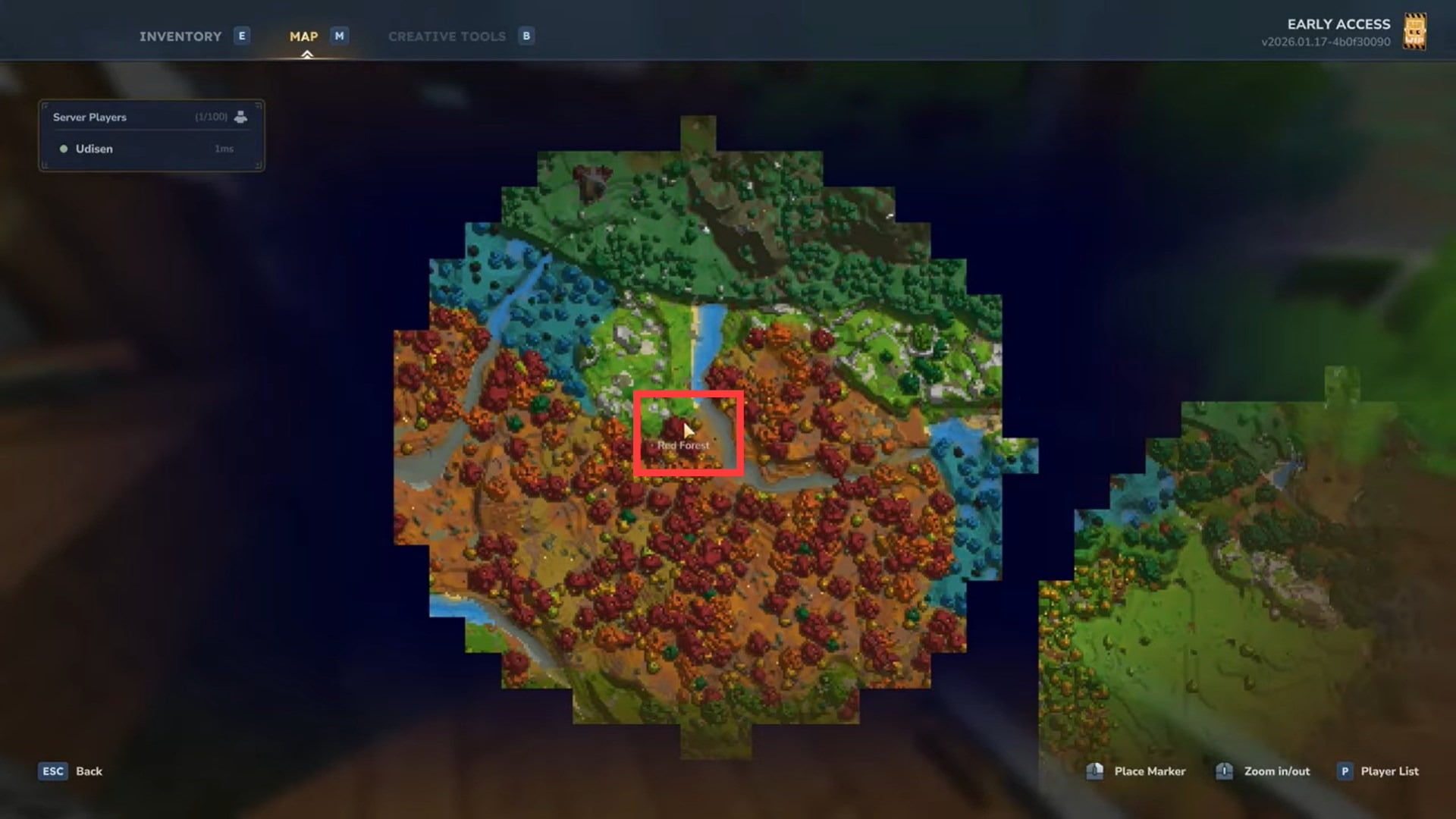
Select the option to add a waypoint. You can give it a custom name such as “Red Forest,” “Home Base,” or “Abandoned Mine,” making it immediately recognizable later.
Step 3: Set coordinates and appearance
You can manually enter coordinates or save your current position. Each waypoint can be assigned a color, which helps visually separate different types of locations like resource zones, bases, or danger areas.
Step 4: Toggle global visibility
On multiplayer servers, you can choose whether a waypoint is global. Global waypoints are visible to other players, making them ideal for shared bases, meeting points, or server landmarks.
Managing, viewing, and teleporting to waypoints
Step 1: Access saved waypoints
All saved waypoints are accessible through the same command menu. They remain available across sessions as long as the world or server exists.
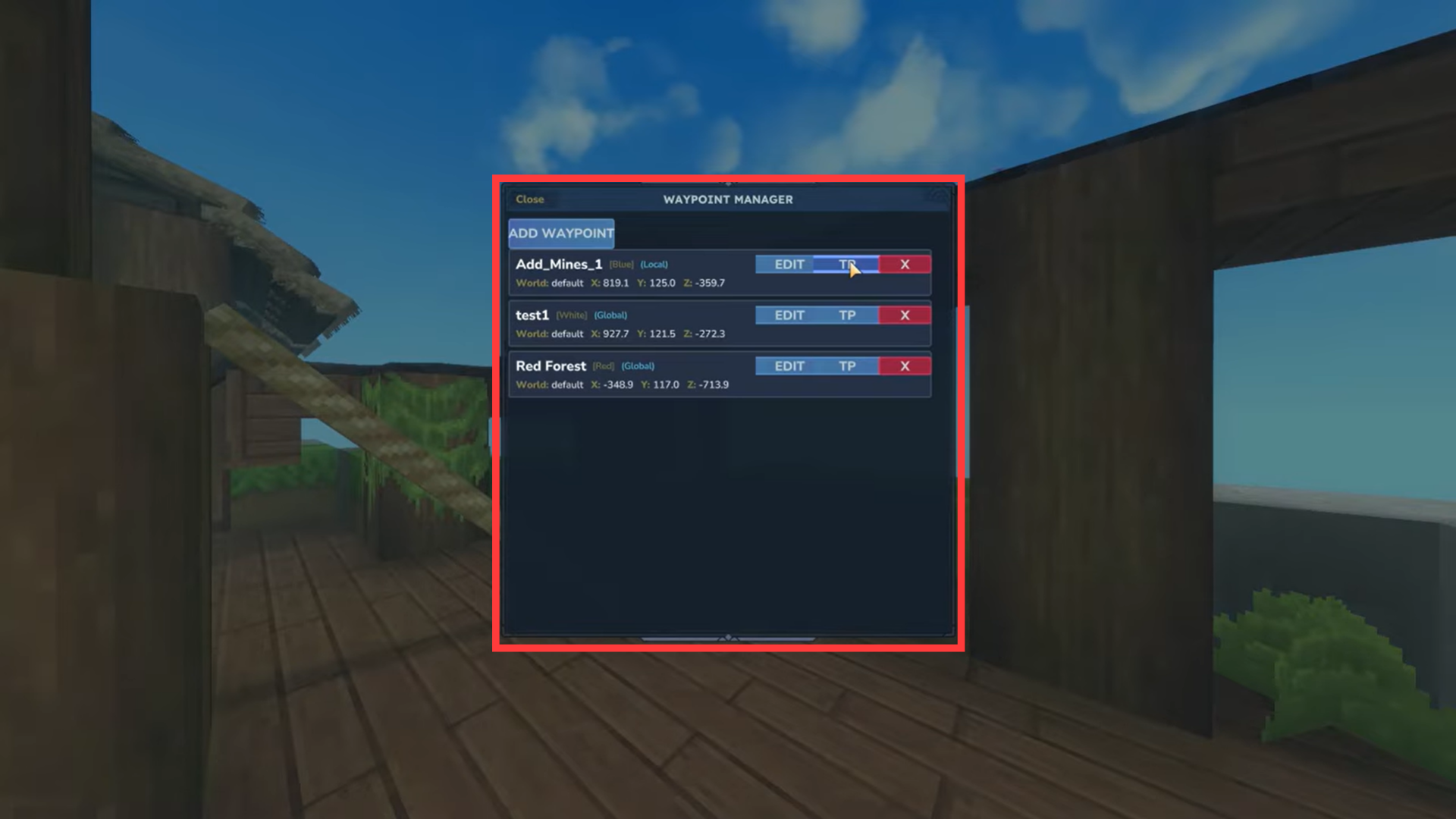
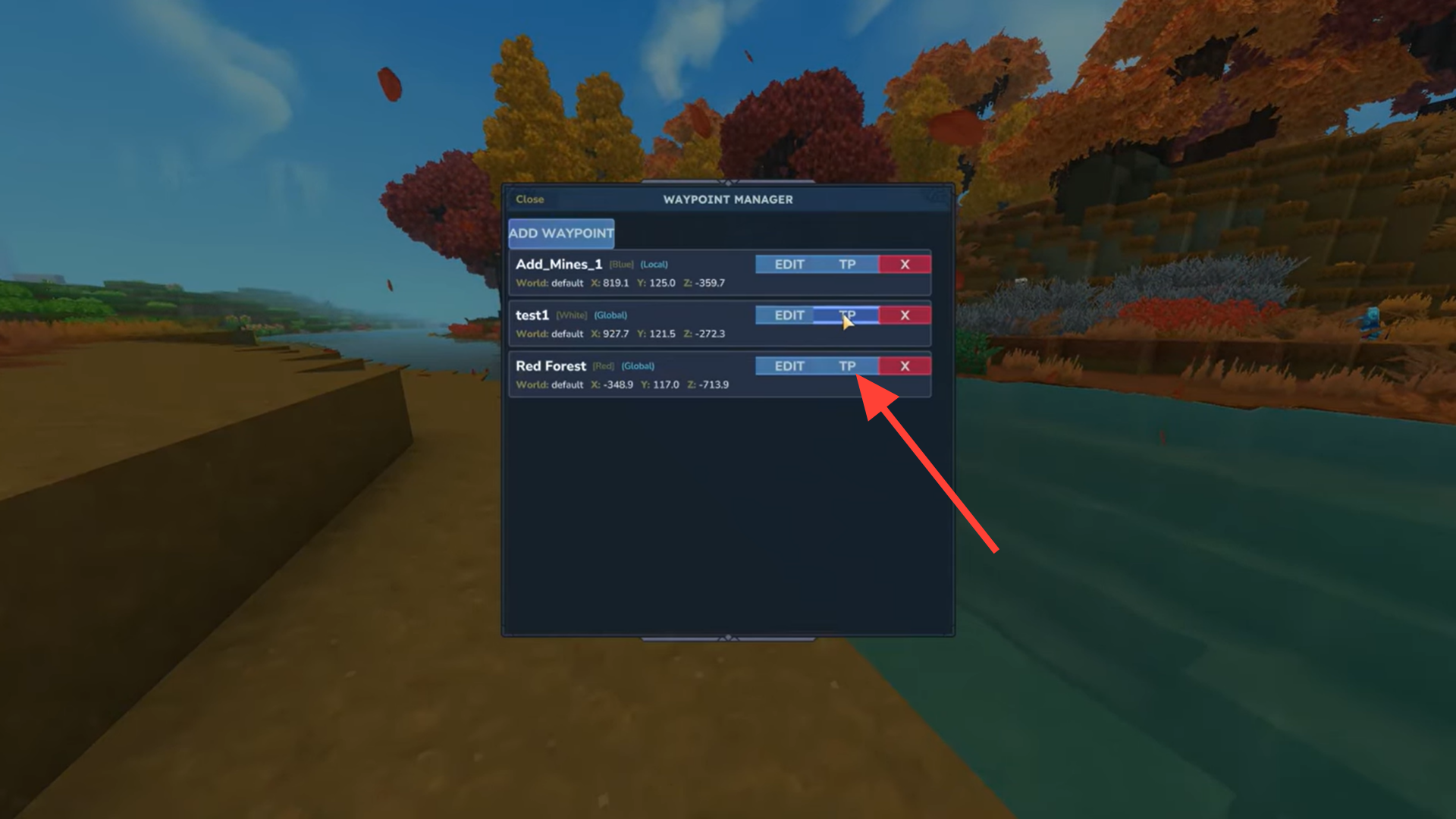
Step 2: Teleport instantly
Selecting a waypoint allows you to teleport directly to that location. This works for homes, mines, exploration sites, or any custom marker you have created.
Step 3: Track waypoints visually
Waypoints appear directly on the mini-map, giving you constant visual feedback on direction and distance. This is useful even when you choose to travel manually rather than teleport.
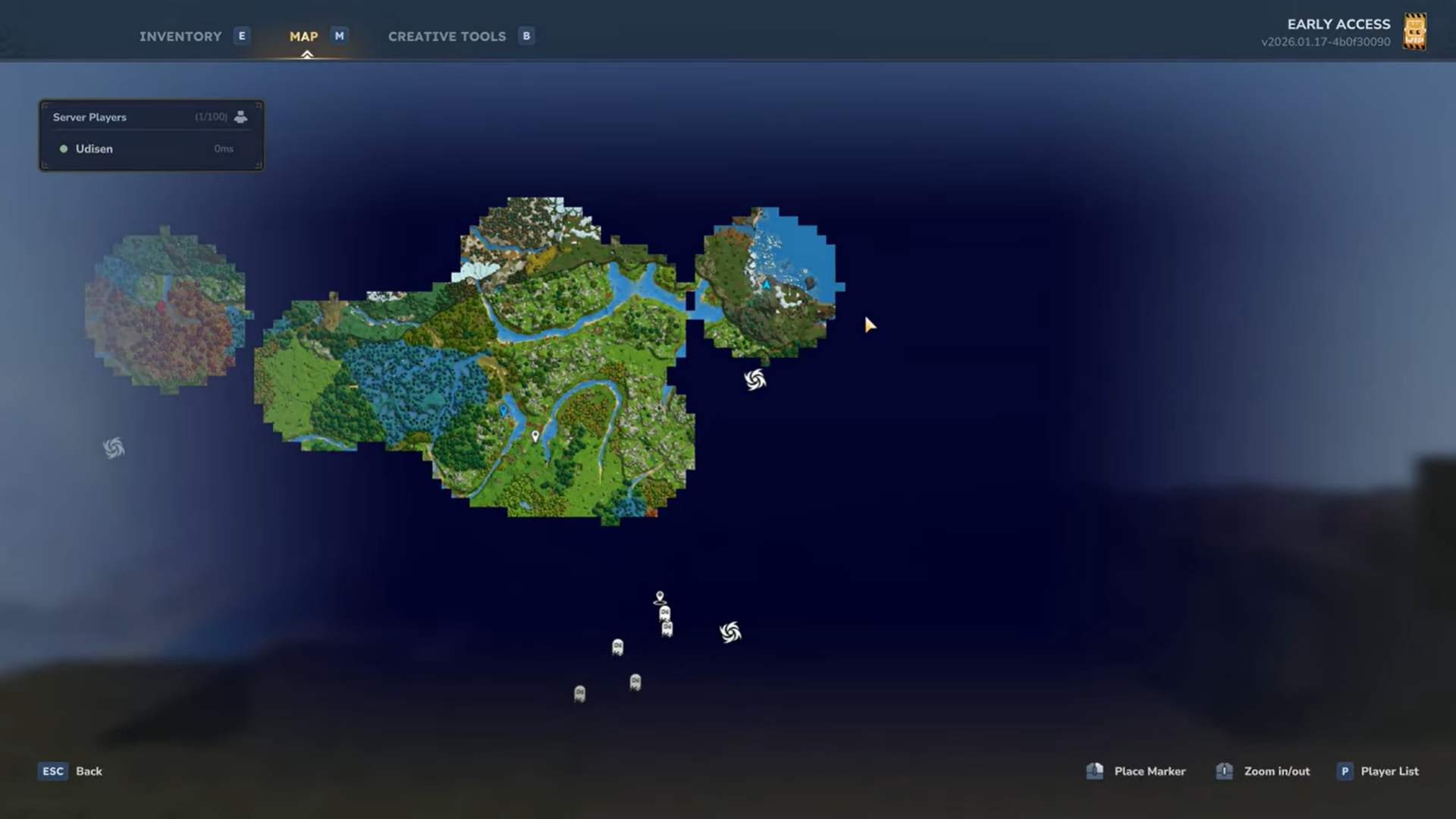
Step 4: Adjust zoom for better context
Using the mouse scroll wheel, you can zoom the mini-map in or out. Zooming out provides a broader view of explored regions, which is especially helpful once your saved map becomes large.
Using the upgraded map in Survival mode
In Survival, BetterMap acts as a quality-of-life upgrade rather than a shortcut. You still gather resources, fight enemies, and travel naturally, but you no longer lose navigational context. Long-distance expeditions become less risky because you always know where you have been and how to get back.
Waypoints also reduce frustration when managing multiple survival bases. Instead of relying on memory or external notes, your world itself becomes a structured, readable map.
Creative mode advantages for rapid world mapping
Creative mode benefits even more dramatically. You can teleport to random coordinates, fly across terrain, and instantly reveal massive sections of the map. Over time, the mini-map turns into a strategic overview tool, letting you study terrain generation, biome clustering, and world layout.
This is particularly useful for builders planning large projects or server admins scouting locations for future events or settlements.
Relationship to the vanilla warp system
The creator notes that Hytale’s standard warp system still exists and functions independently. BetterMap does not replace vanilla warps; instead, it enhances navigation by tying teleportation directly to visual waypoints. For players already familiar with vanilla warps, the upgraded map feels like a natural evolution rather than a replacement.
Why Hytale modding is good for maps
Upgrading the mini-map with BetterMap fundamentally changes how you interact with the world. Exploration becomes permanent, waypoints become meaningful tools instead of temporary markers, and both Survival and Creative modes gain a sense of continuity. If navigation, memory, and efficient travel matter to you, this upgrade shifts the mini-map from a limitation into one of the most useful systems in the game.
As Hytale worlds grow larger and more complex, navigation becomes a core gameplay pillar. A mini-map that forgets your journey actively works against exploration-focused playstyles. BetterMap transforms the mini-map into a persistent world record, aligning the navigation system with how players actually explore and build over time.