What to know
- Stash Mode is part of the AIC toolset (the same family as top-view and other base-oriented modes).
- On PC, the default shortcut is typically X, unless the keybind was changed.
- If Stash Mode doesn’t open, it’s often because the current gameplay state isn’t in AIC/base mode, or the binding differs from defaults.
- Good stash habits reduce backpack clutter and speed up crafting, building, and upgrades.
Stash Mode exists to reduce friction when resources start piling up. As progression continues, the volume of materials, components, and special items tends to grow, and a stash-oriented interface becomes the fastest way to keep “active carry” clean while still keeping everything available for base and production needs.
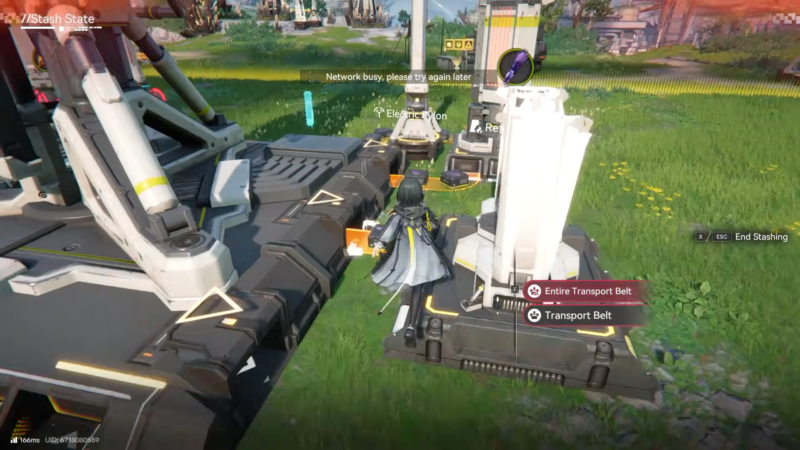
What Stash Mode actually does in practice
Stash Mode is best understood as a “storage-first” view. Instead of manually juggling items in a general inventory screen, it helps move resources between what’s being carried and what’s being stored, so the backpack stays focused on immediate tasks while long-term materials sit safely in storage.
In a typical loop, Stash Mode supports these goals:
- Keep the backpack clear for gathering and mission essentials.
- Store crafting and building materials that aren’t needed immediately.
- Reduce time spent scrolling through mixed categories of items.
- Make it easier to locate and pull out specific items when a recipe or upgrade requires them.
Default ways to enter Stash Mode (and what can change)
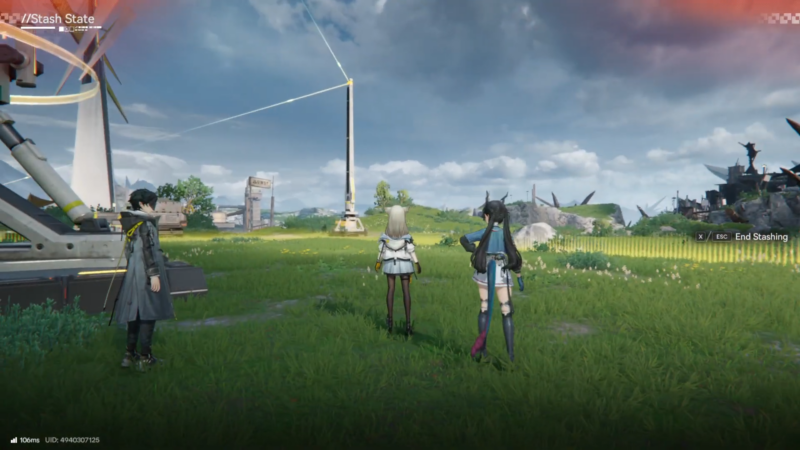
PC (most common setup)
- Press X to enter Stash Mode (on default settings).
If X doesn’t work, the most likely reasons are:
- The keybind was changed in the controls menu.
- The game is currently in a context where AIC functions aren’t active (for example, not in the right mode or interface layer).
- Another UI screen is open that blocks mode switching.
Controller (general expectations)
Controller mappings can vary depending on the platform and the current control scheme. When using a controller, Stash Mode is typically accessed through an AIC-related mode selection, shortcut, or function grouping rather than a single obvious “inventory” button. If it feels inconsistent, it’s worth checking the in-game controller layout screen and looking specifically for AIC functions.
How to enter Stash Mode smoothly
Step 1: Get into the right context first
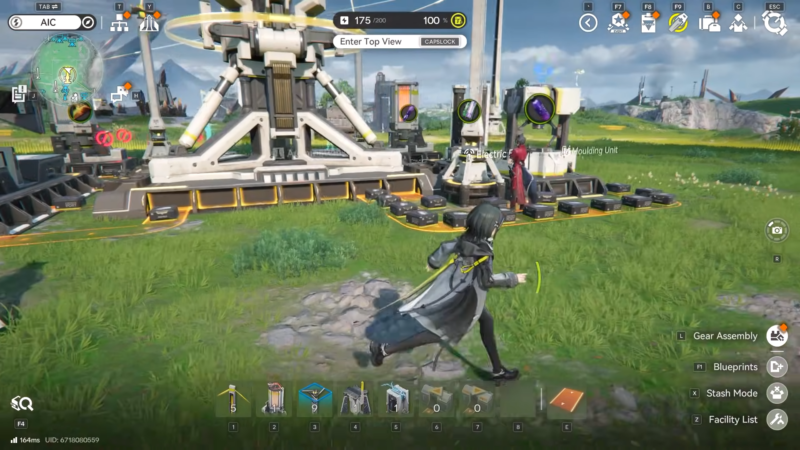
Image credit: Hypergryph / Via: YouTube – Sadeqe Mac
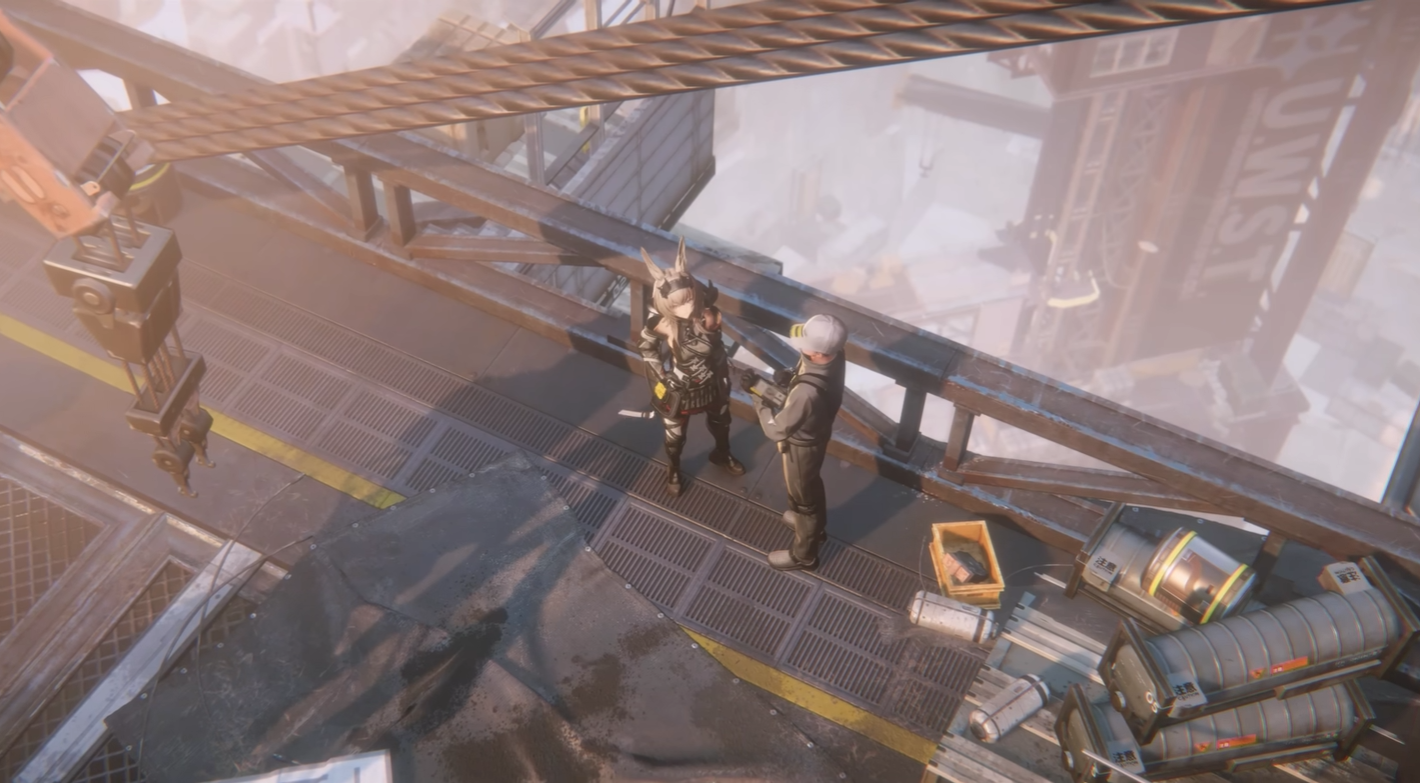
Stash Mode is closely tied to AIC/base-style interactions. If the character is in a state where AIC tools are unavailable, the shortcut may do nothing. Before troubleshooting anything else, return to a base/building workflow where AIC tools are normally used.
Step 2: Try the default shortcut
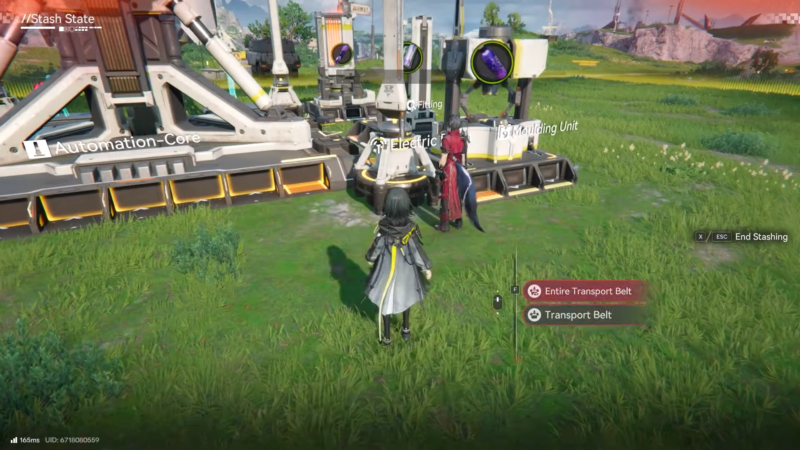
Image credit: Hypergryph / Via: YouTube – Sadeqe Mac
On PC, press X. If it opens, that confirms the binding is still default and the current context is correct.
Step 3: Verify the keybind in settings
Open the controls/keybinds menu and search for “Stash Mode” under AIC-related actions. If it’s assigned to something other than X, switch it back to a comfortable key or reassign it to avoid conflicts with other actions.
Step 4: Avoid UI conflicts
If another menu or overlay is open, close it and try again. Many games prevent mode switches while certain screens are active, even if it’s not obvious at first.
Step 5: Test it in a calm area
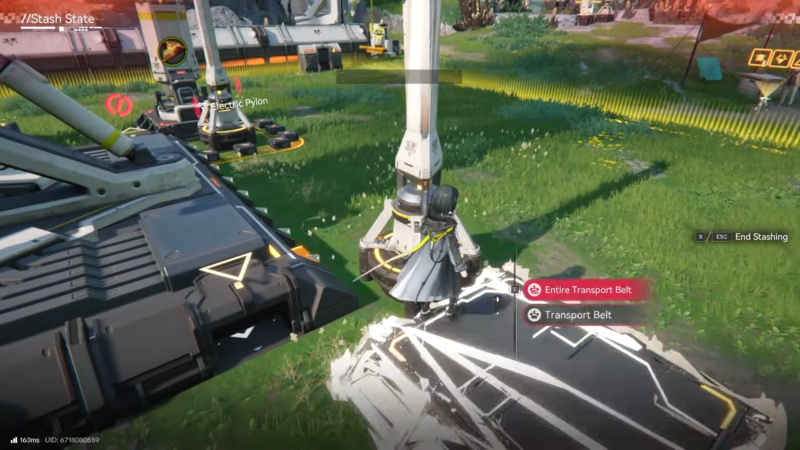
Image credit: Hypergryph / Via: YouTube – Sadeqe Mac
If the game allows mode changes more freely in a base area than in combat/exploration, test Stash Mode in the base context first. Once it works there, it’s easier to understand when it’s intentionally restricted elsewhere.
Stash organization tips that keep the backpack useful
A stash is only as helpful as the habits behind it. These approaches tend to make Stash Mode feel like a time-saver instead of another screen to manage:
- Store by purpose: building materials and long-term crafting items go to stash; frequently used consumables and mission-critical gear stay in the backpack.
- Create a “ready kit”: keep a consistent set of items always carried (heals, utility, a small set of core materials if needed), and stash everything else.
- Reduce duplicates: if an item isn’t used often, stash extra stacks to keep carry space flexible.
- Do quick cleanup regularly: stash management feels easiest when done often in small batches rather than after the backpack becomes completely overloaded.
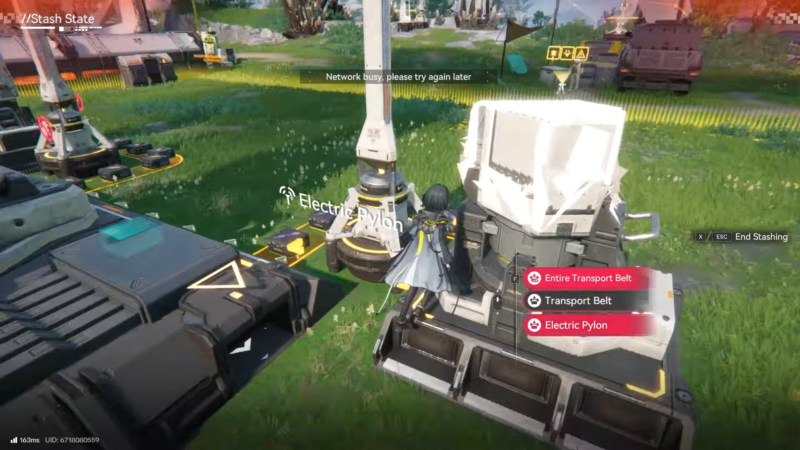
Making Stash Mode work every time
Stash Mode is meant to be a fast storage workflow, especially for base/AIC play. When it doesn’t open, the fix is usually simple: return to the right AIC context, confirm the current keybind, and retry without any conflicting UI screens open.