- What to know
- Team setup in Arknights Endfield
- When you should change your team setup
- How to change team setup in Arknights Endfield
- Understanding the Team Assembly screen in Arknights Endfield
- How operator roles affect team composition
- Common mistakes when changing teams in Arknights Endfield
- Can you change teams during missions?
- How often should you update your team in Arknights Endfield?
- Team experimentation and learning
- Controller and interface accessibility in Arknights Endfield
- How team setup supports Endfield’s design philosophy
- Building the right team in Arknights Endfield
What to know
- Team changes are done through the main menu, not in combat
- The Team Assembly screen controls your active squad
- Operators can be swapped freely from your roster
- Changes are saved immediately when you exit the menu
In Arknights: Endfield, your team composition directly affects how smoothly you progress through exploration, combat encounters, and story missions. Unlike traditional mission-based RPGs where squads are locked once deployed, Endfield gives you flexibility—provided you know where to look.
The team setup system is intentionally straightforward, but it’s tucked behind a menu structure that new players can easily overlook. Whether you need more survivability, better damage output, or a specific operator ability, learning how to change your team efficiently saves time and frustration.
This guide breaks down exactly how to change your team setup, explains what each screen does, and offers practical advice on when and why you should swap operators.
Team setup in Arknights Endfield
| Element | Description |
|---|---|
| Access point | Main in-game menu |
| Customization screen | Team Assembly |
| Editable slots | Active operators only |
| Restrictions | Cannot change during combat |
| Save method | Automatic on exit |
When you should change your team setup
You won’t need to adjust your squad constantly, but certain situations strongly encourage it.
You may want to change your team when:
- Entering a new biome with unfamiliar enemies
- Preparing for a story mission with specific mechanics
- Switching from exploration to combat-heavy objectives
- Testing newly unlocked operators
Endfield’s design assumes you’ll experiment. There’s no penalty for swapping operators, and the system is built to support frequent adjustments.
How to change team setup in Arknights Endfield
Changing your team follows a consistent, menu-based flow. Each step is simple, but skipping or misclicking can cause confusion if you’re unfamiliar with the interface.
While in the overworld, locate the Hub menu icon in the top-right corner of the screen. It’s represented by a circular button. You can press it by “esc.”
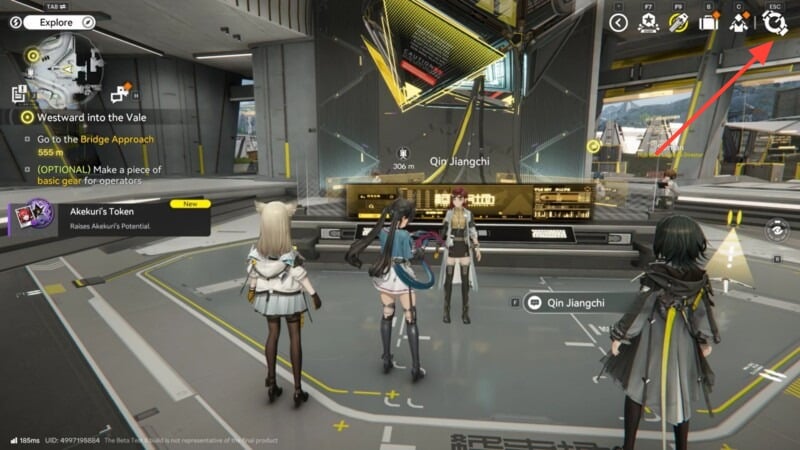
Select it to open the main menu overlay. This pauses active gameplay and gives you access to all management systems.
Step 2: Select the Team Assembly option
Inside the menu, look for Team Assembly. This option is dedicated entirely to squad management and operator selection.
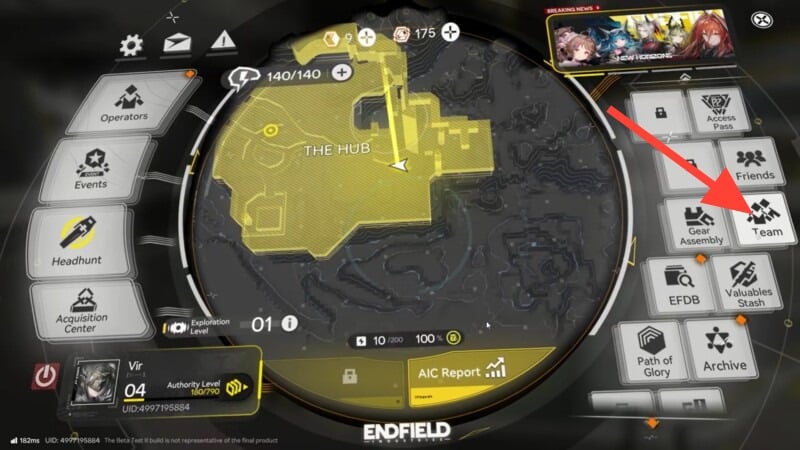
Selecting it takes you to the team overview screen, where your current active squad is displayed.
Step 3: Enter the Edit Team screen
At the bottom of the Team Assembly screen, you’ll see the Edit Team button.
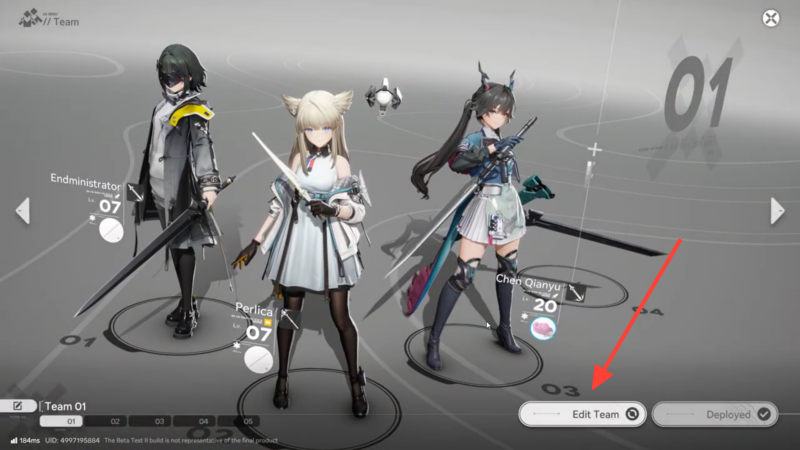
Select this to unlock editing controls. Until you press Edit Team, your squad is shown in read-only mode, which often confuses new players.
Step 4: Remove an existing operator
To replace an operator, click on the character you want to remove from your active squad.
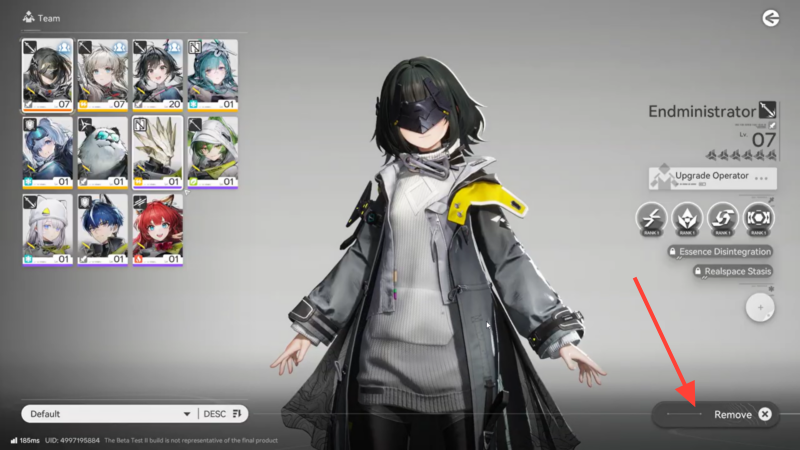
This doesn’t delete or dismiss them permanently—it simply clears their slot so you can assign someone else.
You can repeat this for multiple operators if you want to rebuild the entire team.
Step 5: Select a new operator from your roster
After removing an operator, your full roster becomes available.
Browse through your unlocked operators and select the one you want to add. Once selected, click Add to Team to assign them to the open slot.
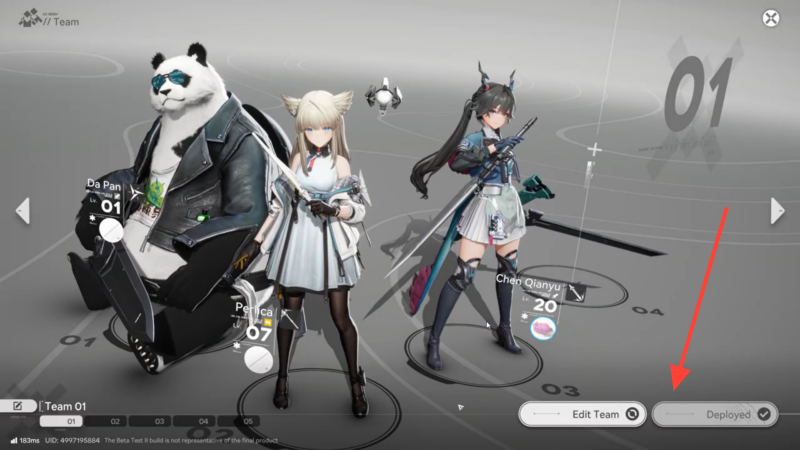
This process can be repeated until all desired slots are filled.
Step 6: Confirm changes and exit
Once your team looks the way you want, press the back button to exit the Team Assembly screen.
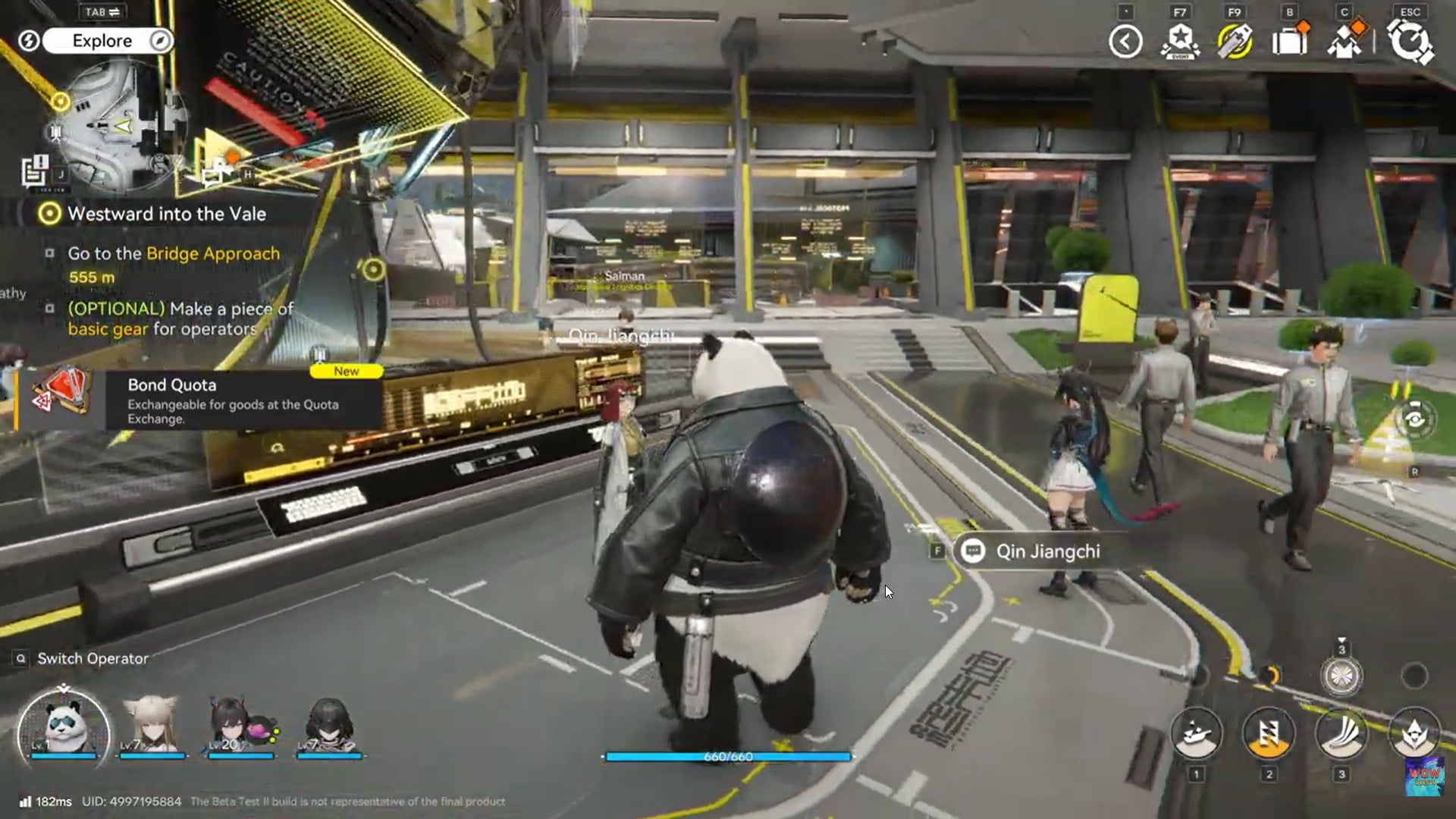
There is no separate “save” prompt. Your changes are applied automatically as soon as you leave the menu and return to gameplay.
Understanding the Team Assembly screen in Arknights Endfield
The Team Assembly interface is designed to show critical information at a glance.
Here’s what you’ll typically see:
- Current active operators
- Empty or locked slots (if applicable)
- Operator portraits and basic stats
- Edit and navigation controls
This screen acts as your control hub for squad customization, so it’s worth spending time familiarizing yourself with its layout.
How operator roles affect team composition
Although Endfield allows free-form team building, operator roles still matter.
Different operators excel at different tasks, such as:
- Frontline durability
- Ranged damage
- Area control
- Support and utility
Swapping operators isn’t just about power—it’s about synergy. A well-balanced team performs more consistently than a group of strong but overlapping roles.
Common mistakes when changing teams in Arknights Endfield
Even though the process is simple, a few mistakes are common among new players.
Forgetting to enter Edit Team mode
Many players open Team Assembly and assume they can swap operators immediately. If you don’t press Edit Team, nothing can be changed.
Leaving slots empty unintentionally
If you remove an operator and exit without adding a replacement, you may return to gameplay with fewer active members than intended.
Ignoring operator compatibility
While experimentation is encouraged, ignoring role balance can make encounters harder than necessary.
Can you change teams during missions?
Team changes are not available during active combat. However, you can usually change your team:
- Before starting a mission
- After completing objectives
- While freely exploring the overworld
If you anticipate difficulty, it’s best to adjust your team beforehand rather than relying on mid-mission changes.
How often should you update your team in Arknights Endfield?
There’s no fixed rule, but a good habit is to reassess your team when:
- You unlock a new operator
- Enemy types change significantly
- Your current setup feels inefficient
Endfield rewards adaptability, and the ease of the Team Assembly system supports that philosophy.
Team experimentation and learning
One of Endfield’s strengths is how safe it makes experimentation.
Because team changes are reversible and cost-free:
- You can test operators without commitment
- You can learn strengths through real gameplay
- You can tailor squads to personal playstyle
Don’t hesitate to try unconventional combinations—you’re rarely punished for curiosity.
Controller and interface accessibility in Arknights Endfield
The team setup system is optimized for controller navigation, with clear button prompts and simple transitions between screens.
Even if you’re new to console-style menus, the process becomes intuitive after a few uses.
How team setup supports Endfield’s design philosophy
Endfield emphasizes player agency. Team Assembly is a reflection of that philosophy—it gives you tools without forcing decisions.
You’re never locked into early mistakes, and progression doesn’t hinge on perfect optimization. Instead, the system supports learning through adjustment.
Building the right team in Arknights Endfield
Changing your team setup in Arknights: Endfield is quick, flexible, and intentionally forgiving. By using the Team Assembly menu effectively, you can respond to new challenges, experiment with operators, and refine your playstyle without unnecessary friction.
Once you’re familiar with the menu flow—open menu, Team Assembly, Edit Team, swap operators, exit—it becomes second nature. From there, team management stops being a chore and starts becoming part of the strategy.
We hope this changing team setup guide for Arknights: Endfield offered all the clarity you were looking for and made your experience smoother. If you have any feedback, suggestions, or questions, drop them in the comments below. We actively read and respond, so feel free to reach out whenever you need extra help or guidance.