What to know
- You can refine parts of a ChatGPT response without rewriting the entire prompt
- Editing your own prompts regenerates improved answers instantly
- Custom instructions help standardize tone and formatting across chats
- These tools reduce copy-paste work and speed up iteration
OpenAI recently rolled out an update to ChatGPT that lets users highlight parts of an AI-generated response and ask for specific edits rather than rewriting the whole prompt or asking a new question. This makes it easier to refine answers or correct minor issues on the fly.
This feature is part of a broader suite of customization options, including the ability to adjust ChatGPT’s tone, personality traits, and formatting styles through the Personalization menu.
Inline editing brings document-style control to ChatGPT
With the new update, ChatGPT responses are no longer static blocks of text. Users can now directly interact with generated answers and refine them just like they would in a regular editor. Instead of copying text into Google Docs or Word for small changes, edits can now happen instantly inside the chat itself.
This is especially useful for quick corrections. If ChatGPT generates an email, report, or essay, users can simply click into the text, change names or dates, adjust wording, and continue working without starting over.
The feature is designed to reduce friction and make AI interactions feel more natural and collaborative.
How to edit ChatGPT answers directly in the chat
When ChatGPT formats a response as an email, it adds email-specific controls at the top. These tools let you move from draft to inbox without breaking your workflow or opening a separate editor.
Step 1: Generate the email draft
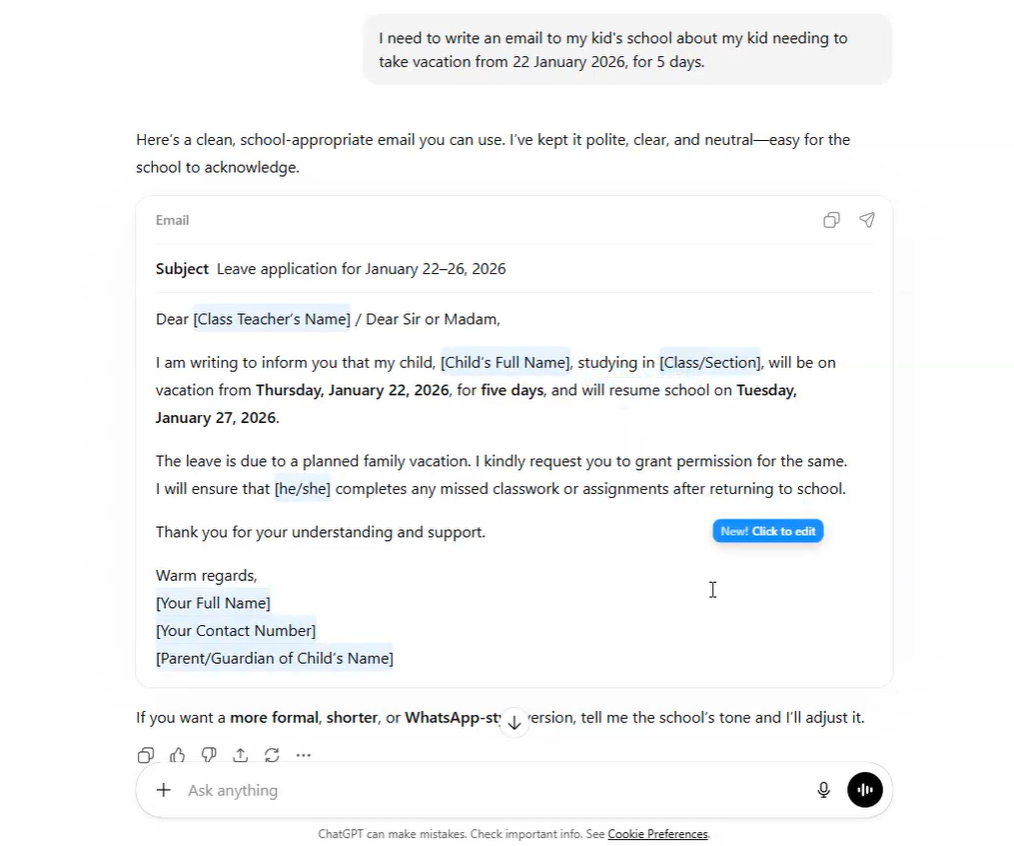
Ask ChatGPT to write an email (for example, a school leave application). The response will appear in a clean email-style layout with subject and body clearly separated.
Step 2: Edit text inline
Click directly into the email body text:
- Replace names, dates, or details
- Fix grammar or phrasing
- Adjust tone (more formal or simpler)
You don’t need to ask ChatGPT again unless you want a rewritten version.
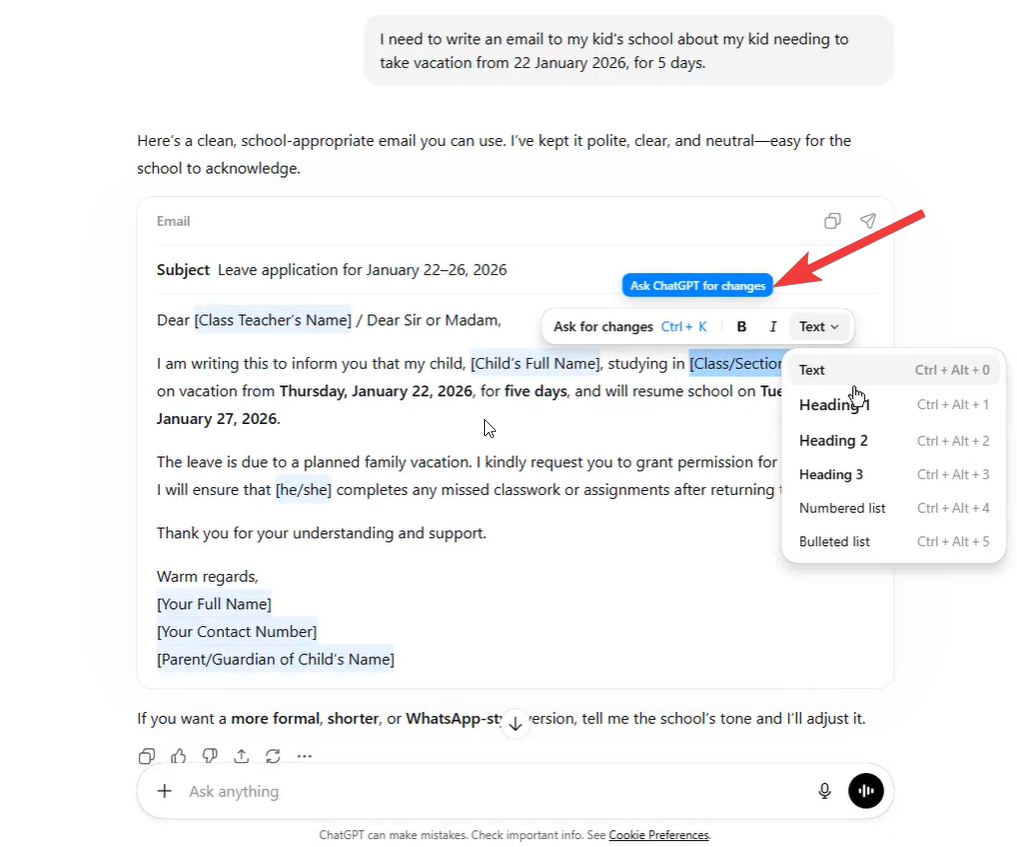
Step 3: Ask for targeted refinements (optional)
If you want AI help refining it:
- “Make this more polite”
- “Shorten the email”
- “Rewrite the last paragraph more formally”
ChatGPT updates the email instantly.
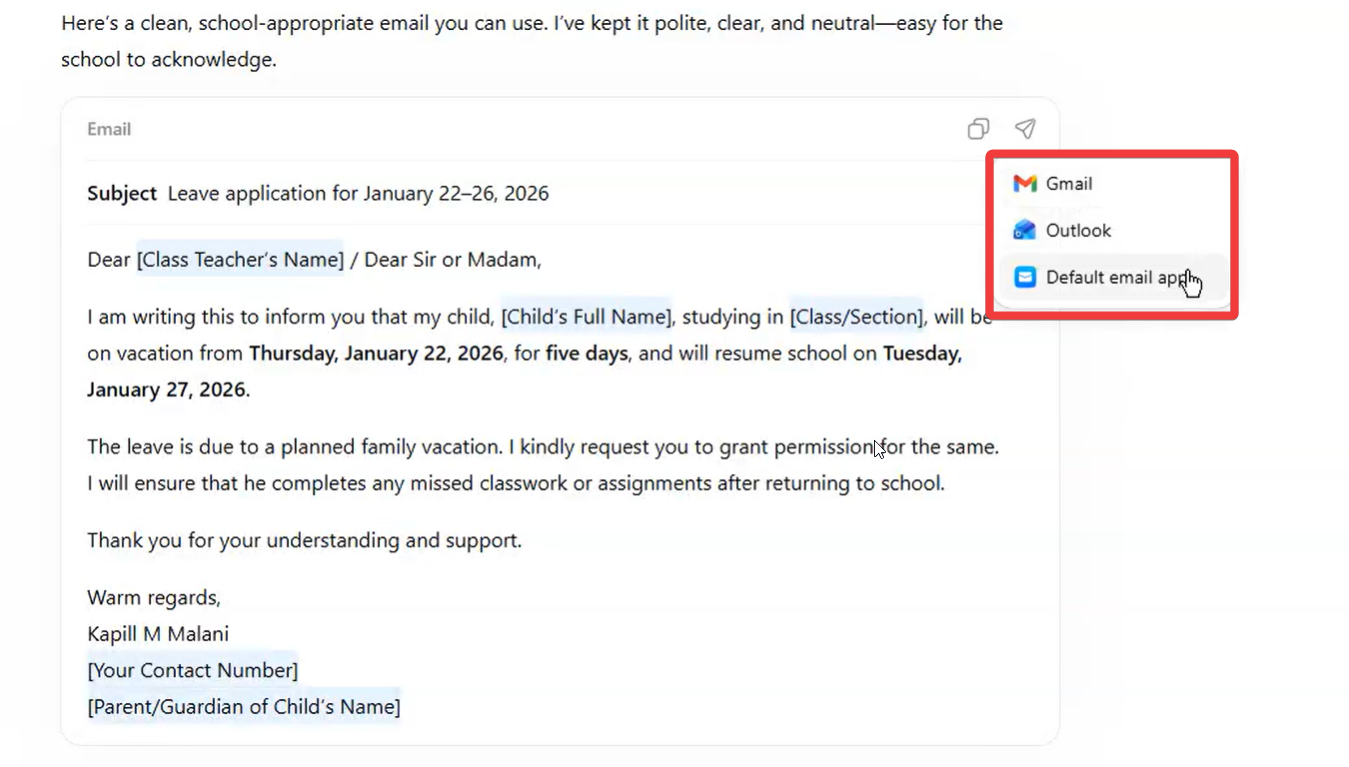
Click the paper-plane icon at the top-right of the email block.
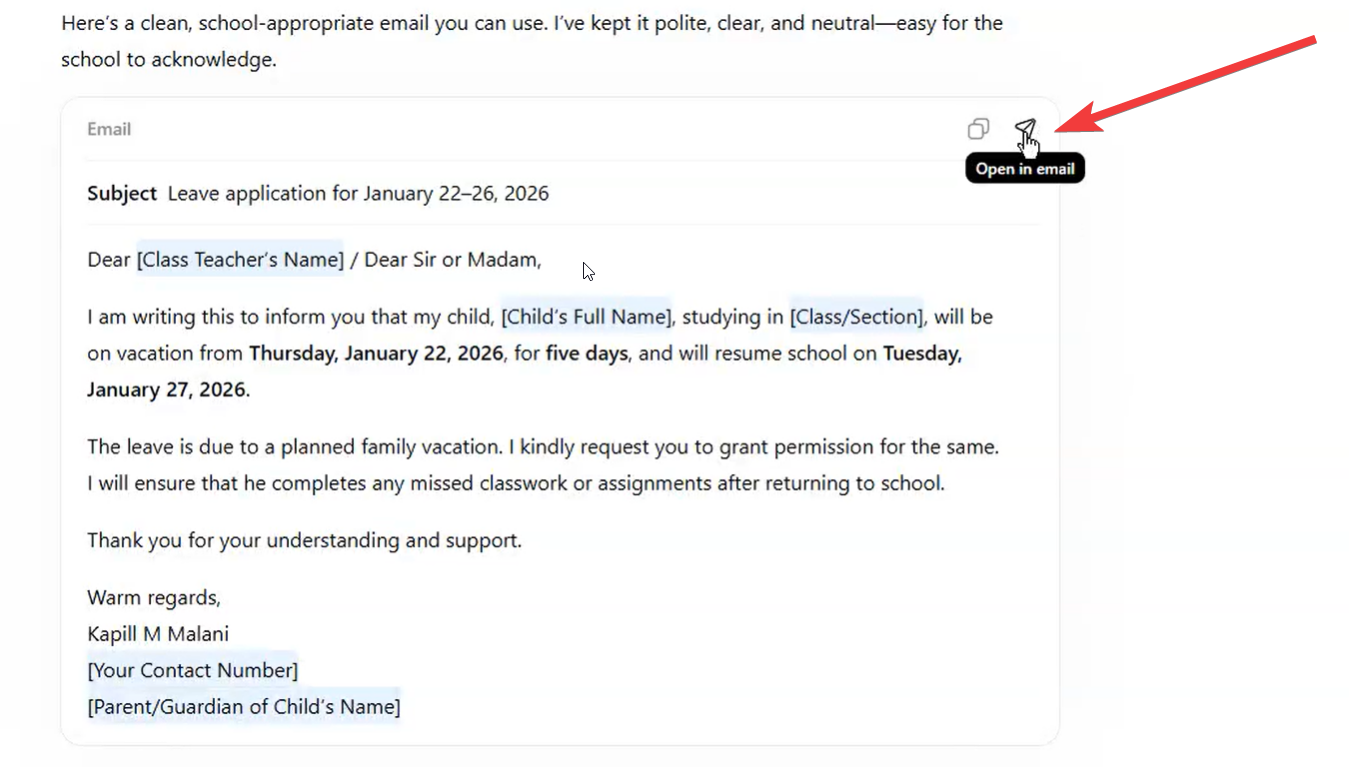
You’ll see options like:
- Gmail
- Outlook
- Default email app
Selecting one opens your email client with:
- Subject pre-filled
- Body text inserted
- Formatting preserved
You only need to add the recipient and send.
Editing possibilities in ChatGPT Responses
You can edit the text, add information, and ask for changes from ChatGPT. These edits can include:
- Heading changes (H1, H2, H3… etc)
- List formats
- Bold/Italics/Underline
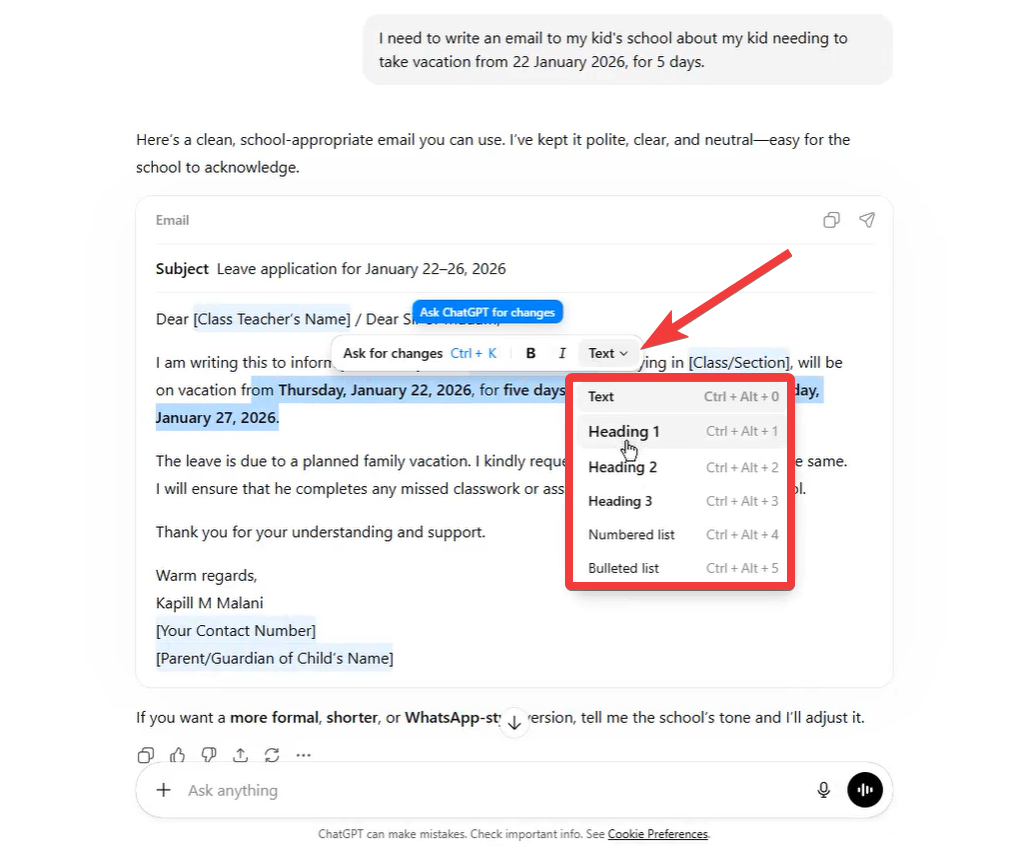
Instead of generating a completely new response every time, you can now treat ChatGPT output almost like a collaborative document editor.
This is especially useful when you’re working on long pieces of content such as:
- Blog posts
- Cover letters
- Reports
- Assignments
- Marketing copy
- Social media captions
Personalization features enhance the experience
Alongside inline editing, ChatGPT’s Custom Instructions system allows users to standardize how the AI responds. Preferences for tone, length, and formatting can now be saved globally.
For instance, users can set instructions like:
- “Always write in a professional tone”
- “Keep responses under 200 words”
- “Use bullet points whenever possible”
Once configured, ChatGPT automatically follows these guidelines in future conversations, reducing the need for repeated prompts.
Why this update matters
Previously, refining AI-generated content was a slow and repetitive process. Users had to rewrite prompts, explain what needed changing, and regenerate answers multiple times.
The new editing tools solve that problem by letting users fine-tune responses instantly and intuitively. It makes ChatGPT more practical for real-world tasks such as writing emails, preparing documents, or polishing creative work.
Limitations to keep in mind
While the feature is powerful, it does have boundaries. Large structural changes may still require a fresh prompt, and complex rewrites can sometimes work better when explained in detail.
The tool is best suited for targeted improvements rather than major overhauls. Users should also continue to manually review AI-generated content for accuracy.
The bigger picture
OpenAI’s latest update signals a shift in how AI tools are meant to be used. Instead of treating ChatGPT as a one-shot answer machine, the platform is evolving into a collaborative writing assistant.
By adding document-style editing and smarter customization options, OpenAI is making ChatGPT more practical for students, professionals, and everyday users alike.
As these tools continue to improve, AI-generated content is becoming easier to refine, personalize, and integrate into real workflows.